
Performance #
This tab is available to all users of Contact Point, Path or Pro and provides the full complement of View My Performance data. Four graphs are available to the user as follows:
- Where are my Callers
- What are my call trends
- How many Customer calls are getting through
- When are my busy hours
The data is available on a per number or all numbers basis and is refreshed every five minutes for daily data, in addition to providing historic data for the previous six days. Call trend data is updated on a monthly basis to display the previous six months call data (where applicable). The graph data can be downloaded in .csv file format.
Performance Access Restrictions #

Performance Description #
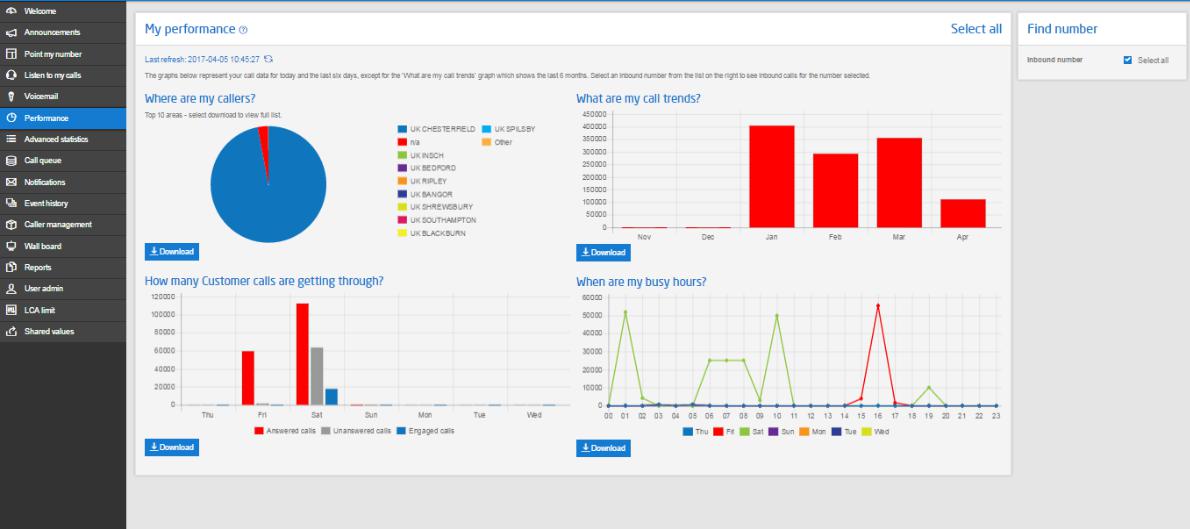
The My performance tab allows you to view in graphical form four key aspects of your company call handling performance. These are
- Where calls originated.
The “Where are my callers” graph shows the top ten area codes that have been calling the Inbound number(s).
- The graph is based on the answered calls only.
- The data is for the current day and the previous 6 days on a continuous rolling basis.
- The graph is updated approximately every ten minutes
- Call trends over the past 6 months.
The “What are my call trends” graph shows calls received in each of the past 6 month.
- The graph is updated at the end of each month.
- The graph is based on answered calls only.
- Analysis of calls getting through, being abandoned or hitting busy lines.
The “How many customer calls are getting through” graph shows an analysis of the call outcomes experienced by callers.
- The graph shows data for the current days and the previous six days on a continuous rolling basis.
- The graph is updated approximately every ten minutes.
- Analysis of calls by time of day to see when the busiest times are.
The “When are my busy hours” graph shows an analysis of calls by hour of the day based on the cumulative data for the current day and the previous 6 days on a continuous rolling basis.
- The graph is based on answered calls only.
- The graph is updated approximately every ten minutes.
The download data button allows you to download the raw data used to create the graphs into a suitable application such as Excel. Only the data used to create the particular graph is included in the download.
Advanced Statistics #
The Advanced Statistics tab is available to those users subscribing to this feature as an additional service in conjunction with Contact Point, Path or Pro. A comprehensive search filter is provided to enable the user to search for data with the following criteria:
- Inbound number (the Inbound number being dialled by the caller)
- Calling number (the Caller’s CLI where applicable – where this is withheld by the caller partial CLI of the first eight digits including leading zero will be displayed)
- Destination number (the number of the telephone number on which the call is actually being answered as defined in Point my Number)
- Time/date of call
- Call duration
- Unique callers only search option
- Call outcome: engaged/answered/unanswered/abandoned
- Calls answered by voicemail/announcement
Search results are displayed in table format and list key call information including agent time to answer (ring time) and total time to answer (ring time + wait time) where applicable. Data can be downloaded in .csv file format for local manipulation and historic data is stored online for a maximum of six months after which it will be automatically deleted.
Advanced Statistics Access Restrictions #
Customer | Must have subscribed to the Advanced statistics add on product | |
User | Must have Advanced Statistics permission enabled |
Advanced Statistics Description #
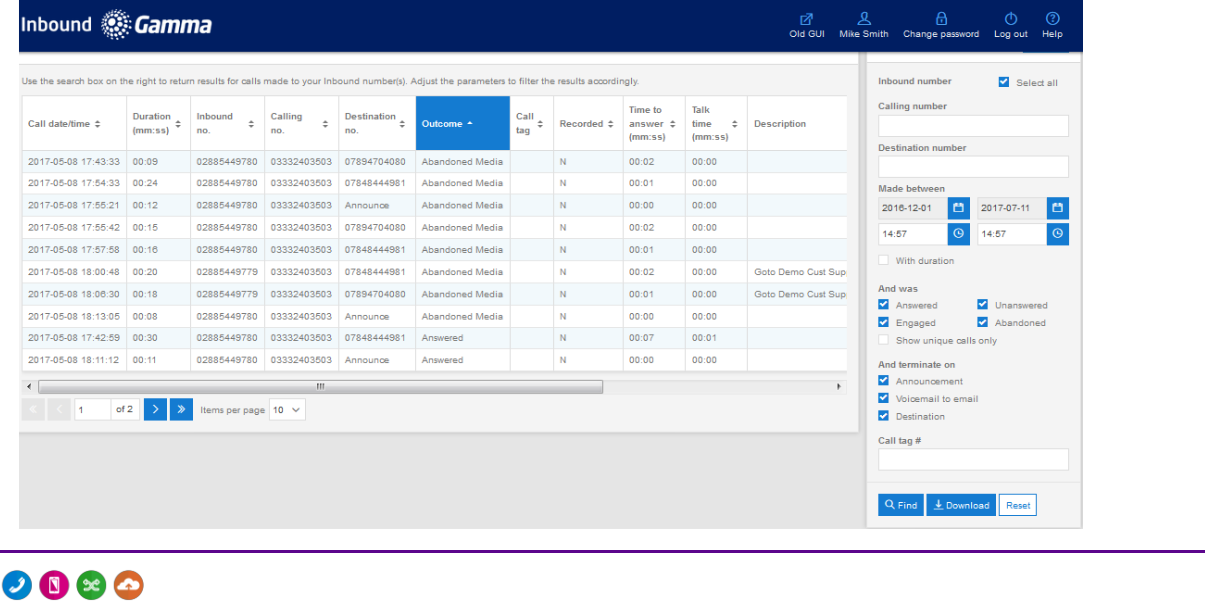
The Advanced Statistics tab allows you to view the details of all incoming calls, download the details and carry out sophisticated filtering to prepare data for analysis.
Six months’ worth of data will be held in the system for analysis.
The data is updated every few minutes.
Time to Answer #
The time to answer column may show two values depending on which product the company has subscribed to. All subscribers will see the basic value which is the length of time the caller hears a ring tone before the call is answered. This value is given as a duration in seconds.
Subscribers of Contact pro will see a second value in brackets. This value is the total time a call was handled by the system. This is made up of: time held in a queue plus time going through IVR plus time the caller heard a ring tone after being routed. This duration is given in seconds.
View my calls #
The view my calls area of the tab presents the results of the call selection criteria.
Call details can be sorted in ascending or descending order based on any of the column headings. For example, to sort the calls in ascending order based on the call duration simply click on the call duration title at the top of the call list. Each subsequent click of the heading will toggle the order between ascending and descending.
Click on the download button, select criteria and download the call data into a suitable analysis tool such as Excel.
Find this call #
The find this call area on the right hand side can be used to filter the call detail to report on areas of specific interest. Calls can be filtered by:
- Inbound number
- Calling party number
- Final destination
- Date and time range
- Duration
- Outcome (answered, not answered, abandoned, engaged, terminated to announcement, terminated to voicemail)
- Custom field values (as part of the multiple number selection)
Call Queue #
The call queue page is available to users subscribing to Contact Pro and is relevant to those utilising the call queuing feature within this Product. Where applicable, and where there is an active call queue in place, this page will display key statistics relating to the call queue, including abandoned /overflowed and queued calls. An automatic screen refresh is applied every 3 seconds, which makes this an ideal facility for wallboard projection in a contact centre and provides supervisors with the information they need to make informed decisions, thus improving Customer Service.
Call Queue Statistics Access Restrictions #

Call Queue Statistics Description #
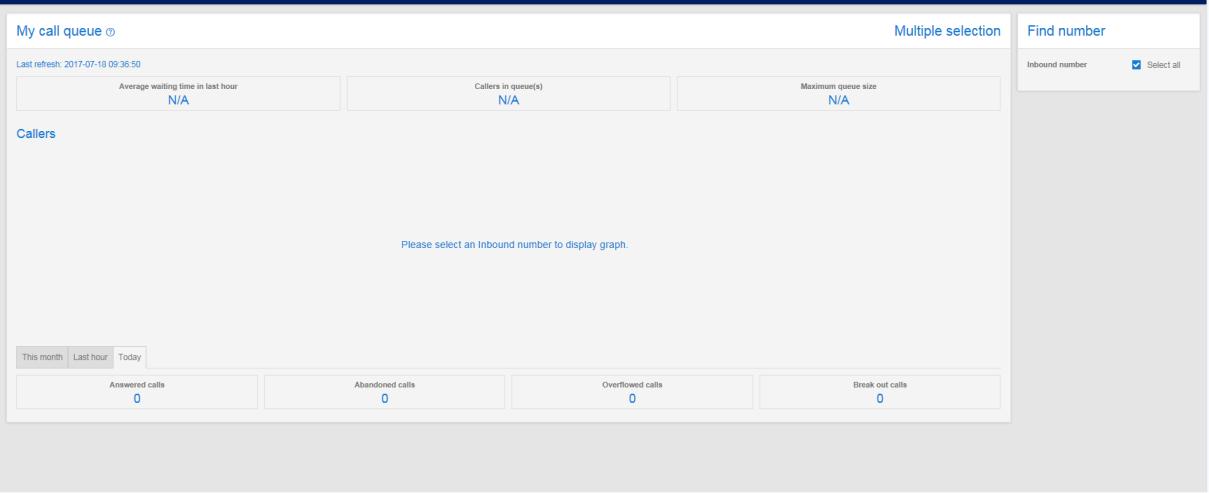
The Call Queue tab enables you to view the performance of your call queues in near real-time. This enables call centre managers to see exactly how many people are waiting in the queue to be answered along with key measures of performance including:
- Average wait time
- Target wait time
- Number of callers in the queue
- Maximum queue size that is allowed
Toward the bottom of the tab you can view the key outcome statistics for today, the previous hour or for the past month.
On the right hand side of the screen there is a dropdown list of your numbers. You can click on any one of these to display the statistics for that number.
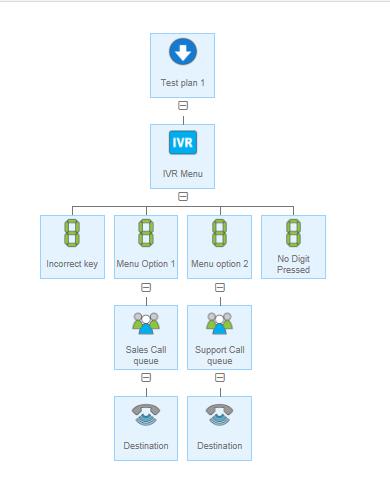
Where you have an Inbound number with multiple Call queue controls defined the Queue statistics page will show the statistics for the aggregate across all the queues in the Inbound call plan for that number. For example, the plan below has two Call queue controls present. The statistics will therefore reflect the aggregate state of both of these queues.
Call Queue Statistics Input Fields and Buttons #

Inbound Reports #
Inbound Reports is an additional feature that can be subscribed to per account and charged on a monthly basis. This feature enables an end user of myInbound.com to configure automatically generated email reports on a daily/ weekly/ monthly and summary basis, providing the call statistics across their Inbound numbers.
Access to the set up process will be via a new tab titled ‘Reports’ which the channel partner or customer can make visible via the Gamma portal. It will be up to the end user to manage the storage of email generated reports. On the reports tab the administrator is presented with a number of options:
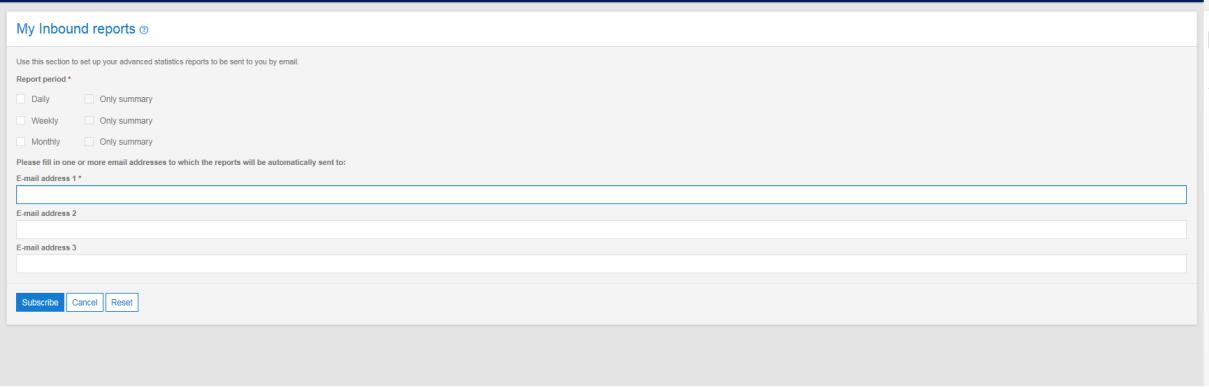
The format of the daily, weekly and monthly reports will be exactly the same is if the user had downloaded their advanced statistics information into a csv file from the MyInbound portal.
The format of the summary report will show the following information in table format:
- Inbound number
- Description
- Total Calls
- Answered
- Unanswered
- Engaged
- Abandoned
- Minutes generated
- Average duration (minutes)
- Average time to answer (only if the call terminated in a proper destination number, not in IVR, announcement etc.)
A final sum of the relevant values (In the first column the total count of the numbers).
Definitions of terms #
Average talk Time = average duration of the actual talk time excluding IVR, announcements, call queue etc.
Average duration = is always those greater than 0 secs. Those calls which didn’t get to a destination or voicemail will not appear as they will have no talk time
Time to answer = actual ringing time (no ivr, announcements etc. included ) time to answer is stored in ms therefore we round up to the nearest second. The time to answer includes any ringing time if the call has been diverted. For example if there is a divert in the call plan and it rang for 10 seconds on the first destination and then rang for 4 seconds on the second it counts as 14 seconds in the time to answer column.
Minutes generated = sum of all talk time
Answered, unanswered, engaged, abandoned = these terms refer to what the platform has ‘experienced’ and not what the caller or receiver has experienced – e.g. abandoned cannot mean that the receiver of a call has put the phone down as the platform will see that call as ‘answered’.
Provisioning of the push email reports is undertaken on the Gamma portal as a reseller would do for advanced statistics.
Please note that if an end user unsubscribes from the push reports on the myInbound portal it will not automatically unsubscribe them from the service and therefore they will continue to be billed on a monthly basis.