
First Access to Inbound #
Please note when your users are created they will be emailed a username & password. The password is a temporary password and will only be valid for 60 minutes.
- If the user logs into their account within 60 minutes, they will be required to change the temporary password to once of their choosing.
- If the user does not log in within 60 minutes, they will need to reset their password.
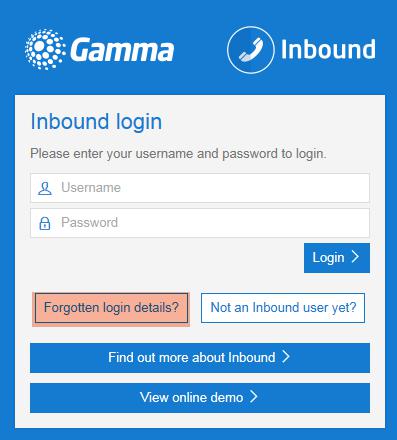
‘Forgotten Login Details’ option on the Inbound portal. A new password will then be sent to the users email address and they will be able to reset their temporary password.
- Once reset the user will still need to change the password to one of their choosing.
Access to Inbound with MFA Enabled #
Please note screenshots show SIP Trunk Call Manager but the process is identical
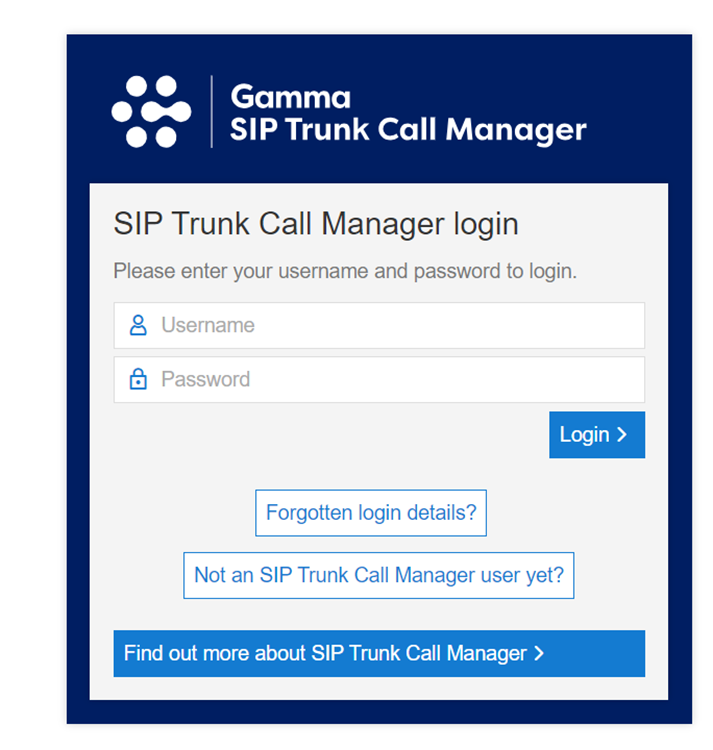
- Enter your Inbound credentials to log in.
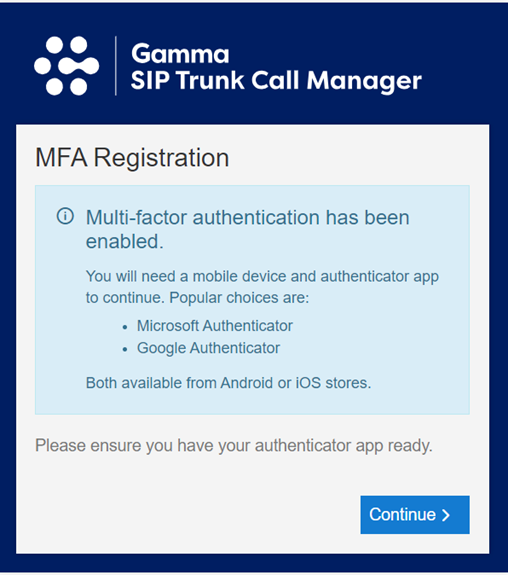
- When logging in you will be prompted to use MFA.
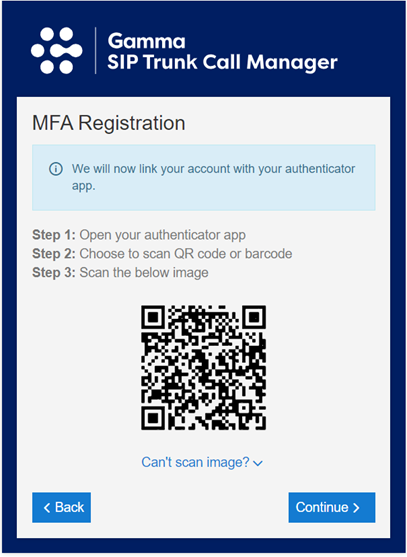
- Scan the following QR code in to your authenticator app and you will receive the One Time Passcode to log in.
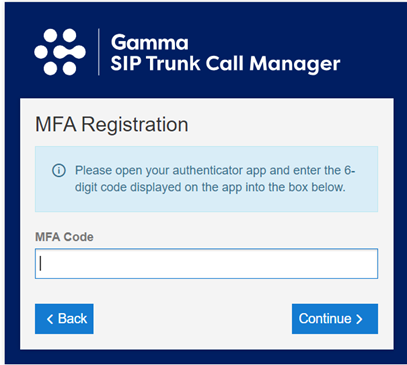
- Enter the code you receive in to the relevant box and click Continue in order to complete your login.
Password Management – Forgotten Passwords #
If a user forgets their password, they can again reset it using the same process as described above. The user again will again be sent a temporary password, and will need to create their chosen password once reset.
Password Management – Changing Your Password #
A user can change their password at any time once logged into the Inbound portal (top right of the screen). Administrators cannot reset or change a user’s password.

MFA Management – Enable MFA (Self Service) #
Please note screenshots show SIP Trunk Call Manager but the process is identical
- Log in to Inbound using your credentials.
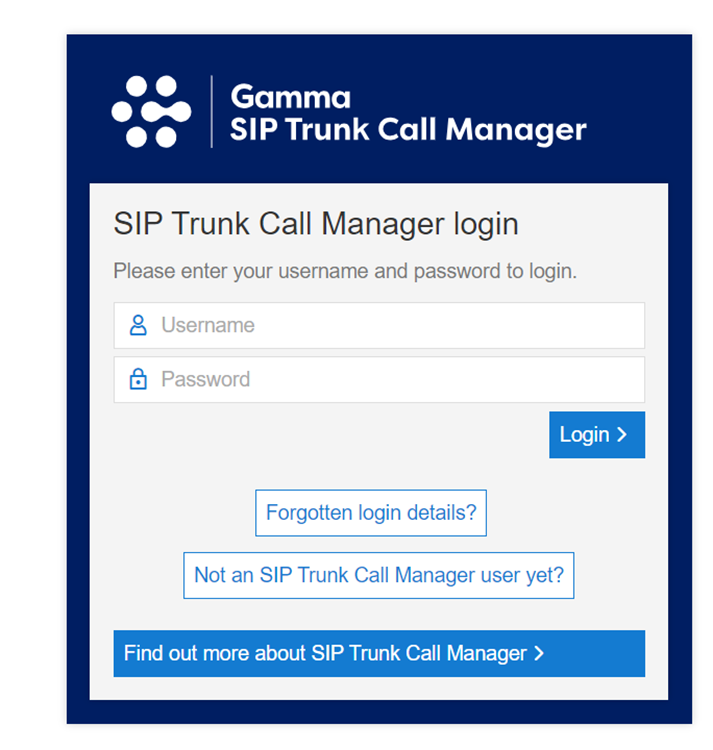
- Provided you have the relevant credentials, select My MFA at the top right of the screen.
- A pop up will appear. Check the box for Enable Multi-Factor Authentication (MFA) in order to enable MFA for yourself.
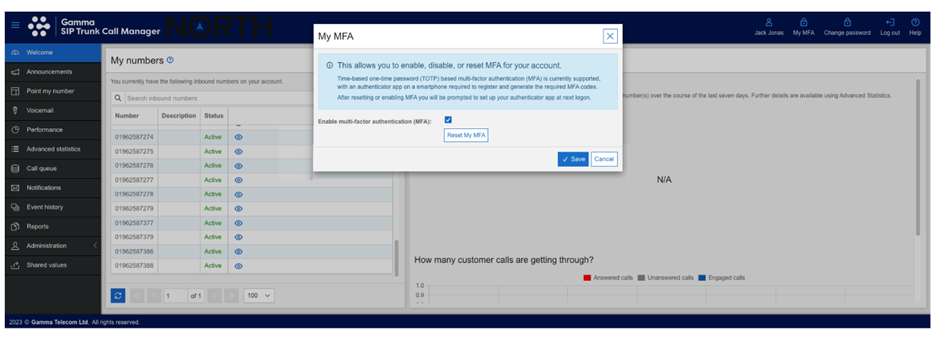
- Click Save to finish the action.
MFA Management – Reset MFA #
Please note screenshots show SIP Trunk Call Manager but the process is identical
- Log in to Inbound using your credentials
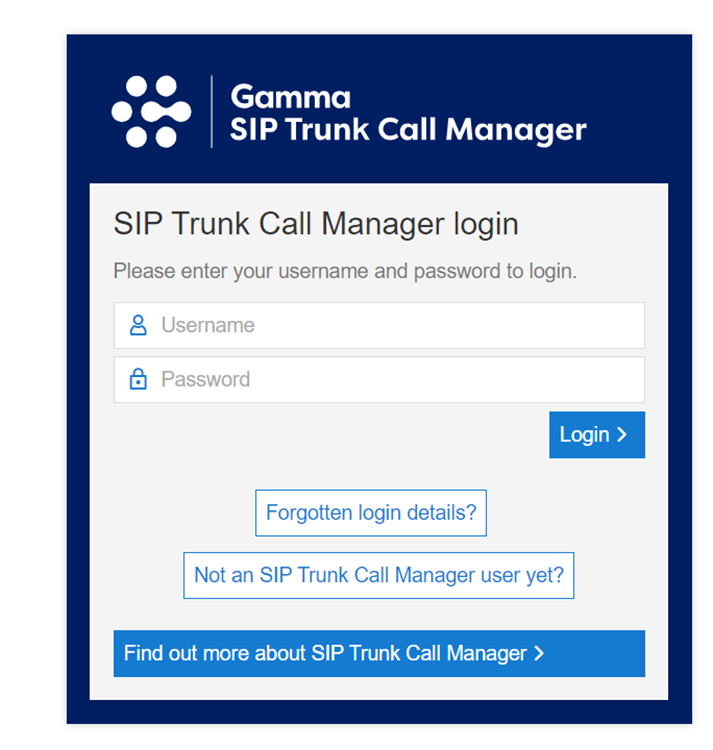
- Provided the user has the relevant credentials, select My MFA on the top right of the screen.
- A pop-up will appear, from here select Reset MFA. This will mean that you have to reregister and activate your MFA credentials. This could be used in the situation where you have lost your phone, as an example.
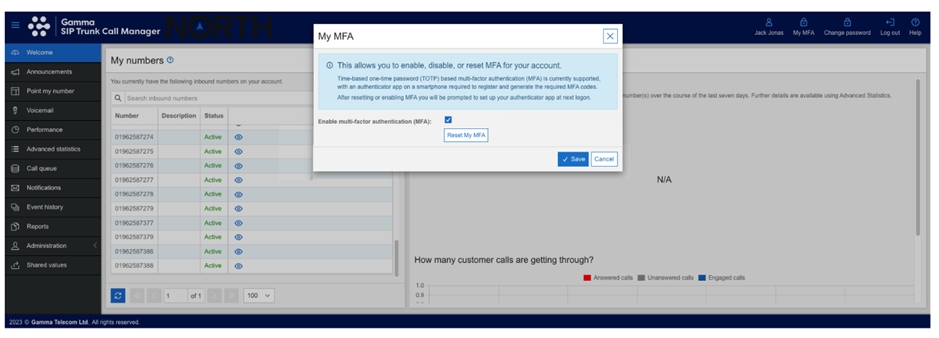
- Click Save to finish the action.
MFA Management – Disable MFA (Self Service) #
Please note screenshots show SIP Trunk Call Manager but the process is identical
- Log in to Inbound using your credentials.
- Provided you have the relevant credentials, select My MFA from the top right of the screen.
- A pop-up will appear. Uncheck the box for Enable Multi-Factor Authentication (MFA) in order to disable MFA for yourself.
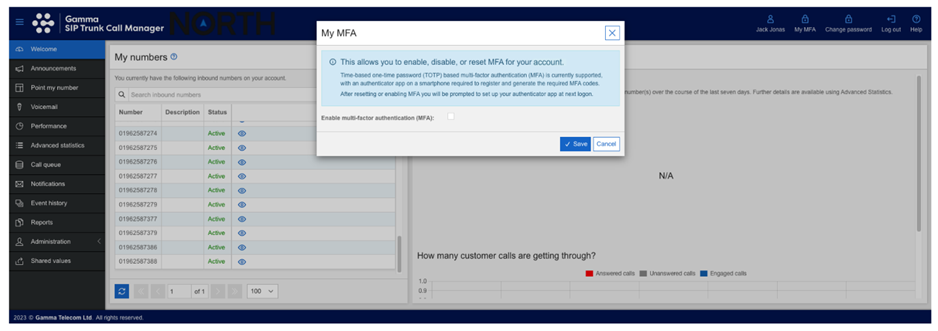
- Click Save to finish the action.
