Skip to content
  • Academy KB Home Redesign
  • Broadband Home
  • CCaaS
  • Channel Partner Support
  • Circle Loop Home
  • Collaborate
  • Connectivity
  • Courses
  • Documentation
  • Ethernet
  • FibreXchange
  • FUSION IoT
  • Gamma AI Concierge
  • Gamma Plus
  • Gamma SIP for Cloud Connect
  • Gamma SIP for Cloud Connect
  • Gamma SIP for Genesys Cloud
  • Gamma SIP Global Communications Enablement
  • Gamma SIP Trunks for Genesys Cloud
  • Hannah – Homepage WIP
  • Home
  • Horizon
  • Horizon Contact
  • Horizon Forms
  • Horizon Service Description Home
  • Horizon with Webex
  • Inbound
  • iPECS
  • Knowledge Base Intro
  • Knowledgebase Directory
  • LoginPress
  • Microsoft
  • Microsoft Teams Direct Routing Home
  • Microsoft Teams Operator Connect
  • Mobile
  • Multiple KB
  • My Courses
  • No Access
  • No active page
  • Numbering and Porting
  • Phoneline+
  • Product Homepage
  • Quick Download Button
  • Release Notes
  • Release Notes
  • SIP Home
  • Test
  • UCaaS
  • User Account
  • Voice
  • Voice Enablement
  • Webex for Gamma
  • Webex for Gamma Release Notes
  • Gamma Academy Knowledge Base
Gamma Academy Knowledge Base
  • Cloud Calling and Collaboration
    • Webex for Gamma
    • Horizon with Webex
    • Horizon
    • Phoneline+
    • Operator Connect
    • Direct Routing
    • Inbound
    • Akixi CX Analytics
    • Red Cactus
  • Connectivity and Networking
    • Numbering and Porting
    • Broadband
    • FibreXchange
    • Ethernet
    • SIP Trunking
    • Gamma FUSION IoT
  • CX
    • Horizon Contact
    • AI Concierge
  • Mobile Services
    • Gamma Mobile
  • CyberSecurity
    • SafeWeb
  • Partner & Portal Support
Gamma Academy Knowledge Base

Provisioning and In-Life Changes

  • Before Ordering Inbound
    • Inbound Architecture
    • Inbound Features Matrix
    • Inbound and Horizon Working together
    • Inbound for Horizon Business Process Guide
  • Ordering Inbound
    • Ordering Inbound
    • Inbound International Number Porting Process
  • Configuring Inbound
    • Inbound User Login & MFA
    • Inbound – Administrating Users
    • Inbound – Managing MFA
    • Inbound Call Plans Creation and Changes
    • Inbound Account Management
    • Inbound Business continuity

Features

  • Call Plans
    • Inbound Manage My BC
    • Inbound Point My Number
    • Inbound IVR and Menu Option
    • Inbound Call Queues
    • Inbound Aliasing
    • Inbound Hunt Groups
    • Inbound Area Control
    • Inbound Limit Caller Admission
  • Routing
    • Inbound Root Control
    • Inbound CLI Based Routing
    • Inbound Date, Time and Destination Controls
    • Inbound Goto Features 1,2 and 3
    • Inbound Distribution and Diversion Controls
  • Company Admin
    • Inbound Manage Custom Fields
    • Inbound Notifications
    • Inbound Announce 
    • Inbound Suspend and Resume Call Recording Feature
    • Inbound Voicemail
  • Reviewing Calls and Statistics
    • Inbound View History
    • Inbound Performance and Statistics
    • Inbound Custom Fields
    • Inbound Listen to my Calls

Technical Support

  • Inbound – Technical Support
  • Inbound – Destination Risk
  • International Inbound Numbers – New Portal
  • Inbound – Unwanted and Nuisance Calls
  • Inbound – Glossary
  • Withdrawal of Gamma mobile applications for Inbound, Business Continuity and SIP Trunk Call Manager

Service Description

  • Inbound Service Description

Inbound SLAs

  • Inbound 2025 SLAs
  • Inbound 2024 SLAs
  • Inbound 2023 SLAs
  • Inbound 2022 SLAs
  • Inbound 2021 SLAs
  • Inbound 2020 SLAs
  • Inbound 2019 SLAs
  • Inbound 2018 SLAs
  • Inbound 2017 SLAs

Inbound Forms

  • Inbound Forms

Inbound Release Notes

  • Inbound Release Notes
  • Home
  • Home
  • Inbound
  • Features
  • Reviewing Calls and Statistics
  • Inbound Listen to my Calls
View Categories

Inbound Listen to my Calls

This tab is available to users subscribing to Inbound call recording with granted permissions to access this function. This page enables the user to employ various search criteria to locate inbound call(s) which have been recorded according to the settings within Point my Number. Search results are presented to the user who can then play/delete/download the recordings according to their defined user permissions. Calls can be downloaded for local storage or stored online for a maximum of six months after which time they will automatically deleted. Once deleted, calls cannot be retrieved and storage is charged on a monthly basis for peak monthly storage level which corresponds to a charging band as detailed in the Inbound tariff. The peak storage reading can be viewed for the current month and historical months up to a maximum of six months.

Listen to my calls Access Restrictions #

Customer

Customer must have subscribed to the Call recording add on service.

User

Must have List to my calls enabled

Must have Download calls enabled in order to be able to download calls

Must have Delete calls enable in order to be able to delete calls

Listen to my calls description #

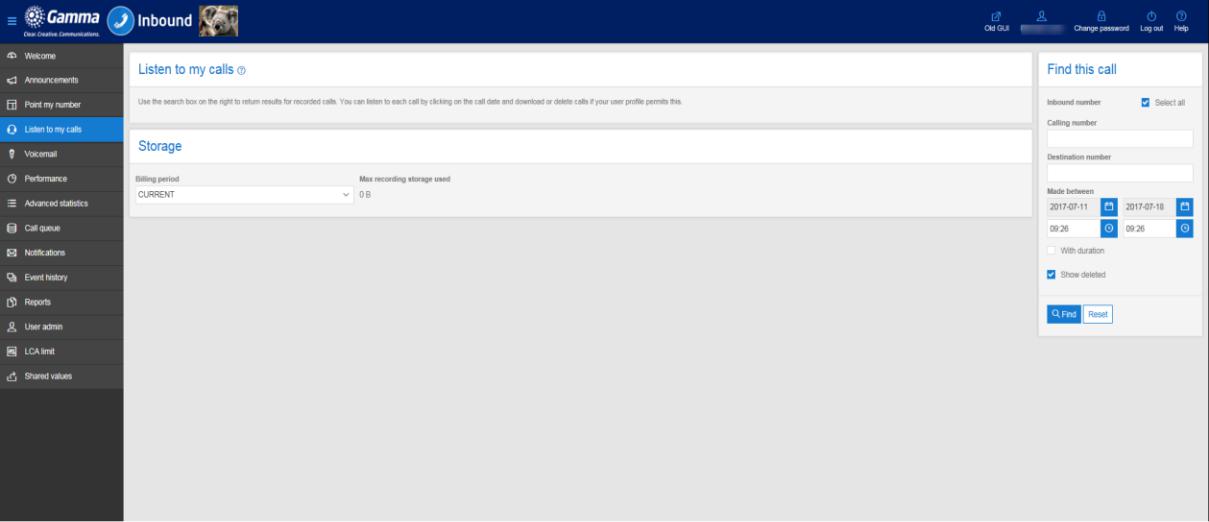
The listen to my calls tab allows you to listen to call recordings made to your Inbound numbers.

Listen to my calls #

The Select all and Unselect all buttons are used in conjunction with the Download and Delete buttons to identify the calls that you wish to download or delete.

Calls can be sorted in ascending or descending order based on any of the column headings. For example, to sort the calls in ascending order based on the call duration simply click on the call duration title at the top of the call list. Each subsequent click of the heading will toggle the order between ascending and descending.

Find this call #

On the right hand side under Find this call there are a number of search options that can be used to find calls based on the telephone number of the calling party, the duration of the call the final destination number or the date the call was made.

When specifying date ranges you need to be aware that calls are automatically deleted from the system after 6 months so call recordings older than this cannot be retrieved.

The Show deleted check box allows you to view the details of call recordings that have been deleted, though obviously the call cannot be listened to if it has been deleted.

Storage #

Towards the bottom left of the screen you can view the details of your storage usage. The drop down box allows you to select a previous billing period so you can see how your current usage compares.

image_pdf
Updated on 11/12/2023
Inbound Custom FieldsInbound View History
Contents
  • Listen to my calls Access Restrictions
  • Listen to my calls description
  • Listen to my calls
  • Find this call
  • Storage

Copyright © 2026 -  Gamma Telecom Ltd

Gamma API
We use cookies to measure performance and make improvements to this service. This includes page views, device/browser, location, and page interactions. We do not collect any information you upload to this site. By agreeing, you consent for your data to be used for this purpose.