
Call Transfer gives you various options when transferring a call.
These options include having a call being transferred back to yourself if the person you are transferring it to is engaged or doesn’t answer the call. When a call is recalled to your handset, it just rings as it normally would when you receive a call.
The options that you have available are:
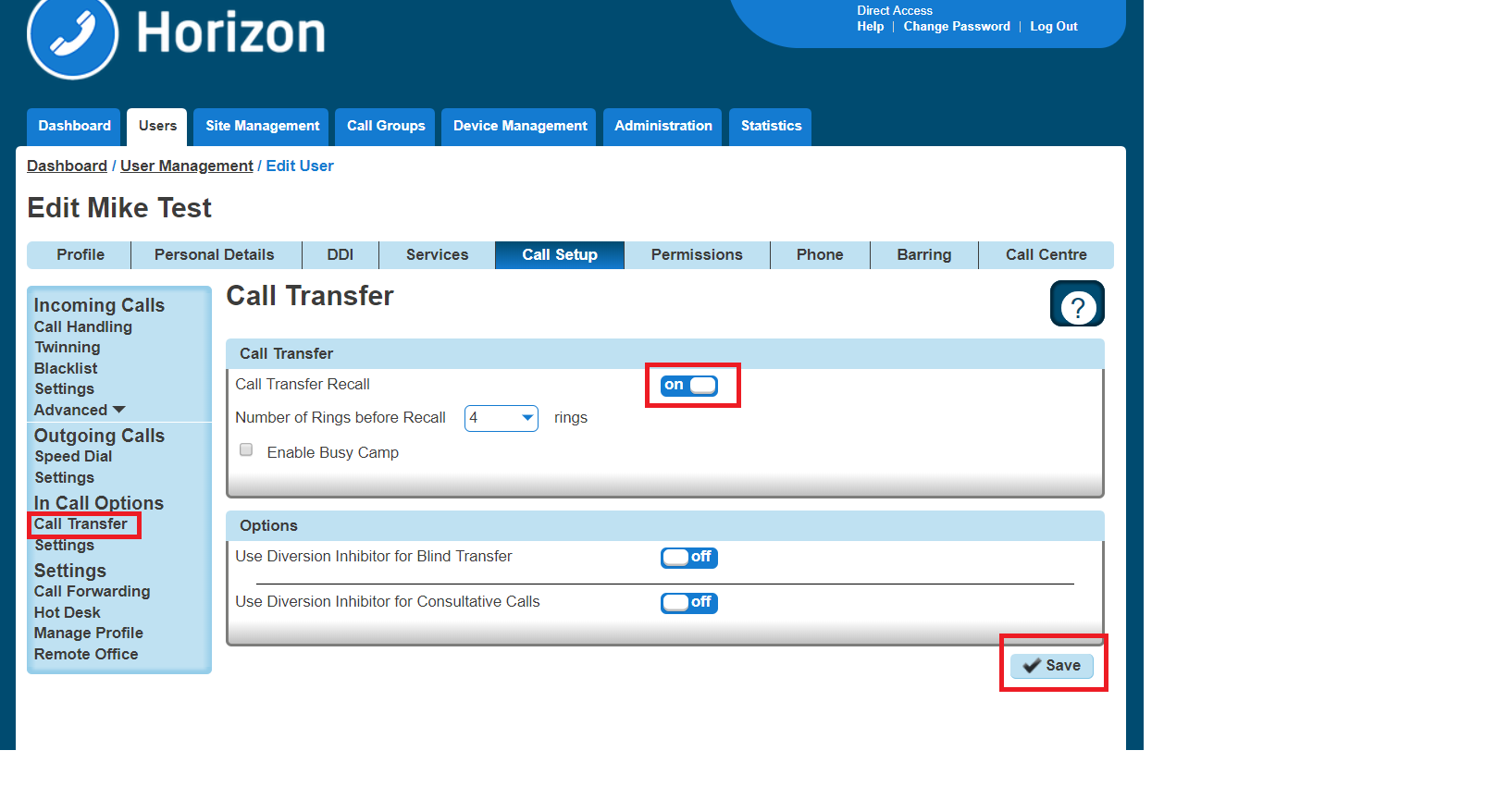
- Call transfer recall – this will return the call to you if it hasn’t been answered within a defined amount of rings
- Use Diversion Inhibitor for Blind Transfer – this is where you want to transfer a call to an extension number, removing all redirections in place, without going through to the extension first.
- Use Diversion Inhibitor for Consultative Calls – this is where you want to transfer a call to an extension number, removing all redirections in place, and speaking to the user who owns the extension number first.
Activate/Deactivate Call Transfer as a Company Administrator #
Step 1
Log into the Gamma Portal and go to Provisioning and Service Management, Hosted, Horizon and Horizon Manage Company.
Step 2
Select your account and login to the company that you want by using the “Actions” button and selecting “Login to Horizon”.
Step 3
Click the “Users” option and then select “List Users” so you can search for the user that you want Call Transfer set up for.
Locate the user and click the “Edit” button.
Step 4
In the User Management page click “Call Setup” and then under the In Call Options header select “Call Transfers”
From here you can set up your Call Transfer options.
Privacy on Transfer and/or Forwarding #
Currently there are a few behaviours where a display update (e.g. an updated CLI and/or name) is sent mid-call but not passed through to the receiving party. The following services do not receive a display update:
- Attended Call Transfer
- Blind Call Transfer (transferred party)
- Call Forwarding (Always, No Answer, Busy, Unreachable)
- Call Barge
- Call Pickup (Group and Directed)
- Call Park / Retrieve
- Sequential Ring
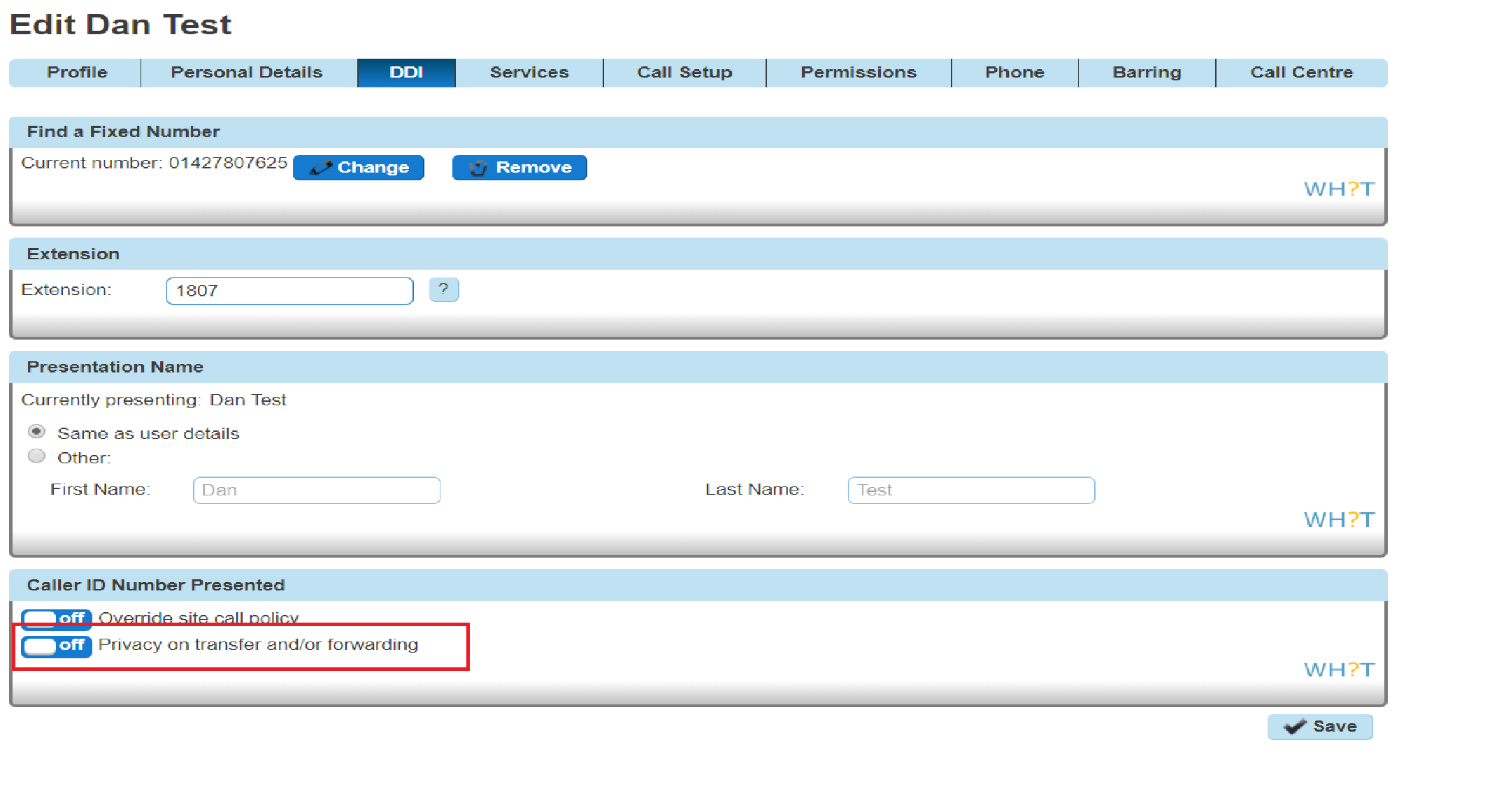
Setting “Privacy on Transfer and/or forwarding” to “Off” will allow this update to be passed to users within the same Horizon Company and provide a display update on the above services. Please note all new Companies created from the 15th March 2018 onwards have the Privacy setting turned off so that the CLI update will occur by default, but we have not updated any existing company user settings. These will need to be updated manually as required.
For clarity, we will not be sending the CLI / Name details through to PSTN or other Horizon Companies and PSTN / external Parties will always see the CLI that they either dialled or received a call from.
All new Companies created from the 15th March 2018 onwards have the Privacy setting set to off so that the CLI update will occur by default but we will not be updating any existing company user settings. These will need to be updated manually as required.
To update the users setting head to User Management 🡪 Edit User 🡪 DDI 🡪 Caller ID Number Presented
Privacy on Transfer Service Interaction Impacts #
The display enhancements affect several different types of redirection services on the Horizon platform and the following section fully details our results from testing. In nearly all instances whether or not parties involved in these redirections receive display updates is determined by the privacy settings of one single party. Below is a table which advises which party this is in each affected service:
Redirection Service | Party who can affect display updates |
Call Barge | Barger |
Call Park / Group Call Park | Call Retriever |
Directed Call Pickup / Group Call Pickup | Call Retriever |
Attended Call Transfer | Call Transferer |
Blind Call Transfer | Call Transferer |
Call Forward (Busy, NA, Unreachable, Always) | Call Forwarder |
Sequential Ring | Called Party |
The effects of the privacy changes are described in more detail along with examples below.
There are instances where services can be combined, and multiple different parties’ privacy settings can affect display outcomes, these cases are covered below.
Examples / Findings #
Call Barge Findings #
The major change to this service is that the bargee will now see their display update to that of the barger. The party whose privacy settings dictate who receives display updates is the barger:
Example 1.CB – On net call barge – User C has privacy disabled
- User A receives a call from User B
- User C barges in on User B’s call
- User A and User B’s display will update to reflect User C’s details
- User C leaves User B’s call
- User A’s display updates to User B
- User B’s display updates to User A
This may pose an issue for people who use the barge service silently, i.e. managers who wish to monitor their agents without them being aware of the barge.
We also see the display update on the non-bargee/barger party of the call, provided they are on the same enterprise as the other users.
There is a slight change to this behaviour if User C has privacy enabled, in that User A does not see their display update, and User B does not see their display update back to User A after User C has left the call:
Example 2.CB – On net call barge – User C has privacy enabled
- User A receives a call from User B
- User C barges in on User B’s call
- User B’s receives display update with User C’s details
- User A continues to see User B’s display details
- User C leaves User B’s call
- User A continues to see User B’s display details
- User B continues to see User C’s display details
In the event that the barged call involved a PSTN user, only users on the same enterprise as the barger will receive display updates:
Example 3.CB – PSTN call barge – User C B has privacy disabled
- User A receives a call from PSTN party
- User B barges in on User A’s call
- User A’s receives display update with User B’s details
- PSTN party continues to see User A’s display details
- User B leaves User A’s call
- User A’s display updates to PSTN’s displayed details
- PSTN party continues to see User A’s display details
Example 4.CB – PSTN call barge – User C B has privacy enabled
- User A receives a call from PSTN party
- User B barges in on User A’s call
- User A’s receives display update with User B’s details
- PSTN party continues to see User A’s display details
- User B leaves User A’s call
- User A’s display updates to PSTN’s displayed details
- PSTN party continues to see User A’s display details
Call Park/Group Call Park Findings #
Call park behaviour also changes, but only if the caller who is parked is on the same enterprise as the call park retriever. If this is the case and the call park retriever has no privacy set, then the parked caller will have their display update to the retriever:
Example CP.1 – Retrieval of parked call – User C has privacy disabled
- User A calls User B
- User A parks User B against an extension
- User C retrieves User B’s call
- User B’s display will update to User C’s
The above example demonstrates what will happen if User C has privacy disabled. If User C has privacy enabled, then User B’s display will continue to show User A’s details:
Example CP.2 – Retrieval of parked call – User C has privacy enabled
- User A calls User B
- User A parks User B against an extension
- User C retrieves User B’s call
- User B will not receive a display update and will continue to see User A’s display details
If a PSTN call is parked then the behaviour remains unchanged, i.e. the PSTN caller will never get a display update regardless of privacy settings for any of the parties involved:
Example CP.3 – Retrieval of parked PSTN call – User B has privacy disabled
- PSTN party calls User A
- User A parks PSTN party against an extension
- User B retrieves the PSTN call
- The PSTN party will not receive a display update and will continue to see User A’s display details
Call Pickup Findings #
This enhancement also affects the call pick up service, including both group pick up and directed pick up. Similarly, to call park, the privacy setting here that matters is that of the user who is picking up the call. If they have no privacy set, then the user who is making the call has their display updated to the party who picks up the call.
Example CP.1 Call Pick up – User C has privacy disabled
- User A attempts to call User B
- User C picks up the call using call pick up
- User A’s display will update to User C
If User C does have privacy enabled, then User A’s display will continue to show User B’s details:
Example CP.2 Call Pick up – User C has privacy enabled
- User A attempts to call User B
- User C picks up the call using call pick up
- User A does not receive a display update and continues to see User B’s display details
If the call being picked up is an external party, then the behaviour remains unchanged and the PSTN’s display is not updated regardless of privacy settings of the parties involved.
Call Groups – Auto Attendants, Hunt Group, Call Centre & Call Queue Groups Findings #
The display behaviour for callers making calls into these call groups will not change. They will continue to see the call group they detail rather than the user who answers the call. There is a slight change to some call transfer scenario’s however this is covered in section 8.2.
The recipient user in these call groups continues to see the calling parties details.
Call Transfer – Attended Findings #
Attended call transfers are the most notably affected feature with this display enhancement.
When a call is transferred with attended consultation before answer, both parties receive a display update with the new remote party. The new remote party is also provided when the AS reconnects both users together. Only users on the same enterprise will receive display updates.
When a call is transferred with attended consultation after answer, both parties receive display updates with the new remote party. The new remote party is provided when the AS reconnects both users together. Only users on the same enterprise will receive display updates.
Example CTA.2 – On net attended transfer – User B has privacy disabled
- User A calls User B
- User B calls User C
- User B then transfers User A to User C
- User A’s display will then update to User C’s details
- User C’s display will then update to User A’s details
Again, this is the case regardless of whether the call was transferred before or after answer (dependant on the user’s device, see section XXX).
The key privacy setting in this scenario is that of the transferrer, if they have privacy disabled then all the parties involved in the transfer will receive a display update.
If the transferrer decides to enable privacy however this then starts supressing the CLI updates to the other parties:
Example CTA.3 – On net attended transfer – User B has privacy enabled
- User A calls User B
- User B calls User C
- User B then transfers User A to User C
- User A and User C will only see User B’s details on their display
As we are setting privacy to ‘privacy for external calls’ only any external or PSTN parties involved in a transfer will not see a display update. Only parties on the same enterprise as the transferrer will see display updates:
Example CTA.3 – Transfer of PSTN party – User A has privacy disabled
- PSTN caller calls User A
- User A places PSTN caller on hold
- User A calls User B
- User A transfers PSTN caller to User B
- User B receives a display update with the PSTN caller’s details
- The PSTN caller does not receive any form of display update and will continue to see User A’s details
Example CTA.4 – Transfer to PSTN – User A has privacy disabled
- User A calls User B
- User A places User B on hold
- User A calls a PSTN party
- User A transfers User B to PSTN party
- User B receives display update with PSTN party’s details
- PSTN party does not receive any form of display update and will continue to see User A’s details
In the above 2 examples if User A has privacy enabled, then User B will not receive the display update with the PSTN party’s details and will instead continue to see User A’s details, shown below:
Example CTA.3 – Transfer of PSTN party – User A has privacy enabled
- PSTN caller calls User A
- User A places PSTN caller on hold
- User A calls User B
- User A transfers PSTN caller to User B
- User B does not receive a display update and continues to see User A’s details
- The PSTN caller does not receive any form of display update and will continue to see User A’s details
Example CTA.4 – Transfer to PSTN – User A has privacy enabled
- User A calls User B
- User A places User B on hold
- User A calls a PSTN party
- User A transfers User B to PSTN party
- User B does not receive a display update and continues to see User A’s details
- PSTN party does not receive any form of display update and will continue to see User A’s details
Blind Transfer Findings #
Blind transfers remain largely the same, in that the transfer target will continue to see the transferee rather than the transferrer (current behaviour on production). Once we disable privacy for users however the transferred party will now get a display update with the transfer targets display details.
Example CTB.1 – On net blind transfer – User B has privacy disabled
- User A calls User B
- User B blind transfers User A to User C
- User C receives call with A’s details
- User A receives a display update with User C’s details
In the above example User B does not have privacy enabled, therefore allowing User A to receive the display update. If User B had privacy enabled, then User A would continue to see User B’s details rather than User C’s:
Example CTB.2 – On net blind transfer – User B has privacy enabled
- User A calls User B
- User B blind transfers User A to User C
- User C receives call with A’s details
- User A does not receive a display update and continues to see User B’s details
In production, at present if a call is blind transferred to a PSTN party, then the PSTN party always receives the display details for the transferred party rather than the transferrer. This is regardless of any privacy settings.
If however a PSTN party is the transferred party and is blind transferred to another user, the PSTN party never receives a display update, again regardless of any privacy settings for any of the parties involved in the transfer:
Example CTB.3 – Blind transfer of PSTN – User A has privacy disabled
- User A calls PSTN party
- User A blind transfers PSTN party to User B
- User B receives call with the PSTN parties details
- The PSTN party does not receive any form of display update
Call Forwarding – No Answer/Busy/Unreachable/Always Findings #
If a user calls another user who has a call forwarding enabled and has disabled privacy, then the user making the call will receive the forward destination:
Example CF.1 – Call Forward Always – User B has privacy disabled
- User B has call forward always to User C
- User A calls User B
- User B receives User C’s display details
- User C receives User B’s display details
If user B were to enable privacy, then the User A would not receive the forward destination and instead will just see User B’s number:
Example CF.2 – Call Forward Always – User B has privacy enabled
- User B has call forward always to User C
- User A calls User B
- User B receives User B’s display details
- User C receives User B’s display details
The same scenarios apply if the forwarded number is a PSTN number:
Example CF.3 – Call Forward Always – User B has privacy disabled
- User B has call forward always to PSTN
- User A calls User B
- User B receives the PSTN’s display details
- PSTN receives User B’s display details
Example CF.4 – Call Forward Always – User B has privacy enabled
- User B has call forward always to PSTN
- User A calls User B
- User B receives User B’s display details
- PSTN receives User B’s display details
All the above examples apply regardless of what the call forward type is, whether it be call forward always (as shown above), call forward on busy, call forward on no answer or call forward on unreachable.
These display updates only apply to users who are calling other users on the same enterprise with a forward enabled. If a PSTN party calls a user with a call forward, they do not receive a display update:
Example CF.5 – PSTN to Call Forward Always – User B has privacy disabled
- User A has call forward always to User B
- PSTN calls User A
- User B receives the PSTN’s display details
- PSTN does not receive a display update and continues to see User A’s display details
Example CF.6 – PSTN to Call Forward Always – User B has privacy enabled
- User A has call forward always to User B
- PSTN calls User A
- User B receives the PSTN’s display details
- PSTN does not receive a display update and continues to see User A’s display details
Sequential Ring Findings #
The calling parties display is now updated if a sequential ring party answers the call. This is providing that the user with the sequential ring enabled does not have privacy enabled. If they do have privacy enabled, then the calling party does not receive a display update.
The calling party receives a display update regardless of whether or not the sequential ring destination is internal or external.
Example SR.1 – Sequential Ring – User B has privacy disabled
- User B has Sequential Ring setup to call User C
- User A calls User B
- User B does not answer call
- Call rolls over to User C
- User C answers the call
- User A receives User C’s display details
Example SR.2 – Sequential Ring – User B has privacy enabled
- User B has Sequential Ring setup to call User C
- User A calls User B
- User B does not answer call
- Call rolls over to User C
- User C answers the call
- User A does not receive a display update and continues to see User B’s details
If the calling party is not on the same enterprise as the user who has sequential ring setup then the PSTN party does not receive a display update:
Example SR.3 – PSTN call to Sequential Ring – User B has privacy disabled
- User A has Sequential Ring setup to call User B
- PSTN calls User A
- User A does not answer call
- Call rolls over to User B
- User B answers the call
- PSTN does not receive a display update and continues to see User A’s display details
Example SR.4 – PSTN call to Sequential Ring – User B has privacy enabled
- User A has Sequential Ring setup to call User B
- PSTN calls User A
- User A does not answer call
- Call rolls over to User B
- User B answers the call
- PSTN does not receive a display update and continues to see User A’s display details
Service Combinations #
There are some customer setups that mix redirection services, such as call transfers to parties with a call forward enabled. Below are some examples of the most common of these combinations.
Attended Call Transfer to User with Call Forward #
Example CTF.1 – Call Transfer to User with Call Forward – User B and User C have privacy disabled
- User C has call forward to User D
- User A calls User B
- User B transfers User A to User C which is forwarded to User D
- User A will receive display update with User D’s display details
- User D will receive display update with User A’s details
The updated CLI is carried through in the above example all the way to User D. However, if one affecting users, User B and User C in this instance then we see altered behaviour. I.e. if the call forwarder has privacy enabled, then the transferred party will not receive a display update. Likewise, if the transferrer has privacy enabled, then the forward destination and the transferee will not get a display update:
Example CTF.2– Call Transfer to User with Call Forward – User B have privacy disabled. User C has privacy enabled
- User C has call forward to User D
- User A calls User B
- User B transfers User A to User C which is forwarded to User D
- User A will not receive any display updates and will continue to see User B’s display details
- User D will receive display update with User A’s details
Example CTF.3– Call Transfer to User with Call Forward – User B have privacy enabled. User C has privacy disabled.
- User C has call forward to User D
- User A calls User B
- User B transfers User A to User C which is forwarded to User D
- User A will not receive any display updates and will continue to see User B’s display details
- User D will receive any display updates will continue to see User B’s display details
Attended call transfer to call group #
In the event a user is transferred to a call group (i.e. a hunt group), providing the transferred user is on the same enterprise they will receive a display update with the call group’s details. They will not however receive a display update when the call is answered by another user within the call group.
Example CTFCG.1– Attended Call Transfer to Hunt Group – User B have privacy disabled.
- User A calls User B
- User B transfers User A to Hunt Group #1
- User C answers call from Hunt Group #1
- User A will receive display update to see Hunt Group #1’s display details
- User C will receive display update on answer with User A’s display details
Note that in the above example if the call is transferred before answer then User C does not get a display update until they have answered the call. More information on this can be found known issue section 12.
As this is primarily an attended call transfer scenario, if the transferrer has privacy disabled then no parties get a display update:
Example CTFCG.2– Attended Call Transfer to Hunt Group – User B have privacy enabled.
- User A calls User B
- User B transfers User A to Hunt Group #1
- User C answers call from Hunt Group #1
- User A does not receive a display update and continues to see User B’s details.
- User C does not receive a display update and continues to see User B’s details.
Redirection service display of call received via a call group #
If a call is received into a call group, the caller will only ever see the call group display details whenever a call transfer, call pick up, call barge or park call retrieval is made. This is regardless of any privacy settings that other users that may be in the call flow.
Other users in the call flow however will receive the relevant display updates, privacy settings permitting. Examples below:
Example CGS.1– Attended call transfer of call group call – User B has privacy disabled
- User A calls Hunt Group #1
- User B answers call
- User B transfers call to User C
- User A does not receive a display update and continues to see Hunt Group #1’s display details
- User C receives a display update with User A’s display details
Example CGS.2– Call pickup of incoming call group call – User B has privacy disabled
- User A calls Hunt Group #1
- User B picks up call using call pickup
- User A does not receive a display update and continues to see Hunt Group #1’s display details
- User B receives a display update with User A’s display details
Example CGS.3– Call park/retrieval call group call – User C has privacy disabled
- User A calls Hunt Group #1
- User B answers call
- User B parks call against extension
- User A does not receive a display update and continues to see Hunt Group #1’s display details
- User B receives a display update with User A’s display details
Example CGS.4– Call barge of call group call – User C has privacy disabled
- User A calls Hunt Group #1
- User B answers call
- User C barges in on User B’s and User A’s call
- User A does not receive a display update and continues to see Hunt Group #1’s display details
- User B receives a display update with User A’s display details
Test Results for Hardware and Clients #
A set of tests covering the affected services as well as general acceptance tests were run on the following devices/clients:
- BTBC Android
- BTBC iOS
- BTBC PC
- IP450, IP650, IP7000
- VVX150, VVX250, VVX310, VVX410, VVX450 VVX600 VVX601
- SPA504G
- SPA525G
- Cisco MPP 8841, 88851, 8861
- Yealink W52P
- Receptionist Client
- Call Centre Client
- Integrator Client
- Trio 8500 & 8800 conference units
Receptionist, Call Centre and Integrator Clients #
The Receptionist, Call Centre and Integrator clients all receive the same display updates as the handsets would in the examples detailed in the previous section
No problems were found with the Receptionist and Call Centre clients however there were some issues found with the Integrator client which are detailed in the known issues section
Akixi and Horizon GUI CDR’s #
Akixi have been contacted about this display update and do not believe this change will affect their service. At the time of writing they have not however carried out any testing.
Known Behaviours #
Cisco devices and Soft Clients fail to update display attended transfers before answer and transfer of call on hold scenarios #
In the scenario where an attended transfer is made to a Cisco or soft clients before the Cisco/client answers the call the display on the Cisco is not updated. Instead the display is only updated when the Cisco/client answers the transferred call.
Likewise, if a Cisco or a client has placed a call on hold and then that call is transferred whilst on hold by the other party then the display is not updated.
This is because the Cisco and the soft client do not act on the updated PAID within the UPDATE message that it receives upon transfer. It only acts on updated PAID headers within re-INVITEs and 18x messages.
This issue will likely require a firmware update to resolve and we are not looking at updating the Cisco firmware at any point in the current future.
Mobile clients do not see a display update in attended transfer before answer scenarios #
As calls are delivered to mobile clients using push notifications the display is only updated on the mobile clients when the user answers the call. This is due to there being no push notification which changes the CLI information on incoming calls. The client must wait until the call is answered when it sends an INVITE into the AS to retrieve the incoming call.
Attended transfer before answer to call group does not update display #
Any recipient of a call which is transferred to a call group will not see a display update if the transfer is completed before answer. They will need to answer the call before they receive the new display details.
Integrator does not update display when updated display information is anonymous #
The Integrator fails to change the display whenever it receives a display update for an anonymous party. For example, if an attended transfer of an anonymous call was made to an Integrator user.
Integrator doesn’t update display correctly on attended transfers when remote party is set to originator #
In call transfer scenarios where the remote party value in the XSI update to the Integrator is set to originator then the Integrator updates the display to its own identity, ie if the Integrator user was called Mark Gooden, the display would update to Mark Gooden and would give the impression you are on a call to yourself.
The scenario that causes this is if the party doing the attended transfer to the Integrator user made the call to the transferred party then it will cause the remote party value to be ‘originator’ and thus invoke this issue.
No alpha tagging/loss of alpha tagging in some scenarios #
Alpha tagging is lost in certain call scenarios.
If an external call is being transferred that was received from a hunt group, then alpha tagging is lost upon transfer.
If the call being transferred was an outbound call to an external number, then there is no alpha tagging upon transfer.
Cisco devices do not remove names on display if no name is provided in updated PAID #
If a Cisco device receives a call containing both a name and a number, and then receives a display update mid-call which contains a number only, it does not erase the original name from the display. Resulting in the old name and the new number being on the Cisco’s display at the same time.
Cisco devices show different name and number in call logs #
In call display update scenarios, the call logs will have a name which does not match the number. E.g. It will have User B’s name and User C’s number. More information on these scenarios can be found in Section 12 of this document.
Call Forwarding Selective and Connect App #
Forwarding calls selectively is only configurable via the Horizon GUI, and not via the Connect App.
Therefore, if a user has chosen to Forward Calls Selectively e.g.
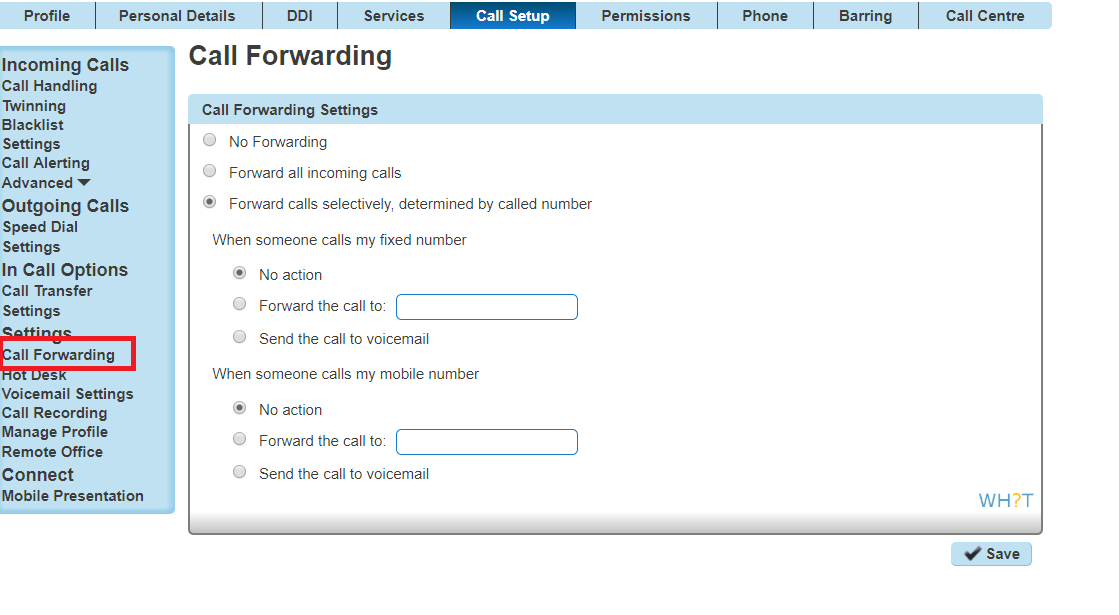
These changes will not be reflected in the Connect App, instead Always Forward will be ‘Disabled’
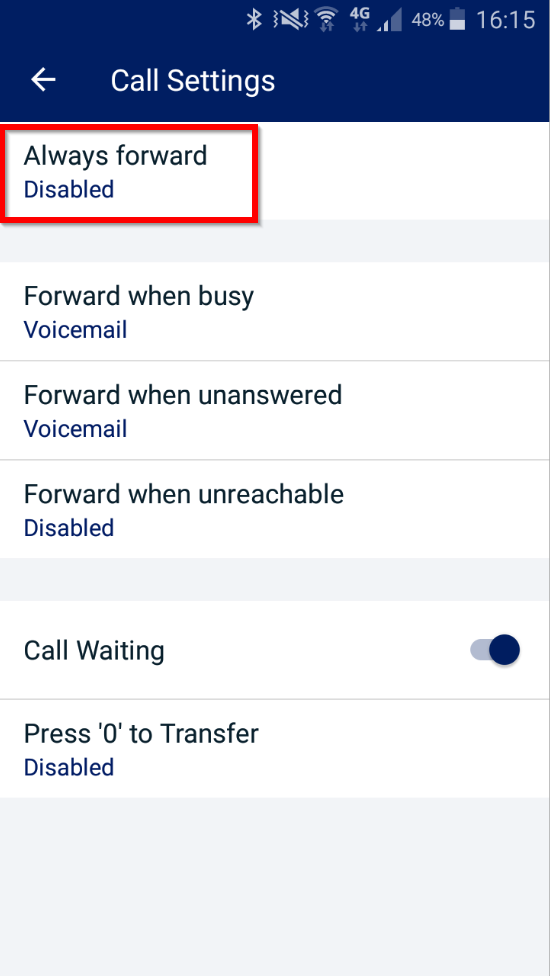
Additionally, if the user enables Always Forward in the MyConnect app, this will disable Call Forwarding Selective and this change will be reflected in the GUI.
For further known issues/behaviours please see the Horizon Known Behaviours Guide on the Gamma Academy.
Device Call Log Impacts #
Every device has a call log (placed, received, missed). As this enhancement changes the calling/called party display this can in some instances alter these call logs. Please see the effects on these logs for each enhanced service below
Call Barge #
Polycom #
The call log will never update to reflect the barger, and it will always show the original called or calling party.
Cisco #
If the barger leaves the call before the call is terminated then the call log will never reflect the barger, and it will always show the original called or calling party.
If the call is terminated before the barger leaves the call then the call log will update to reflect the bargers name, however the number will always be the original called or calling party.
Soft clients/Integrator #
The call log will never update to reflect the barger, and it will always show the original called or calling party.
Yealink #
The call log will never update to reflect the barger, and it will always show the original called or calling party.
Call Park / Group Call Park #
Polycom #
The call log will never update to reflect the party retrieving the call, and it will always show the original called or calling party.
Cisco #
The name will update in the logs to reflect the retriever however the number will always show the original called or calling party.
Soft clients/Integrator #
The call log will never update to reflect the party retrieving the call, and it will always show the original called or calling party.
Yealink #
The call log will never update to reflect the party retrieving the call, and it will always show the original called or calling party.
Call Pickup #
Polycom #
The name in the call logs will update to the user who picked up the call, however the CLI will be the initial number that was called by the device.
Cisco #
The name in the call logs will update to the user who picked up the call, however the CLI will be the initial number that was called by the Cisco.
Soft clients/Integrator #
The call log will never update to reflect the party picking up the call, and it will always show the original called party.
Yealink #
The call log will never update to reflect the party picking up the call, and it will always show the original called party.
Call Transfer Attended #
Polycom #
Transferrer – The call log is not updated and always reflects the original calling or called party
Transferee – The call log is not updated and always reflects the original calling or called party
Transfer target – The call log is not updated and always reflects the transferrer.
Cisco #
Transferrer – The call log will show 2 logs, one for the first inbound/outbound leg and the second log for the transferred call.
Transferee – The name in the call log will update to the transferred party, however the number will always remain as the original calling or called party. If there is no name available for the transfer target, then the name remains the same as the original calling or called party.
Transfer target – The call log is not updated and always reflects the transferrer.
Soft clients/Integrator #
Transferrer – The call log is not updated and the soft client records them as 2 separate calls
Transferee – The call log is not updated and always reflects the original calling or called party
Transfer target – The call log is not updated and always reflects the transferrer.
Yealink #
Transferrer – The call log is not updated and the soft client records them as 2 separate call
Transferee – The call log is not updated and always reflects the original calling or called party
Transfer target – If the call is transferred before answer then the call log reflects the transferee, if it is transferred after answer then the log reflects that of the transferrer.
Blind Transfers #
Only the transferee receives a display update with this change on blind transfers so only this scenario is described below.
Polycom #
Transferee – The call log is not updated and always reflects the original calling or called party
Cisco #
Transferee – The name in the call log will update to the transferred party, however the number will always remain as the original calling or called party. If there is no name available for the transfer target, then the name remains the same as the original calling or called party.
*Please note the Cisco MPP series does introduce blind call transfers
Soft clients/Integrator #
Transferee – The call log is not updated and always reflects the original calling or called party
Yealink #
Transferee – The call log is not updated and always reflects the original calling or called party
Call Forwarding – No Answer/Busy/Unreachable/Always #
Polycom #
It displays the original number dialled as well as the forwarded number. The forwarded number is recorded as the ‘name’ and the original dialled number is recorded as the ‘number’. Hitting redial will always dial the initial dialled number.
Cisco #
It displays the original number dialled as well as the forwarded number. The forwarded number is recorded as the ‘name’ and the original dialled number is recorded as the ‘number’. Hitting redial will always dial the initial dialled number. If the forwarded number is an external number, then the call logs will just show the initial dialled number.
Soft clients/Integrator #
The call logs always reflect the original dialled number.
Yealink #
The call logs always reflect the original dialled number.
Sequential Ring #
Polycom #
It displays the original number dialled as well as the sequential ring number that answered the call. The sequential ring number is recorded as the ‘name’ and the original dialled number is recorded as the ‘number’. Hitting redial will always dial the initial dialled number.
Cisco #
If the sequential ring party that picks up the call is on the same company, then it displays the original number dialled as well as the name of the sequential ring party that answered the call. The sequential ring name is recorded as the ‘name’ and the original dialled number is recorded as the ‘number’. Hitting redial will always dial the initial dialled number.
If the sequential ring party is an external number, then it displays the name and number of the original dialled party.
Soft clients/Integrator #
The call log always reflects the original dialled party.
Yealink #
The call log always reflects the original dialled party.