Manage Bolt-Ons #
If there is a bolt-on that you cannot see on this page then please contact the Internal Account Manager team or your Business Development Manager.
Add Bolt-Ons #
Step 1
From the Gamma Portal, go to “Provisioning and Service Management”, “Hosted”, “Horizon” and “Horizon Manage Company”.
Step 2
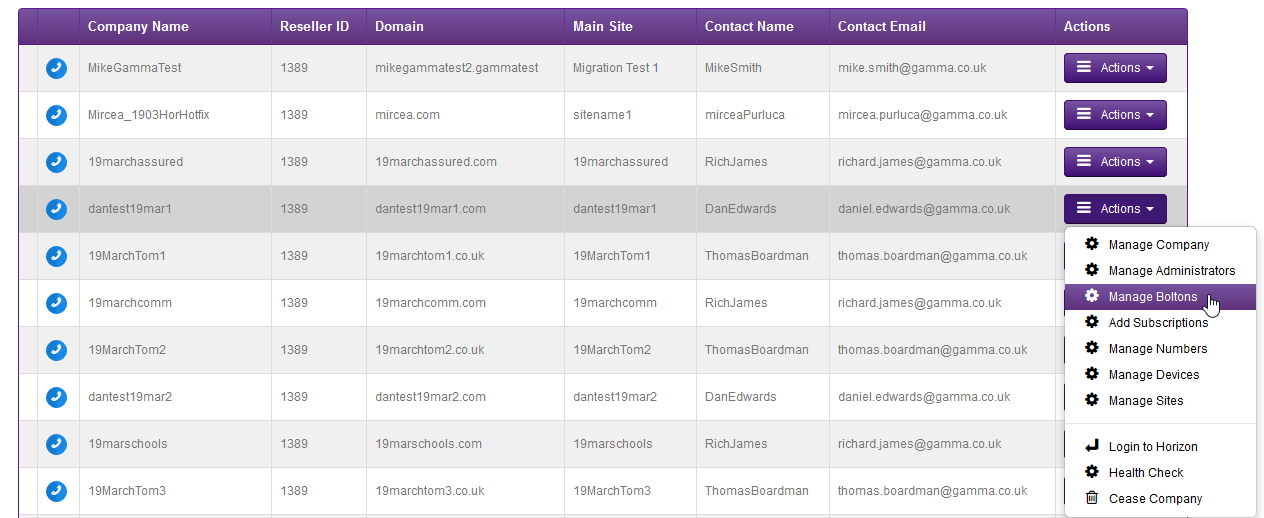
Find the company that you wish to add sites to using the Actions drop down select “Manage Bolt-ons”
Step 3
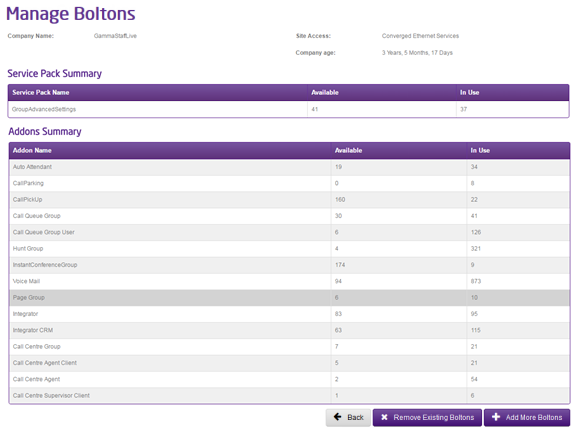
The “Service Pack Summary” will tell you how many Group Advanced Settings you’ve got available and how many are in use and the Add-ons Summary will tell you about individual bolt-ons.
Scroll down to the bottom of the page to the “Add More Bolt-ons” button
Step 4
Using the Quantity to Add fields, free type into the text boxes and once you’re happy with this, click “Submit”.
You will be presented with an Order ID if you wish to track your order.
Remove Bolt Ons #
Step 1
From the Gamma Portal, go to “Provisioning and Service Management”, “Hosted”, “Horizon” and “Horizon Manage Company”.
Step 2
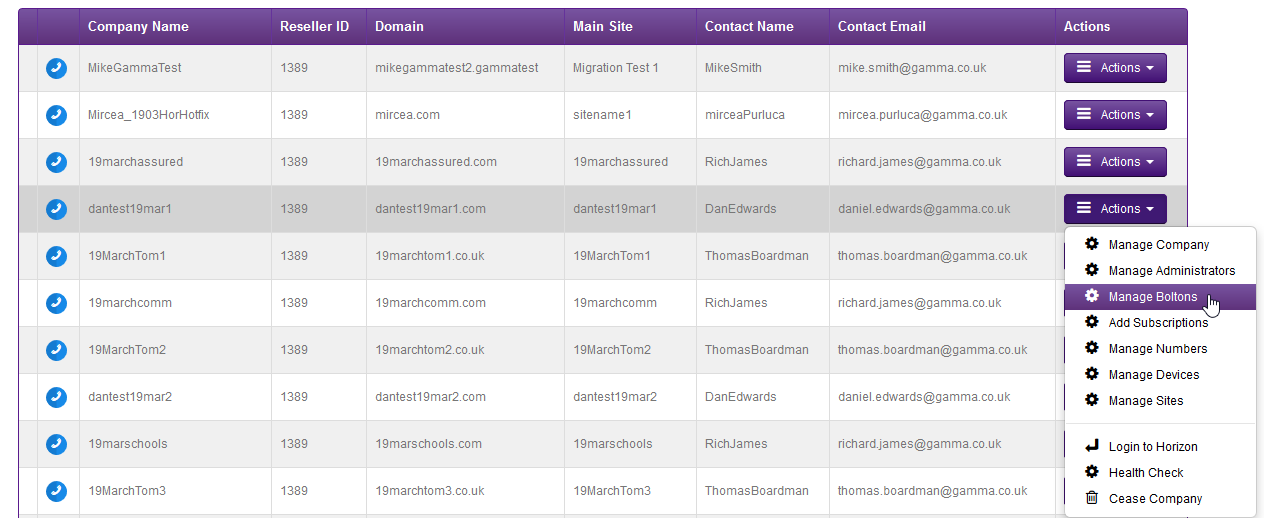
Find the company that you wish to add sites to using the Actions drop-down down select “Manage Boltons”
Step 3
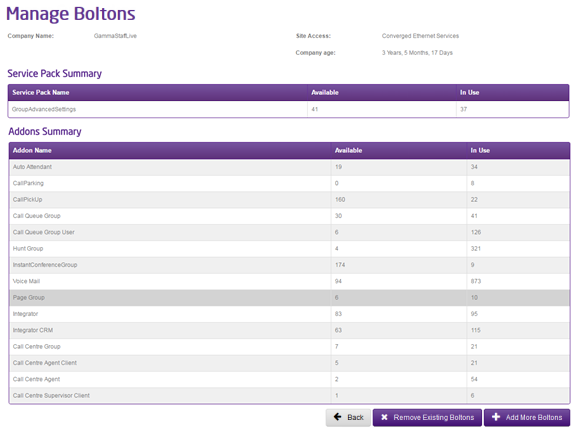
The “Service Pack Summary” will tell you how many Group Advanced Settings you’ve got available and how many are in use and the Addons Summary will tell you about individual bolt-ons.
Scroll down to the bottom of the page and select the “Remove Existing Boltons” button.
Step 4
Using the “Quantity to Remove” field, select how many bolt-ons you’d like to remove from your Horizon Company.
Click “Submit” and then you’ll be asked to give a reason as to why you are removing the bolt-on(s).
Ordering New Hardware #
Your hardware should be delivered to your chosen destination within 5 working days. By the time you receive them, the MAC addresses for the devices will have been uploaded to the Horizon Portal.
Step 1
From the Gamma Portal, go to “Provisioning and Service Management”, “Hosted”, “Horizon” and “Horizon Manage Company”.
Step 2
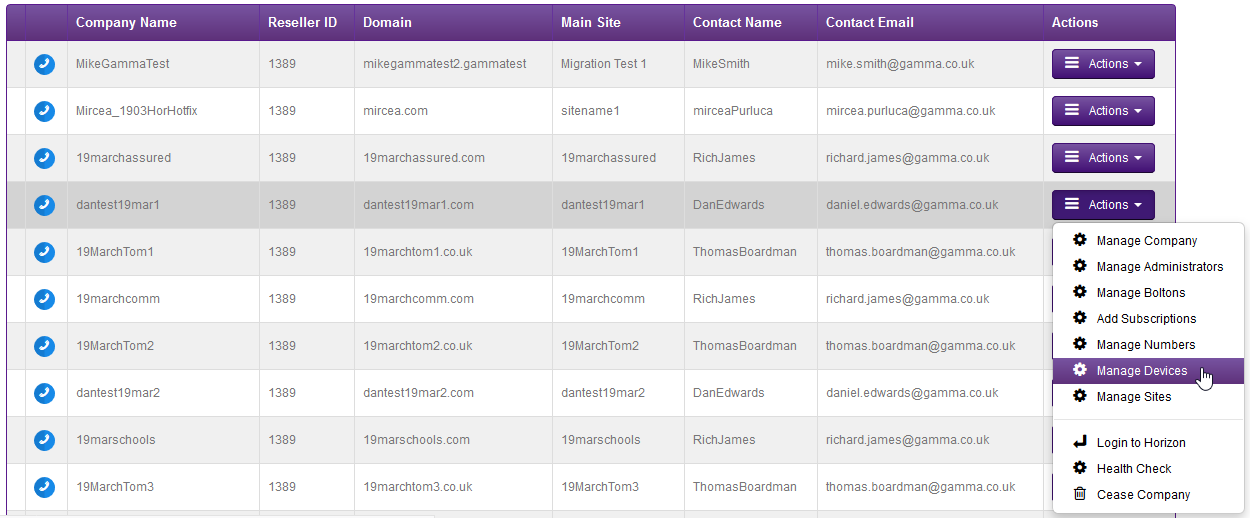
Find the company that you wish to add sites to using the Actions drop-down and selecting “Manage Devices”
Step 3
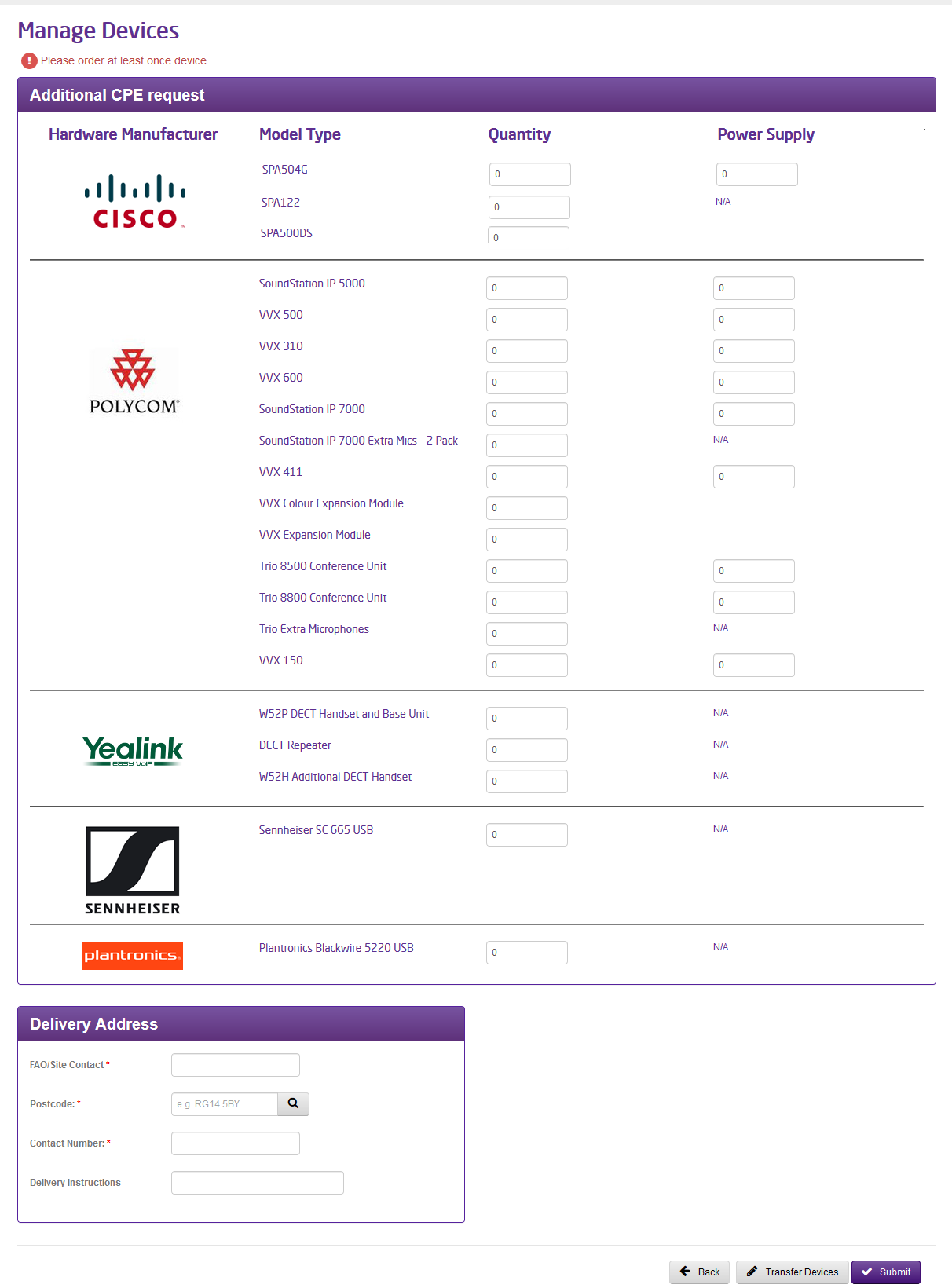
From here, you can add the amount of additional hardware you require, which is displayed to you in a table.
Scroll down and enter the postcode of the address you want the CPE delivered to. Clicking on the find the address button will search for the address and bring up an additional drop-down menu which will allow you to find the address.
Alternatively, you can free-type the address into the boxes.
Step 4
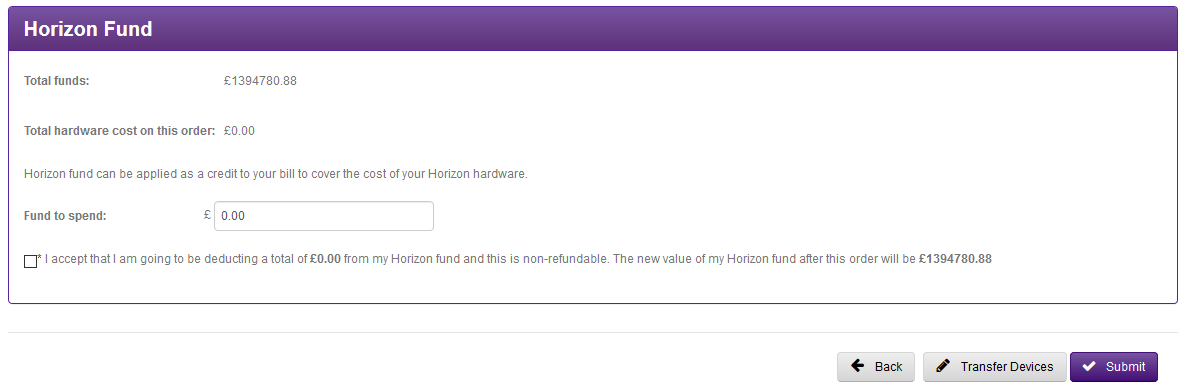
You can view your Horizon Fund and select how much you want to spend on your order.
This panel is dynamically updated based on all the information that you have entered on this page and will pull through any saved funds from previous orders which can be spent.
“Total Funds” is funds that have been saved from previous orders that have not yet been spent.
“Total hardware cost on this order” will change any time you add or remove hardware on this order, and is the total cost of your hardware on this order.
The “Fund to Spend” value is defaulted to the maximum value that you can spend on this order. This will be the “Total hardware cost on this order” value, up to the “Total Funds” figure. If you want to, you can change this value to any value below the “Fund to spend” figure. This can be between £00.00 (and thus saving your funds) up to the figure that is already in the text box.
Confirm that you are going to be deducting what you have agreed to and you can continue with your order.
Gamma will not be refunding any errors made during this step. Please ensure that you select the correct value that you want to spend on this order.
Once you’ve done this, click on “Submit“.
Transfer Hardware between Companies
You can transfer devices from one company to another on your account as long as the device is not assigned to any user on the Horizon Portal. When you are transferring a device, the codec settings are transferred as well from the previous company. Once the transfer has been completed, the codec can be changed as normal.
Step 1
From the Gamma Portal, go to “Provisioning and Service Management”, “Hosted”, “Horizon” and “Horizon Manage Company”.
Step 2
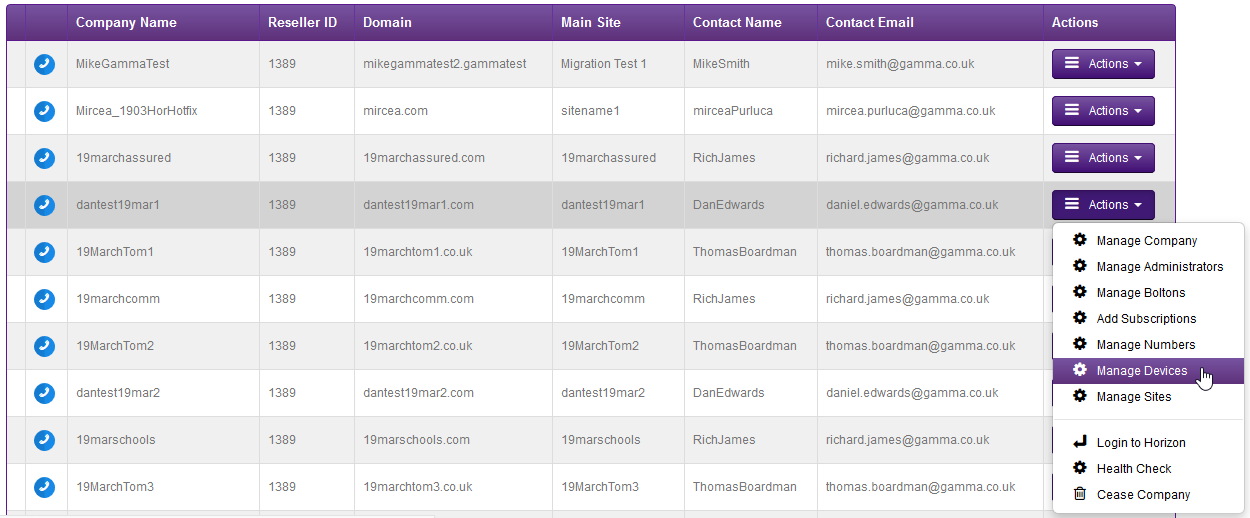
Find the company that you wish to add sites to using the Actions drop-down down select “Manage Devices”
Step 3
Scroll to the bottom of the page and select “Transfer Devices”.
Step 4
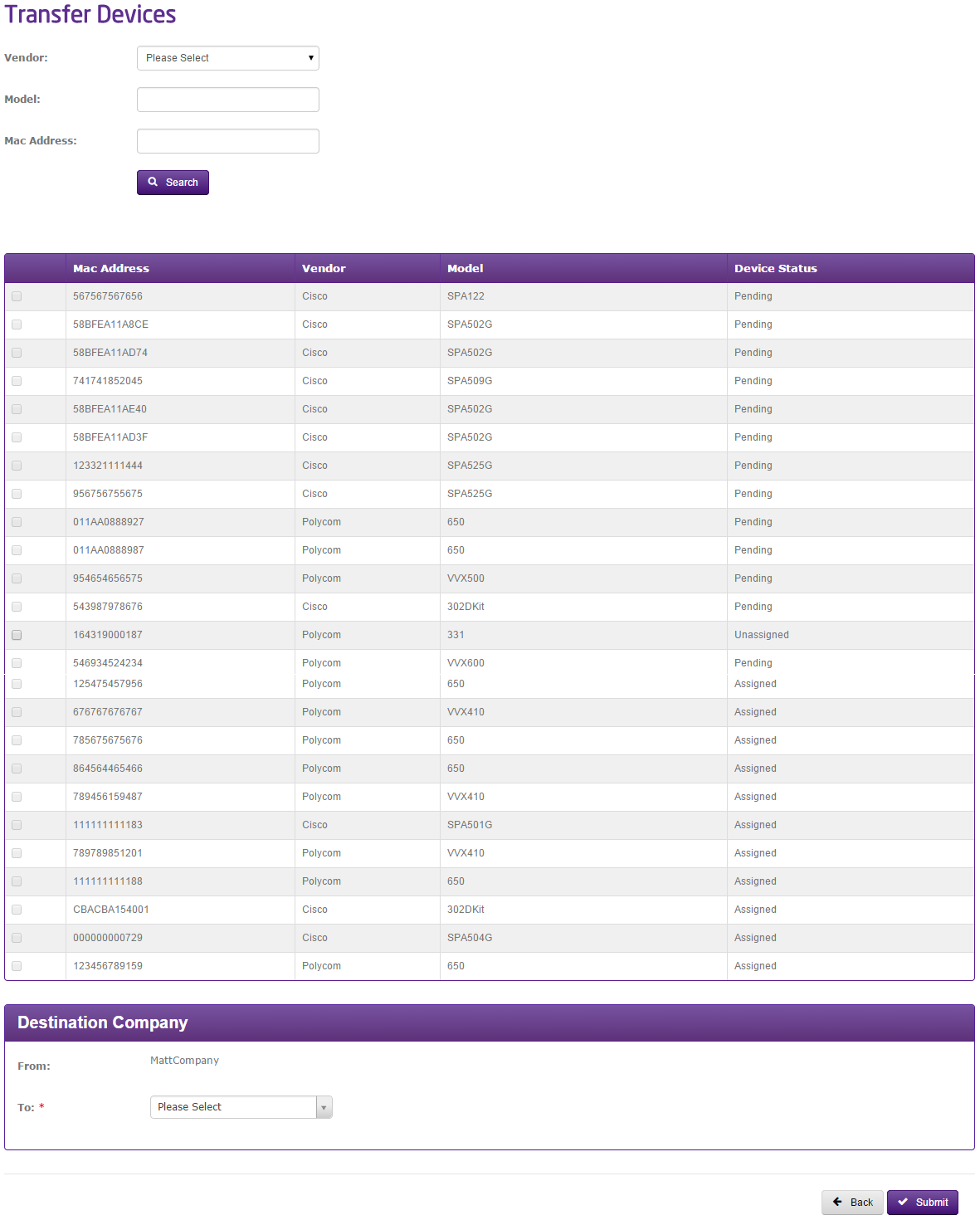
A list of devices that are on the account is displayed. You’ll be presented with:
- The MAC Address
- The Make and Model of the handset
- If it is “Assigned” to a user or “Un-assigned”.
If a handset is “Assigned” then you cannot select this and the tick box is disabled. You will need to un-assign this handset from the user within the Horizon portal.
Select the device(s) that you want to transfer by using the tick boxes. Using the “To” drop-down box, select the Company on your account that you want to transfer to.
Click “Submit“.