
The Company Voice Portal provides an interactive voice response (IVR) application that can be called by any user, from any phone. The IVR allows the user to manage their services and voice mailbox, as well as change their passcode if needed.
For this feature to work a site DDI needs to be setup under the Site Management pages.
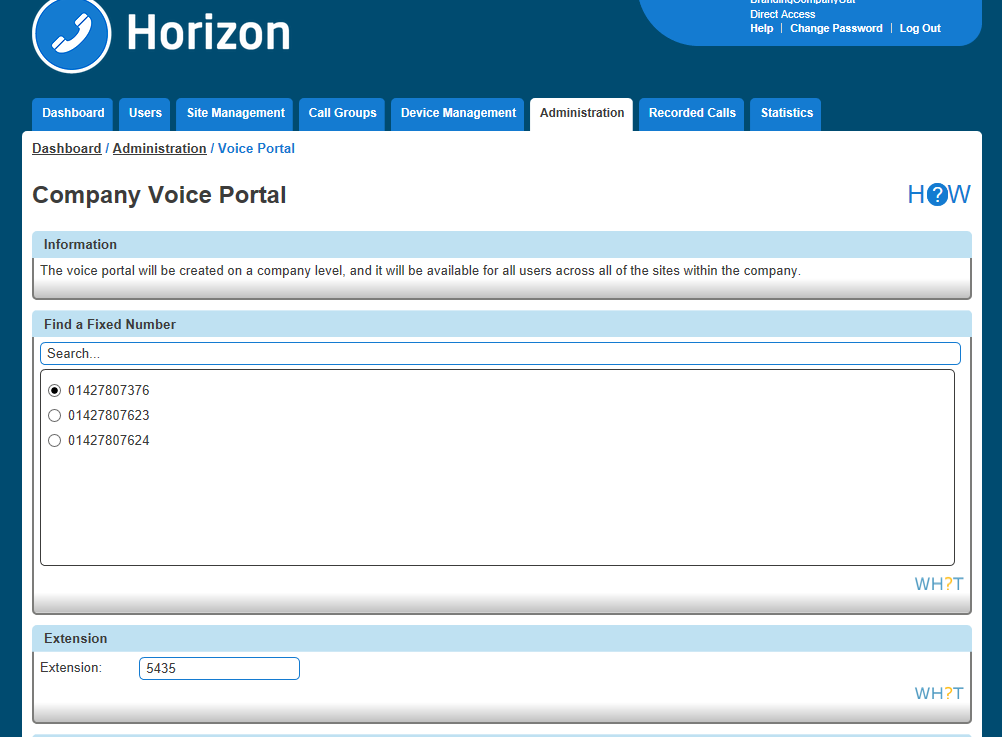
To set up the Company Voice Portal you simply need to assign it to a site, and select a free number, whilst giving it an extension if required for easier internal access.
Setup a Company Voice Portal #
Step 1
Log into the Gamma Portal and go to Provisioning and Service Management, Hosted, Horizon and Horizon Manage Company.
Step 2
Select your account and login to the company that you want by using the “Actions” button and selecting “Login to Horizon”.
Step 3
Select “Administration” and then “Voice Portal” and then select the site that you want the Voice Portal to be against (The voice portal will be created on a company level, and it will be available for all users across all of the sites within the company.
Step 4
Select the number you want to have for the Company Voice Portal. Then enter the extension number you want for the Company Voice Portal and click save.
Managing a Company via the Voice Portal #
Option 1 – Voicemail #
This plays all new or saved messages
2 – Change the busy greeting
Within this option you can:
- Record a new Busy greeting – allows you to record a fully personalised message without any additional messaging.
- Play the saved message – lets you listen back to the current saved message.
- Implement the system default – to reset the message to the system default with your personalised name greeting. To manage your name greeting, use Option 3 on the voice portal.
- Please note the personalised name greeting is a maximum of 10 seconds
3 – Change the No Answer greeting
Within this option you can:
- Record a new No Answer greeting – allows you to record a fully personalised message without any additional messaging.
- Play the saved message – lets you listen back to the current saved message.
- Implement the system default – to reset the message to the system default with your personalised name greeting. To manage your name greeting, use Option 3 on the voice portal.
- Please note the greeting maximum is 120 seconds (2minutes)
4 – Record and Send Messages
This enables you to record a message and forward it to another user’s mailbox. To do this, follow the in-call instructions to record your message, type the extension and send.
Allows you to delete all stored messages in your mailbox.
Option 2 – Voicemail Express #
To use this option, you need to set up an Availability Profile – e.g. Available, Unavailable, Busy – in the Horizon Portal. Once set up, you have the option to implement each profile, whether you’re in the office or on the move, by selecting the corresponding option.
Changes made in Voicemail Express will also appear in the Horizon portal.
Option 3 – Recording your name greeting #
This lets you record or adjust your mailbox name greeting, as well as being the name used on the system’s default voicemail greeting.
Option 4 – Call Forwarding #
This can also be set up and managed through the Horizon portal, where you will also have the ability to define, activate, and de-activate call forwarding on your user account. See Call Forwarding for more details.
Option 5 – Changing your Passcode #
You can change your passcode using the voice portal or via the Horizon portal.