
Remote office allows a Horizon user to use any phone as their ‘Horizon phone’ – meaning they won’t need to pay locally for calls and their Horizon number will be presented on outgoing calls. This can be particularly useful in the likes of hotels, where calls can often be costly.
If a user has a restriction related to mobile phones (calling them or transferring to them) then Remote Office to a mobile phone will not work. A “This call cannot be completed” message will be played.
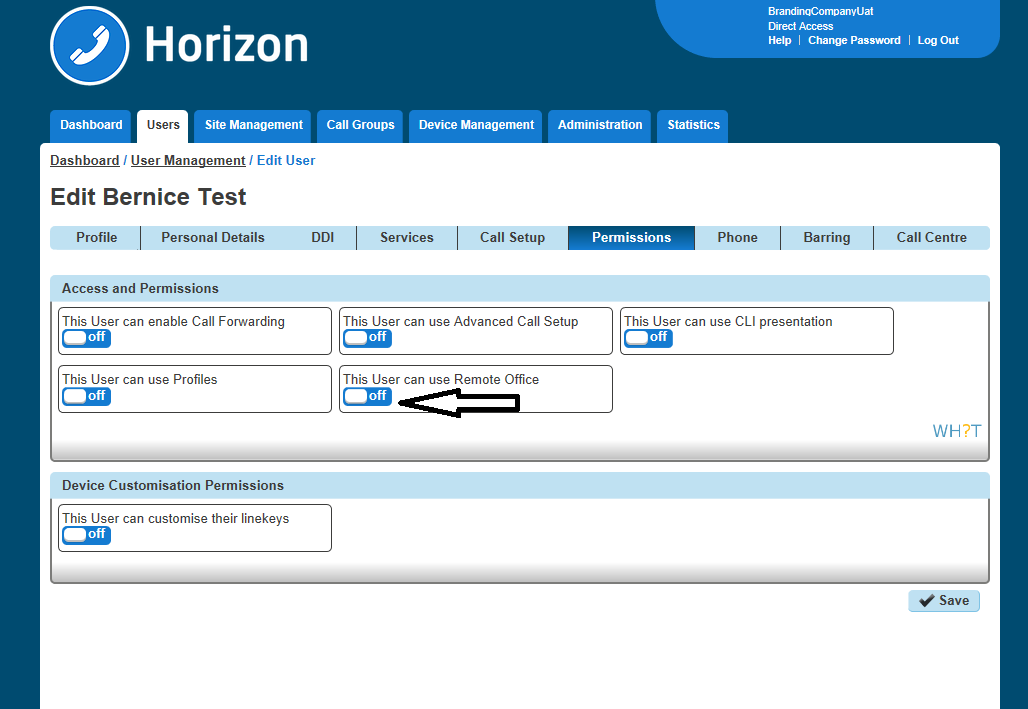
Give permission to a user to use Remote Office #
Step 1
Log into the Gamma Portal and go to Provisioning and Service Management, Hosted, Horizon and Horizon Manage Company.
Step 2
Select your account and login to the company that you want by using the “Actions” button and selecting “Login to Horizon”.
Step 3
Click the “Users” option and then select “List Users” so you can search for the user that you want to grant Remote Office permissions to.
Locate the user and click the “Edit” button.
Step 4
Click the “Permissions” tab and select “This user can use Profile” to On or Off.
Activate/Deactivate Remote Office as a User #
Step 1
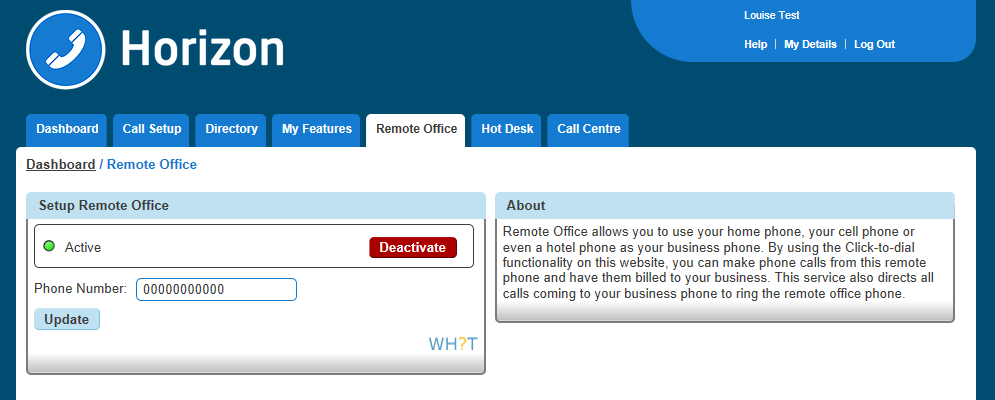
Log into the Horizon Portal as a user and if the user has permission to use Remote Office they will see “Remote Office” as an option in the menu bar. Select this to load up the Remote Office page.
Step 2
You can then input the phone number you’d like to use for Remote Office and click ‘Activate’ or ‘Deactivate’.
How to Make Outgoing Calls Using Remote Office #
Step 1
Log into the Horizon Portal as a user and if the user has permission to use Remote Office they will see “Remote Office” as an option in the menu bar. Select this to load up the Remote Office page.
Step 2
Make sure that Remote Office is activated.
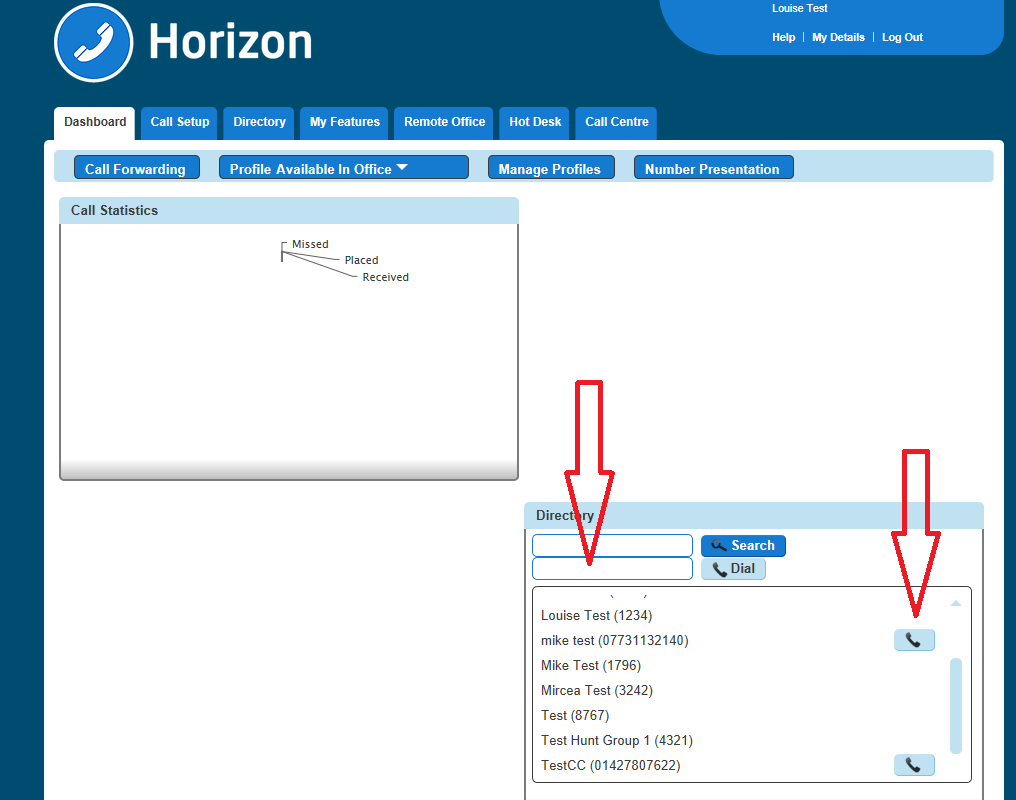
Outgoing calls must be made through the Horizon Portal using Click to Dial. You can either enter the telephone number you would like to call and tick the blue “Dial” button or click the blue telephone icon next to someone in the Company Directory.
How to Receive Calls Using Remote Office #
Incoming calls will be delivered directly to the number that’s been enabled for Remote Office.
