
Our Horizon Health Check gives you information to some of the most common queries we receive on the Service Desk so that you’ve got the information up front and in one easy to view place. This can help you whilst setting up your Horizon Company, adding or changing features or if your Horizon Company is experiencing any technical problems.
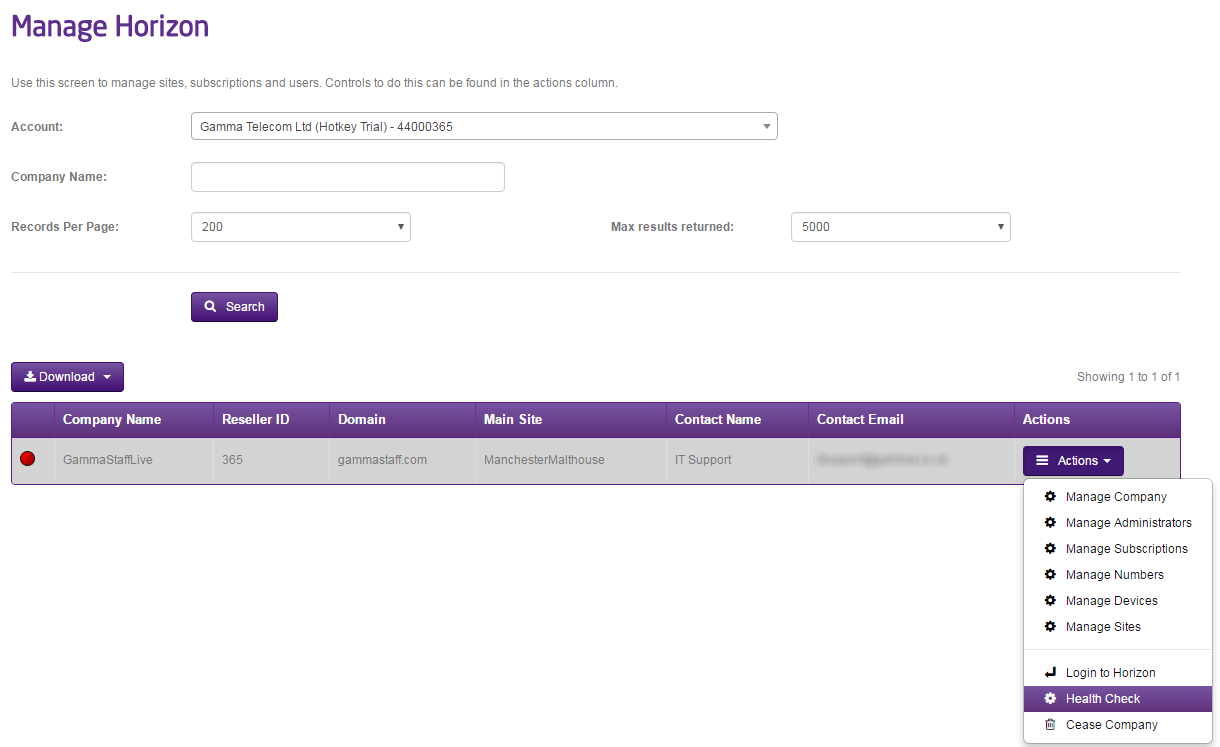
To access the Health Check go to the Gamma Portal -> Provisioning and Service Management -> Hosted -> Horizon and select Manage Horizon Company. Locate the company and then using the actions drop down select “Health Check”.
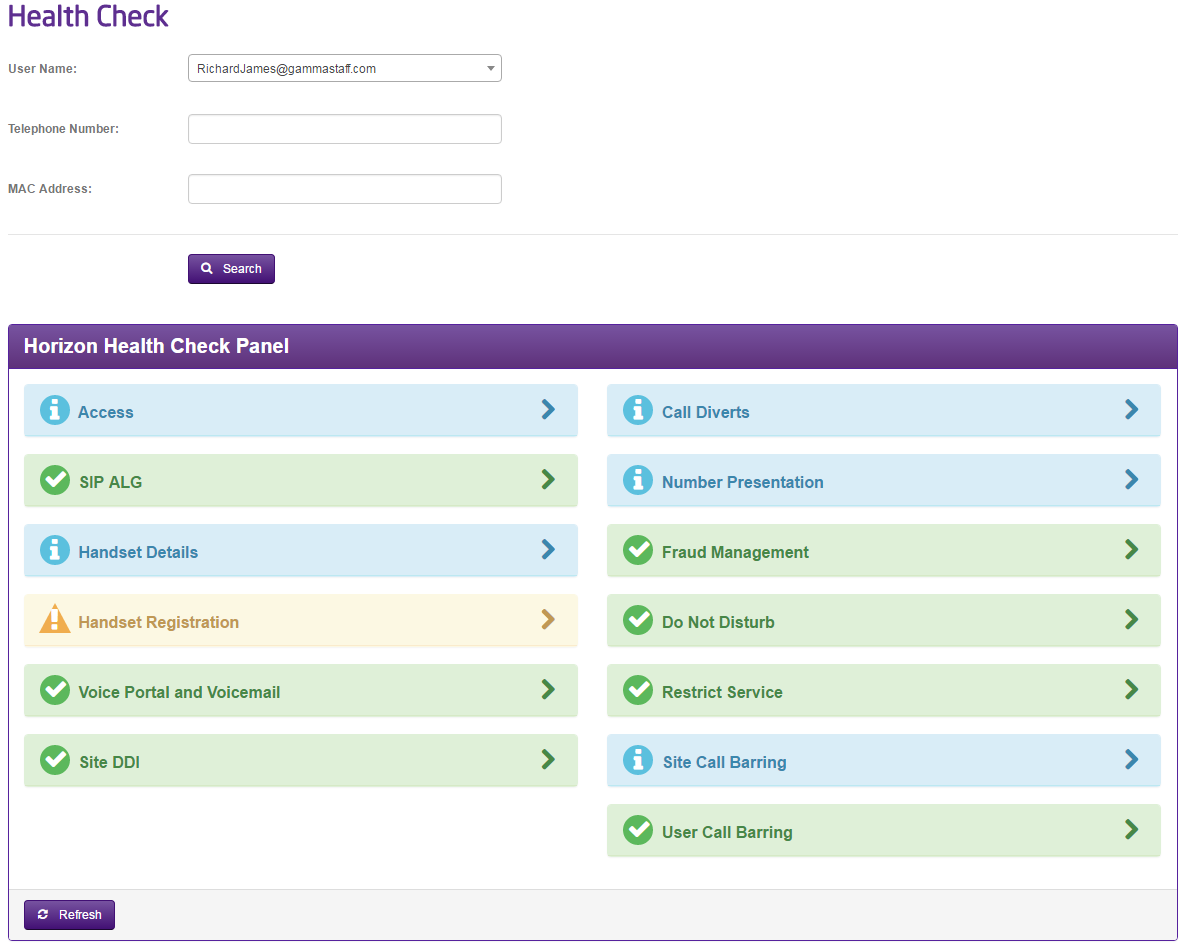
Access Tab #
If the access is Gamma Broadband this will link you to the Broadband service management page of the exact circuit that your user is connected to, and also let you know if the PPP session is up or down at that moment in time. If the access is 3rd party then a blue panel will be displayed advising you that your user is connected to a 3rd party circuit, and if they are experiencing any dropped calls or media related issues to check your access first (this is usually the root cause of these issues).
Grey Meaning | Blue Meaning | Green Meaning | Red Meaning | Amber Meaning |
Potential Gamma Issue please report to the service desk | The IP address against the Horizon User’s Handset is an external IP. The IP is checked against Broadband and Ethernet | Gamma Broadband or Ethernet Circuit is up. | Gamma Broadband or Ethernet Circuit is down. | Error in retrieving the information please refresh and try again. |
SIP ALG #
SIP ALG is a setting on your customer’s router, for Horizon to work this setting needs to be disabled. This check see’s if the router that your user is connected to has SIP ALG disabled.
Related SIP ALG Content #
Network Configuration Guidelines – this document is available on the Gamma Academy Knowledgebase.
How to switch off SIP ALG using Telnet
Grey Meaning | Blue Meaning | Green Meaning | Red Meaning | Amber Meaning |
Potential Gamma Issue please report to the service desk | N/A | SIP ALG is disabled | SIP ALG is enabled | The user does not have a desk device assigned or the device could not be found. |
Handset Registration #
This checks to see if we’ve seen the handset register within the last 10 minutes (green). If it has been longer than 10 minutes this panel will show as amber.
Voice Portal and Voicemail #
Does your Horizon Company have a Voice Portal set up to enable Voicemail, and does the user have the voicemail bolt-on enabled? This will tell you straight away. For more information, please see the Horizon Feature Guide.
Grey Meaning | Blue Meaning | Green Meaning | Red Meaning | Amber Meaning |
Potential Gamma Issue please report to the service desk | N/A | The company voice portal is set up and the user has the voicemail bolt-on assigned. | 1) The company voice portal is set but the user doesn’t have the voicemail sub assigned. 2) The company voice portal is not set up and the user has the voice mail bolt-on assigned. | N/A |
Site DDI #
This checks to see if the site that your user is assigned to has a Site DDI assigned. If not this could cause unexpected problems. For more information, please see the Horizon Feature Guide.
Grey Meaning | Blue Meaning | Green Meaning | Red Meaning | Amber Meaning |
N/A | Potential Gamma Issue please report to the service desk | The user’s site DDI is set up | The user’s site does not have a site DDI set up. | N/A |
Call Diverts #
Call diverts lets you know what settings your user has configured, such as Call Forwarding, Remote Office, Availability Profiles, Twinning and Sequential Ringing. For more information, please see the Horizon Feature Guide.
Grey Meaning | Blue Meaning | Green Meaning | Red Meaning | Amber Meaning |
Potential Gamma Issue please report to the service desk | Horizon is up and the user has call diverts set up | N/A | N/A | N/A |
Number Presentation #
Number Presentation lets you know what a user has set up to present when making outbound calls. For more information, please see the Horizon Feature Guide.
Grey Meaning | Blue Meaning | Green Meaning | Red Meaning | Amber Meaning |
Potential Gamma Issue please report to the service desk | Horizon is up and the user has Number presentation set up | N/A | N/A | N/A |
Fraud Management #
You can see if Fraud Management is set up, and if it is whether the agreed limits have been breached or not. For more information on Fraud Management, please see the Horizon Provisioning and In Life Changes guide and the Horizon Service Description.
Grey Meaning | Blue Meaning | Green Meaning | Red Meaning | Amber Meaning |
Potential Gamma Issue please report to the service desk | N/A | The user’s company is not barred and fraud management is set up. | The user’s company is currently barred and fraud management is set up. | The user’s company currently doesn’t have fraud management set up. The company can either be barred or not barred. |
Do Not Disturb (DND) #
This check lets you know if the user you’re searching against has Do Not Disturb enabled or disabled. For more information, please see the Horizon Feature Guide.
Grey Meaning | Blue Meaning | Green Meaning | Red Meaning | Amber Meaning |
Potential Gamma Issue please report to the service desk | N/A | Do not disturb is disabled | N/A | Do not disturb is enabled |
Restrict Service #
Checks to see if there are any restrictions in place for your Horizon Company, and if they are what they are. For more information on Restrict Service, please see the Horizon Provisioning and In Life Changes guide. For more information please see the Horizon Feature Guide.
Grey Meaning | Blue Meaning | Green Meaning | Red Meaning | Amber Meaning |
Potential Gamma Issue please report to the service desk | N/A | The user’s company service is not restricted | The User’s company service is restricted from making outgoing calls. Or The User’s company service is restricted from making and receiving calls | The User’s company service is restricted from making outgoing calls. Any outgoing calls made will be transferred to a specific number. Or The User’s company service is restricted from making and receiving calls. Any outgoing or incoming calls will be transferred to a specific number. |
Site Call Barring #
What are the call barring options for the site that your user is assigned to? A quick and simple snapshot. For more information please see the Horizon feature guides.
User Call Barring #
What are the call barring options for the site that your user is assigned to? A quick and simple snapshot. For more information please see the Horizon feature guides.