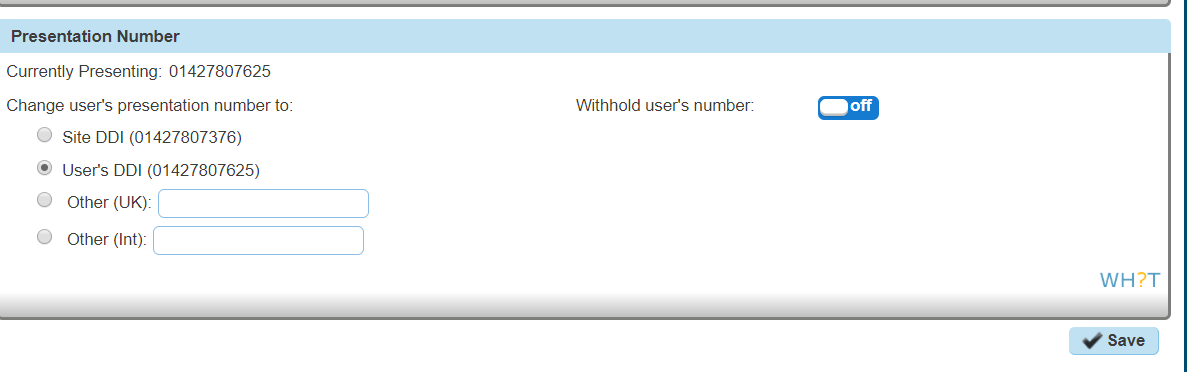
The Number Presentation functionality allows you to present a different CLI for outbound calls. You should refer to the Service Description for the full terms and conditions of CLI Presentation.
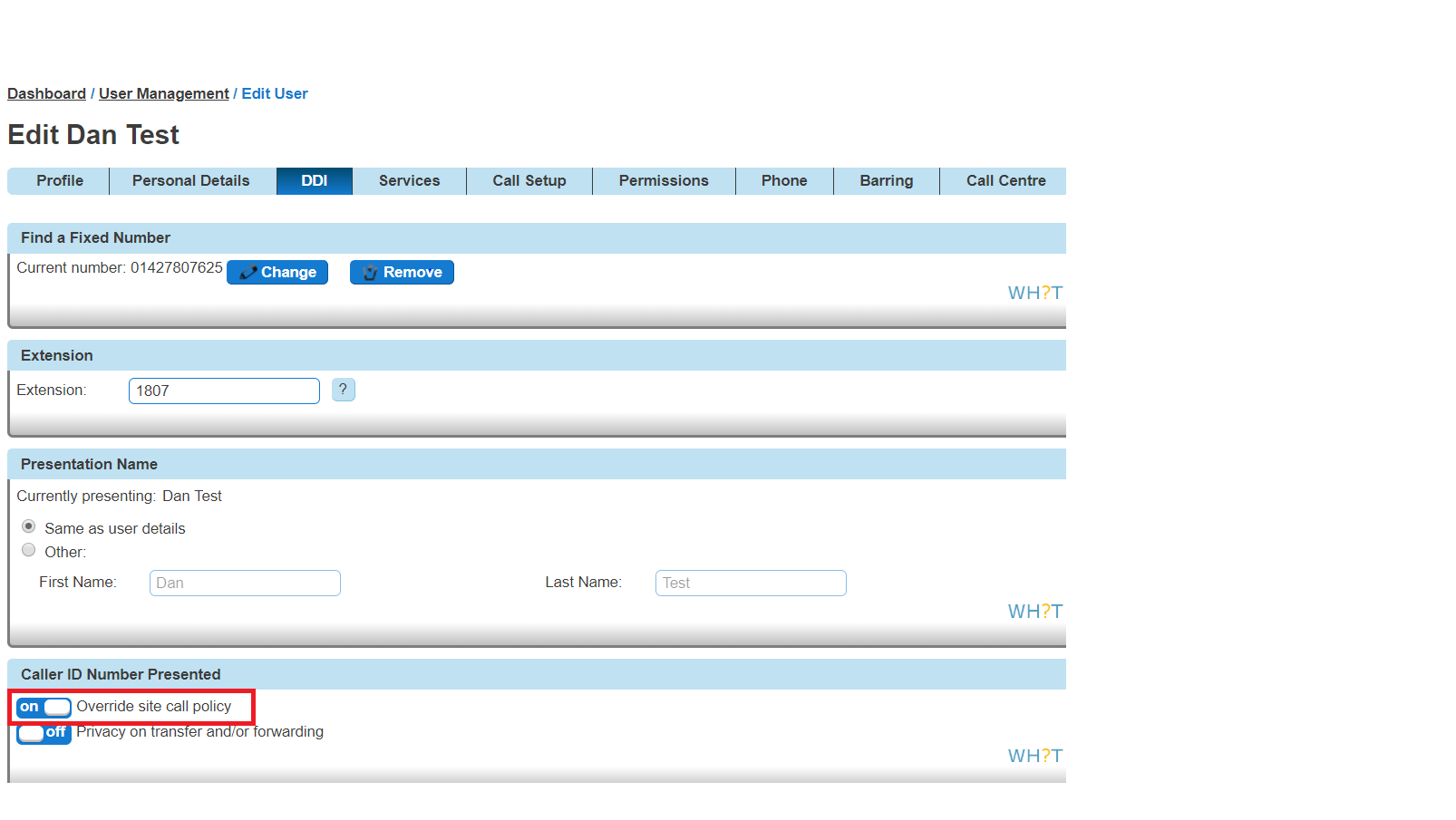
For a user to be able to use CLI Presentation, the Administrator needs to switch on the “Override Site Call Policy” option. Use the Override Site Call Policy guide on how to do this.
You can quickly check what CLI Presentation rules a user has set up by using the Horizon Health Check
Override Site Call Policy #
The Site Call Policy would normally dictate what numbers are presented. Horizon allows a user to present a different number to what the site defines.
An Administrator can set up the Override Site Call Policy option.
Step 1
Log into the Gamma Portal and go to Provisioning and Service Management, Hosted, Horizon and Horizon Manage Company.
Step 2
Select your account and login to the company that you want by using the “Actions” button and selecting “Login to Horizon”.
Step 3
Click the “Users” option and then select “List Users” so you can search for the user that you want to override the site call policy for.
Locate the user and click the “Edit” button.
Step 4
Select “DDI” and then you can select the “Override Site Call Policy” option.
The Administrator can also set the CLI to present whilst on this screen by entering the telephone number that they would like to present in the “Phone Number” text box in the Number Presentation table.