You can set up schedules within Horizon for certain features to behave a certain way during certain times of the day.
Set Up Schedules #
Step 1
Log into the Gamma Portal and go to Provisioning and Service Management, Hosted, Horizon and Horizon Manage Company.
Step 2
Select your account and login to the company that you want by using the “Actions” button and selecting “Login to Horizon”.
Step 3
Select the Call Group that you want to apply the schedule to using the Call Groups menu and then click Edit. Select Advanced Settings, set Enable Virtual Package to On and edit Edit next to Schedule.
Step 4
In Closed hours, you can select either a predefined schedule you’ve previously set up or click the + icon to create a new schedule.

Step 5
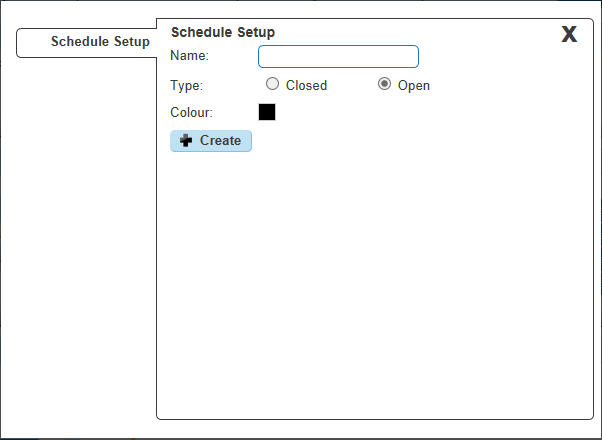
Name the Schedule something memorable. The schedule needs to be set to “Open”, even if you are setting up a schedule for outside of business hours, the colour you’d like to assign to the schedule for appearing on the calendar and then click “+ Create”.
Step 6
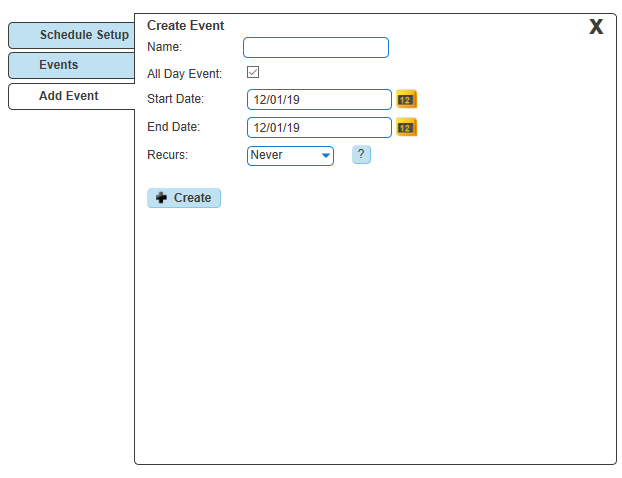
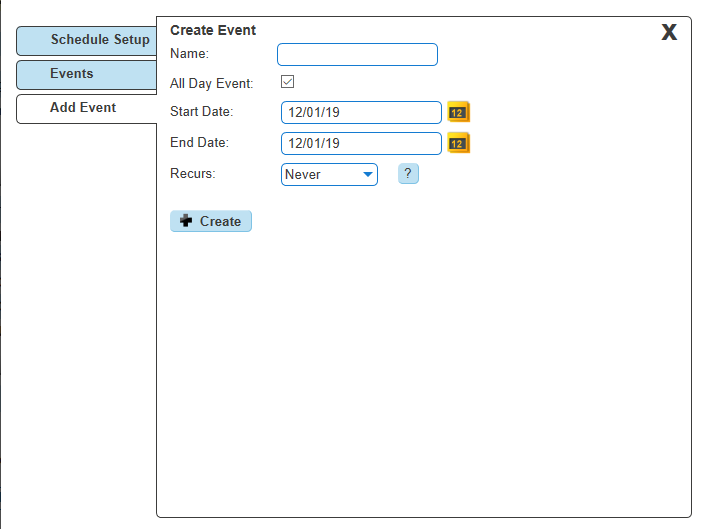
Now you can Add Events to the schedule, therefore building the schedule. Name the event, if the event is all day keep this ticked, if it is between two times, untick the All Day Event option and this will give you extra options under the Start and End Date fields which allows you to set the time. Select how often you want the event to occur and then click create.
Please note the following when creating a schedule:
- An All Day Event is from 00:00 until 23:59 on the selected day.
- To define hours (such as office hours), untick the “All Day Event” box and define the time. Also select the “Weekly” option and tick all the days you wish to have selected.
- Recommended if you want an out-of-hours schedule – select all days apart from Saturday and Sunday.
Example Out of Hours Schedules (Company Open Hours 09:00 – 17:00 Monday to Friday) #
Your first event should cover the morning out of hours, in this case from 00:00 (midnight) – 08:59. We want this to recur weekly on Monday – Friday so you will need to tick Mon/Tue/Wed/Thu/Fri and click create at the bottom.
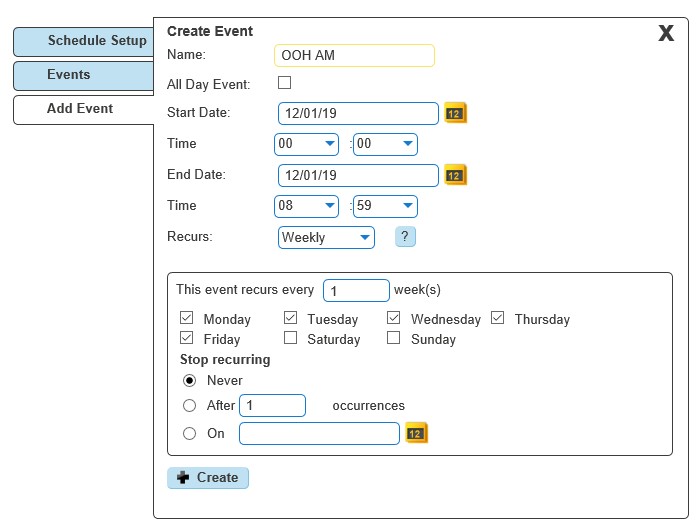
The next step is to click ‘Add’ in the events page which will then take you back to the creating a new event page. Create your afternoon out of hours, in this case from 17:00 – 23:59. We also want this event to recur weekly from Monday – Friday.
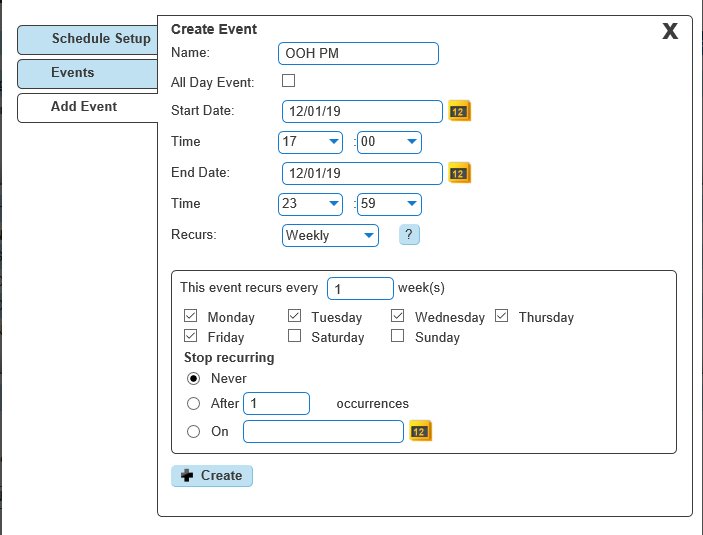
You will now need to add in the weekend section. As the office is closed all weekend we can leave ‘All Day Event’ ticked. We want this to recur weekly on Saturdays and Sundays.
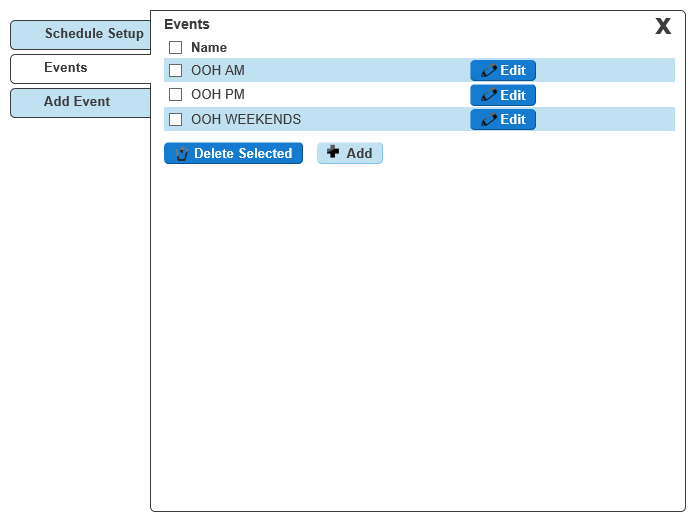
After you have saved all of your events, you will see them here under ‘Events’ where you can either add more, edit the existing events or if you are happy with what is already created, click the X to close this pop-out.
Once you are happy with your events, click the X and you should now see this page. You will need to input a CLI or extension number into the Forward To: box. This is where calls will be diverted to whenever it is within the scheduled hours.
Please note if you wish to forward the call to the voicemail box of this particular group, you will need to input the company voice portal extension here (the extension only, as when putting in the full DDI for the voice portal it will act as if you are calling the company voice portal).
After you have created your schedule and have inputted the number you wish for calls to forward to during the scheduled hours, click ‘save’ at the bottom of the page to save your schedule settings. and to activate this schedule click the ‘Activate’ button halfway up the page and then click ‘save’ again.
The above example is a basic schedule, for more complex schedules please contact the Horizon Provisioning team who will be able to advise how to create a schedule based on your requirements.
Edit Schedules #
Step 1
Log into the Gamma Portal and go to Provisioning and Service Management, Hosted, Horizon and Horizon Manage Company.
Step 2
Select your account and login to the company that you want by using the “Actions” button and selecting “Login to Horizon”.
Step 3
Select “Site Management” and click on the Manage button for the site you want to create a schedule for.
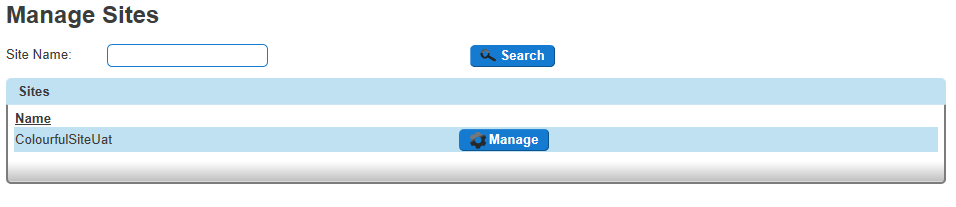
Step 4
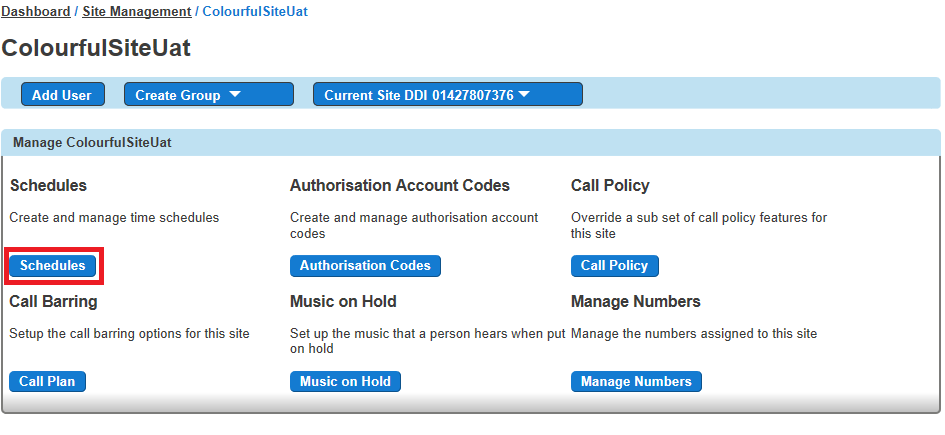
Click on the “Schedules” button.
Step 5
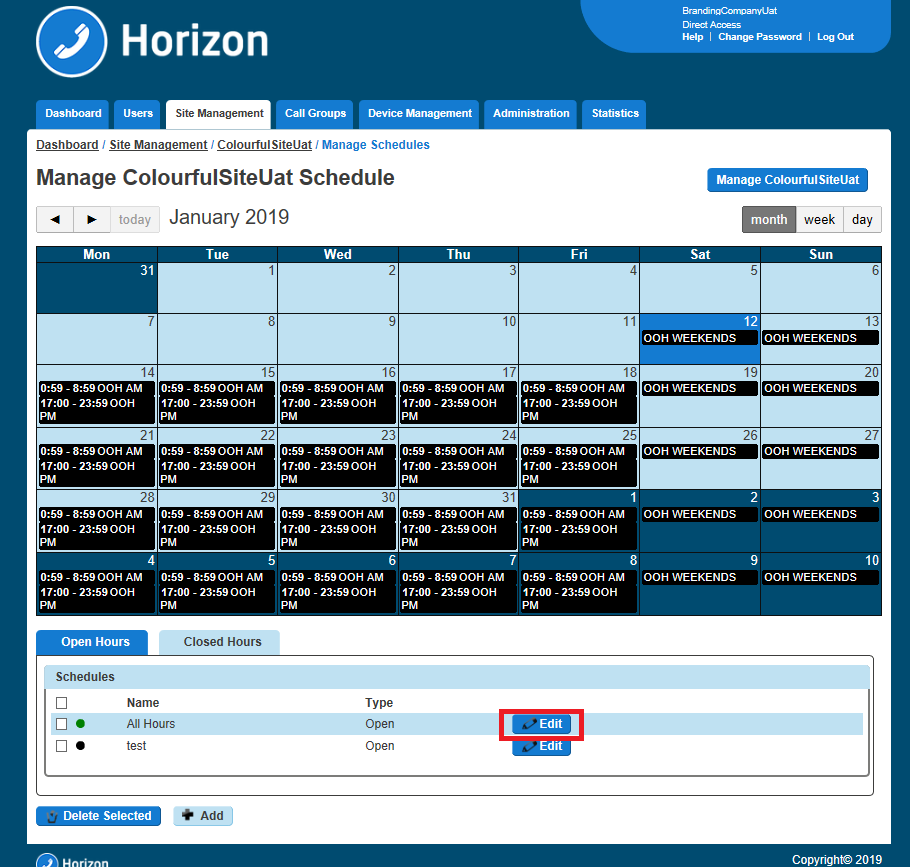
Click on the “Edit” button of the schedule that you want to edit.
Step 6
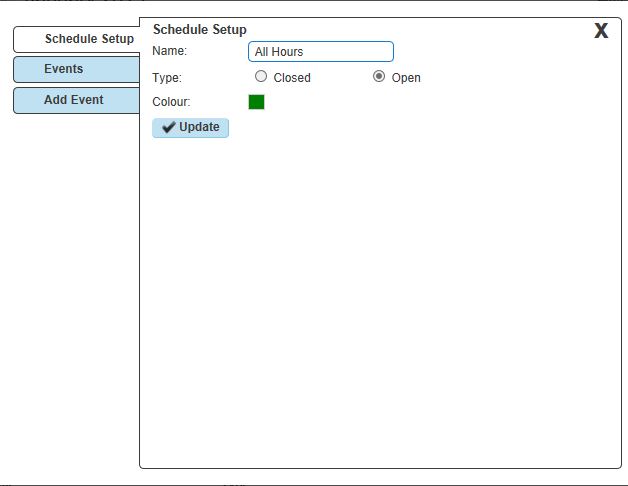
“Schedule Setup” will allow you to change the name, type and colour of the schedule.
Step 7
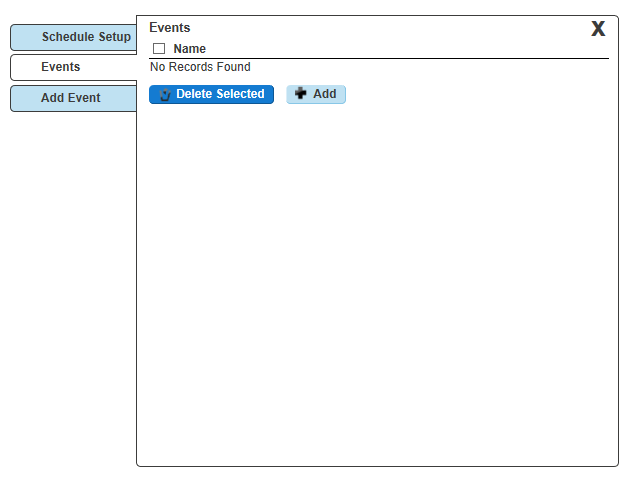
“Events” will allow you to delete an event by selecting the schedule’s tick box and then press “Delete selected”, or add a new schedule by clicking Add New.
Step 8
“Add Event” will allow you to add an event to the schedule.