Manage Subscriptions #
As subscriptions can be used and managed across your entire Channel Partner account, we have the “Manage Subscriptions” page on the Gamma Portal. This is accessible by going to Provisioning and Service Management 🡪 Horizon 🡪 Manage Subscriptions.
You can search for subscriptions using any of the following methods:
Searchable Field | Description | Options |
Partner Account | This is the only mandatory field. Select the account you want to manage subscriptions for. | All Channel Partner accounts that you have permission for |
ID | Each subscription has its ID, and if you are looking for a specific subscription, enter the ID here. | Free text |
Company Name | All the Horizon Companies that you have provisioned against your Partner Account. | Drop down based on what you’ve selected in Partner Account. |
Subscription Type | You can search for all the subscription types that you have on your Partner Account. | Premium Upfront Commission Club Schools & Charities Commission |
Subscription Option | You can search for your contract term | 1 Month 3 Year 5 Year |
Subscription Start Date | If you are searching for subscriptions that have started on a particular date, you can select the date here | Date |
Term End Date | If you are looking for subscriptions that are ending at a specific date, you can search for these here | Date |
Term Status | You can filter out all the In Term and Out of Term subscriptions to make handling renewals easier | In Term Out of Term |
Allocation Status | You can search for all subscriptions on your account that are either allocated to a Horizon Company or unallocated. | Allocated Unallocated |
When you’ve searched for your subscriptions, you will have this presented back to you in the following table:
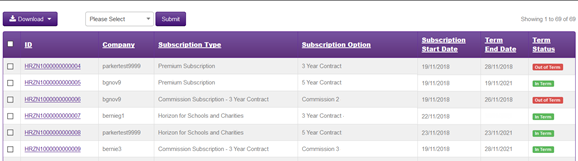
If “Company” is blank, then this means that the subscription is unallocated and can be allocated elsewhere.
If “Term End Date” is blank, this is because it is a 1-month subscription.
You can click on “Company”, “Subscription Type”, “Subscription Option”, “Subscription Start Date”, “Term End Date” and “Term Status” which will sort that column in order.
Add Subscriptions #
If you require new subscriptions, these are ordered against the Company that you wish the subscriptions to be assigned to. The reason for this is that when ordering subscriptions, the Gamma Portal will check to see if the Company qualifies for the Horizon Fund. Alternatively, you can use the “Assign to Company” action from the “Manage Subscriptions” page.
Step 1
From the Gamma Portal, go to “Provisioning and Service Management”, “Hosted”, “Horizon” and “Horizon Manage Company”.
Step 2
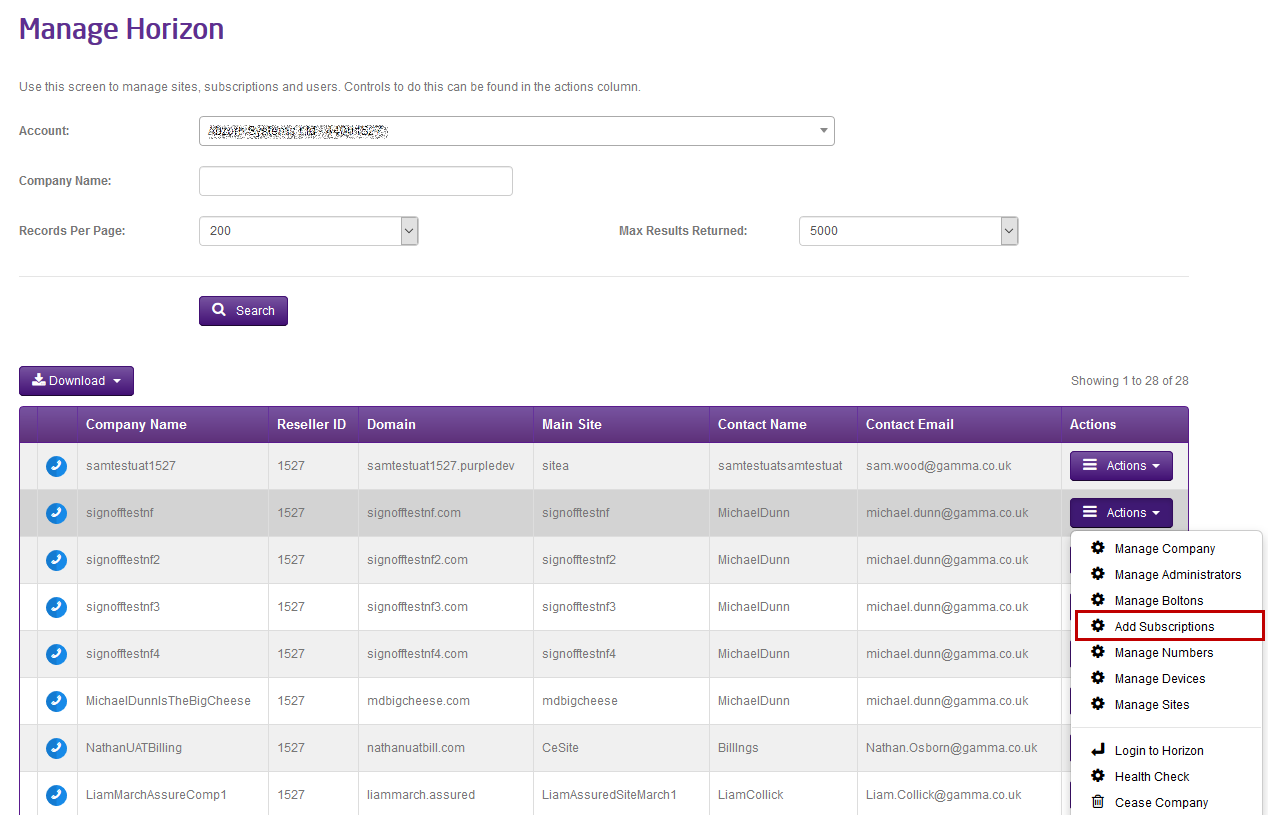
Search for the Horizon Company that you want to add new subscriptions to, and using the Actions drop down, select “Add Subscriptions”.
Step 3
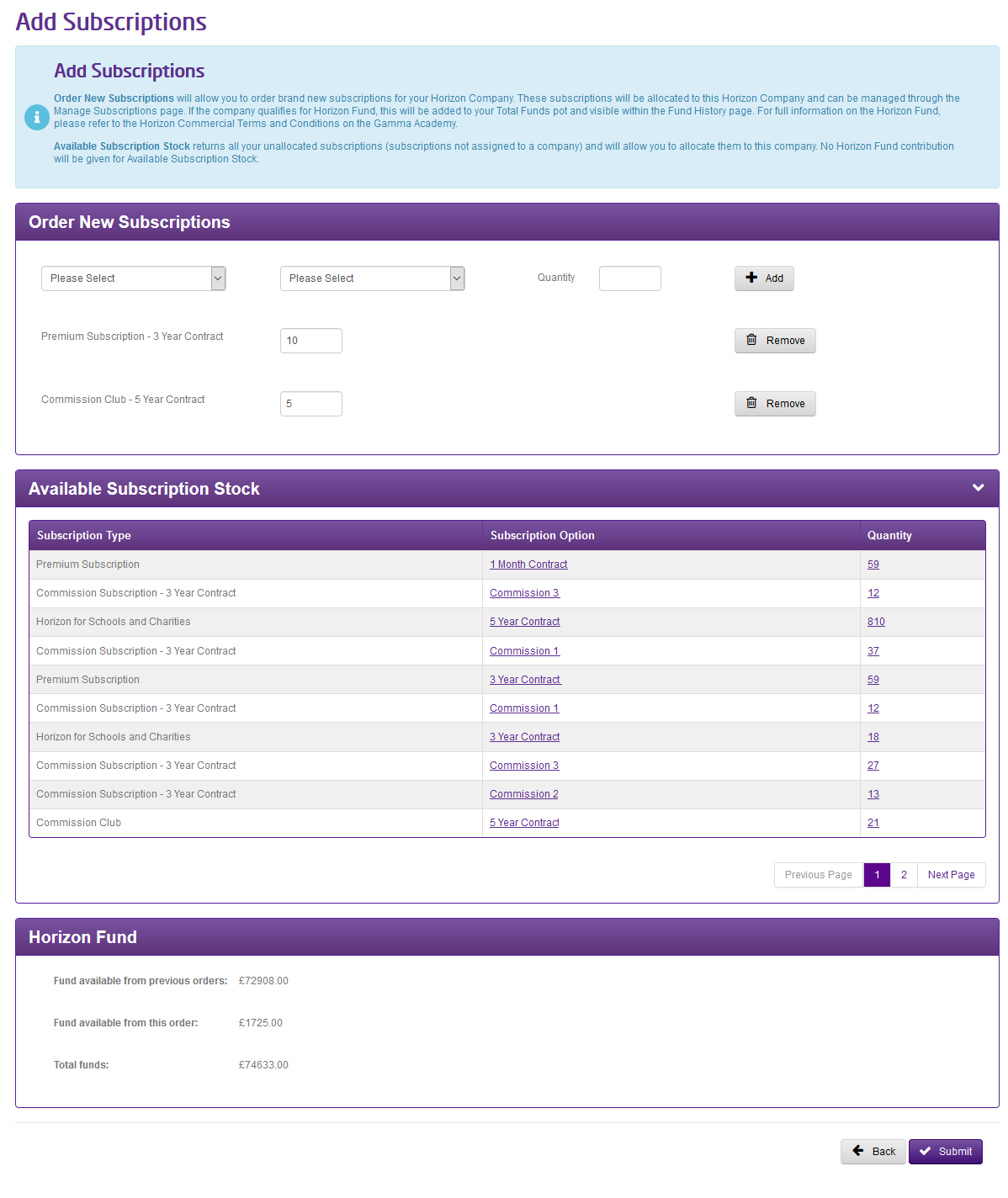
On the Add Subscriptions page, you will be presented with two options – “Order New Subscriptions” and “Available Subscription Stock”.
“Order New Subscriptions” allows you to order brand new subscriptions, which will be ordered and then allocated to the Horizon Company that is selected.
The “Available Subscription Stock” panel checks for any subscriptions that are not allocated against a Horizon Company, though are on your Channel Partner account, and allows you to select these subscriptions to assign them to your selected Horizon Company.
Step 4
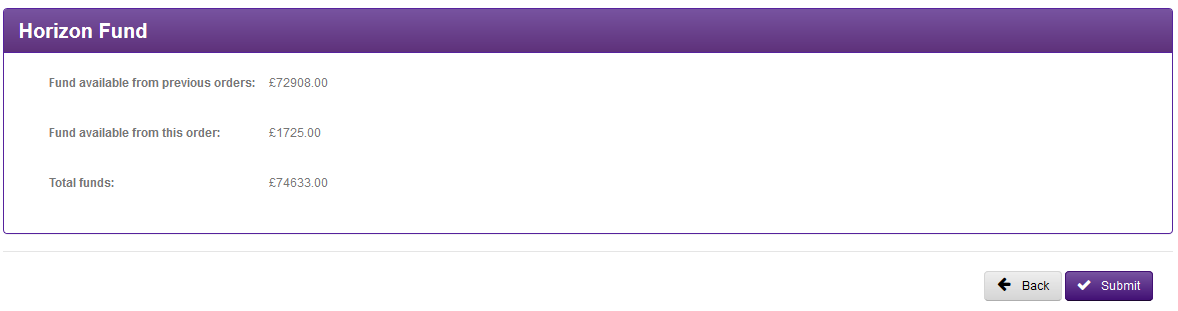
If you are adding new subscriptions and if the company qualifies for the Horizon Fund, the Gamma Portal will add the applicable contribution to your Horizon Fund. This will be displayed in the Horizon Fund panel as you are adding/removing subscriptions from your order.
You will not receive Horizon Fund contribution when using the “Available Subscription Stock” as the check has already been made as to whether that subscription qualified for Horizon Fund at the point that it was created. Only ordering new subscriptions will qualify for Horizon Fund contribution.
Unallocate Subscriptions #
You can unallocate subscriptions from a Horizon Company, providing that there are enough subscriptions left on the Company to cover the number of users that Company has.
You will continue to be billed for subscriptions that are in an Unallocated status* in line with the subscription type and contact option.
* Upfront Subscriptions will be billed if the subscription is in-term, though if the Upfront subscription is out of term and unallocated, we will suspend billing for that subscription until it is allocated to a new company.
Step 1
From the Gamma Portal, go to “Provisioning and Service Management”, “Hosted”, “Horizon” and “Manage Subscriptions”.
Step 2
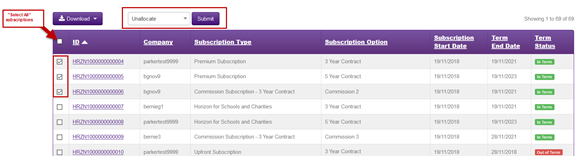
Search for the subscriptions that you wish to Unallocate using any of the available search criteria and then select the subscription(s) using the check box associated with the subscription.
Select the “Unallocate” action and then click “Submit”.
Step 3
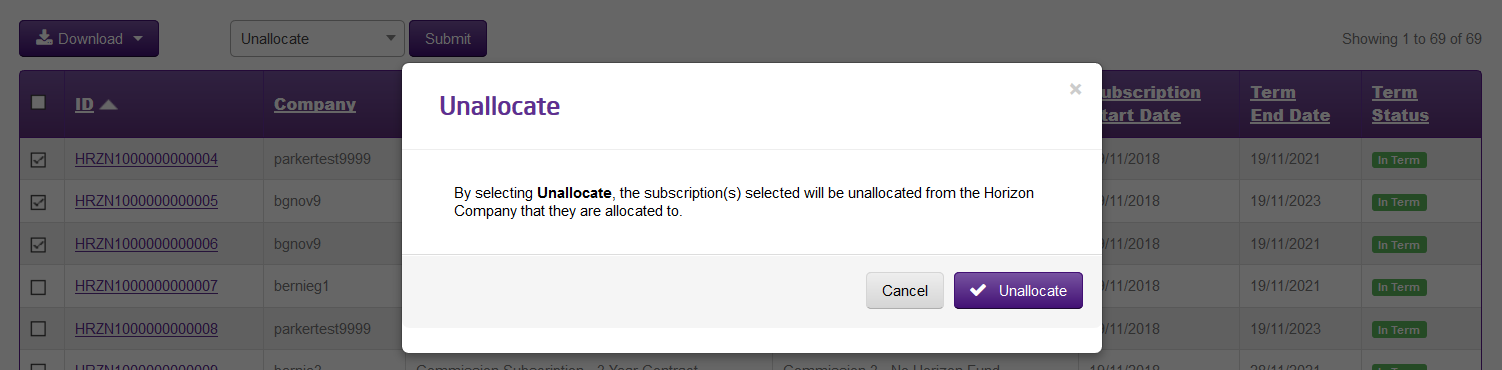
Confirm that you want to unallocate the subscriptions from the Company(s).
When you click “Unallocate” here the Gamma Portal will now unallocate these subscriptions. To reverse this action you need to follow the “Assign to Company” process.
Step 4
Once you have clicked “Unallocate”, then you will be given an order ID.
The Subscription History will be updated with the change, date and who completed this action.
Cease Subscriptions #
Subscriptions can be ceased when they are unallocated from a Company. The only exception is Upfront subscriptions, which cannot be ceased.
Termination Charges #
If a subscription is out of term, there is no charge applied. However, if the subscription is in term, then you will receive a termination charge.
For full information regarding termination charges, please see the Horizon Commercial Terms & Conditions document and our Billing Home page on the Gamma Portal (Billing 🡪 Billing Home)
Step 1
Follow the “Unallocate Subscriptions” process fully, then proceed to Step 2.
Step 2
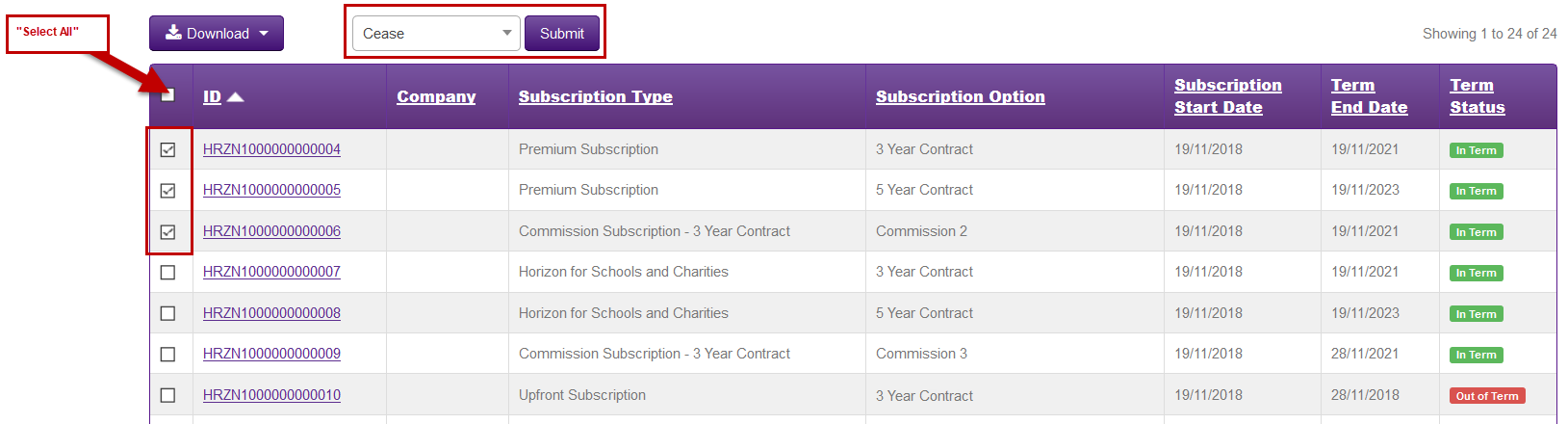
Once the subscriptions are unallocated from a Company, these can then be ceased. Select all the unallocated subscriptions that you wish to cease and in the actions drop down, select “Cease” and then “Submit”.
Step 3
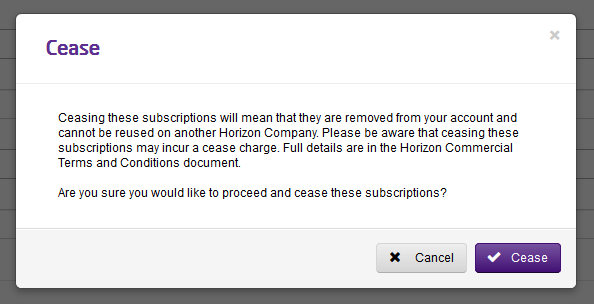
You will be presented with a window asking if you are wanting to proceed in ceasing these subscriptions. If there is a termination charge associated with this request, then this will be worked out and displayed here.
Once you are sure you want to cease these subscriptions, then click “Cease”. This will generate an Order ID for you and will cease these subscriptions. This action is not reversible.
Assign Subscriptions to a Company #
Any subscription that is not allocated against a Company (“unallocated”) can be assigned to another Horizon Company on the same Channel Partner account.
Assigning a Schools and Charity subscription to a non-Schools or Charity company will result in the subscription losing its Schools and Charity discount for the remainder of the contracted term and being charged as a Premium subscription.
You can assign any subscription type to any Company.
Step 1
From the Gamma Portal, go to “Provisioning and Service Management”, “Hosted”, “Horizon” and “Manage Subscriptions”.
Step 2
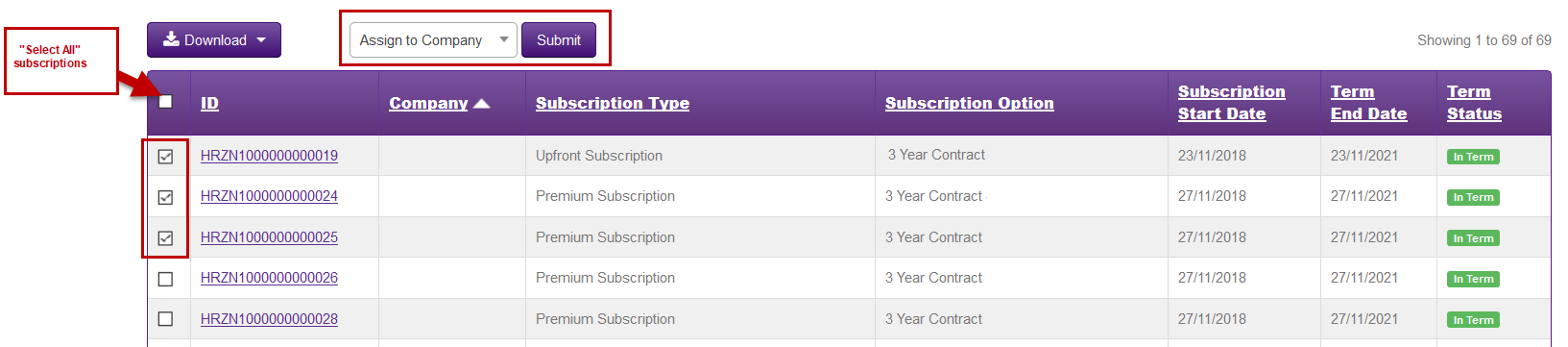
Identify the subscriptions that are already in an unallocated status that you wish to use (the subscriptions that don’t have a Company Name in the results table), select them and using the Action drop-down, select “Assign to Company”. Click “Submit”.
Step 3
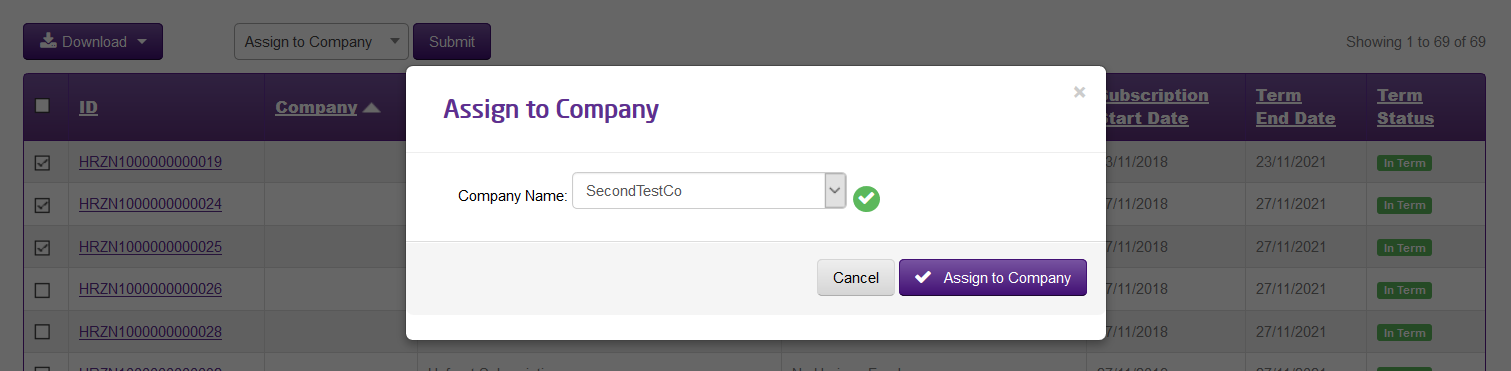
Select the Company that you want to assign your subscriptions to from the drop-down, and then click “Assign to Company”.
Clicking “Assign to Company” will complete this action, and you will be given an order ID. To reverse this action, please follow the “Unallocate Subscriptions” process.
The Subscription History will be updated with the change, date and who completed this action.
Renew Subscriptions #
We have two ways of renewing subscriptions within the Gamma Portal. These are:
| When can I renew | What does this mean? | |
| Renew | From 6 months before the end of the subscription end date | You can renew your subscriptions once they are out of term to another contract term. For example, if you want to change your 3-year subscription to a 5-year subscription, this is possible using Renew As. You can also change the subscription type. So you may wish to change your Schools and Charities subscription to a Premium subscription. You will receive your renewal contribution into the Horizon Fund once you have renewed your subscription. |
| Renew As | When the subscription is Out of Term only | You can renew your subscriptions once they are out of term to another contract term. For example, if you want to change your 3-year subscription to a 5-year subscription, this is possible using Renew As. You can also change the subscription type. So you may wish to change your Schools and Charities subscription to a Premium subscription. You will receive your renewal contribution into the Horizon Fund once you have renewed your subscription. |
Renew #
Within the Gamma Portal, you can now renew subscriptions* on the same terms as the original contract 6 months before the end of the subscription term. This gives the Channel Partner the benefit of getting a new incentive deal earlier than expected.
A subscription needs to be assigned to a company before you can renew it.
* The only subscriptions that cannot be renewed are Upfront subscriptions.
Step 1
From the Gamma Portal, go to “Provisioning and Service Management”, “Hosted”, “Horizon” and “Manage Subscriptions”.
Step 2
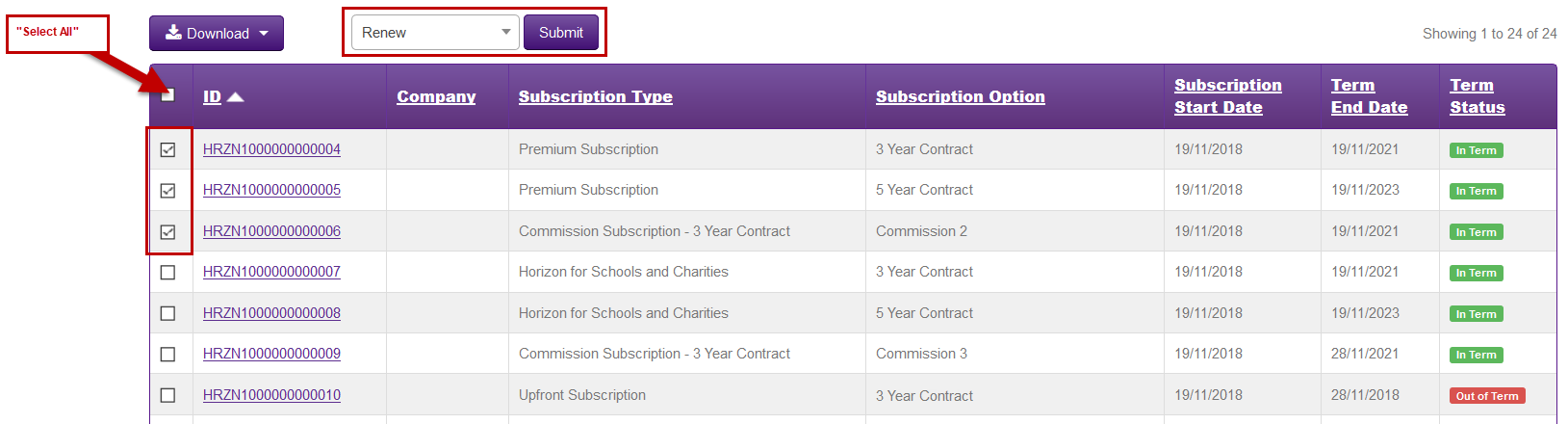
Identify the subscriptions that you want to renew and select them, ensuring that they are either Out of Term or In Term and have less than 6 months to run in the Term End Date field. Select “Renew” and then click “Submit”.
Step 3
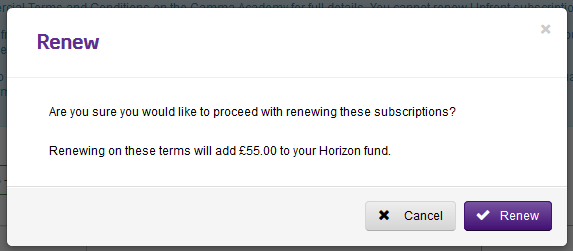
Once you click Renew, if the subscriptions qualify for the Horizon Fund you will be presented with how much your Fund contribution will be and the Fund will be automatically updated.
Confirm that you want to renew the subscriptions by clicking “Renew”. If you wish to cancel the request at this stage, click “Cancel”.
The Subscription History will be updated with the change, date and who completed this action.
Renew As #
You are also now able to change the subscription type when renewing, which is known as “Renew As”. This action can only be completed on subscriptions that are Out of Term.
You are unable to renew Upfront subscriptions, and you are unable to Renew a subscription to an Upfront, with the exception of the Upfront – 1 Month Rolling, where they can be “Renewed As” to a 3 Year to qualify for Horizon Fund.
Premium 1-Month Rolling subscriptions can only be renewed after 18 months.
Step 1
From the Gamma Portal, go to “Provisioning and Service Management”, “Hosted”, “Horizon” and “Manage Subscriptions”.
Step 2
Identify the subscriptions that you want to renew as a new contract type and select them, ensuring that they are either Out of Term. Select “Renew As” and then click “Submit”.

Step 3
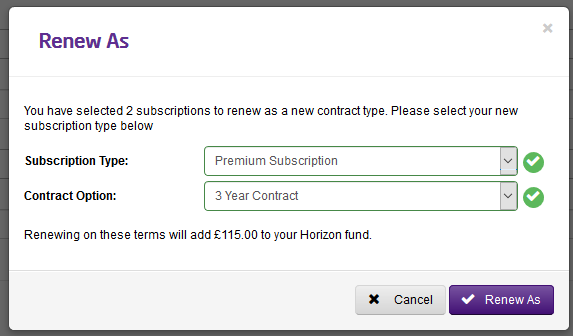
Select your new Subscription Type and Contract Option for all the subscriptions you’ve selected. Once you’re happy with your selection, click “Renew As”.
If the subscriptions qualify for the Horizon Fund, you will be presented with how much your Fund contribution will be and the Fund will be automatically updated.
Once you’ve selected “Renew As” all selected subscriptions will be changed to the new contract option and this option is not reversible.
The Subscription History will be updated with the change, date and who completed this action.
Subscription History #
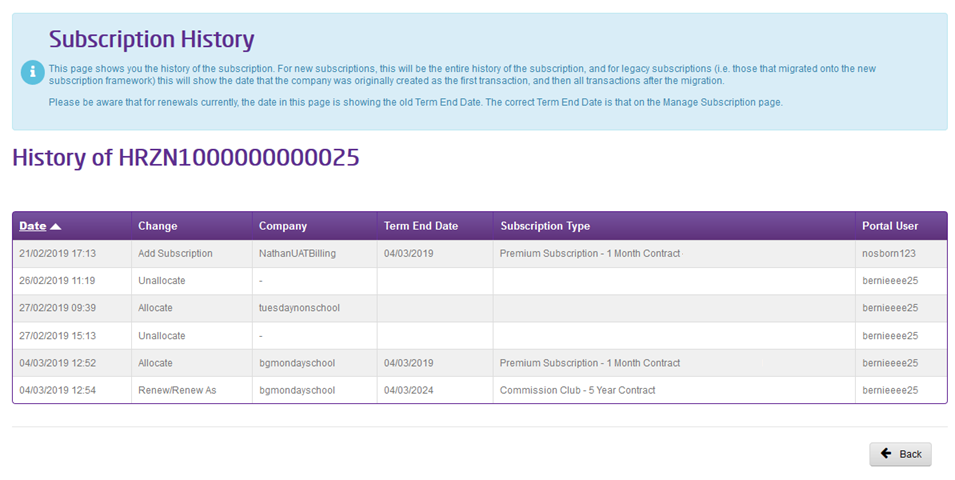
With all the changes that can happen to subscriptions, we have a “Subscription History” page within the Gamma Portal. This is available by clicking on the Subscription ID when it is shown as a purple link.
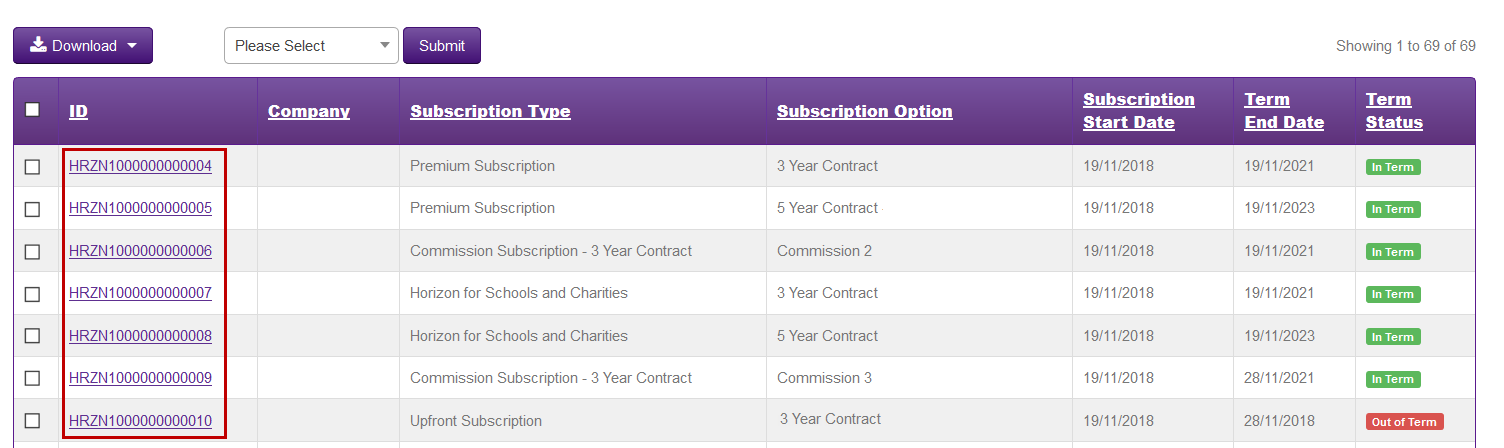
The Subscription History page will give you details on what action has been taken for a subscription, what the Company name is (if assigned to a company), the subscription type, term end dates and who has made the change.