Horizon has the ability to establish a variety of hunt groups to route calls to multiple locations when an incoming call is received. Each user will be called in order of the group until a free user is reached.
Hunt Group Types #
Hunt Group | Description |
Circular | A Circular hunt group sends the incoming calls to users according to their position in the list. After a call has been answered, the next call will be answered by the person following the user who answered, even if the call is at the top of the list. |
Regular | A Regular hunt group sends the incoming call to the next available user in the hunt group. Regular hunt groups will restart from the 1st member of the group when a new call is delivered. |
Simultaneous | A Simultaneous hunt group sends incoming calls to all users in the group at the same time. Once the call has been answered, the remaining calls to all the other users will be released. |
Uniform | A Uniform hunt group sends the incoming call to the user who has been idle the longest. After a user has answered the call, they’ll move to the bottom of the queue. |
Weighted | A Weighted hunt group sends the incoming call to the users according to a percentage you assign them. |
Setup a Hunt Group #
Hunt Groups are set up by the Company Administrator
Before you start to set up your Hunt Group, you need to make sure that you have Hunt Group Add-ons to do this. This is done by completing the following actions:
- Log into the Gamma Portal and go to Provisioning and Service Management, Hosted, Horizon and Horizon Manage Company.
- Select your account and locate the company that you want to set up a Hunt Group.
- Using the “Actions” drop-down select “Manage Bolt ons”.
- From here you can see what bolt-ons you have and how many are currently in use. If you need to add any more Hunt Group add-ons, scroll to the bottom of the page and click “Add More Bolt ons” and then you can add as many bolt-ons as you need by adding against “Hunt Group”.
Step 1
Log into the Gamma Portal and go to Provisioning and Service Management, Hosted, Horizon and Horizon Manage Company.
Step 2
Select your account and login to the company that you want by using the “Actions” button and selecting “Login to Horizon”.
Step 3
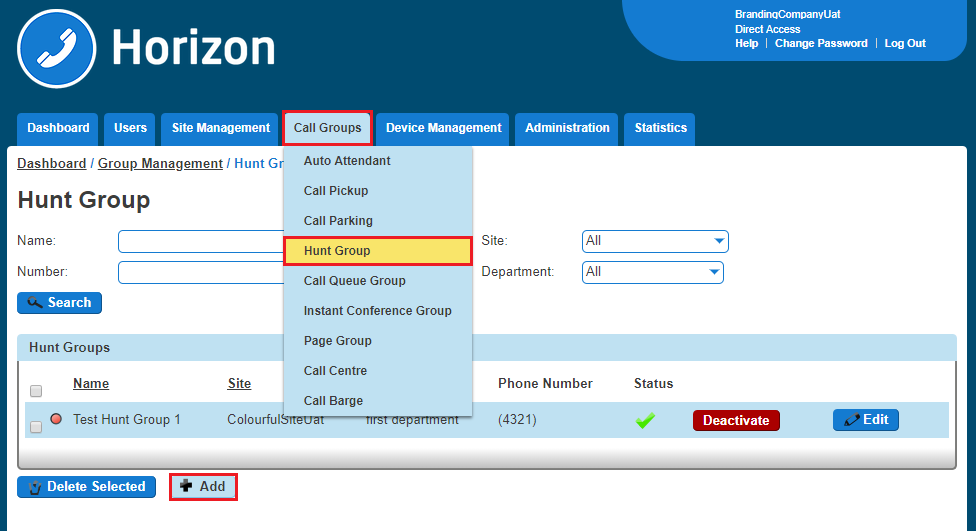
Click the “Call Groups” option and then select “Hunt Group”. On the Hunt Group page click “Add”.
Step 4
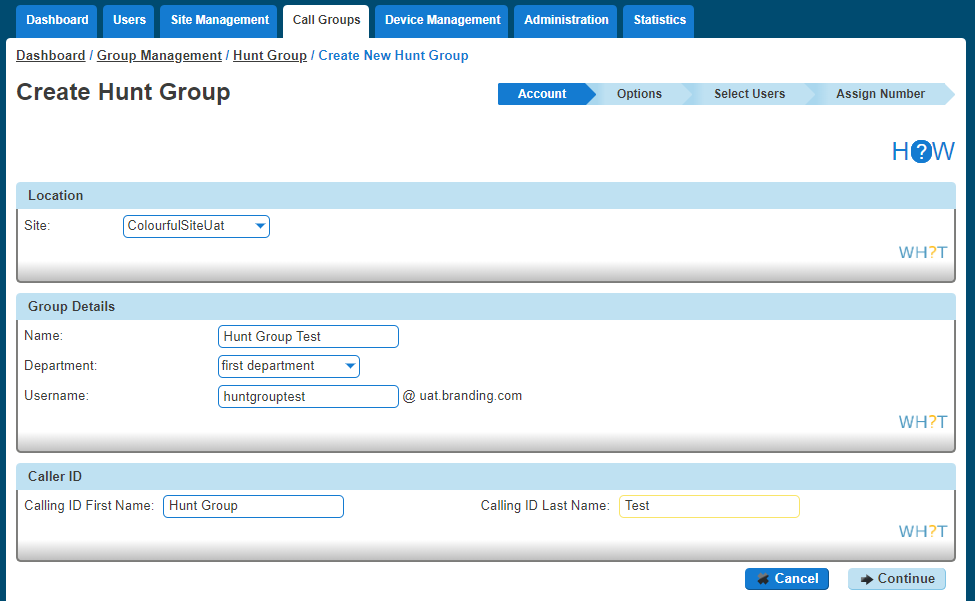
You will now be in the wizard for Hunt Groups. On the first page you will be setting up the following:
- Site – the site that the Hunt Group will be used for. All the users of the Hunt Group will be on this site.
- Group Details – enter the name, username and department that you’d like the group to be assigned to. This is so that you can quickly identify the group if you ever need to edit or delete the group.
- Caller ID – this will be what is displayed on the handset when the Hunt Group is used.
Step 5
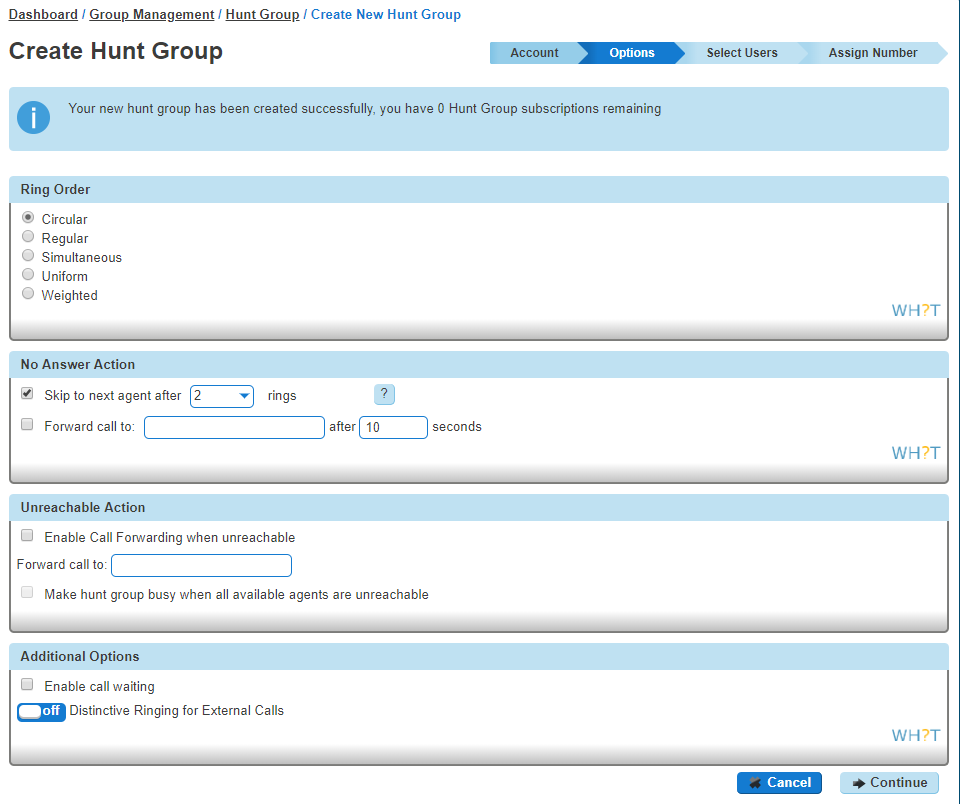
Now you can configure the options for the Hunt Group. The available options during the setup of the Call Queue Group are:
- Ring Order: Select if you want a Circular, Regular, Simultaneous, Uniform or Weighted Hunt Group
- No Answer Action: If a user does not answer the call, how many rings before it skips to the next user, or if you want to forward the call to a specific number after a defined amount of seconds.
- Unreachable Action: If you want to set up Call Forwarding if unreachable. This is designed to forward a call in the event that the subscriber’s device is not registered with the Horizon platform. In the case of a call group, all devices associated with the call group need to be unregistered for the unreachable divert to be applied. The unreachable divert only occurs in the event that the device or devices become unregistered from the Horizon platform, typically due to an issue with connectivity between Horizon and the site/device being hard down, unreachable should not be considered as a disaster recovery feature for any other scenario outside of this.
- Additional Options: If you would like Distinctive Ringing for external calls, or if you would like to enable Call Waiting
Step 6
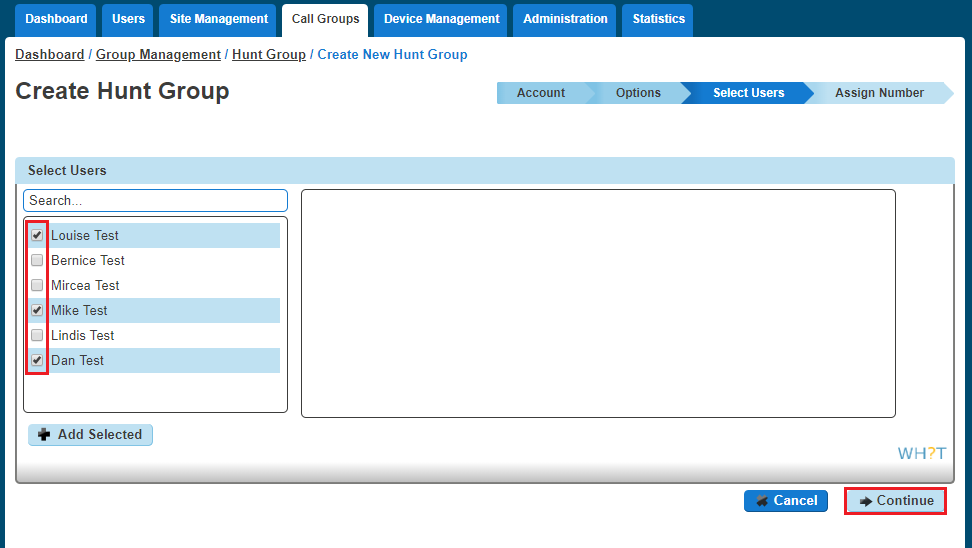
Select the users which you want in the Hunt Group, click “Add Selected” so that they move to the box on the right-hand side of the screen and then click “Continue”.
Step 7
Find an available number that you have on your Horizon Company to assign to and type in a free extension.
“Finish and Show List” will finish the setup with the basic settings of the Hunt Group.
“Finish and Edit” will finish the setup with the basic settings of the Hunt Group and allow you to edit some of the more advanced options. These include:
- Call Recording
- Voicemail
- What announcement should be used for the voicemail
- If you want voicemail notifications to be sent to an email address
- If you want all calls to be sent to voicemail
- Change Voicemail Passcode for the Call Queue Group
- Scheduling (Advanced Settings)
- Call Forwarding (Advanced Settings)
- Call Forwarding when Busy (Advanced Settings)
Add/Remove Users to/from a Hunt Group #
Step 1
Log into the Gamma Portal and go to Provisioning and Service Management, Hosted, Horizon and Horizon Manage Company.
Step 2
Select your account and login to the company that you want by using the “Actions” button and selecting “Login to Horizon”.
Step 3
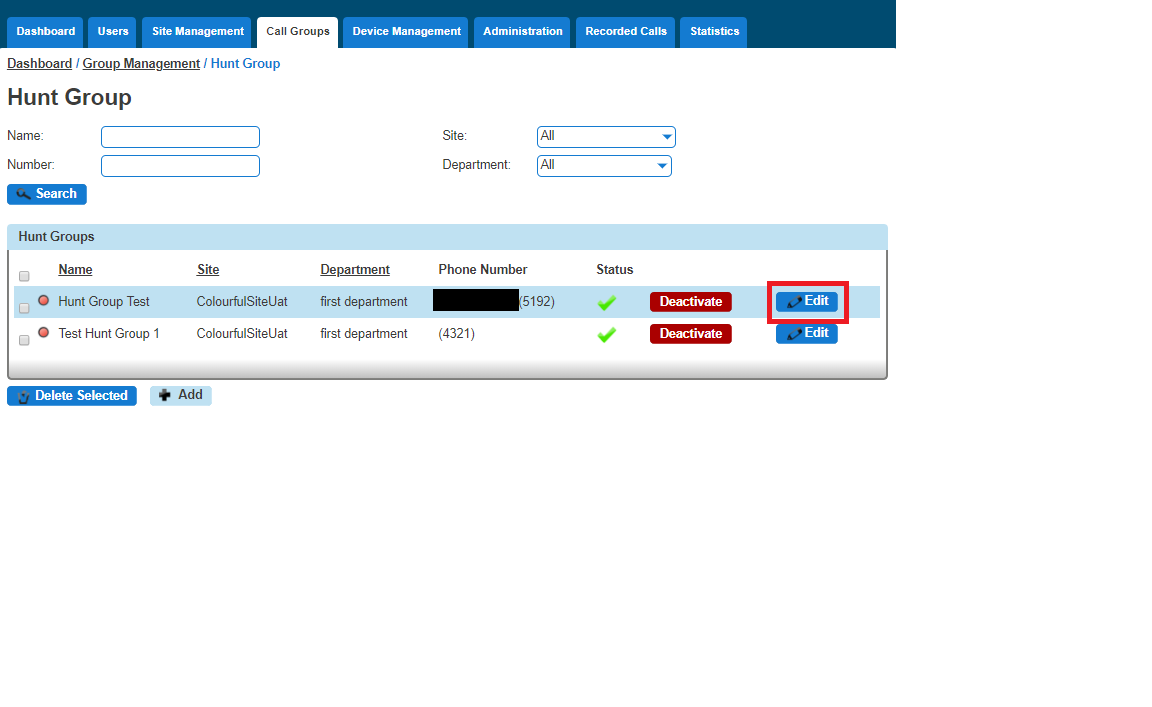
Click the “Call Groups” option and then select “Hunt Group”. On the Hunt Group page click “Edit”.
Step 4
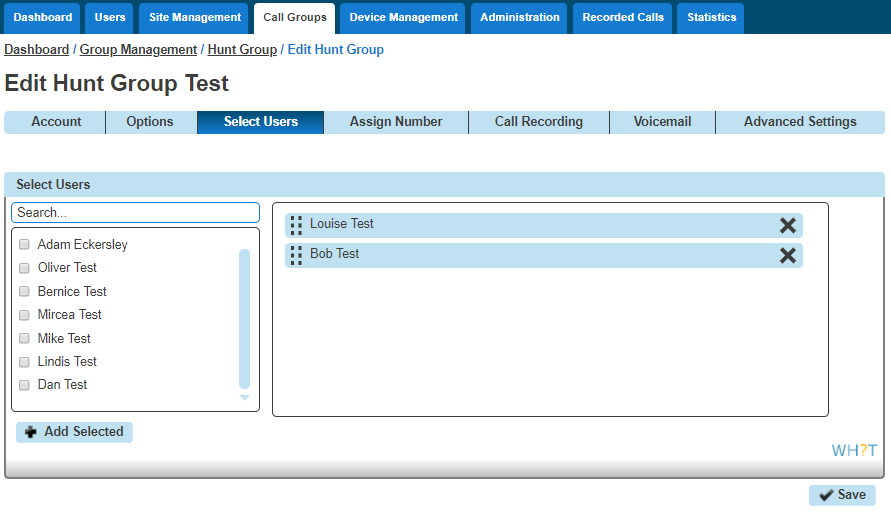
Select the “Select Users” tab. From here you can add new users from the table on the left-hand side by clicking “Add Selected”, and remove users by clicking the white “X” next to the user you want to remove.
Edit a Hunt Group Settings #
Step 1
Log into the Gamma Portal and go to Provisioning and Service Management, Hosted, Horizon and Horizon Manage Company.
Step 2
Select your account and login to the company that you want by using the “Actions” button and selecting “Login to Horizon”.
Step 3
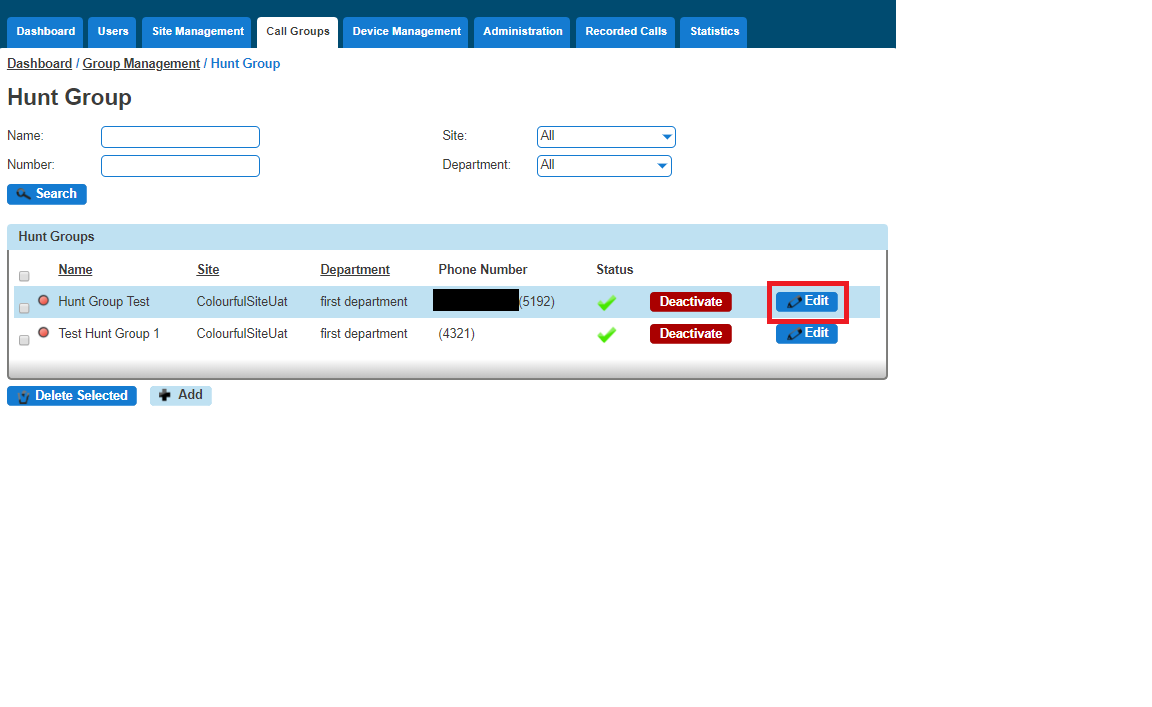
Click the “Call Groups” option and then select “Hunt Group”. On the Hunt Group page click “Edit”.
Step 4
From here you will be presented with the following options:
Account #
- Change the name and Caller ID settings
Options #
- Change the Hunt Group Settings, including:
- Ring Order
- No Answer Action
- Unreachable Action
- Call Waiting
- Distinctive Ring for External Calls
Select Users #
- Add or remove users from the Hunt Group
Assign Number #
- Change the telephone number of the Hunt Group
- Change the extension number of the Hunt Group
Call Recording #
Voicemail #
- What announcement should be used for the voicemail
- If you want voicemail notifications to be sent to an email address
- If you want all calls to be sent to voicemail
- Change Voicemail Passcode for the Call Queue Group
Delete a Hunt Group #
Step 1
Log into the Gamma Portal and go to Provisioning and Service Management, Hosted, Horizon and Horizon Manage Company.
Step 2
Select your account and login to the company that you want by using the “Actions” button and selecting “Login to Horizon”.
Step 3
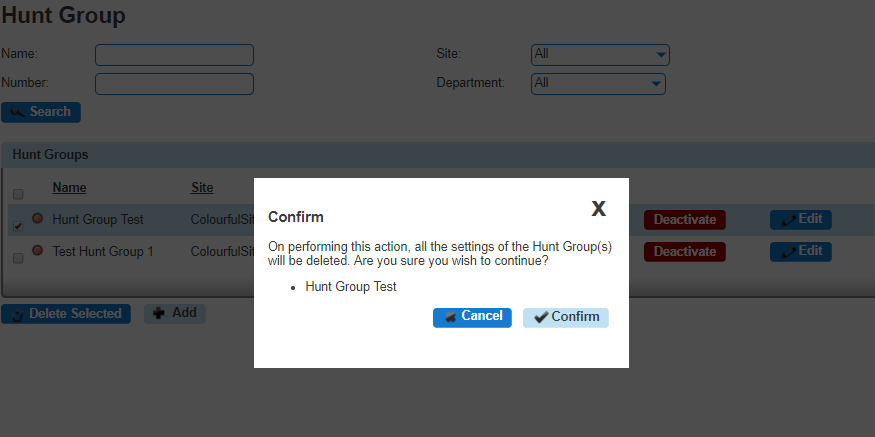
Click the “Call Groups” option and then select “Hunt Group”. On the Hunt Group page select the Hunt Group(s) that you want to delete and then click the “Delete Selected” option.
Click “Confirm” when asked if you are sure that you want to continue deleting the Hunt Group.
Apply a Schedule to a Hunt Group #
For help on how to set up a Schedule, please see our Schedule article.
Log into the Gamma Portal and go to Provisioning and Service Management, Hosted, Horizon and Horizon Manage Company.
Step 2
Select your account and login to the company that you want by using the “Actions” button and selecting “Login to Horizon”.
Step 3
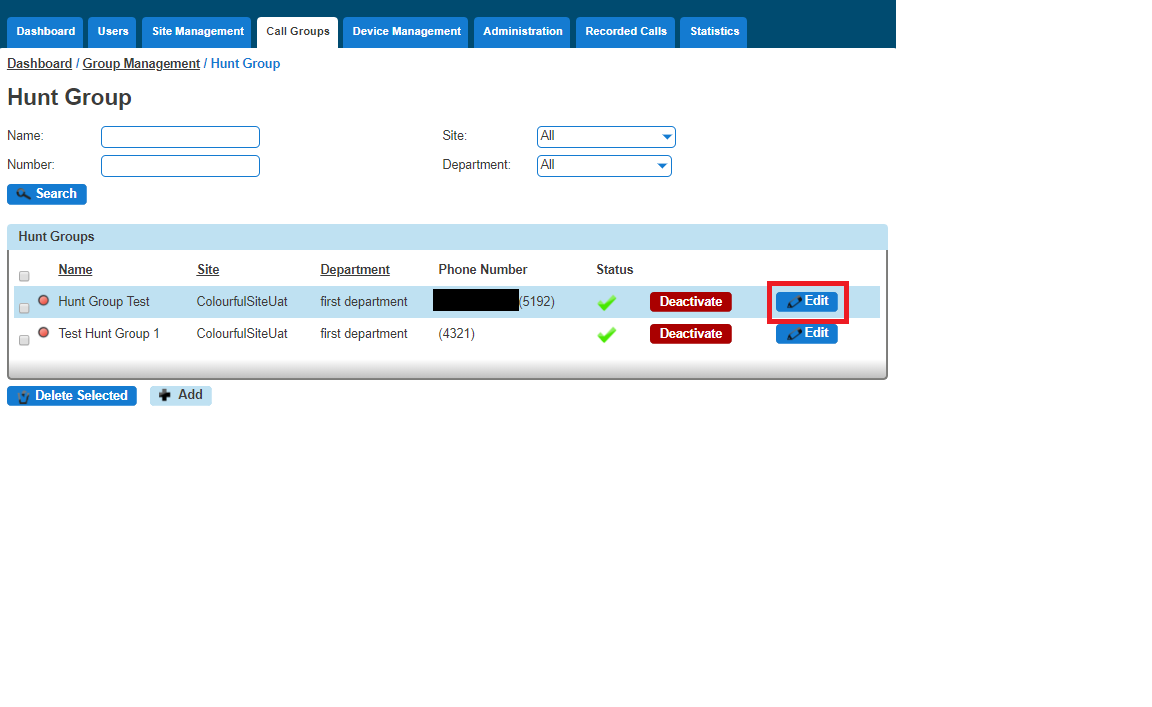
Click the “Call Groups” option and then select “Hunt Group”. On the Hunt Group page click “Edit”.
Step 4
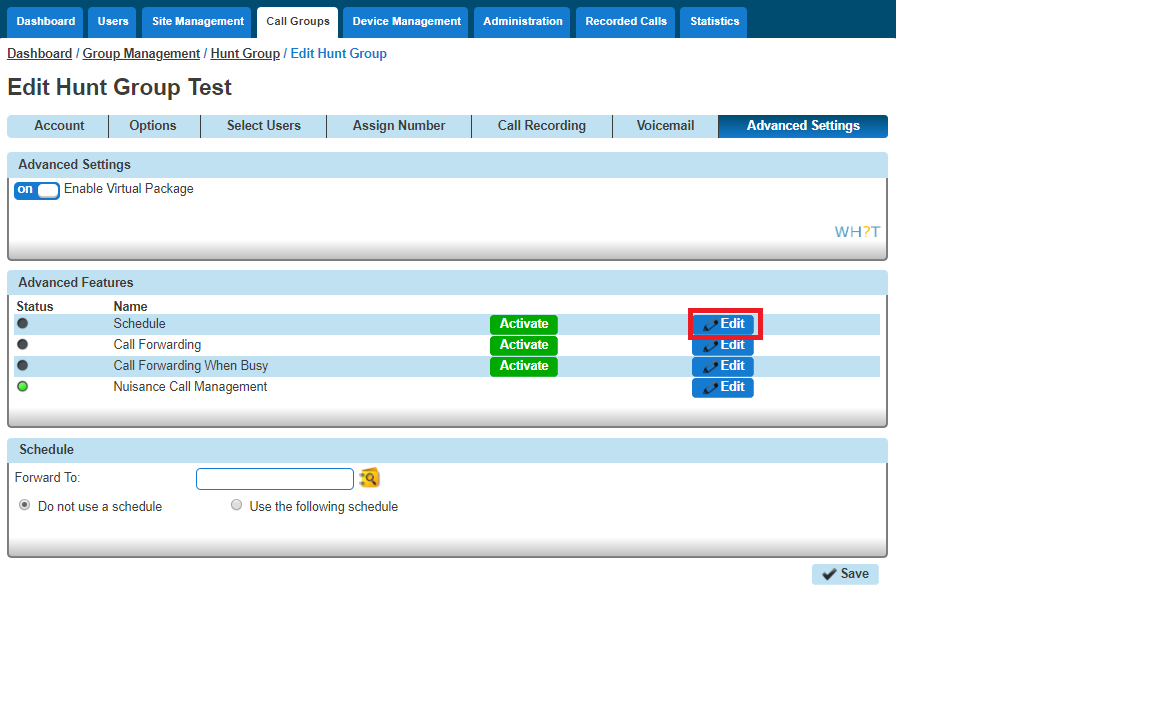
Select the “Advanced Settings” tab and switch “Enable Virtual Package” to On.
Click the “Edit” button next to Schedule and this will load up the settings for Schedules.
Select “Use the following schedule”. You should apply the out-of-hours schedule in the “Closed hours”. With this, you’re telling Horizon what times you want it to forward calls.
Additional Routing allows you to set up another schedule to run alongside the main schedule, such as Bank Holidays.
If you haven’t set up a schedule yet, you can use the “+” icon to set up a new schedule. Please see the Schedules article on how to create schedules for Hunt Groups.
Listening to your Hunt Group Voicemail #
Step 1
Dial the Voice Portal extension or full number.
If you are dialling from a Horizon Company handset then you should press “*” and then enter the hunt group extension number.
If you dial the full number from a phone that is not on the Horizon Company then you will be prompted to enter the extension number of the Hunt Group.
Step 2
Enter the Voicemail Passcode for the Hunt Group and then press 1 to access the voicemail box.
Resetting a Hunt Group’s Voicemail Passcode #
Step 1
Log into the Gamma Portal and go to Provisioning and Service Management, Hosted, Horizon and Horizon Manage Company.
Step 2
Select your account and login to the company that you want by using the “Actions” button and selecting “Login to Horizon”.
Step 3
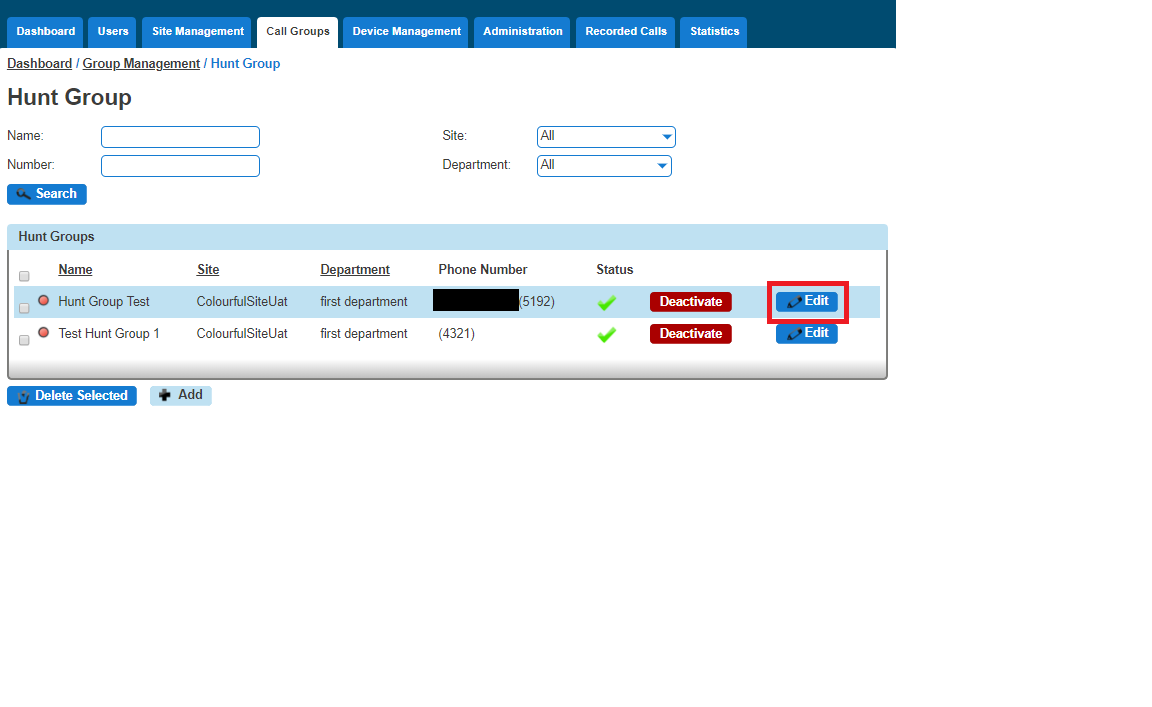
Click the “Call Groups” option and then select “Hunt Group”. On the Hunt Group page click “Edit”.
Step 4
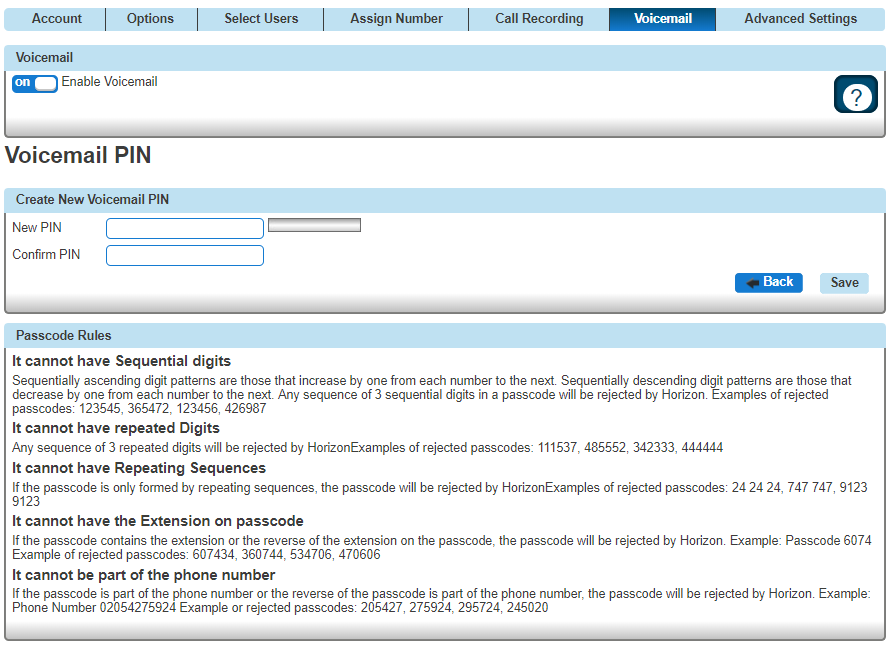
Select the “Voicemail” tab and press the “Change Voicemail Passcode” button.
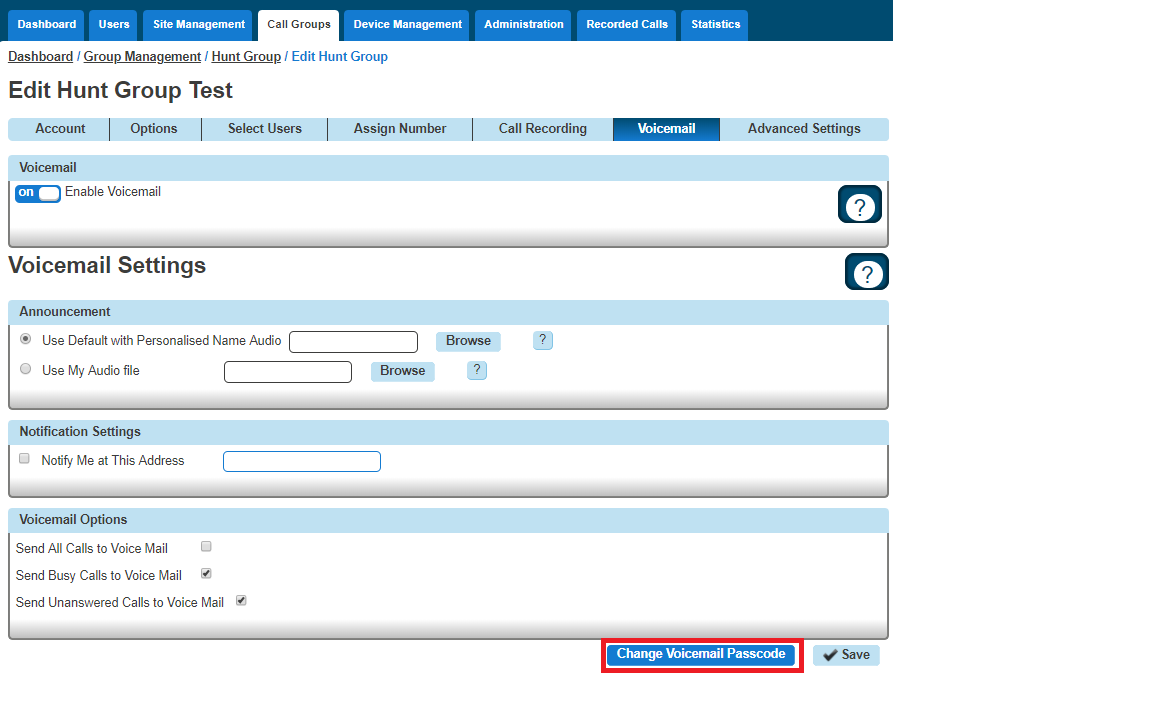
Step 5
Enter the new PIN and then confirm the PIN.