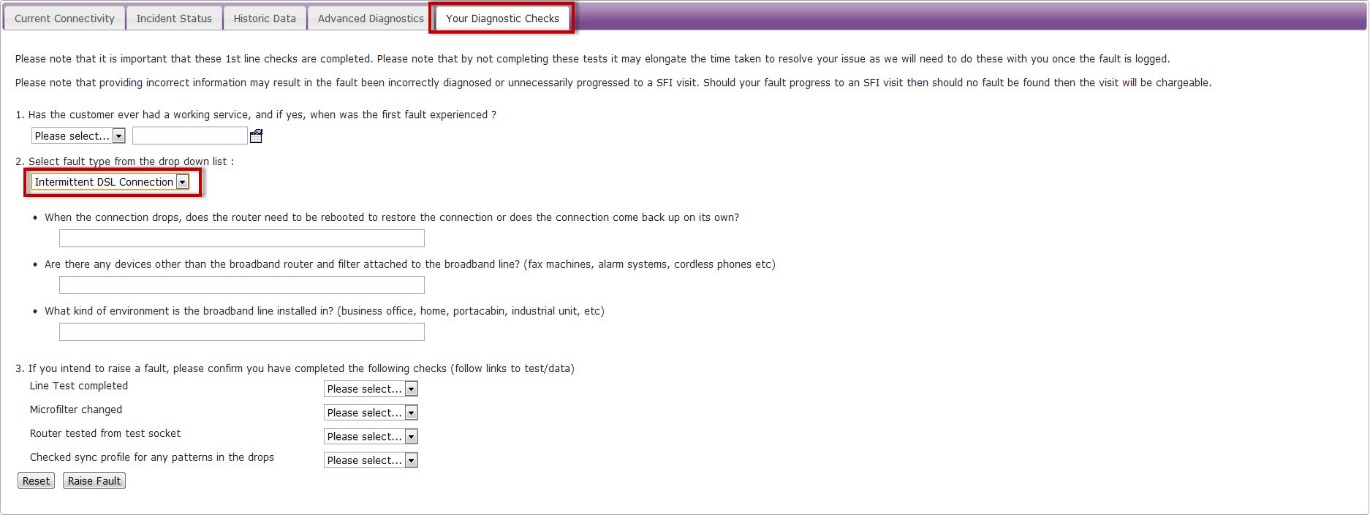
Intermittent connections can be caused by several factors – most commonly these are caused by local equipment, however the fault can lie within BTs network.
Step 1
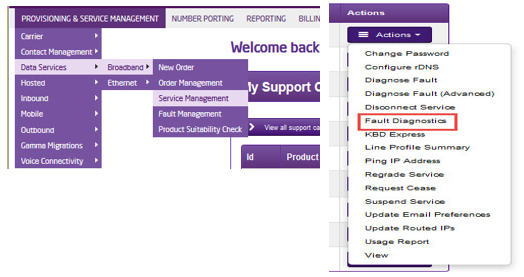
From the Gamma Portal, go to “Provisioning and Service Management”, “Data Services”, “Broadband” and then select “Service Management”. Select the relevant account, and search for the affected line using the one of the available search options available. Once you’ve found the line, using the Actions menu select “Fault Diagnostics”.
Step 2
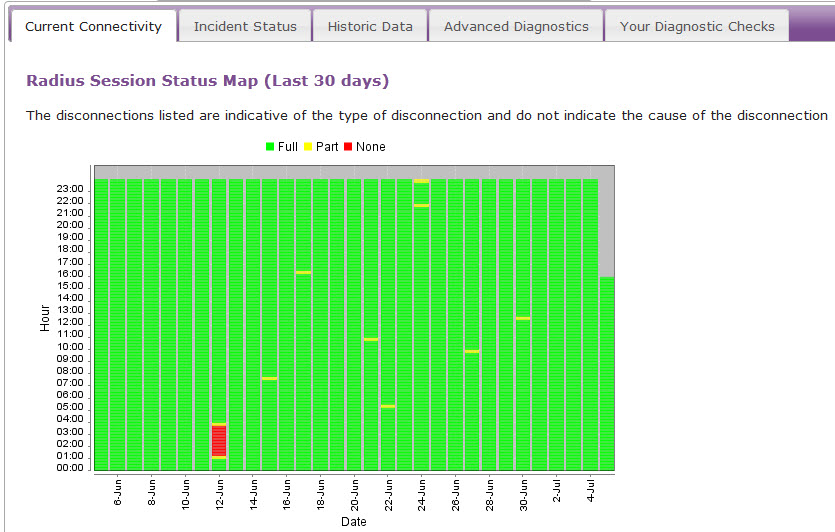
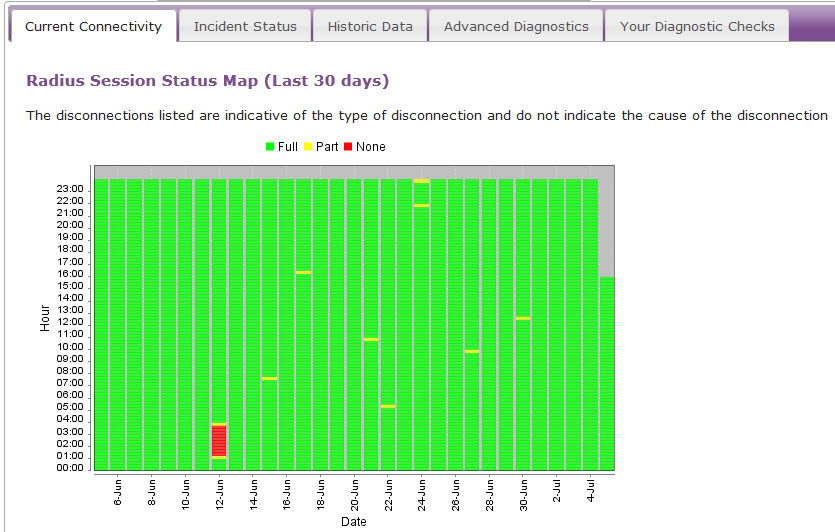
The “Radius Session Map” will be the first screen displayed. If the relevant 15 minute segments are green, this indicates that the line is not dropping connection and therefore the fault lies locally within the customer’s network. Please check local equipment such as servers and switches etc.
If the relevant 15 minute segment is yellow or red, this shows that there could be an intermittent fault and you should progress to the below diagnostics.
If the relevant 15 minute segment is red, this show that there could be a fault with the line and you should progress to Step 4.
Step 3
Look for patterns with the yellow and red segments. You’re looking for regular drops at the same time of day, or if the connection is dropping every ‘x’ number of hours. Do these drops tally up with:
Any local changes (roadworks etc)
Does something get switched on/turned off when the drops occur?
Does the customer have anything electrical local to the router which may be affecting the connectivity such as buzzing power sockets or is the router sat on top of a server etc?
If any of the above are relevant try moving the router as far away from the source as possible to rule out radio frequency interference. Please refer to the REIN and SHINE article which outlines devices that could be the cause of the intermittent connectivity please click here if not, please progress to Step 4.
Step 4 (Only Applicable for ADSL)
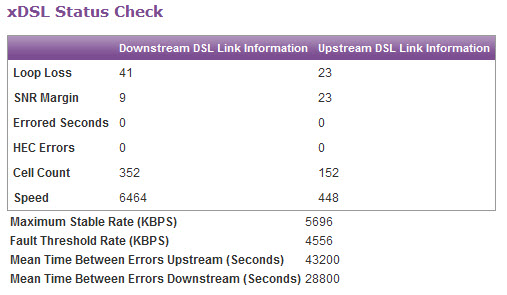
Now check the xDSL stats, found under the “Current Connectivity Tab”. Scroll all the way to the bottom of the page to see these stats.
We need to ensure that there are no HEC Errors or Errored Seconds. Upstream errors usually indicate a fault with the customer’s equipment (run through Step 6-10). Downstream errors could still be problems with the customer’s equipment or with the BT line. It is worth doing some equipment checks before raising a fault.
Step 5
Check the physical phone line.
****Please note that this tests only apply to ADSL & VDSL and do not apply to SOGEA and FTTP as there is no voice component of the line to carry these tests out on. Skip these tests SOGEA & FTTP circuits**
To check the physical phone:
Plug a telephone into the test socket, lift the receiver and listen for any audible noise
Dial 17070 and press option 2, this will carry out a quiet line test
Make a phone call and ensure the quality of the call is good
If all of these checks are OK, proceed to Step 6.
If you hear noise or the line test fails, you should raise a fault with the line provider before further diagnosing any broadband issues.
Step 6
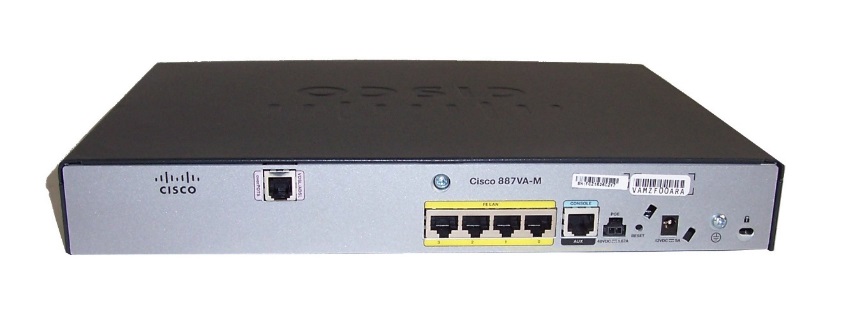
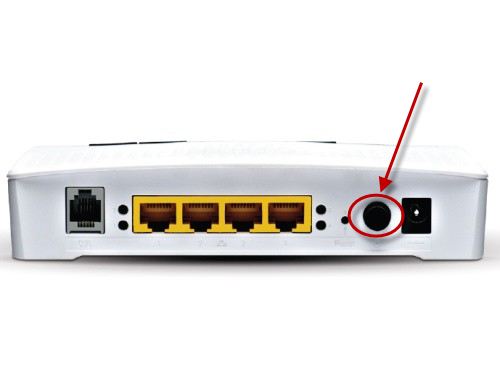
Power off the router for 30 seconds, then power back on. This can be done by removing the power supply.
You should then monitor your connection for any improvements. To refresh the data, click the “Refresh Supplier Data” at the bottom of the screen. If the service has stabilised the issue has been resolved.
If you are still experiencing an intermittent connection, please proceed to Step 7.
Step 7
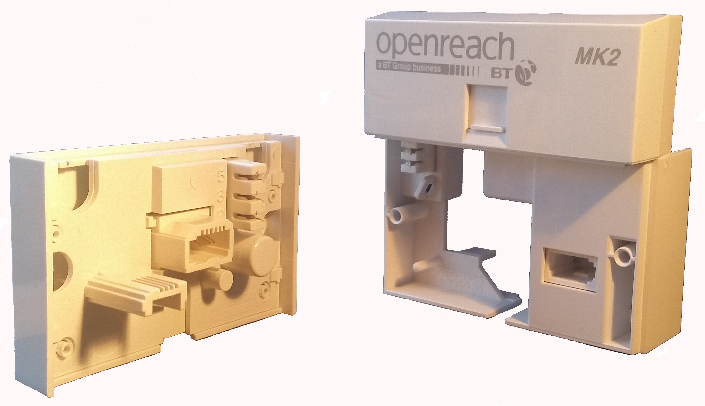
Connect your broadband to the NTE5 test socket and monitor. You should remove the faceplate of your socket and connect your broadband to the socket as shown. This will bypass any internal wiring issues. You should then monitor your connection for any improvements.
If the service has stabilised the issue has been resolved and the problem lies with internal wiring, not the broadband.
If you are still experiencing an intermittent connection please proceed to Step 8.
If you are removing the faceplate of an SSFP for FTTC, you will need to add an external filter as the filter is normally inside the faceplate.
Step 8
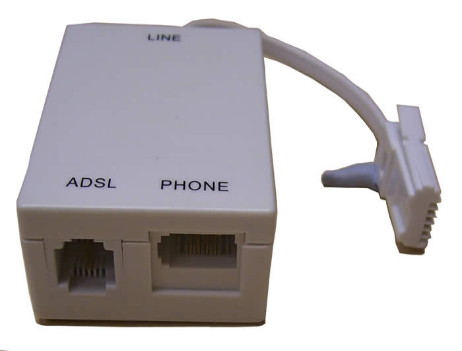
Change the filter.
Gamma routers come with 2 x micro filters, you should switch to the second or use a different one. If the service has stabilised the issue has been resolved and the problem lies with a faulty micro filter.
If you are still experiencing an intermittent connection please proceed to Step 9.
Step 9
Try an alternate router on the connection.
If you have an alternate router, test this on the connection. If this is not possible, proceed to Step 10.
You should then monitor your connection for any improvements. If the service has stabilised and the issue has been resolved, then the fault looks likely to be a router fault.
If you are still experiencing an intermittent connection, please proceed to Step 10.
Step 10
If none of these checks have worked, you’ll need to raise a fault on the Advance Diagnostics page.
Select the “Your Diagnostic Checks” tab and follow the drop-down menus.