
Available Products #
Gamma products are arranged by product family. Within each product family you have the option to order a number of variants of the family. See Service Definition for full details, but below is a summary of the products that can be ordered:
| Product family | Variants |
|---|---|
| Single Order Asymmetric Digital Subscriber Line (SoADSL) | |
| Fiber to the Premises (FTTP) | FTTP 40:10 FTTP 80:20 FTTP 115:20FTTP 160:30 FTTP 220:30FTTP 330:50 FTTP 500:165 FTTP 1000:115 |
| Single order Generic Ethernet Access (SoGEA) | SoGEA 40:10 SoGEA 80:20 |
SoADSL – Single Order Asymmetric Digital Subscriber Line #
Overview #
Here are some key points that you need to be aware of:
- SoADSL will only appear within the Product Suitability Checker if SoGEA and FTTP are not available at the site address.
- When placing the order, you will be given the choice of a ‘Managed Install’ or ‘Premium Managed Install’. If Managed Install is selected, then an Openreach engineer will be attending your customer’s site to complete the installation.
- If you select a premium site visit reason (SVR) in addition to the standard site visit reason, the engineer will carry out various activities and install the network termination equipment (NTE) up to 30m from lead-in.
- Currently the journey supported is for New Orders for new lines only.
Please note migrations and regrades are not available as part of this release and we are alooking to deliver these soon in an upcoming release.
Placing a New SoADSL Order #
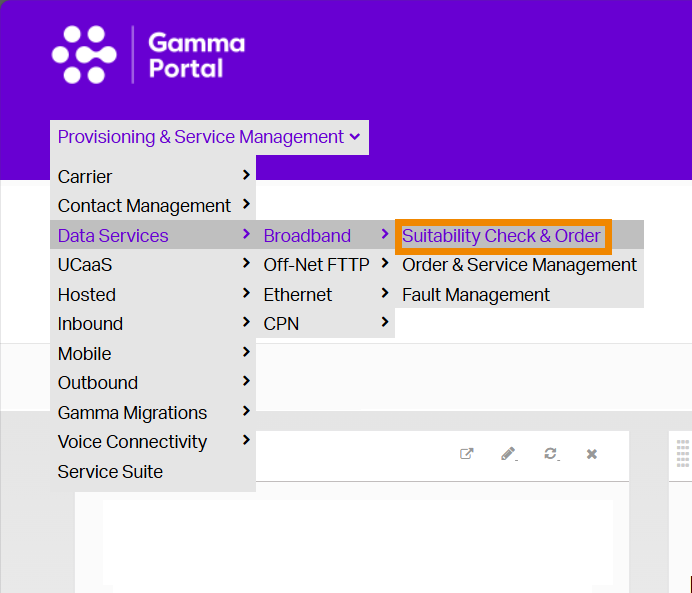
- Go to the Gamma Portal, go to Provisioning & Service Management, Data Services, Broadband and select Suitability Check & Order.
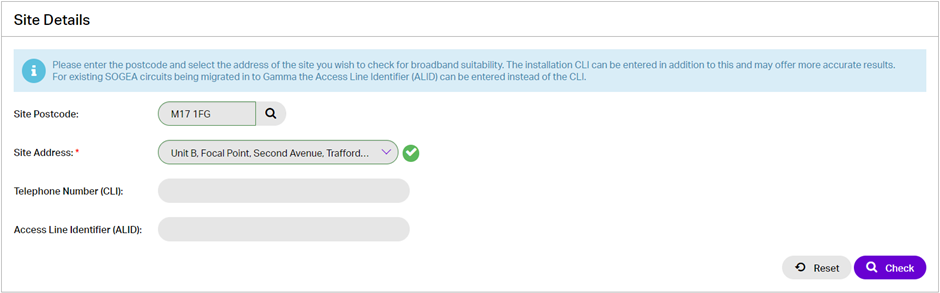
- Search for the property’s postcode, then select the full address. The CLI should also be added here if known.
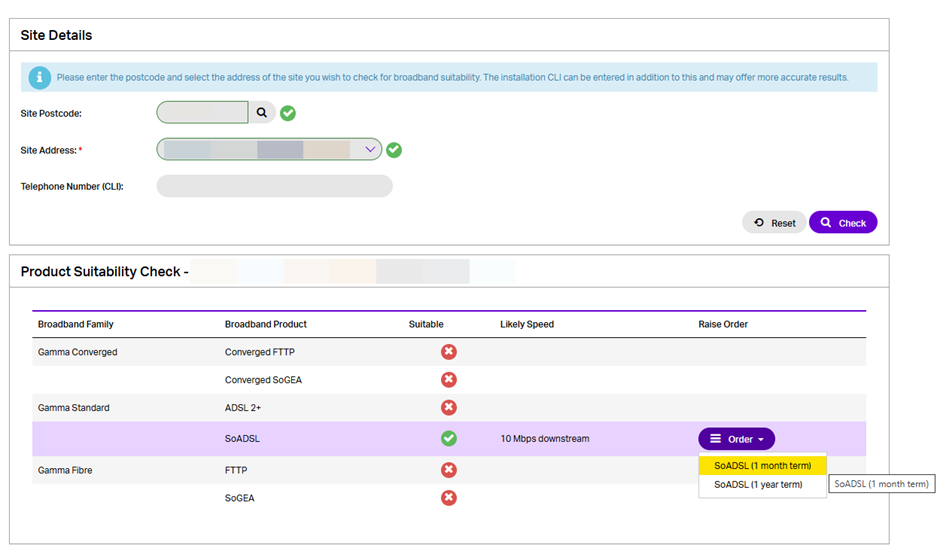
- Select the SoADSL bandwidth required from the results shown in the Order dropdown.
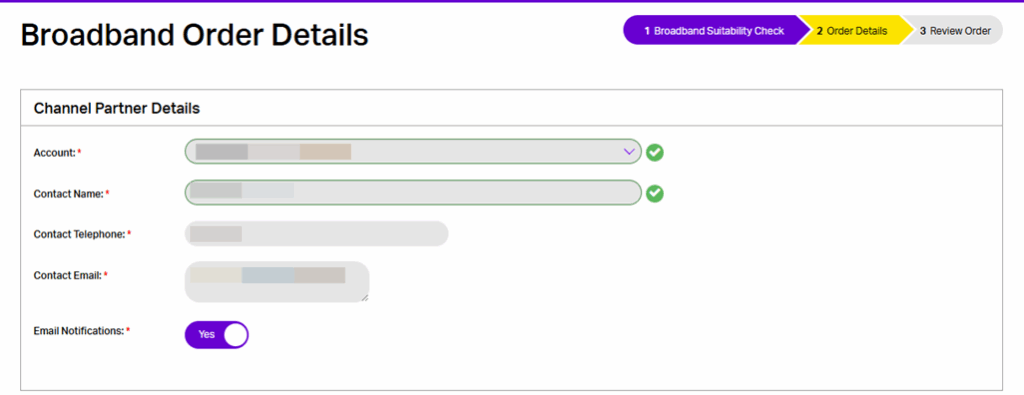
- You will be taken to the Order Details screen. Choose your account from the dropdown menu. This will prepopulate your details and expand the rest of the screen.
- Complete the fields within the Site Details and Products & Features sections.
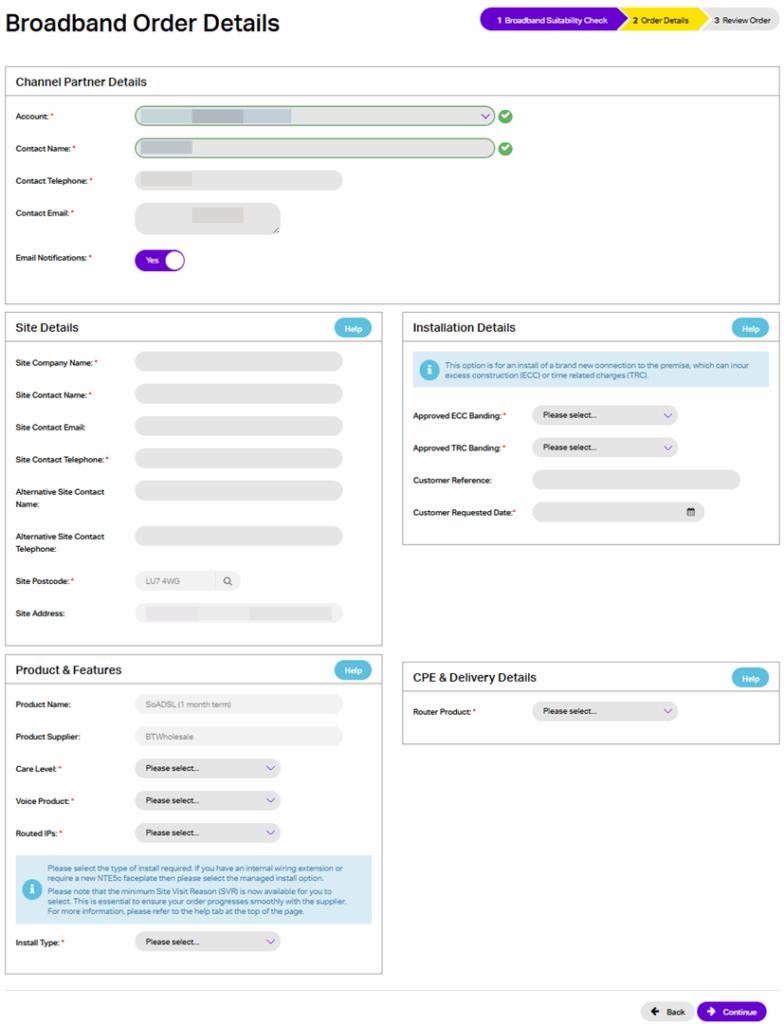
- At this point, one difference will be that you will be able to select how you would like your service to be installed. You will be presented with two options – Managed Install and Premium Managed Install.
- Whilst filling in the detals as part of the prior step, there will now be a section called Installation Details that will need to be populated –
- Select the Approved ECC Banding with the amount the customer is comfortable pre-approving for the install. Anything above this figure will cause the order to go into delay whilst the ECC charge is returned for manual approval.
- The customer requested date will also need to be populated at this point. Please note this will not be a guaranteed date for the installation. BT Wholesale will confirm the installation date after the order has been submitted.
- Click Continue to progress.
- When the order is completed, you’ll be presented with a reference number. It can take up to 24 hours for any appointment dates to be visible.
FTTP – Fibre to the Premises #
Overview #
Here are some other key points that you need to be aware of:
- For FTTP, there will be no CLI available in most cases. A full address search will return accurate details on availability as we convert this to a NAD key to return results from BT Wholesale
- FTTP circuits terminate into a ONT (Optical Network Termination). The ONT along with the relevant port will be used as the identification of a FTTP circuit
- ECC’s (Excess Construction Charges) are possible with FTTP installations. You will be required to select an acceptable level of charge during the ordering journey. If charges come back at a higher than selected amount, the order will fall into delay as charges will then need manual approval for installation to continue.
- For FTTP only a managed install will be available due to the need to install an ONT at the end users’ premise. The option for managed/self-install has therefore been removed.
- There are several routers that will be used by Gamma to support FTTP. Once the bandwidth and products are selected from the suitability check, the relevant router(s) will be made available to select.
Placing a New FTTP Order #
- See Steps 1-2 for Placing a SoADSL Order and repeat then:
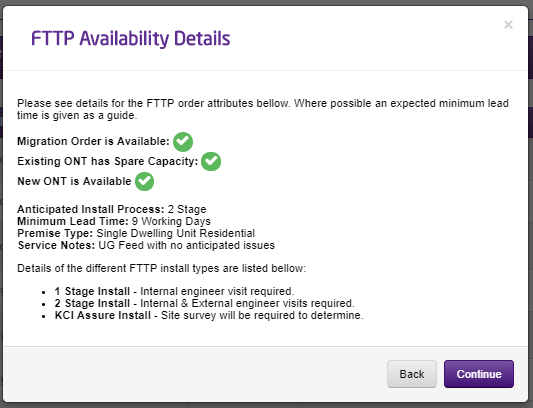
- Select the FTTP bandwidth required from the results shown from the “Order” Dropdown. You will be presented with the below pop-up box to give details of the installation that will be necessary for the property to have FTTP installed. Click “Continue”.
You will then be taken to the Order details screen.
- Steps 4-5 will again mirror the new SoADSL order as you populate your details along with the required information for the order.
- Whilst filling in the details as part of step 5 for FTTP, there will now be a new box called “Installation Details” that will need to be populated. First select the “Approved ECC Banding” drop down with the amount that the user is comfortable pre-approving for the circuit. Anything above this figure will cause the order to go into delay whilst the ECC charge is returned for manual approval.
- The “ONT & Port selection” is where you can either select to take over an existing FTTP service, select a spare port to use for a new FTTP circuit, or order a new totally new ONT (and therefore new FTTP Service). Here you will also be able to request a replacement ONT if the existing one is damaged or lost. Replacement ONTs will be a chargeable extra.
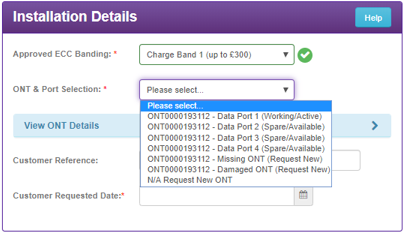
Note – The above screenshot shows a 4+2 port ONT with one active port and 3 spare ports. Moving forwards, Openreach have started to install only 1+1 port ONTs and so it will become more likely to see this rather than the above example.
The customer requested date will also need to be populated at this point. This will not be a guaranteed date for the installation. BTW will confirm the installation date after the order has been submitted.
Click continue to progress.
- Check over your order details and tick the T+Cs box then click submit.
- When the order is completed, you’ll be presented with a reference number. It can take up to 24 hours for the appointment to be visible.
SoGEA – Single Order Generic Ethernet #
Overview #
Here are some other key points that you need to be aware of:
- When placing the order, you will be given the choice of or a ‘Managed Install’ or ‘Premium managed install. If Managed Install is selected, then an Openreach engineer will be attending your customers site to complete the installation.
- If you select a premium site visit reason (SVR) in addition to the standard site visit reason, the engineer will carry out various activities, including testing of the IP Voice activities if required.
- Please ensure the line you are placing the SOGEA order on terminates on a NTE5 or SSFP socket rather than NTTP. If the socket is an NTTP socket our suppliers will detect this on order placement and this may cause the cancellation of your SOGEA order, including any potential cancellation charges. If you are unsure of the socket type onsite please contact your PSTN provider.
- A Fibre compatible router MUST be at the premises before the installation occurs.
- Once installed the Fibre broadband line will begin a “Training” period to establish the optimum speed of service. This is consistent with ADSL services and can continue during the first 10 days of service.
Please note: Depending on where the modem and router is placed by the Openreach engineer there may be a need for some drill work to be carried out. It is your responsibility to ensure that you have all the relevant permission for these types of modifications before you place your SOGEA order.
Placing a New SOGEA Order #
- See Steps 1-2 for Placing a New SoADSL Order and then:
- Select the SoGEA bandwidth required from the results shown from the “Order” Dropdown.
Please note: If you’re unable to receive SoGEA on the CLI you’ve provided, you will see a red marker next to the SoGEA section. If you know that SoGEA is available for the CLI then please contact the Broadband Provisioning Team.
- Steps 4-5 will again mirror the new SoADSL order
At this point, one difference will be that you will be able to select how you would like your service to be installed, you will be presented with two options which are Managed Install and Self-install.
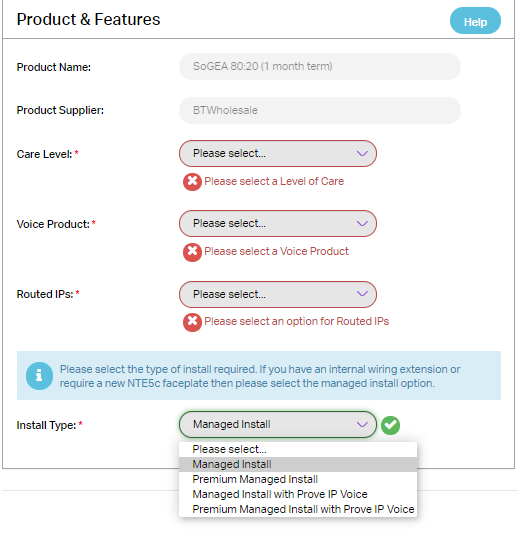
If you select Standard ‘Managed Install’, the engineer will do the work required to uplift the network where necessary, including removing issues in the premises.
- Enter the Customer Required Date (please note the lead time for a new fibre provide is 5 working days so you will not be able to select a date earlier than this).
- If you have selected a CPE Router Product, then the CPE Delivery Details box will become available. You can either select “same as site address” or manually enter alternative details.
- When the order is completed, you’ll be presented with a reference number. It can take up to 24 hours for the appointment to be visible.

Regrade to SoGEA #
Overview #
- You can only regrade from an ADSL/FTTC/SoADSL to SoGea via the regrade journey
- Any services upgrading to FTTP need to be placed as a new order via the New Order Journey
Please choose ‘New Order’ if there is currently no active broadband service at your premises or if your end user has an existing service they wish to migrate from another supplier to a Gamma service.
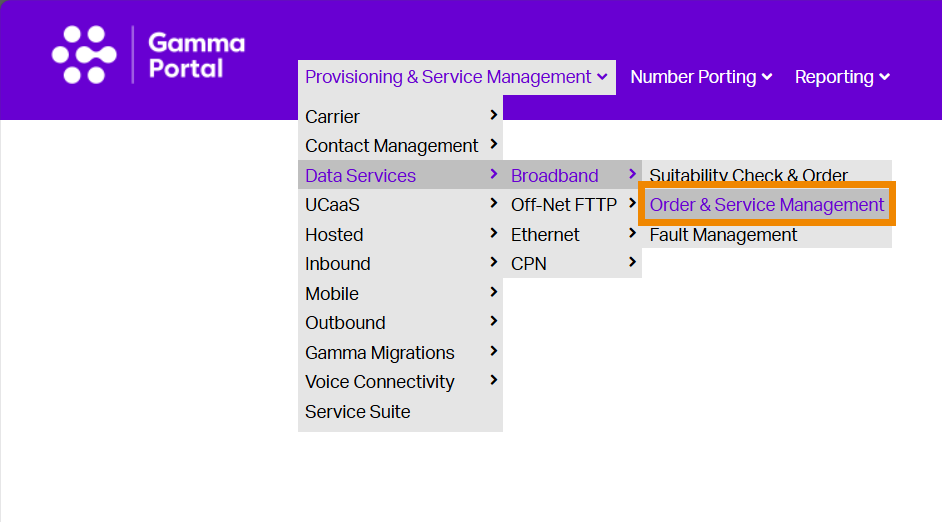
- Access your service in Data Services – Broadband – Order and Service Management
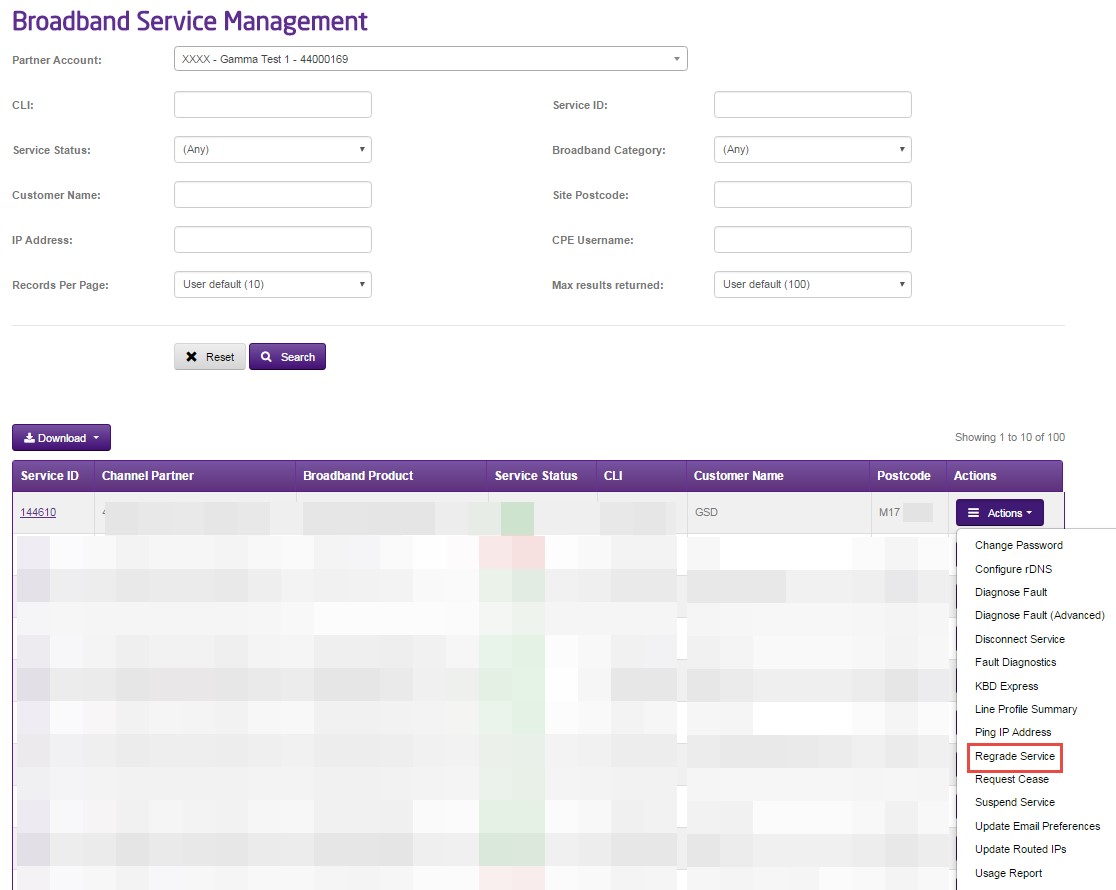
- Select Actions – Regrade Service.
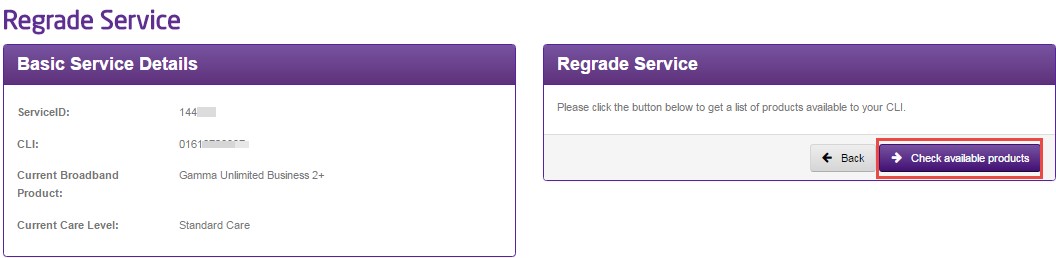
- Select the “Check available products” button.
- Select the available product from New Broadband Family
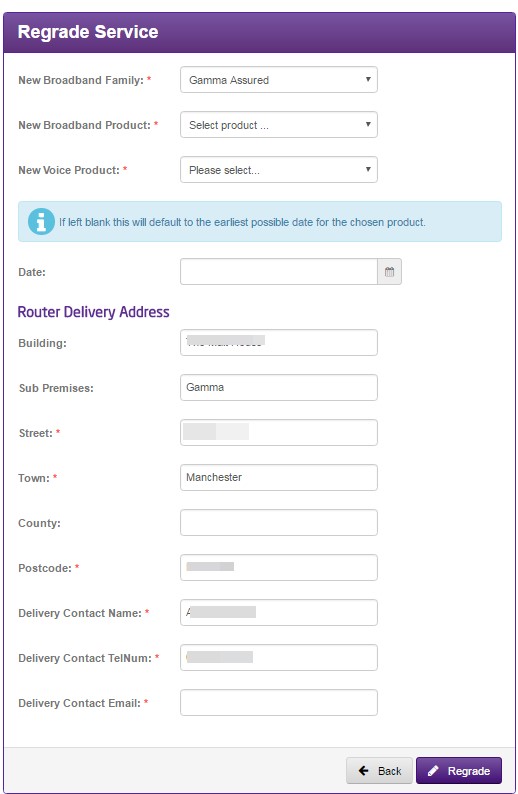
If SoGEA is available, select the speed and term from the New Broadband Product dropdown, select the Required by Date and click Regrade.
