
- Press and hold the reset button shown below. This should be done whilst the front of the router is still visible.
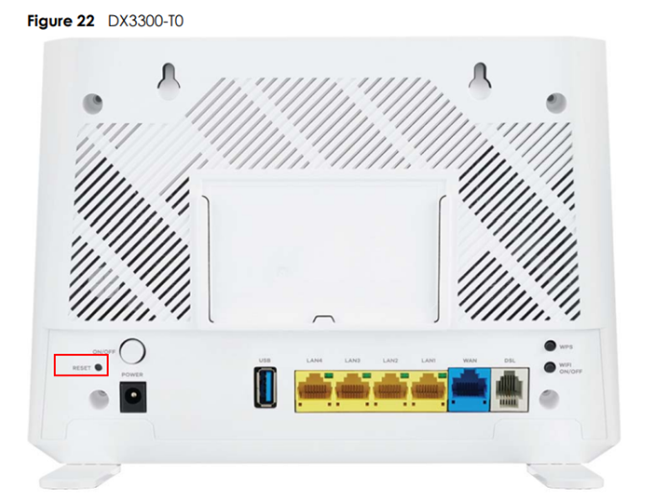
- After five seconds, the power light will begin flashing. Continue to hold until the power light goes off, then back on, to signal a restart.
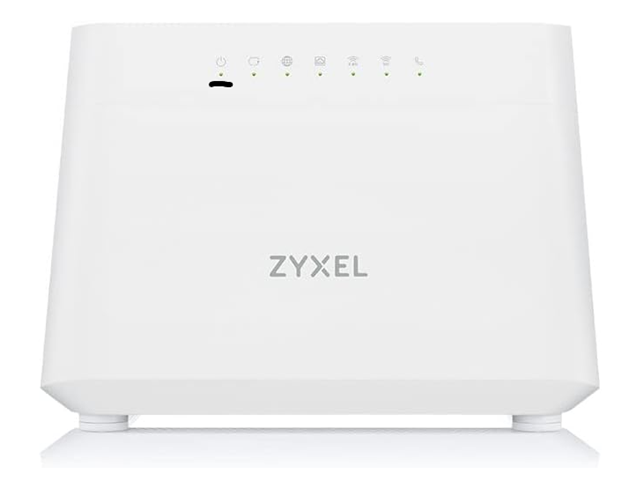
- Wait until the WiFi icons are solid green before logging into the router.
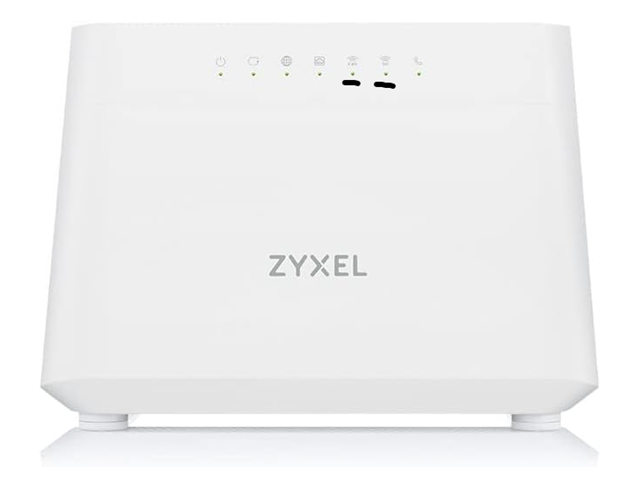
- Search for the WiFi network (the sticker on the router will display the SSID)
- Connect to this network using the Wireless Key, as per the sticker.
- Using your internet browser put ‘192.168.1.1’ without quotes in the URL field and press enter. This will take you to the Zyxel router login screen.
- Enter the username and password as per the sticker on the router. This may appear as ‘User Name’ and ‘Login Password’.
| Please Note: If the details from the sticker do not let you access the next screen, the factory reset was not completed. Allow the router to display solid green lights for both WiFi frequencies (2.4Ghz and 5Ghz), then press and hold the router reset button. You must hold this button until all the lights go off. |
- You will be prompted to select a new password.
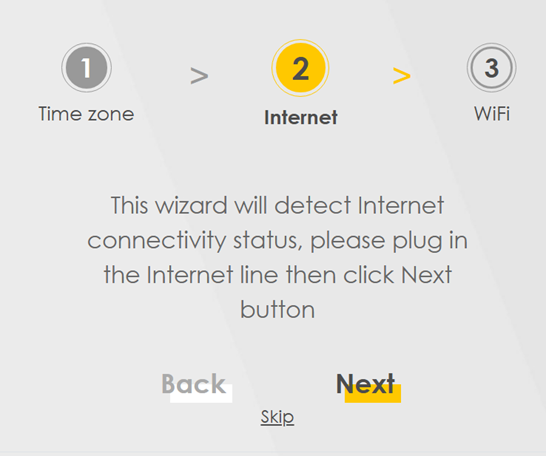
- You will then begin the setup wizard walkthrough.
- If you have an FttP connection, you can now connect from the router WAN port to your ONT.
- Should you not have an FttP connection, or are not in a position to connect to the socket, select the Skip option.
- Encapsulation should be changed to PPPoE, then enter your circuit user name and password. This information is available via the Gamma Portal and will not be included on the router for security.
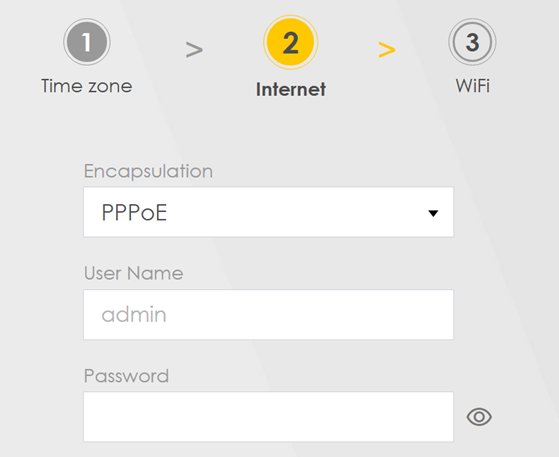
- You should then see the router’s Internet light (the globe or world icon) change to green.
- Should there be any connection errors, click Back and then Skip.
- You will then navigate to the Zyxel dashboard where you can add a WAN interface as per these guides:
