Skip to content
  • Academy KB Home Redesign
  • Broadband Home
  • CCaaS
  • Channel Partner Support
  • Circle Loop Home
  • Collaborate
  • Connectivity
  • Courses
  • Documentation
  • Ethernet
  • FibreXchange
  • FUSION IoT
  • Gamma AI Concierge
  • Gamma Plus
  • Gamma SIP for Cloud Connect
  • Gamma SIP for Cloud Connect
  • Gamma SIP for Genesys Cloud
  • Gamma SIP Global Communications Enablement
  • Gamma SIP Trunks for Genesys Cloud
  • Hannah – Homepage WIP
  • Home
  • Horizon
  • Horizon Contact
  • Horizon Forms
  • Horizon Service Description Home
  • Horizon with Webex
  • Inbound
  • iPECS
  • Knowledge Base Intro
  • Knowledgebase Directory
  • LoginPress
  • Microsoft
  • Microsoft Teams Direct Routing Home
  • Microsoft Teams Operator Connect
  • Mobile
  • Multiple KB
  • My Courses
  • No Access
  • No active page
  • Numbering and Porting
  • Phoneline+
  • Product Homepage
  • Quick Download Button
  • Release Notes
  • Release Notes
  • SIP Home
  • Test
  • UCaaS
  • User Account
  • Voice
  • Voice Enablement
  • Webex for Gamma
  • Webex for Gamma Release Notes
  • Gamma Academy Knowledge Base
Gamma Academy Knowledge Base
  • Cloud Calling and Collaboration
    • Webex for Gamma
    • Horizon with Webex
    • Horizon
    • Phoneline+
    • Operator Connect
    • Direct Routing
    • Inbound
    • Akixi CX Analytics
    • Red Cactus
  • Connectivity and Networking
    • Numbering and Porting
    • Broadband
    • FibreXchange
    • Ethernet
    • SIP Trunking
    • Gamma FUSION IoT
  • CX
    • Horizon Contact
    • AI Concierge
  • Mobile Services
    • Gamma Mobile
  • CyberSecurity
    • SafeWeb
  • Partner & Portal Support
Gamma Academy Knowledge Base

Provisioning and In-Life Changes

  • Before Ordering Broadband
    • Broadband Address Checking/Validation
    • Broadband Fibre Products
    • Broadband SLAs for Order Placement
    • Broadband Care Levels
    • Running broadband on a long PSTN line
    • Broadband IP Addressing and Justification
    • Broadband – Acceptable Use Policy
    • Broadband Traffic Priority Policy
    • One Touch Switch – Broadband Switching Process Update
  • Ordering Broadband
    • Broadband Using the Suitability Checker
    • Placing a New Broadband Order
    • Broadband SIM Provides
    • Broadband Routed IPs
    • Broadband Router delivery
    • Broadband Expedites
    • Broadband DSL Credentials
    • Track an Existing Order
    • Modifying or Cancelling an Order Broadband
  • In-Life Broadband Configuration
    • Broadband Service Management
    • Gamma Search Tool
    • Broadband WBC Migrations
    • Broadband Home Mover process
    • Change Care Level on an existing Broadband Service
    • FTTP Optical Network Termination box
    • Router Settings
    • Broadband Line Renumbering/Porting
    • Suspend and Resume Broadband

Technical Support

  • Broadband – Glossary
  • Diagnosing and Raising a Fault
    • First line Checks
    • No Authentication Fault
    • No Web Pages
    • No Sync Fault
    • Slow Speed Faults
    • Intermittent Connection
    • REIN and SHINE
    • Broadband Health Check And Diagnostics
    • Raising a Fault
  • Zyxel Router Support
    • Zyxel DX3301 – User Guide
    • Zyxel DX3301 – Creating User Accounts & Remote Access
    • Zyxel DX3301 – ADSL NAT-ed Setup
    • Zyxel DX3301 – SoGEA NAT-ed Setup
    • Zyxel DX3301 – FttP NAT-ed Setup
    • Zyxel DX3301 – Changing Router to Bridge Mode
    • Zyxel DX3301 – Enabling/Disabling NAT
    • Zyxel DX3301 – Routed Setup
    • Zyxel DX3301 – SIP ALG
    • Zyxel DX3301 – Changing Authentication Credentials
    • Zyxel DX3301 – WiFi and Guest Wifi
    • Zyxel DX3301 – Factory Reset
  • Technicolor Router Support
    • Technicolor Router Configuration Guides
    • Enabling port mirroring on Technicolor TG588/DGA122
    • Switch off SIP ALG on a Technicolor Router using Telnet
    • Router return process
  • Network and IP support
    • IP Addresses and DSL Credentials
    • IP rates and Configuration
    • Connecting to the SMTP Relay
  • Service Management
    • Broadband Reports and Checks

Service Description

  • Standard and Converged Broadband Service Description

Broadband Forms

  • Broadband Forms

Product Information

  • Product and Industry Information
  • Home
  • Home
  • Broadband
  • Technical Support
  • Diagnosing and Raising a Fault
  • Slow Speed Faults
View Categories

Slow Speed Faults

Sometimes what appears to be a slow connection issue may be an intermittent connection; where the router is constantly dropping. In these instances please follow the Intermittent Connection diagnostics.

Please note:
Before you start diagnostics, it is worth checking if there are any known outages in your area which may affect the service.

Step 1

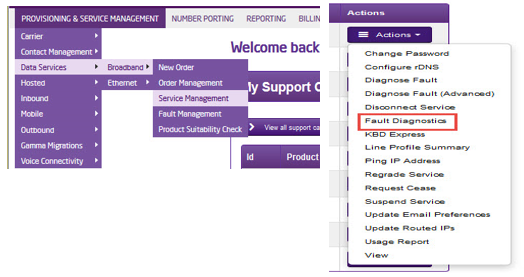
From the Gamma Portal, go to “Provisioning and Service Management”, “Data Services”, “Broadband” and then select “Service Management”. Select the relevant account, and search for the affected line using the one of the available search options available. Once you’ve found the line, using the Actions menu select “Fault Diagnostics”.
Step 2

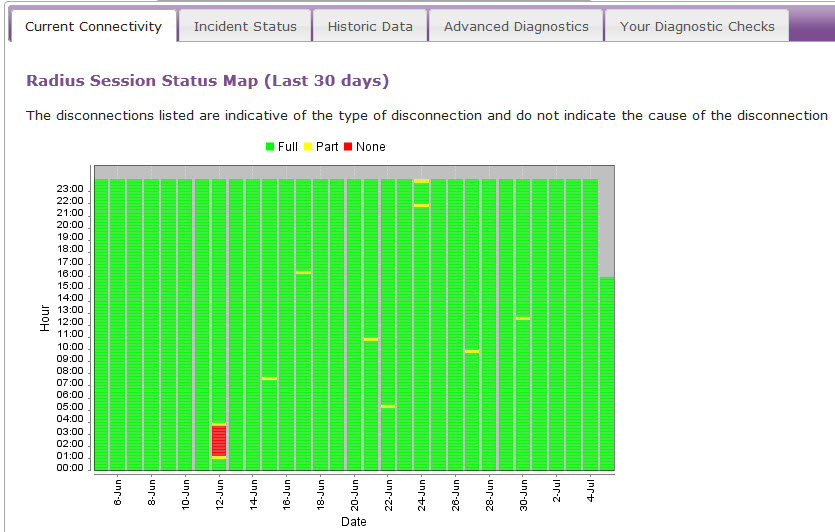
The “Radius Session Map” will be the first screen displayed.

If the connection is stable (green segments) then continue to Step 3.

If you are seeing drops (red segments) throughout this period, then please follow the Intermittent Connection diagnostics.
Step 3 (Only Applicable for ADSL)

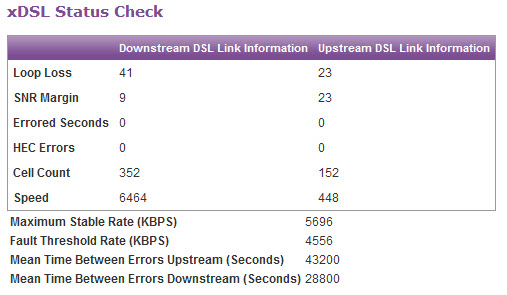
Now check the xDSL stats, found under the “Current Connectivity Tab”. Scroll all the way to the bottom of the page to see these stats.

We need to ensure that there are no HEC Errors or Errored Seconds. Upstream errors usually indicate a fault with the customer’s equipment (run through steps 7-13). Downstream errors could still be problems with the customer’s equipment or with the BT line. It is worth doing some equipment checks before raising a fault.
Step 4

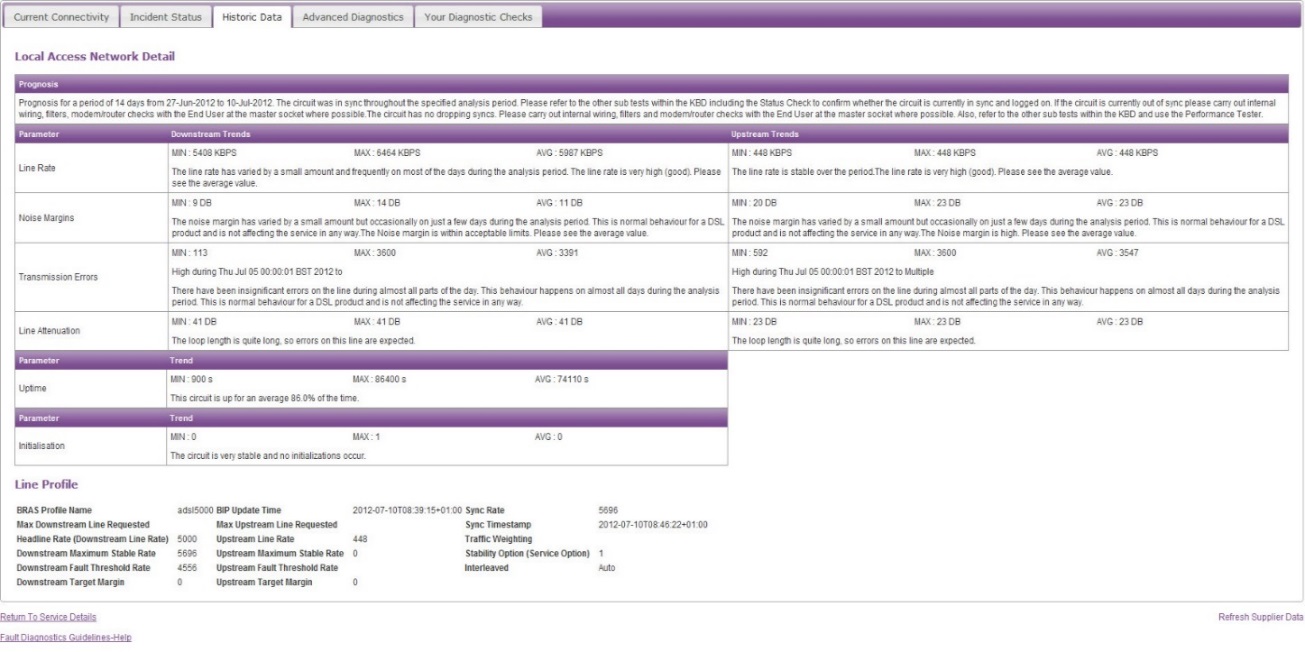
Check the Historic Data tab and check the sync speed max/min/average results and compare with the xDSL status. These will indicate if the sync speed is fluctuating. If the sync speed is fluctuating, go to Step 5.
Step 5

Run speed tests to identify if the connection is facing throughput issues. Please run the test on the following speedtest.btwholesale.com and speedtest.gammatelecom.com*

* speedtest.gammatelecom.com/ethernettest (to be used for FTTC)

The full test needs to be run via the further diagnostics option entering the CLI. If this is not fully completed then we are unable to raise a speed fault on the line with our supplier.

Step 6

Please note:
All checks should be run with everything removed from the router with only a single PC connected via ethernet. You should also disconnect all devices connected via wireless. This is to eliminate the possibility of malware or viruses or software using the internet connection which would affect the lines true throughput (for example torrents).

Check the physical phone line.

**Please note that this test only applies to ADSL & VDSL and do not apply to SOGEA and FTTP as there is no voice component of the line to carry these tests out on. Skip these tests SOGEA & FTTP circuits.

To check the phoneline:

  • Plug a telephone into the test socket, lift the receiver and listen for any audible noise
  • Dial 17070 and press option 2, this will carry out a quiet line test
  • Make a phone call and ensure the quality of the call is good
  • If you own the line, carry out a WLR line test

If all of these checks are OK, proceed to Step 7.

  • If you hear noise or the line test fails, you should raise a fault with the line provider before further diagnosing any broadband issues

Step 7

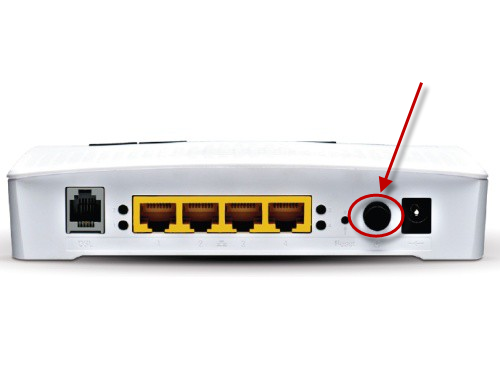
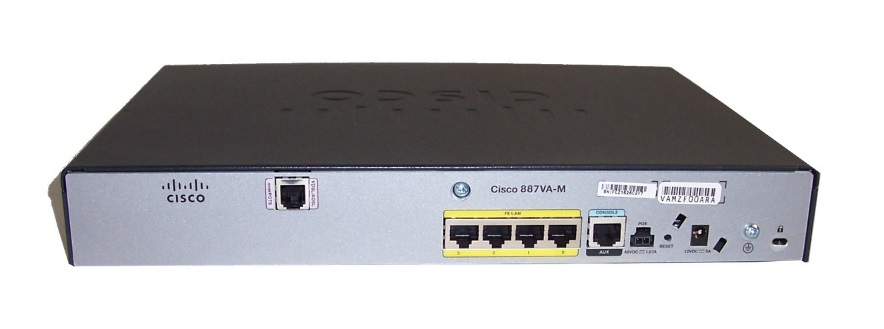
Power off the router for 30 seconds, then power back on. This can be done by removing the power supply.

You should then monitor your connection for any improvements. To refresh the data, click the “Refresh Supplier Data” at the bottom of the screen. If the service has stabilised the issue has been resolved.

If you are still experiencing slow speed please proceed to Step 8.
C:\Users\tedwards\Desktop\100_2757.JPG

Step 8

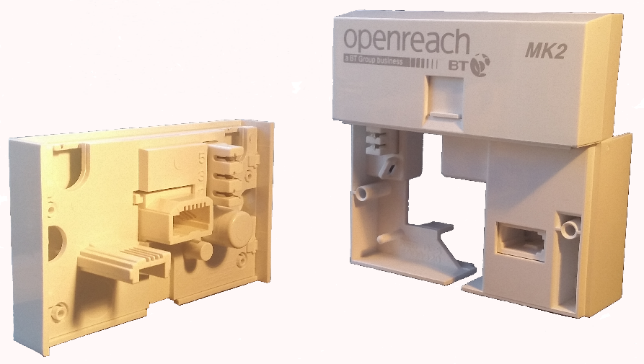
Connect your broadband to the NTE5 test socket and monitor. You should remove the faceplate of your socket and connect your broadband to the socket as shown. This will bypass any internal wiring issues. You should then monitor your connection for any improvements.

If the service has stabilised the issue has been resolved and the problem lies with internal wiring, not the broadband.

If you are still experiencing slow speed please proceed to Step 9.
C:\Users\tedwards\Desktop\opennte5.png

Step 9

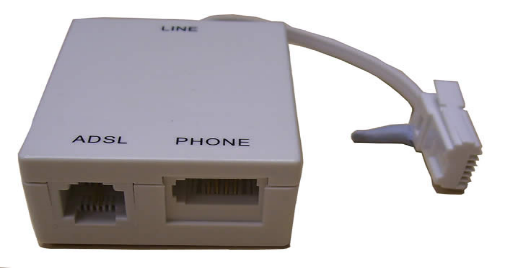
Change the filter, Gamma routers come with 2 x micro filters, you should switch to the second or use a different one.

If the service has stabilised the issue has been resolved and the problem lies with a faulty micro filter.

If you are still experiencing slow speed please proceed to Step 10.
Step 10

Try an alternate router on the connection. If you have an alternate router, test this on the connection. If this is not possible, proceed to Step 12.

You should then monitor your connection for any improvements. If the service has stabilised the issue has been resolved and the problem lies with a faulty router.

If you are still experiencing an intermittent connection please proceed to Step 11.

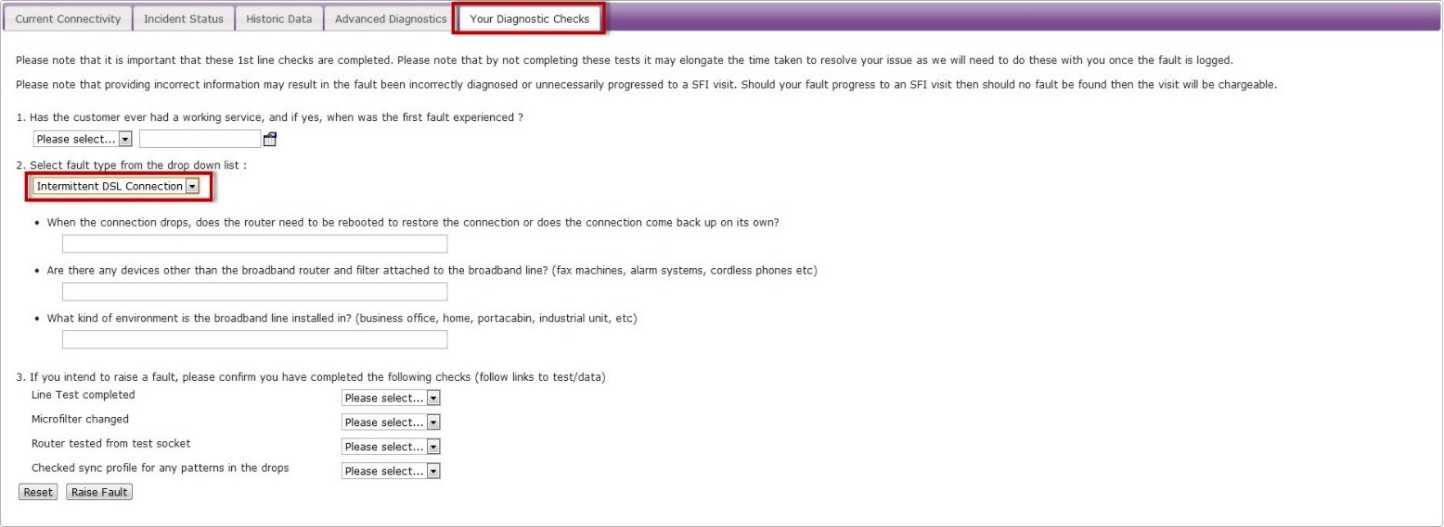
Step 11

If none of these checks have worked, you’ll need to raise a fault on the Advance Diagnostics page.

Please note:
If you already have a fault raised for this service, you’ll be unable to raise a new fault.

Select the “Your Diagnostic Checks” tab and follow the drop down menus.
image_pdf
Updated on 16/01/2026
No Sync FaultIntermittent Connection

Copyright © 2026 -  Gamma Telecom Ltd

Gamma API
We use cookies to measure performance and make improvements to this service. This includes page views, device/browser, location, and page interactions. We do not collect any information you upload to this site. By agreeing, you consent for your data to be used for this purpose.