
We are currently in the process or retiring the SIM 1 functionality and moving this over to SIM2
A WLR order must be submitted to gain the SIM Provide reference that is used during the below Broadband process. Therefore, always place your WLR order before you link to a Broadband order.
The SIM2 process is initiated by a narrowband and broadband order containing the same SIM Provide reference being linked. For WLR3 PSTN + Broadband the orders may be placed by different CPs, while for MPF + FTTC the orders must be placed by the same CP. A SIM Provide reference is generated by a CP and must begin with the characters “SIM2” and have up to a further 6 alpha numeric characters. Please be aware that this reference is case sensitive.
Both orders must be received and matched in Openreach within 72 hours of the first order being placed.
In a SIM2 combination you will only be able to amend the appointment or Customer Requirement Date (CRD) on one of the orders – this order will be known as the “Primary” order. The other order will be “Secondary”. The terms Primary and Secondary refer only to the ability to amend CRD or appointment and have no bearing on whether one order is dependent on another in terms of delivery. Primary and Secondary orders will be identified by response codes returned in Keep Customer Informed (KCI) 2.
When placing a SIM2 order, you need to give consideration to the Notification of Transfer (NoT) rules when your customer wants to change their service provider for voice or broadband services. For example, a Working Line Takeover is subject to the NoT process and (Ofcom) General Condition 22. The minimum lead-time in this case is 10 working days and you need to be mindful of the minimum lead-time before committing to a delivery date with your customer.
Please note that we currently only offer expedites on FTTC SIM2 orders.
Below we have highlighted the key differences between SIM 1 & SIM 2.
SIM2 provide: (has “SIM2” in the SIM Provide Ref): A SIM2 provide
- For SIM2 ADSL2+ orders the WLR order is the Primary order and any date amendments would need to be made through the WLR order.
- For SIM2 FTTC orders the Broadband order is the Primary order and any date amendments would need to be made through the FTTC order.
- The Broadband order is given 3 days (72 Hours) to find a matching PSTN order
- Both the voice and broadband orders are tied together if the date changes for one of the orders, both orders reflect the date change.
- Lack of match within the 3-day period leads to order rejection
- This process is not available for bundled WLR orders
- SIM2 overcomes potential engineering skill mismatch issues for WBC FTTC simultaneous provision
- Cancelling one order cancels both, so there is no need to cancel each order separately.
- The SIM Provide Reference for a SIM2 order is limited to a maximum of 10 alpha-numeric characters of which the first four must be “SIM2”. This reference is case sensitive.
- SIM2 has a higher success rate than SIM 1
Sim provide (also referred to as SIM1):
- The WLR3 order is the primary.
- Once the Broadband order is accepted, it will not progress until a matching PSTN order is linked to it.
- If a match is found, orders are linked for delivery together, but orders can become decoupled if for instance the date associated with the PSTN order does not meet the Standard Lead Time (SLT) of the broadband order.
- Lack of matching PSTN order eventually leads to order cancellation, for which Openreach will charge. Note – SIM1 is not available for FTTC orders.
SIM Provide Process Steps & Best Practice Guide #
Placing a New SIM Provide Order #
Step 1
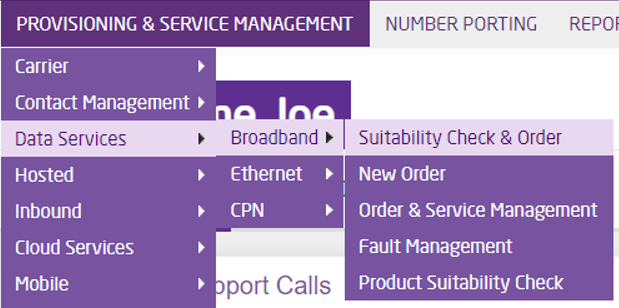
In the Gamma Portal go to Provisioning and Service Management > Data Services > Broadband > Suitability Check & Order.
Step 2
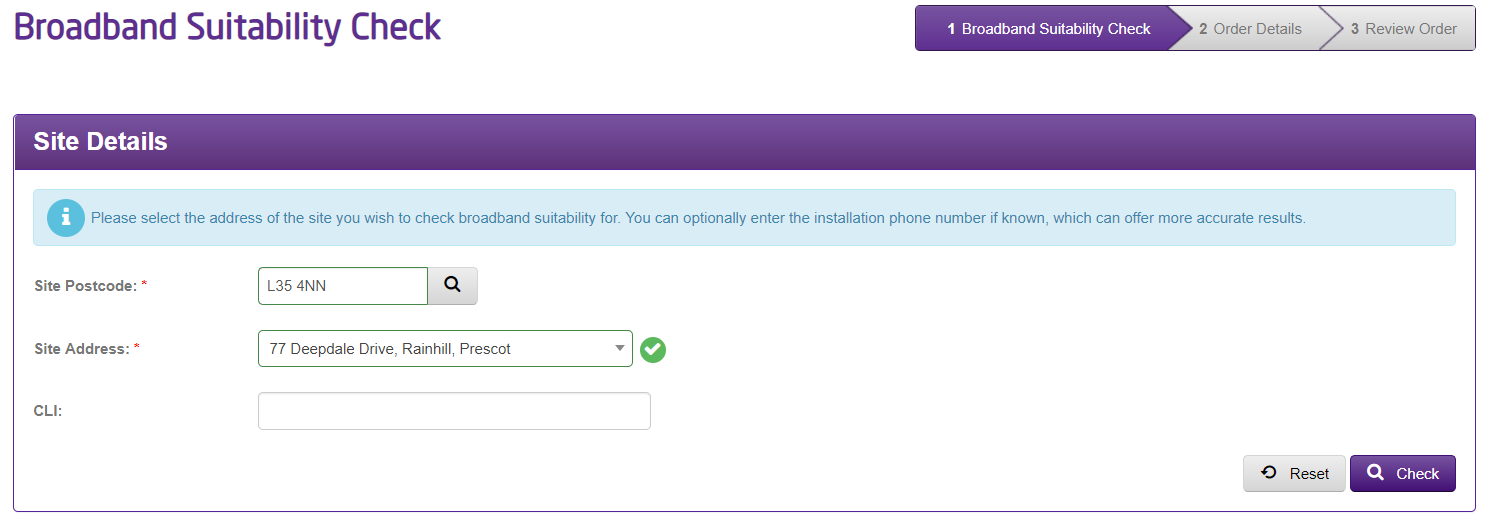
Search on your properties postcode then select the full address. CLI should also be added here if known
Step 3
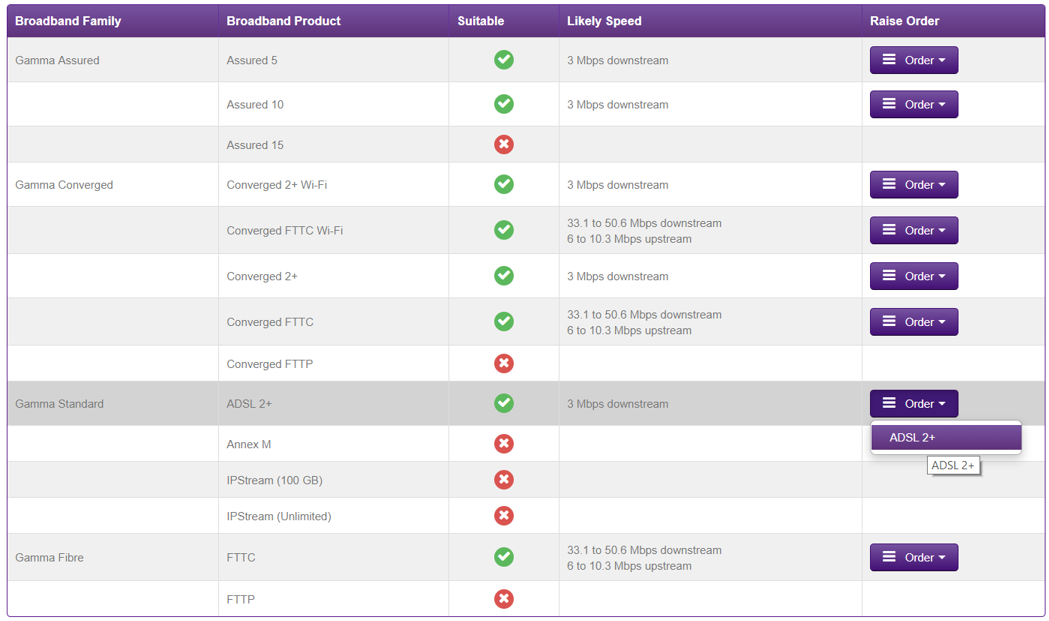
Click “Search” to return results. Find the Broadband product you wish to order and then proceed with your order by using the “Order” button.
Step 4
You will be taken to the Order Details screen. Choose your account from the dropdown. This will then prepopulate your details and expand the rest of the screen.

Step 5
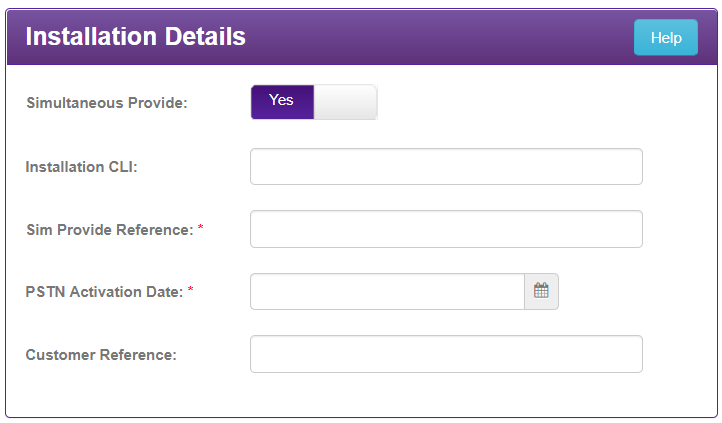
Fill in the required information on the page. When you reach the “Installation Details” box ensure that you click the Simultaneous Provide to ‘Yes’, once you have completed all the required fields, please click continue.
Please use the help buttons on the boxes if you’re having any issues in completing the sections of the form.
Please note: In the Installation details box, the SIM Provide fields will not show if the Broadband product you selected in step 3 does not support the SIM process. FTTP is an example of this.
Step 6
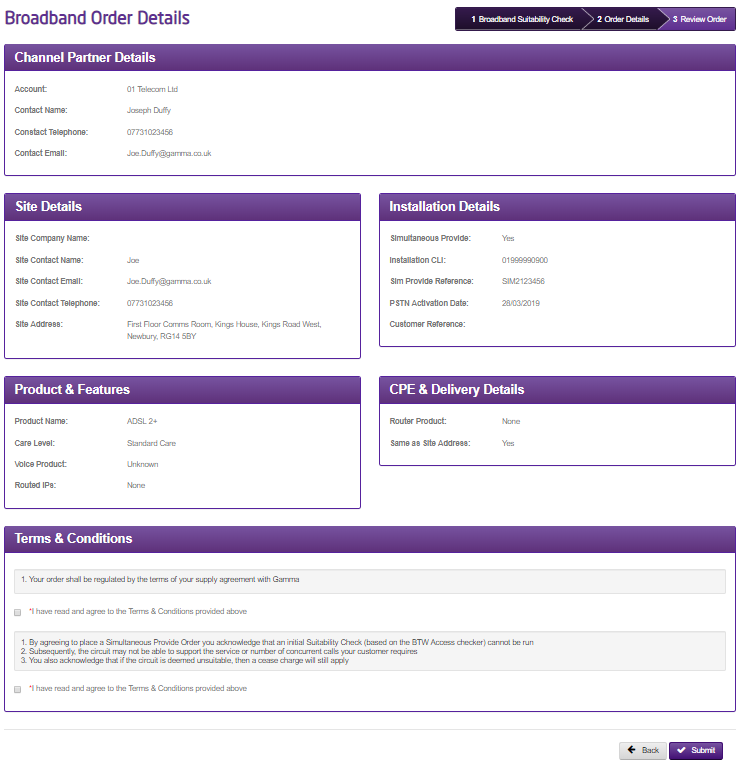
The final stage is a review page where you can double check all the information and ensure its all correct. You then just need to accept the T&Cs and then click to submit to get the order underway.
SIM 2 Useful Information #
Please see below for some helpful information regarding SIM 2
| SIM1 | SIM2 | |
|---|---|---|
|
Matching reference (LORN) |
3 letter prefix (limit of 10 alpha numeric ) |
Begins with SIM2 (limit of 10 alpha numeric ) |
|
Matching period |
CRD + 10 days |
72 hours |
|
Matching criteria |
WLR3 needs to be committed |
WLR3 doesn’t need to be committed |
|
Primary (lead) order for Copper |
WLR3 |
WLR3 |
|
Primary (lead) order for FTTC |
N/A |
FTTC |
|
BB dates align with WLR, all date changes need to be done on the WLR side |
Order deliver dates will align with the lead order so only one change needs to be made when a date is moved | |
|
Links between orders |
If BB cancelled the WLR3 can progress on its own |
If BB cancelled, BOTH orders cancel. This is because the orders are much more closely tied together which overcomes engineer skill mismatches seen on SIM1 |
Order Scenarios #
SIM2 can be used in the following scenarios;
- New Provide
- Migration
- Working Line Takeover
- Transfer
- Reuse of stopped line (Start of stopped)
Please bear in mind that is there is a CP change on the order, Notice of Transfer (NoT) rules apply and there will be a minimum lead time of 10 working days. These orders can’t be expedited.
