
Skip to content
  • Academy KB Home Redesign
  • Broadband Home
  • CCaaS
  • Channel Partner Support
  • Circle Loop Home
  • Collaborate
  • Connectivity
  • Courses
  • Documentation
  • Ethernet
  • FibreXchange
  • FUSION IoT
  • Gamma AI Concierge
  • Gamma Plus
  • Gamma SIP for Cloud Connect
  • Gamma SIP Global Communications Enablement
  • Gamma SIP Trunks for Genesys Cloud
  • Hannah – Homepage WIP
  • Home
  • Horizon
  • Horizon Contact
  • Horizon Forms
  • Horizon Service Description Home
  • Horizon with Webex
  • Inbound
  • iPECS
  • Knowledge Base Intro
  • Knowledgebase Directory
  • LoginPress
  • Microsoft
  • Microsoft Teams Direct Routing Home
  • Microsoft Teams Operator Connect
  • Mobile
  • Multiple KB
  • My Courses
  • No Access
  • No active page
  • Numbering and Porting
  • Phoneline+
  • Product Homepage
  • Quick Download Button
  • Release Notes
  • Release Notes
  • SIP Home
  • Test
  • UCaaS
  • User Account
  • Voice
  • Voice Enablement
  • Webex for Gamma
  • Webex for Gamma Release Notes
  • Gamma Academy Knowledge Base
Gamma Academy Knowledge Base
  • Cloud Calling and Collaboration
    • Webex for Gamma
    • Horizon with Webex
    • Horizon
    • Phoneline+
    • Operator Connect
    • Direct Routing
    • Inbound
    • Akixi CX Analytics
    • Red Cactus
  • Connectivity and Networking
    • Numbering and Porting
    • Broadband
    • FibreXchange
    • Ethernet
    • SIP Trunking
    • Gamma FUSION IoT
  • CX
    • Horizon Contact
    • AI Concierge
  • Mobile Services
    • Gamma Mobile
  • CyberSecurity
    • SafeWeb
  • Partner & Portal Support
Gamma Academy Knowledge Base

Provisioning and In-Life Changes

  • Before Ordering Broadband
    • Broadband Address Checking/Validation
    • Broadband Fibre Products
    • Broadband SLAs for Order Placement
    • Broadband Care Levels
    • Running broadband on a long PSTN line
    • Broadband IP Addressing and Justification
    • Broadband – Acceptable Use Policy
    • Broadband Traffic Priority Policy
    • One Touch Switch – Broadband Switching Process Update
  • Ordering Broadband
    • Broadband Using the Suitability Checker
    • Placing a New Broadband Order
    • Broadband SIM Provides
    • Broadband Routed IPs
    • Broadband Router delivery
    • Broadband Expedites
    • Broadband DSL Credentials
    • Track an Existing Order
    • Modifying or Cancelling an Order Broadband
  • In-Life Broadband Configuration
    • Broadband Service Management
    • Gamma Search Tool
    • Broadband WBC Migrations
    • Broadband Home Mover process
    • Change Care Level on an existing Broadband Service
    • FTTP Optical Network Termination box
    • Router Settings
    • Broadband Line Renumbering/Porting
    • Suspend and Resume Broadband

Technical Support

  • Broadband – Glossary
  • Diagnosing and Raising a Fault
    • First line Checks
    • No Authentication Fault
    • No Web Pages
    • No Sync Fault
    • Slow Speed Faults
    • Intermittent Connection
    • REIN and SHINE
    • Broadband Health Check And Diagnostics
    • Raising a Fault
  • Zyxel Router Support
    • Zyxel DX3301 – User Guide
    • Zyxel DX3301 – Creating User Accounts & Remote Access
    • Zyxel DX3301 – ADSL NAT-ed Setup
    • Zyxel DX3301 – SoGEA NAT-ed Setup
    • Zyxel DX3301 – FttP NAT-ed Setup
    • Zyxel DX3301 – Changing Router to Bridge Mode
    • Zyxel DX3301 – Enabling/Disabling NAT
    • Zyxel DX3301 – Routed Setup
    • Zyxel DX3301 – SIP ALG
    • Zyxel DX3301 – Changing Authentication Credentials
    • Zyxel DX3301 – WiFi and Guest Wifi
    • Zyxel DX3301 – Factory Reset
  • Technicolor Router Support
    • Technicolor Router Configuration Guides
    • Enabling port mirroring on Technicolor TG588/DGA122
    • Switch off SIP ALG on a Technicolor Router using Telnet
    • Router return process
  • Network and IP support
    • IP Addresses and DSL Credentials
    • IP rates and Configuration
    • Connecting to the SMTP Relay
  • Service Management
    • Broadband Reports and Checks

Service Description

  • Standard and Converged Broadband Service Description

Broadband Forms

  • Broadband Forms

Product Information

  • Product and Industry Information
  • Home
  • Home
  • Broadband
  • Technical Support
  • Diagnosing and Raising a Fault
  • No Web Pages
View Categories

No Web Pages

If you are unable to load up any web pages, you may still have a connection to your Broadband. Follow the below steps to help with identifying the fault.

Please note:
Before you start diagnostics, it is worth checking if there are any known outages in your area which may affect the service.

Step 1

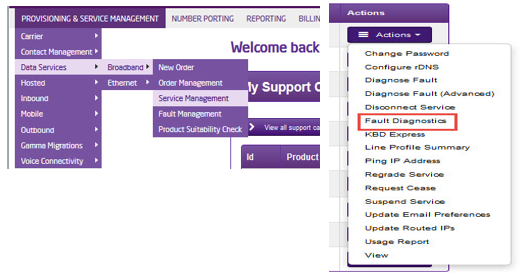
From the Gamma Portal, go to “Provisioning and Service Management”, “Data Services”, “Broadband” and then select “Service Management”. Select the relevant account, and search for the affected line using the CLI. Once you’ve pressed search, using the Actions menu select “Fault Diagnostics”.
Step 2

If the Radius Session Map is showing red in the affected 15 minute segment, please go refer to the No Authentication trouble-shooter.

If the Radius Session Map is showing green in the affected 15 minute segments, this is likely to be a local issue.

Step 3

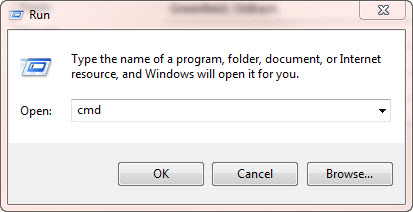
We need to do some tests on the local equipment now. Go to “Start” on your PC and then “Run”. Within the text box of the “Run” facility, type in “cmd” and press “OK”. This can also be achieved by going to Start > All Programs > Accessories > Command Prompt
Step 4

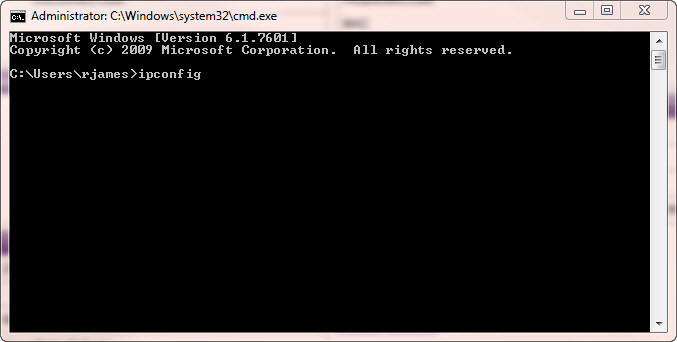
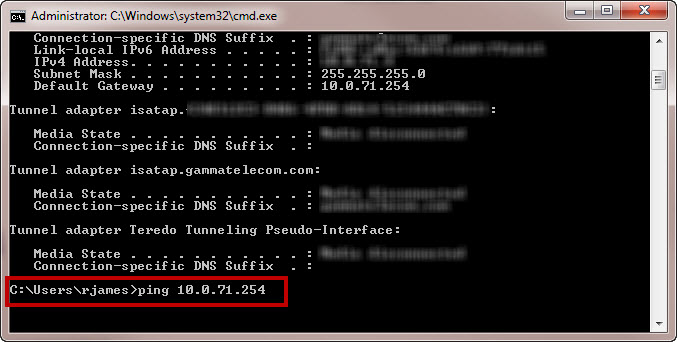
Type in “ipconfig” and press enter.
Step 5

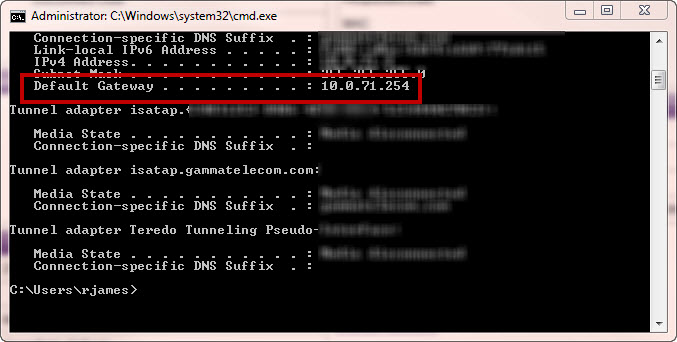
Look for the Default Gateway address and make a note of this.
Step 6

Type in “ping” followed by a space, then the Default Gateway address and press enter.
Step 7

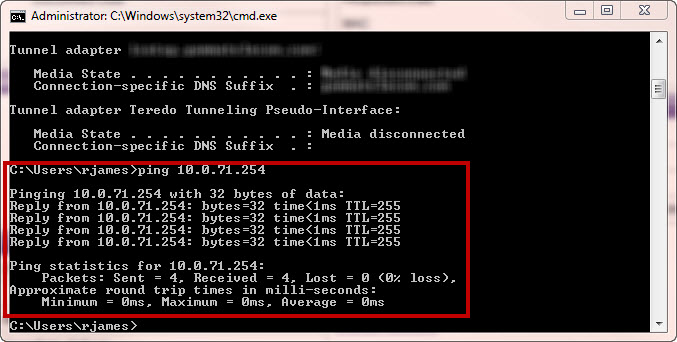
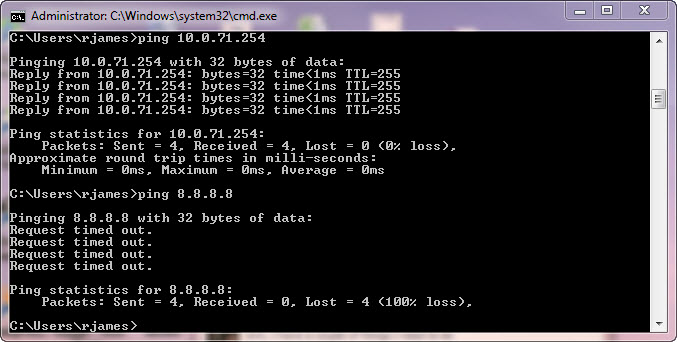
If you get replies from the ping (like in the screen shot across), this means that you can connect to the router and you should proceed to Step 9.

If you get no results from the router (which look like the screen shot in Step 10), this means that you have no connection to the router and would need to contact your IT Administrator.
Step 8

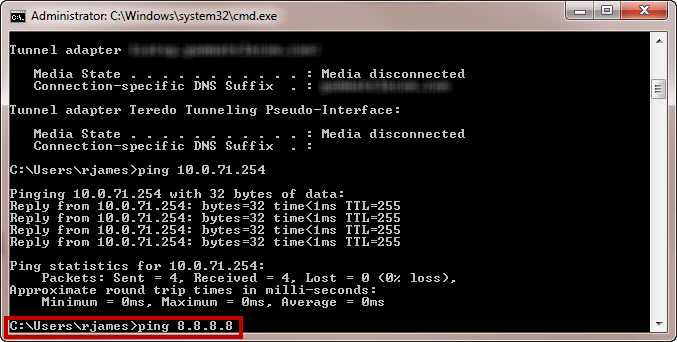
If you get a reply from the router ping, you would need to ping a live web address. We recommend sending a ping to Google’s address.

To do this, type in “ping 8.8.8.8” and press enter.
Step 9

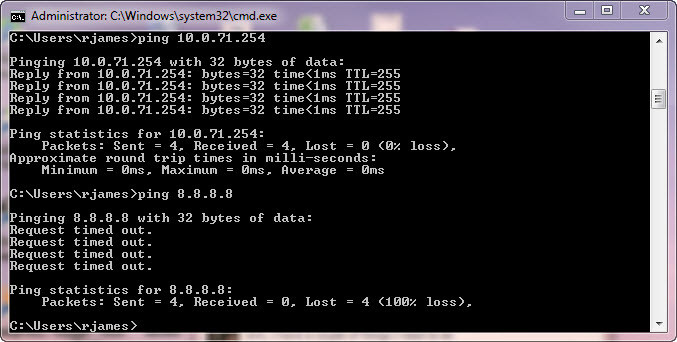
If you are unable to get a reply from the Google DNS ping (example in the screen shot across), this would suggest that it is a local issue (router/firewall) and you would need to speak to your IT Administrator regarding this.

If you have got a ping result back from Google (which looks like the screen shot in Step 9), you have access to the Internet and need to do some more tests. Please see Step 10.
Step 10

We now need to ping a web address, again we recommend google. In the command prompt, type in “ping google.co.uk”.

If you get no results back, this would suggest a DNS error. You would need to try adding DNS manually on the router or the customers PC, or speak to your IT Administrator about this.

If you have got results back, then you should be OK to view web pages. If you are still unable to view web pages, then this could be a Browser error or a proxy may be enabled, and again you’d need to speak to your IT Administrator.
Updated on 16/01/2026
No Authentication FaultNo Sync Fault

Copyright © 2026 -  Gamma Telecom Ltd

Gamma API
We use cookies to measure performance and make improvements to this service. This includes page views, device/browser, location, and page interactions. We do not collect any information you upload to this site. By agreeing, you consent for your data to be used for this purpose.