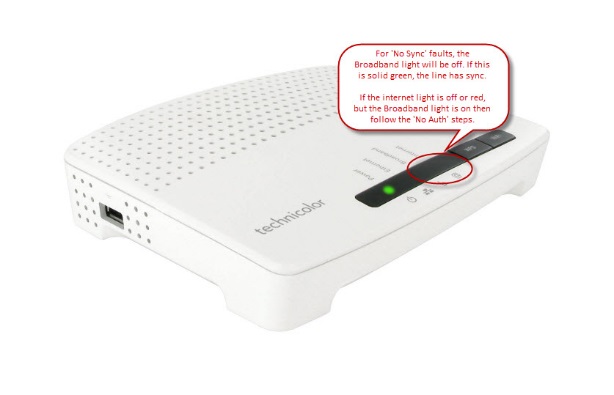
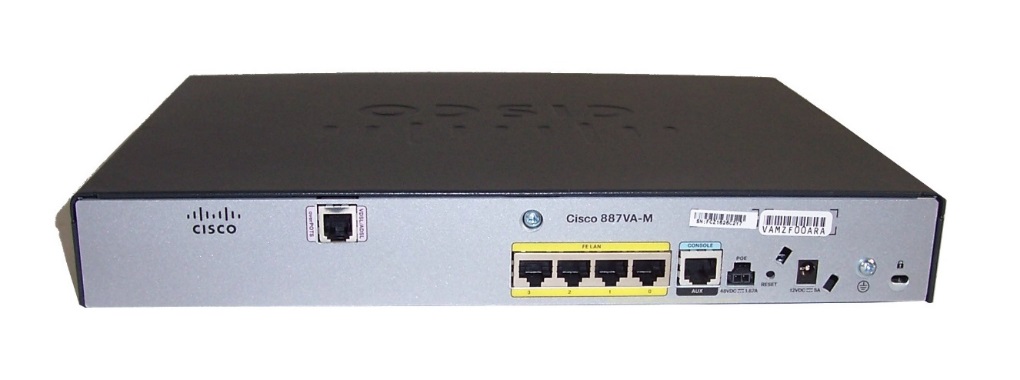
No Sync faults can be identified by checking the lights on the customer’s router. Generally the Broadband/DSL light should be solid, if this is not the case then the line doesn’t have sync. Please see below for a screenshot of the router lights.

Step 1
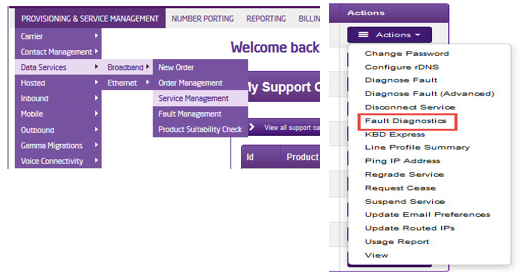
From the Gamma Portal, go to “Provisioning and Service Management”, “Data Services”, “Broadband” and then select “Service Management”. Select the relevant account, and search for the affected line using the one of the available search options available. Once you’ve found the line, using the Actions menu select “Fault Diagnostics”.
Step 2
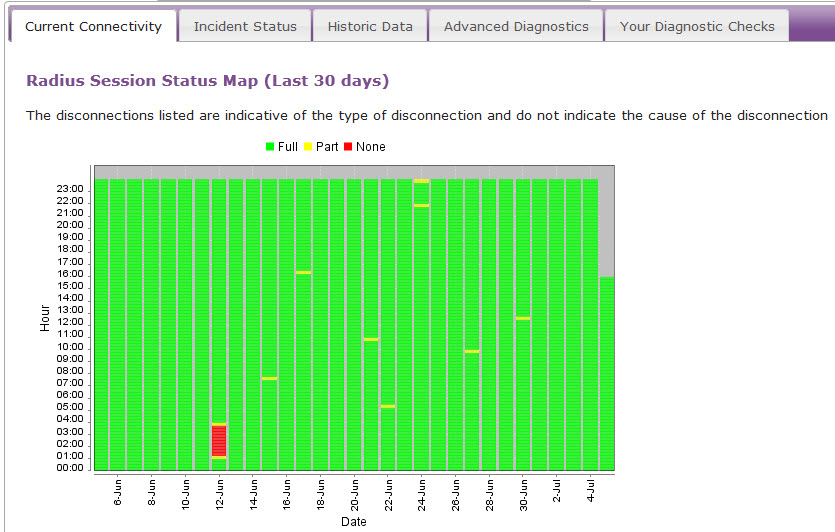
Check the Radius Session Map to see if there has been any connection in the 15 minute segment that is affected. A red segment means that there is no service.
If the segment is green, the router and the service is showing online the connection is active therefore please follow no web pages diagnostics by clicking here.
If the segment is red, continue to Step 3.
Step 3
Check xDSL Status Check. If the customer is facing a no sync fault there will be no results shown here. Go to Step 4,If they do have sync (so xDSL status check shows zeros in the results). Ensure that the sync light on the router is not lit. If this is not lit please follow the below diagnostics to Step 4
If they do have sync and the router shows this also, they are facing a no authentication fault please use the no authentication diagnostics by clicking here.
Step 4
Check the physical phone line.
**Please note that these tests only apply to ADSL & VDSL and do not apply to SOGEA and FTTP as there is no voice component of the line to carry these tests out on. Skip these tests SOGEA & FTTP circuits.
To check the physical phoneline:
- Plug a telephone into the test socket, lift the receiver and listen for any audible noise
- Dial 17070 and press option 2, this will carry out a quiet line test
- Make a phone call and ensure the quality of the call is good
- If you own the line, carry out a WLR line test
If all of these checks are OK, proceed to Step 5.
If you hear noise or the line test fails, you should raise a fault with the line provider before further diagnosing any broadband issues.
Step 5
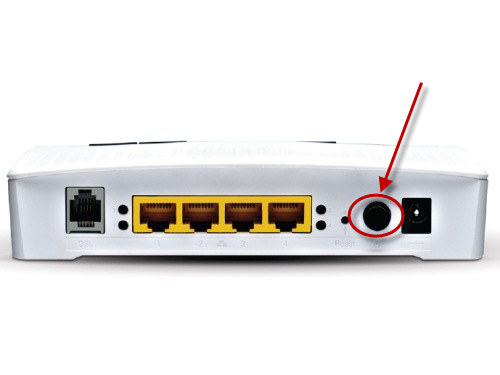
Power off the router for 30 seconds, then power back on. This can be done removing the power supply.
You should then monitor your connection to see if the router obtains a connection. If the service has obtained a connection the issue has been resolved.
If you are still experiencing no sync connection, please proceed to Step 6.
Step 6
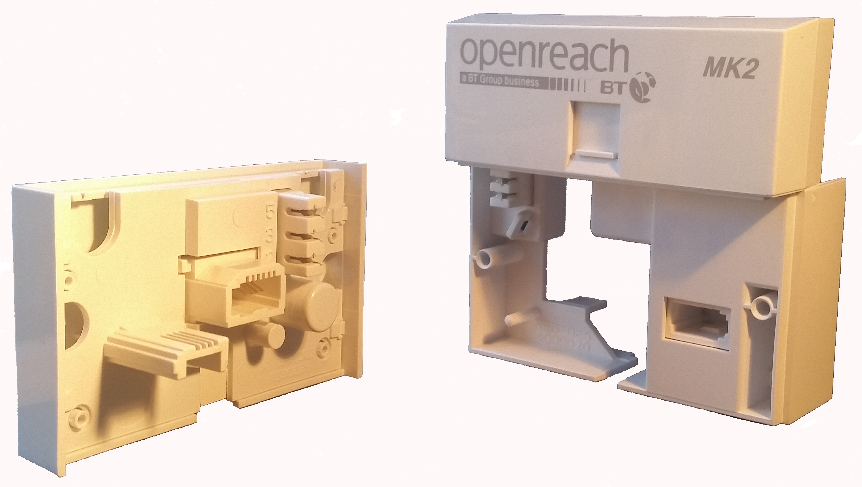
Connect your router to the NTE5 test socket and monitor. You should remove the faceplate of your socket and connect your router to the socket as shown. This will bypass any internal wiring issues. You should then monitor your connection for any improvements.
If the service has obtained a connection the issue has been resolved, then the problem lies with the internal wiring, not the broadband.
If you are still experiencing no sync connection please proceed to Step 7.
Step 7
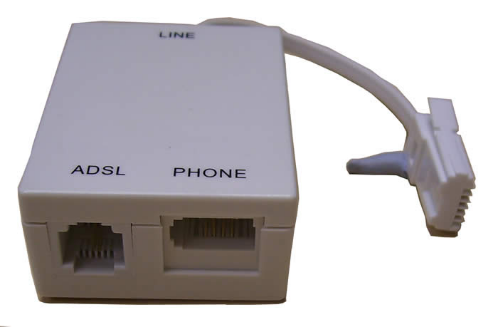
Change the filter, Gamma routers come with 2 x filters, you should switch to the second or use a different one.
If the service has obtained a connection the issue has been resolved and the problem lies with a faulty filter.
If you are still experiencing no sync connection please proceed to Step 8
Step 8
Try an alternate router on the connection, If you have an alternate router, test this on the connection. If this is not possible, proceed to Step 10.
You should then monitor your connection for any improvements. If the service has obtained a connection the issue has been resolved, then the problem lies with a faulty router.
If you are still experiencing no sync connection, please proceed to Step 9.
Step 9
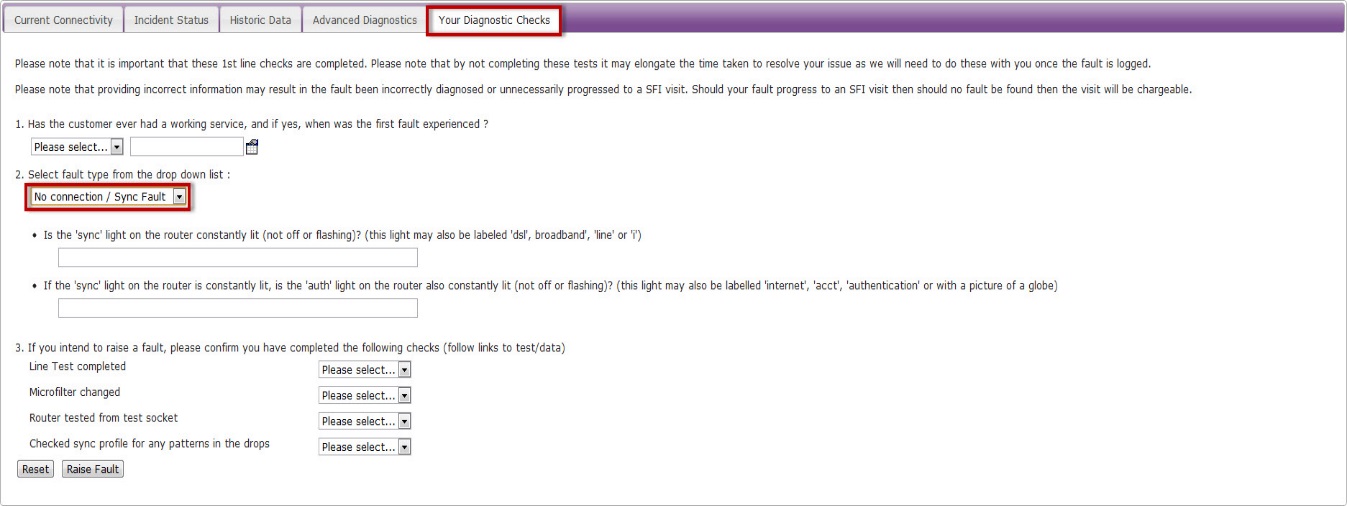
If none of these checks have worked, you’ll need to raise a fault on the Advance Diagnostics page.
Select the “Your Diagnostic Checks” tab and follow the drop down menus.