
Introduction #
What is TAPI? #
It’s short for Telephony Application Programming Interface and is an API for connecting a PC running Windows to telephone services, it was introduced in 1993 as the result of joint development by Microsoft and Intel. The Horizon TAPI driver supports connections by individual computers and TAPI defines standards for simple call control and for manipulating call content.
The Horizon TAPI Driver has been designed to complement Horizon and provide telephony and call control integration via Applications that have the ability to make use of a TAPI interface. The extent of the integration is entirely dependent on the specific Application and Gamma cannot provide any advice, help and assistance in configuring the Application, the onus is on the Application vendor or the end user’s IT team to make use of the TAPI interface.
The TAPI interface is provided on a 1st party basis and must be installed on the user’s PC, for clarity Gamma does not support a 3rd party deployment also known as server-side installation.
This guide will provide details on the various components within the TAPI driver, along with details of how to install and set up.
In order to install the TAPI Driver the user will need Administrative rights to the PC
Note: The TAPI driver can be used in conjunction with the standard Horizon Integrator and for clarity, the Horizon TAPI does not provide any end-user features (for example, click to dial) – it is simply a middleware driver and all capability is dependent on the CRM Application itself.
Installing and Configuring Horizon TAPI #
This document will guide you through the process of Installing and configuring the Horizon TAPI driver.
Installing the TAPI Driver #

First download and launch Horizon TAPI Installer from the link provided in the welcome email.
Click “Install” and wait for the installation to finish.
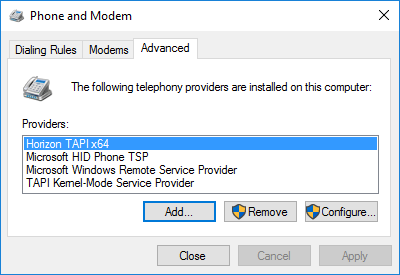
Once the installation has completed, you will see the Horizon TAPI x64 has been added to the list of telephony providers in Phone and Modem (Control Panel > Phone and Modem > Advanced).
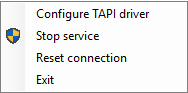
You should also see the TAPI Tray Monitor icon  has appeared in the system tray and right-clicking on the icon will bring the below menu.
Configuring the TAPI Driver #
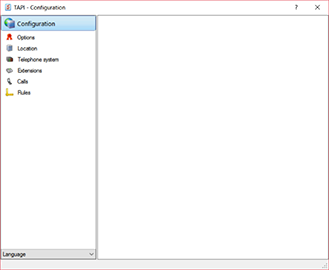
To configure the driver, right-click on the TAPI Tray Monitor and select Configure TAPI driver.
Step 1
Select Options
You have two options for Number presentation to select from:
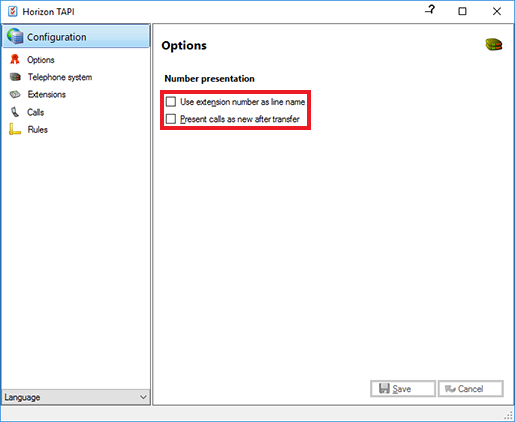
Use extension number as line name if you would like the application to be presented with a username rather than a number.
Some Applications may not be able to handle call transfers correctly (data changes on call). In such instances select the Present calls as new after transfer. This causes the driver to present a transferred call as a new call.
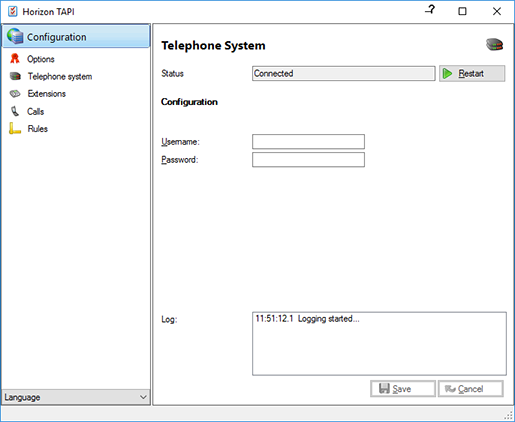 Step 2
Select Telephone Systems and enter the user’s Horizon Client username and password credentials.
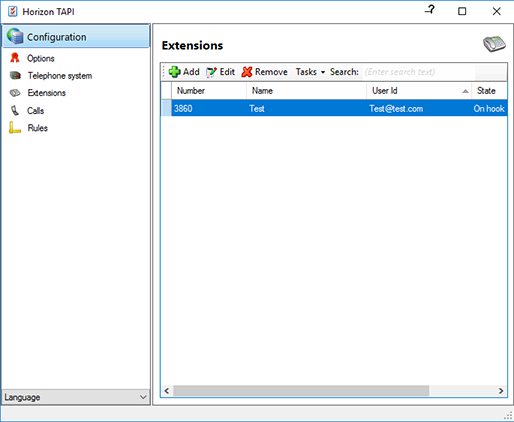
To confirm the device is being monitored, click on the extensions tab and the Horizon extension will show as Online.
The driver is now configured and the device monitored by the driver should be visible to the TAPI-compliant application.
The configuration client uses TCP to connect with the Horizon TAPI service on 127.0.0.1 over port 21050. Firewalls/security software that may prevent this should be configured to allow such communications. The installation does add an exclusion for Windows firewall but other software of this type may block the installation.
Testing the TAPI Driver Installation #
Windows Phone Dialler is a TAPI-compliant program that is shipped with Microsoft Windows. This can be used to test if the installation succeeded.
To do this open the Phone Dialler program (search for “Dialer”, using the American spelling, from the Windows Start menu) and from the Tools menu select Connect Using and select the line you wish to control (this will probably already be connected).
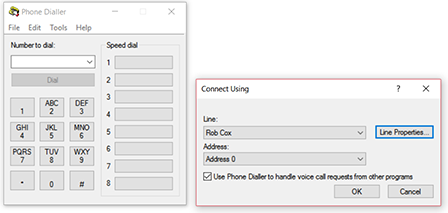
You can then try to dial another extension. Please note that the Phone Dialler only supports dial and hang-up commands.
TAPI Driver Tray Monitor #
The Horizon TAPI Tray Monitor allows the user to see the current status of their TAPI connection at a glance, as well as providing the ability to restart the Horizon TAPI Service in the event of a problem.
It is recommended that you disable Remote Access Connection Manager if the service is not being used.
Note: If a user is using a VPN it will need Remote Access Connection Manager to be running, so they cannot disable the service.
TAPI Tray Monitor Menu #
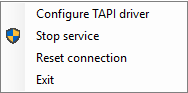
Reset Connection: Resets connection to telephone system*. Press this if the TAPI Tray Monitor is coloured yellow.
Note: Resetting the connection to the telephone system in a Citrix/Terminal Services environment will reset the connection for all extensions.
Stop service: Stop the Horizon TAPI Service. This will also stop the TAPI XSI connection to Horizon. Press this if the TAPI Tray Monitor is coloured yellow and Reset Connection (below) did not fix the connection issue.
Note The Reset Connection should always be used prior to trying this option. Stop service requires Administrator rights to the PC.
Start Service: Start the Horizon TAPI Service. Start service requires Administrator rights to the PC.
Exit: Exit the Horizon TAPI Tray Monitor.
TAPI Tray Monitor (TTM) Status Indicators #
 Red – Horizon TAPI Service is not in a Running state. Note: If in this state for a prolonged period of time, right click on the TTM and select Start Service.
 Orange – TTM cannot connect to the Horizon TAPI service. Note: If in this state for a prolonged period of time right click on the TTM and select Start Service.
 Yellow – Horizon TAPI service is not connected to the Horizon system. Note: If in this state for a prolonged period right click on the TTM and select Reset connection.
 Blue – No TAPI application is running on the PC or is not configured to use a specific line.

Green – TAPI application (e.g. Phone Dialler) is running and configured to use a specific line.
Minimum Requirements #
PC Specifications #
- 1.8 Ghz Pentium-class processor
- SVGA display
- 2GB Memory
- 1GB free hard drive space
- Network adapter connected to TCP/IP Network
- Keyboard and mouse
Supported Platforms #
- 32-bit & 64-bit:
- Windows 7 Pro
- Windows 8 Pro (desktop mode)
- Windows 10
Name | Service Development |

| |

| 0333 240 7771 |