On Horizon, the Yealink W52P will allow up to 5 different Horizon users to be registered to the same base station and for each Horizon user to then be assigned a one to one relationship with a DECT handset. The Yealink W73P allows for up to 10 different Horizon users to be registered to the same base station. The below guide will take you through how to assign multiple Horizon users to a single Yealink W52P or W73P base station and associate the user to a DECT handset. This guide assumes that you have created the Horizon users & have the hardware
Before configuring, there are a few behaviours to note:
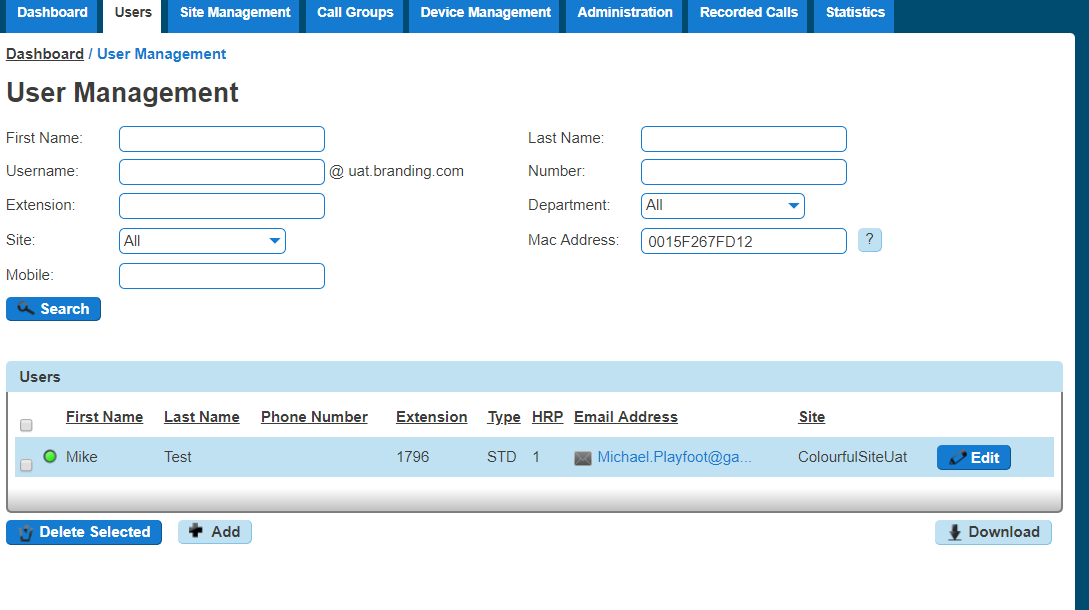
End users cannot select a specific handset to be assigned to a specific account. Handsets are assigned to Horizon accounts based on the order that they have been associated with the base station. The 1st handset that was associated with the base station will use Handset Registration Position (HRP) 1, the 2nd handset that was associated will use HRP 2 and so on.
Any DECT handsets that do not have a Horizon user registered to them, will be associated with HRP 1. For example, in the case that only 2 Horizon users have been registered to a DECT handset position, but there are 5 handsets associated with the base station, then handsets 3, 4 and 5 will use HRP 1 and the second Horizon user will use HRP 2 for incoming and outgoing calls.
When an account is removed from the Horizon Portal in this example HRP 2 – Peter Jones then HRP 3, 4 and 5 will move up one place as per the below table, this results in the DECT Handset internal extension number changing for those users.
Current Position | New Position |
HRP 1 – Associated to Andrew Robinson | HRP 1 – Associated to Andrew Robinson |
HRP 2 – Peter Jones | HRP 2 – Associated to Mike Smith |
HRP 3 – Associated to Mike Smith | HRP 3 – Associated to Roy Farrow |
HRP 4 – Associated to Roy Farrow | HRP 4 – Associated to Nigel Cannon |
HRP 5 – Associated to Nigel Cannon | HRP 5 – Associated to Andrew Robinson |
End users will still be able to receive and initiate calls from any handset if only one account is assigned in line with existing behaviour.
None of the Horizon extension details will appear on any handset. By default, the handset names are “H1″, “H2”, “H3”, “H4” and “H5”. The end user can manually change the handset name via the settings menu>Handset Name
Yealink W52P supports up to 4 simultaneous calls, whilst the Yealink W73P supports up to 20 simultaneous calls. Intercom calls do not affect the amount of calls that can be initiated/received to/from other extensions and/or PSTN numbers. When 4 handsets are on a call and the 5th handset tries to initiate a call it will receive a busy tone along with a busy message on the screen (in the case of the Yealink W52P.) The base station will not accept any incoming calls once the maximum number of concurrent calls are in progress.
Using the Horizon extension number to call a DECT user on the same base station will consume two of the four concurrent calls available.
The Yealink RT30 repeater is compatible with this enhancement and all existing deployments of the Yealink DECT W52P/W73P hardware will be able to benefit from this update without the need for a firmware update.
We have noted that upon the initial set up the DECT base may reboot a number of times whilst it configures the relationship between the Horizon extension and the DECT handset.
Setup multiple users on Yealink DECT #
In order to associate a Horizon guide to the Yealink base station you will need to make a note of the MAC address of the base station before heading over to the User Management section of the Horizon Portal. This can be done in Device Management.
Step 1
Log into the Gamma Portal and go to Provisioning and Service Management, Hosted, Horizon and Horizon Manage Company.
Step 2
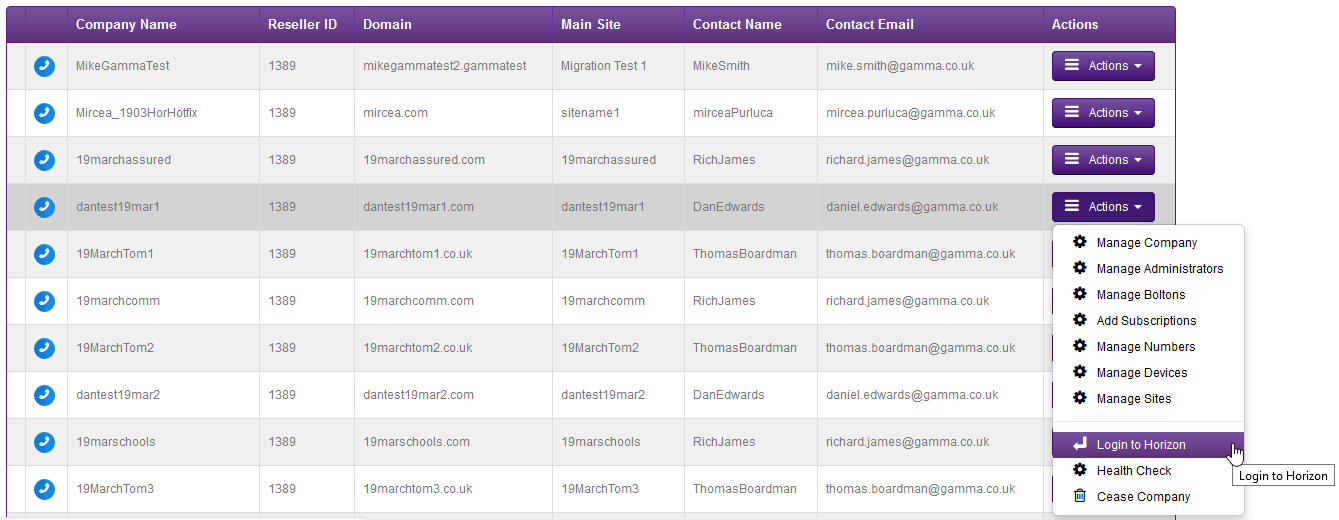
Select your account and locate the company that you want to update the speed dials for. Using the “Actions” button select “Login to Horizon”.
Step 3
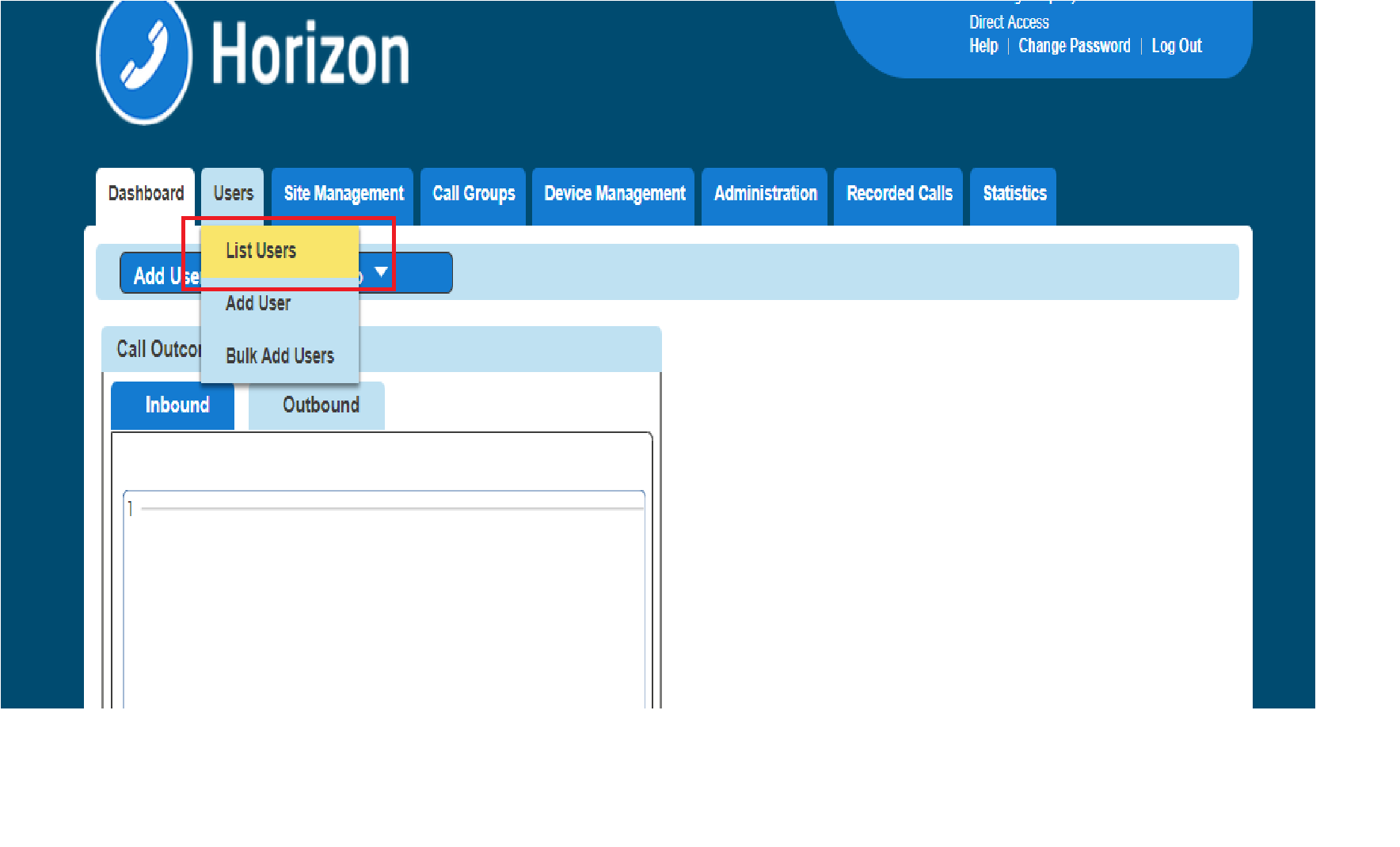
Hover over “Users” and then click “List Users”.
Step 4
Locate the User you are wanting to set up the DECT device in Handset Registration Position 1 and click Edit. You can do this by scrolling through the User list, or you can use the search facility presented on the page.

Step 5
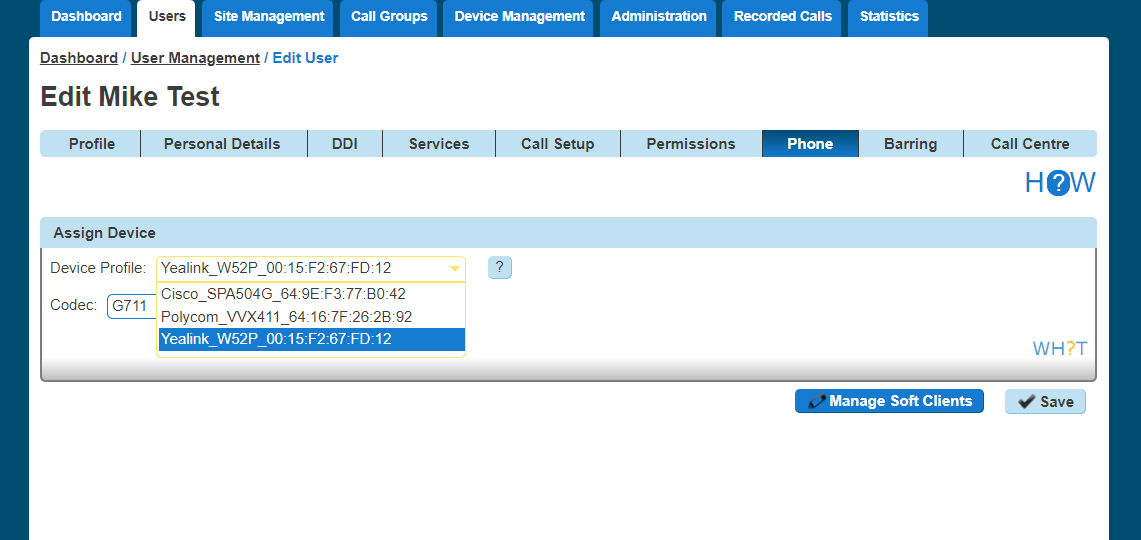
Click Phone and search for and select the Yealink W52P and MAC address you noted at the outset. Click Save.
Step 6
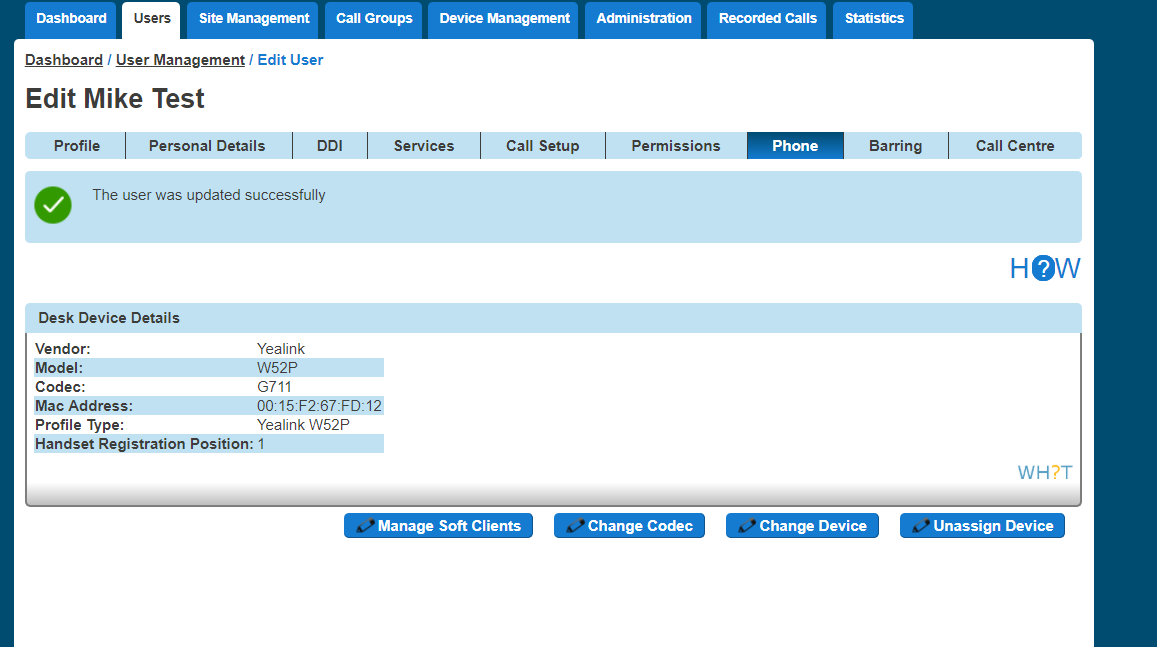
You then see the following confirmation screen and confirmation of the Handset Registration Position (HRP) for the user you have just assigned.
Step 7
Repeat these steps until all the Horizon Users you wish to associate with the base station are assigned. Remember that users are assigned to an HRP in the order that you assign them.
Once a DECT base station has been assigned its full quota of users the MAC address will no longer be available for selection under the Phone tab of the Edit User section.
Step 8
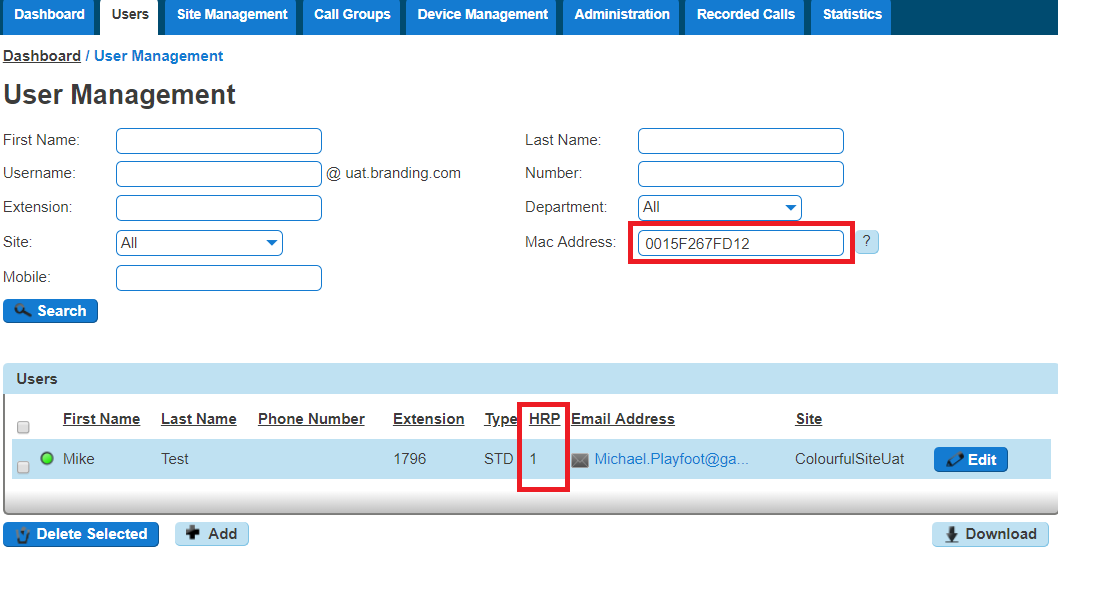
Once all Users are assigned you can search and filter on the DECT base station’s MAC address to see the full list of users and their HRP via the Users screen on the Horizon Portal.
Removing a user from a DECT device with multiple users #
Removing a user will result in all users below that user’s position being moved up in the list. In this scenario, we removed Peter Jones’s association from the base station and all users below Peter were automatically reassigned as follows. The handset Peter vacated will now be associated to Andrew Robinson’s HRP.