Add/Remove Sites #
You should have collated all the required information for this part of the process during the site survey stage.
At this stage you can order the following services:
Numbers | New number ranges with area codes of your choice |
Bolt-Ons | Additional bolt-ons required for your Company, such as Collaborate, Hunt Groups, Voicemail etc. |
Hardware | Handsets, power supplies & peripherals |
Please note that the services you order at this stage are tied to the customer site you have just created.
Step 1
From the Gamma Portal, go to “Provisioning and Service Management”, “Hosted”, “Horizon” and “Horizon Manage Company”.
Step 2
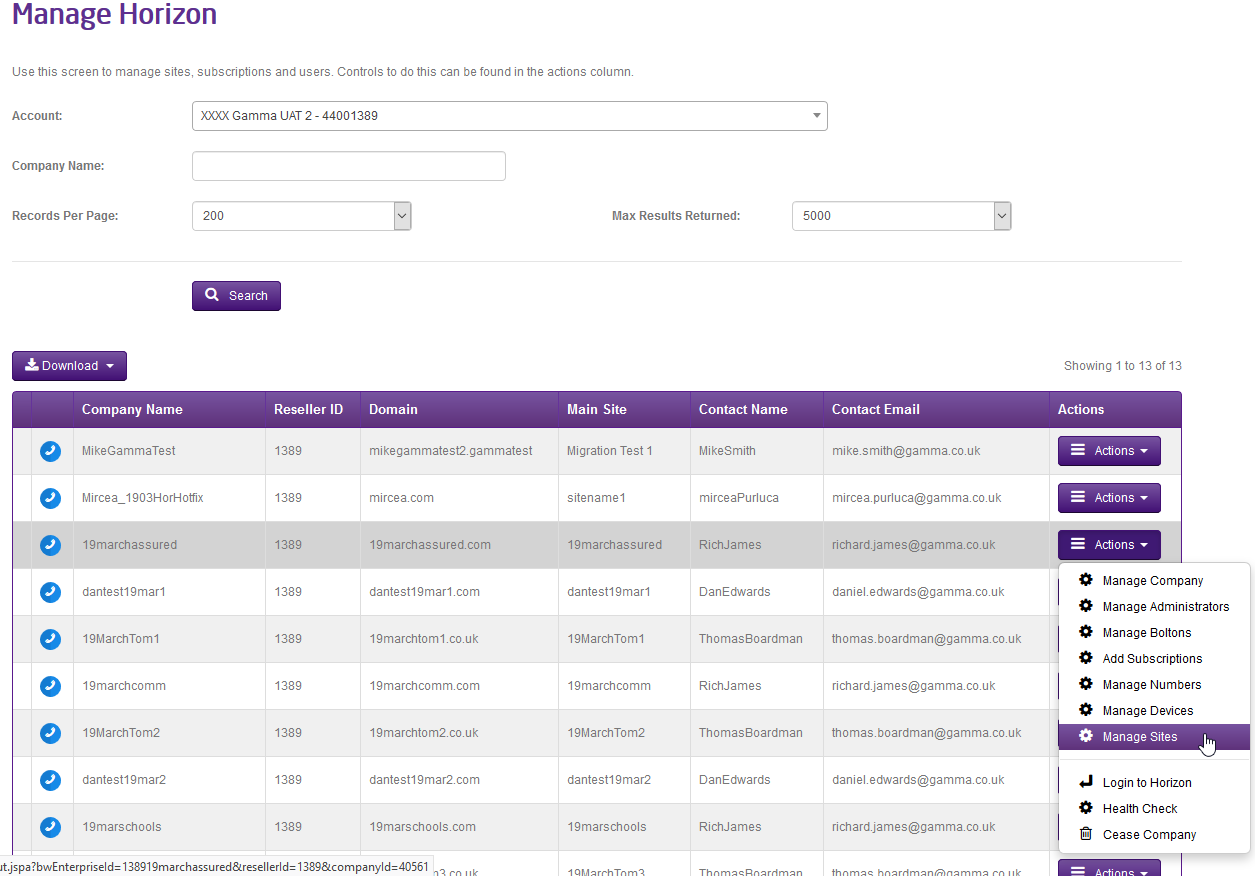
Find the company that you wish to add sites to using the Actions drop-down to select “Manage Sites”
Step 3
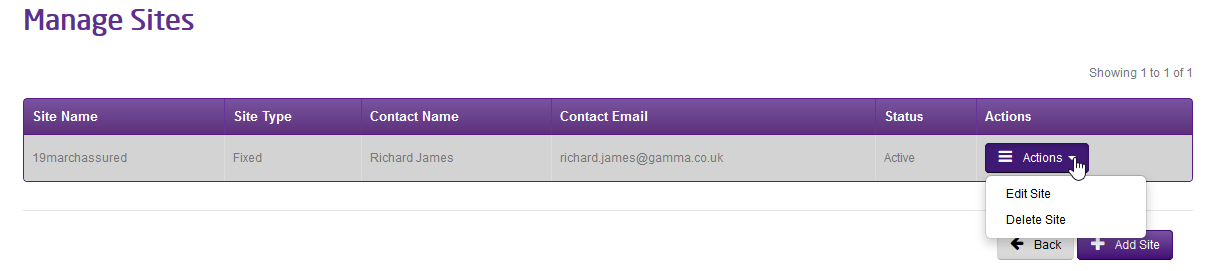
From here you can either delete a site by using the “Actions” drop-down for the site and clicking “Delete Site”, or you can add a new site by clicking “Add Site”.
Step 4
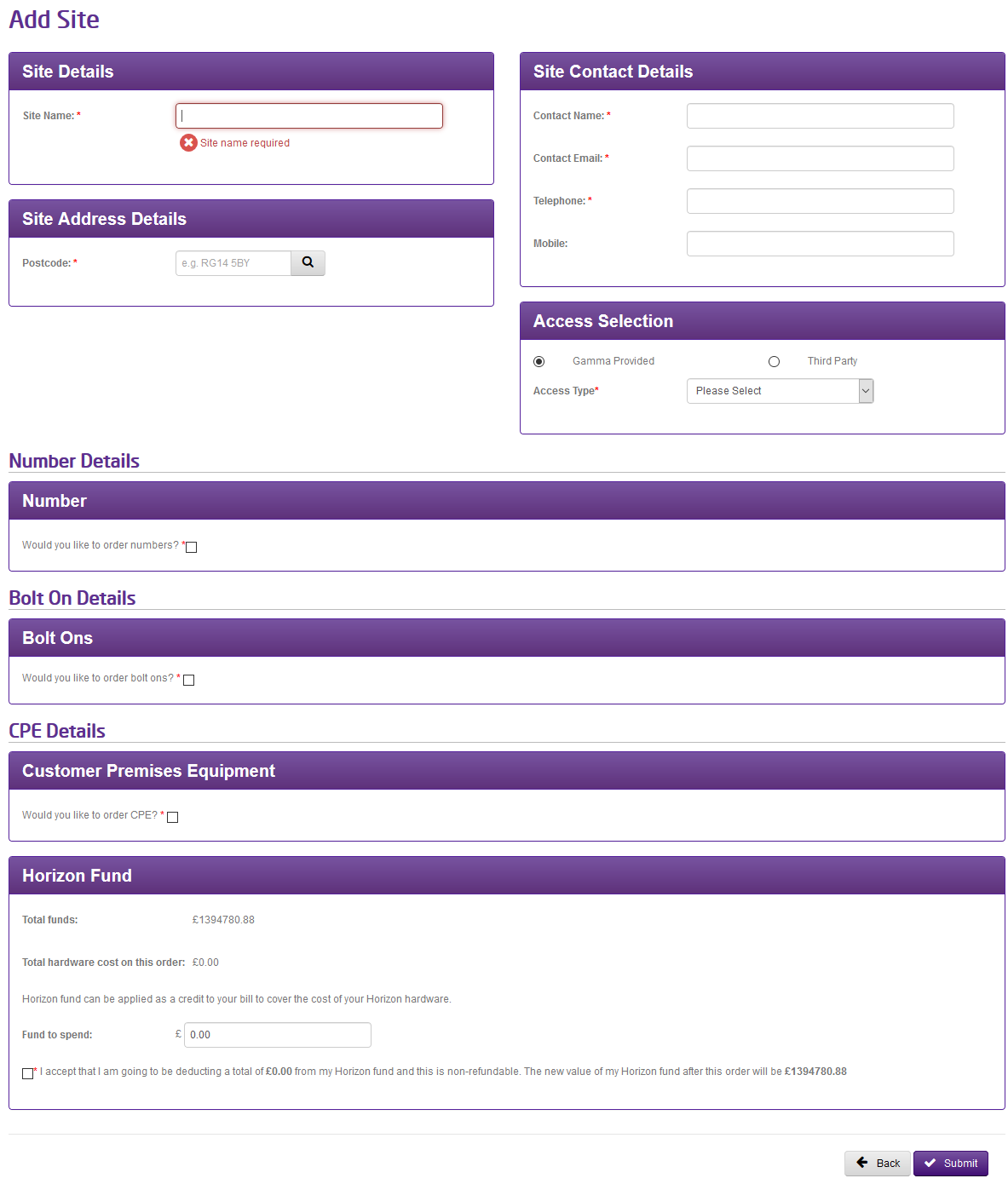
Enter the Site Name, the Site Access Details and the Site Address.
If you want numbers tick the “order numbers” tick box and then enter how many new Gamma Numbers you would like for your Horizon Company. If you are planning on porting or migrating numbers to your new Horizon Company then you would still need to select at least one number to get your Horizon Company created so you can start your testing.
If you want new bolt-ons, tick the “order bolt-ons” box and then enter the number of bolt-ons you need for your Horizon Company. You can add or remove subscriptions at any time. See the Manage Bolt-Ons article for details. Details of the bolt-ons are available in the Horizon Knowledge Base.
If you want new hardware for your site tick the “order CPE” tick box and then enter your hardware. This can be delivered to the Site or to another address.
Step 5
You can view your Horizon Fund and select how much you want to spend on your order.
This panel is dynamically updated based on all the information that you have entered on this page and will pull through any saved funds from previous orders which can be spent.
“Total Funds” is the total available Horizon Fund contribution that you have saved in your pot.
“Total hardware cost on this order” will change any time you add or remove hardware from the order.
The “Fund to Spend” value is defaulted to the maximum value that you can spend on this order. This will be the “Total hardware cost on this order” value, up to the “Total Funds” figure. If you want to, you can change this value to any value below the “Fund to spend” figure. This can be between £00.00 (and thus saving your funds) up to the figure that is already in the text box.
Confirm that you are going to be deducting what you have agreed to and you can continue with your order.
Gamma will not be refunding any errors made during this step. Please ensure that you select the correct value that you want to spend on this order.
Step 6
Clicking Submit will confirm the order and you will receive an email when your site has been set up on your Horizon Company.