
Call Recording Audio Playback Issues #
If you are suffering from issues when attempting to play back any of the call recordings then please consider and test the below.
- Is the issue affecting playback of all calls or specific calls?
- Is the issue affecting a single user or multiple users?
- Is the issue affecting specific sites for the company?
- Are you having the same issue on other call recording companies?
By answering these questions, it will help to narrow down where the fault is impacting. After you have answered these questions the next step will be to raise the fault to the service desk. To do this you need to gather the below information.
- Full fault description
- Dates of the affected calls
- Times of the affected calls
- Direction of calls, is it only affecting outbound or inbound calls?
- Call from Number
- Call to Number
- Telephony username
Please try to provide as many examples as possible when raising faults into the service desk.
Can’t Find Recording #
If you are having issues finding a specific call recording then please consider the below before raising the fault to the service desk.
- Is the user enabled for Call Recording on the Horizon Portal?
- Is the user enabled but has a On Demand mode set?
- Are you searching for the user? Recording is on the user not the number.
- Did the user have recording enabled at the time of the call?
- Try searching with a wider search criteria to locate the call
- Is the call beyond the retention period and has been deleted? (You can check the retention policy from the Gamma portal, by finding the Horizon company and use the manage company option to look at the call recording retention period.)
- Does the user have permission to see the call recording in question i.e. are they in the right group? Click here to see the policy permissions.
Call Recording Feature not Working as Expected #
If you find that a specific feature isn’t working within the call recording portal then please gather as much information before submitting to the service desk. Please consider the below:
- Is the feature not working as expected on a single call or multiple call?
- Is the feature not working as expected on a single user or multiple users?
- Is the feature not working as expected affecting specific sites for the company?
- Are you having the same issue on other call recording companies
Before submitting please gather as much information as possible with a full description of the fault.
Policy Controls #
There are a number of different policies that can be applied to give users different levels of access.
If the user is reporting they cannot see certain calls then it would be a good starting point to check the policy that they have as this could be restricting their access.
Please use the below to see what controls are available for each policy.
Policy Name | Policy Access |
Global User | Global user access is the highest level of access and this user can access the main three areas of the interface. These are Recordings, Users & Reporting. Within each of these sections the global user has full write permissions. |
Team User | Team user access allows the user to see the Recordings and Reporting tab. They have access to listen to all the call recordings for all users and run audit and usage reports. This user cannot see the users tab and will not have permission to manage users. (Please note this policy doesn’t allow you to create your own teams, this policy will just give you reduced access vs the Global user) |
Staff User | Staff user access allows a user to see the recordings tab only and will only show them their own call recordings. This policy is aimed at staff who will need to listen to their calls for training and improvement purposes. They do not have access to the reports tab or the users tab. |
Support User | Support user access is used for anyone who isn’t in the end user’s organisation but may need access to help support. The support user access will show relevant information on the recordings and user tabs to help with any potential issues. There will be a reduced detail to comply with GDPR. You can create a support user directly from the interface or alternatively you can use the Single Sign On from the Gamma Portal. See more below on this tool. |
Policy Control by Feature #
Policy control by feature
Description | Global User (Full access to all features and areas of the CR portal.) | Team User (Team leader role for someone who needs to listen to calls, view comments and run reports. Please note this policy doesn’t allow you to create your own teams, this policy will just give you reduced access vs the Global user) | Staff User (Only has access to listen to own recordings, no access to reports or user creation) | Support User (Gamma staff/CP user should have limited view that doesn’t breach GDPR) | |
Help by Topic |
| Y | Y | Y | Y |
Changing Your Password |
| Y | Y | Y | N |
Locked Out (these users will be able to unlock a users account) |
| Y | N | N | N |
Logging Out (these users will have the ability to log out of the call recording portal) |
| Y | Y | Y | Y |
Search Calls
| Ability to search for calls using the search criteria and bookmark and specific searches | Y | Y | Y (but just their own recordings) | Y |
Playback Calls
| Ability to playback recordings and change the playback speed | Y | Y | Y (but just their own recordings) | N |
Download Call Recording | Ability to download call recording | Y | N | N | N |
| This is to allow the specific user access to look at the properties and history of a call but not allow them to playback the call. | Y | Y | Y (but just their own recordings) | Y |
Run Report
| Ability to run reports from the reporting area of the call recording portal | Y | N Y | N | N |
Create User
| Ability to manage users from Creating to editing the user information. | Y | N | N | N |
Read Only Access toUsers tab |
| N/A | Y | N | Y |
Safe Metadata | Safe Metadata is where the SSO user logs in and they see a restricted view of the Metadata so not exposing any personal information about the recordings and they shouldn’t be able to download or listen to the recording. | N | N | N | Y |
Single Sign On (SSO) #
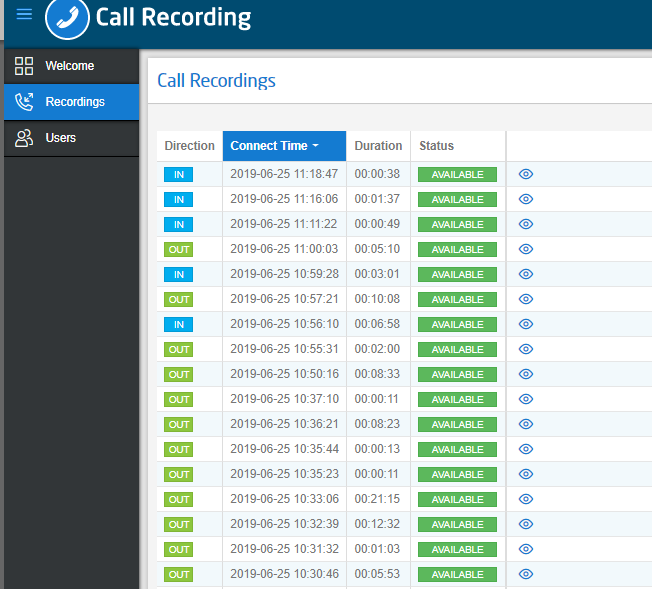
Single Sign On access has been created for Gamma Staff and Channel Partner support users. This allows you to sign on to the end users Call Recording interface. Once you have signed in you will see a GDPR safe set of detail, you will not be able to playback or download any of the calls to comply with MiFID II compliancy. Please use the Single Sign On to check for potential policy issues along with confirming date and time of specific calls that a user may be having issues with playing back.
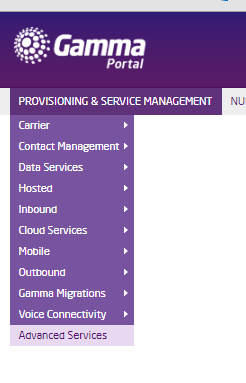
To access Single Sign On please head over to the Gamma Portal and use the Provisioning & Service Management menu and select Advanced Services
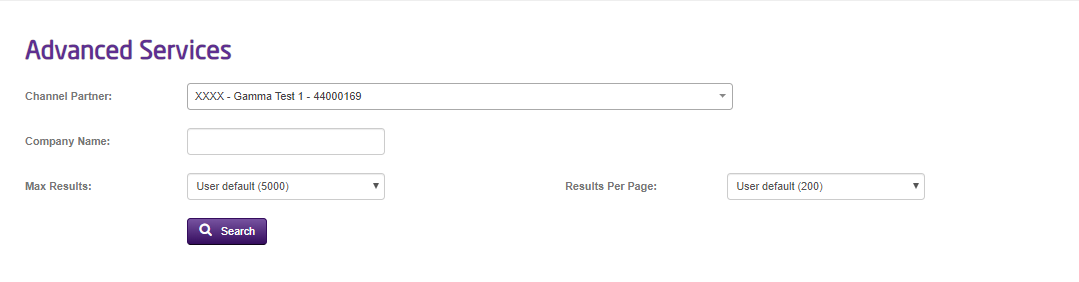
After selecting this, use the option to filter by account and company to find the company you require to sign on to.
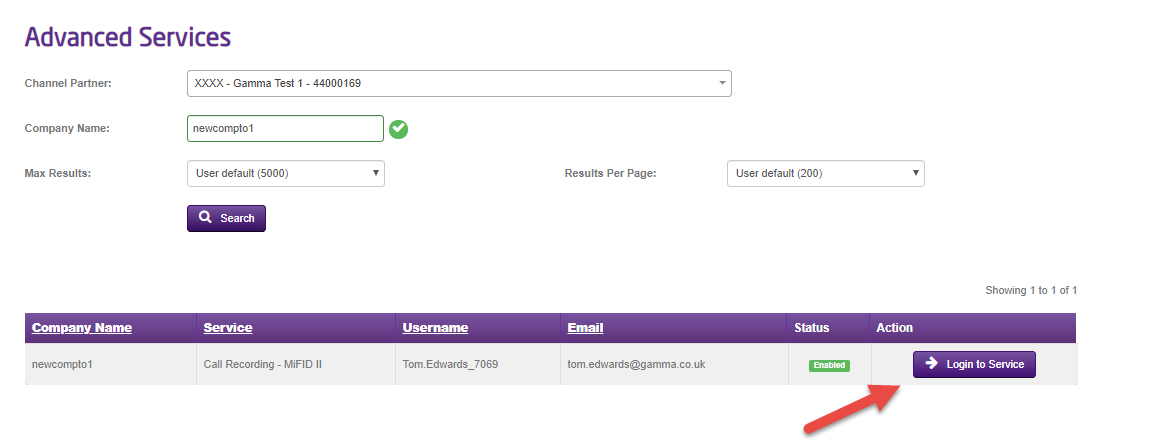
After this click on the “Login to service“button and you will be taken to the Call recording portal. Please note that when you are logged in you will see a reduced view that complies with GDPR & MiFID II regulations.
Raising Faults #
To raise a fault into Gamma then you can use the existing process via the Horizon Health check to raise the faults. Please remember to include as much detail as possible when raising faults into the service desk.
Service Alerts #
Gamma will issue email and/or SMS service alerts to Channel Partners in the event of any planned or emergency service maintenance. Please note that service alerts will be sent to all Gamma Portal administrator users only and it is the responsibility of the Channel Partner to keep Gamma Portal contact details updated and proactively subscribe additional relevant Gamma Portal users as recipients of service alerts.