Before you proceed you’ll need some details:
- The site the user will be created against
- The user’s first and surname*
- The username you wish to allocate to the user
- Their e-mail address
- Which optional extras the user requires (i.e. voicemail)
- The permissions to be allocated (i.e. hot desk, call divert)
- The device you will be allocating to the user (the easiest way to identify this is the MAC)
Each field should be completed; clicking ‘Continue’ will validate the page and move to the next step. Any validation errors must be completed before proceeding.
When the user has been created they will receive a confirmation e-mail that contains the following information:
- Username (for the Horizon web interface)
- Password (for the Horizon web interface – this must be changed on the first login)
- Voice portal extension (to access voicemail and the voice portal)
- Extension (to log into hot desk phones or access the voice portal)
- Passcode (to be used with the extension)
- Telephone number (the user’s telephone number, if one has been allocated)
*Please note: We have added the comma as a disallowed character within all Horizon fields. If a comma is used then the user will receive an error message.
Step 1
From the Gamma Portal, go to “Provisioning and Service Management”, “Hosted”, “Horizon” and “Horizon Manage Company”.
Step 2
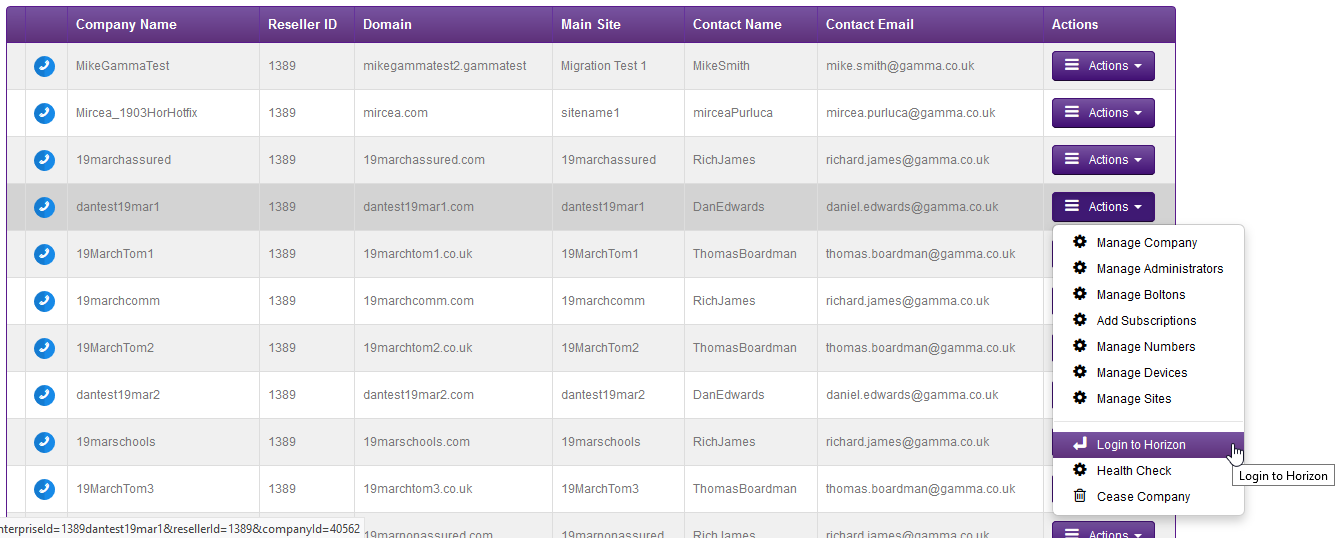
Find the company that you wish to add sites to using the Actions drop-down and selecting “Login to Horizon”
Step 3
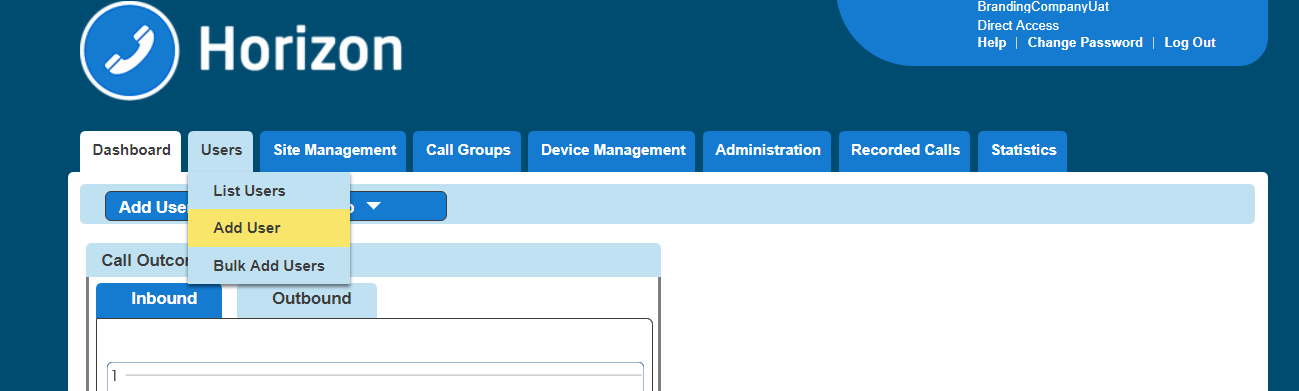
Hover over “Users” and select “Add User”
Step 4
You are now in the wizard to add new users. Select the site within the company where the user will be located. This site will be referenced on the “List Users” screen and can be used to filter/search for users.
The account details will be specific to the user you are creating. All fields are mandatory apart from the ‘Mobile’ contact number and ‘Department’.
Username cannot be amended. If you need to change this in the future the user must be deleted and then re-added.
Email – this is where all correspondence for this user will be sent, including the initial username/password e-mail.

Step 5
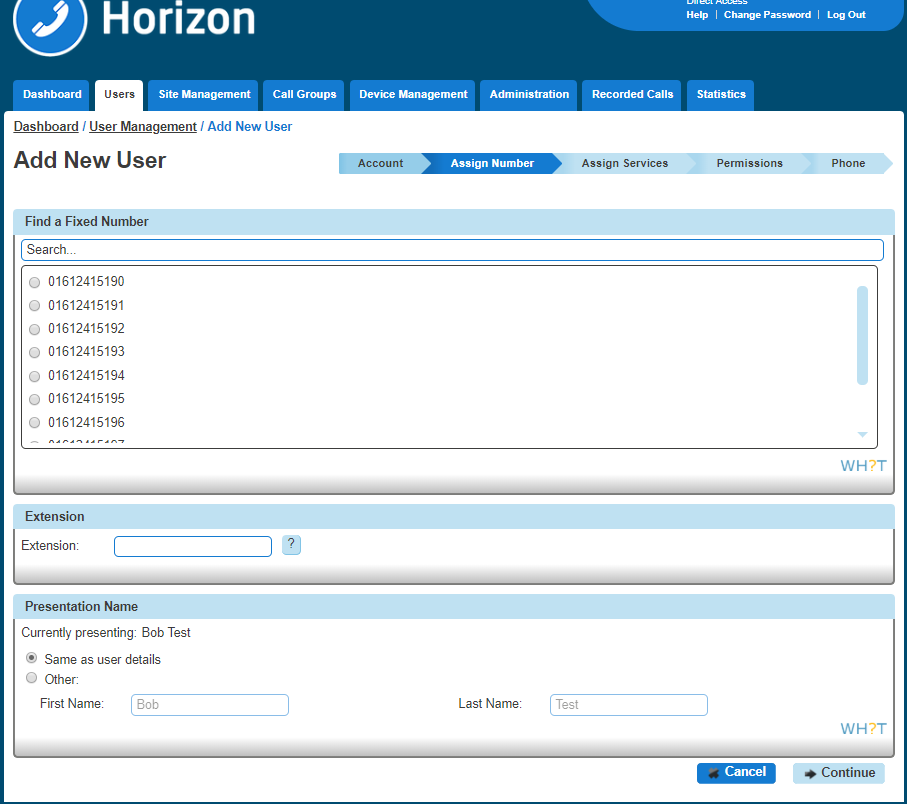
The user’s assigned number is optional. If you do not assign a number the user will not be able to make or receive external calls. Internal calls will still be allowed.
If no numbers show here you can assign more to the site by selecting Administration then Number Management.
Enter the desired extension number, remembering that it must be the same amount of digits that was defined during the site set-up.
Caller ID Presented is the name that will show when this user calls another Horizon user. This can be set to either the user details already entered (first & last name) or you can customise this by deselecting “Same as user details” and entering the First Name and Last Name.
Step 6
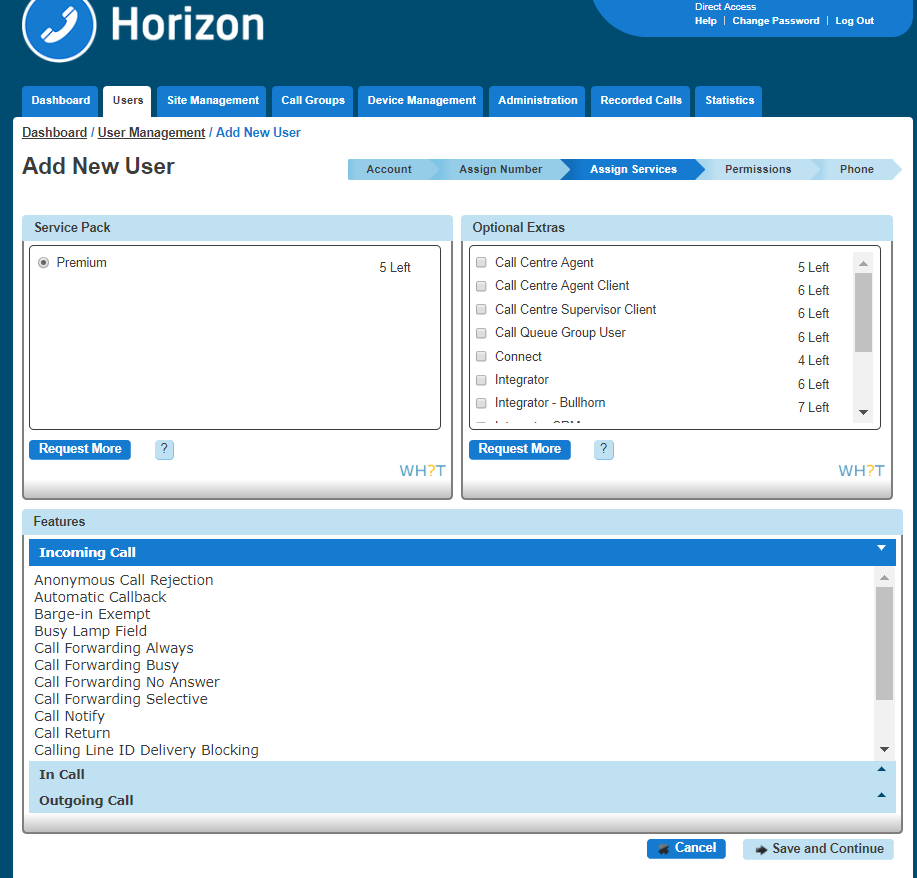
Here you can select what Optional Extras you want to give your user.
- Call queue group: This is a basic simultaneous Hunt Group with the ability, should all users be engaged, to queue up to 25 calls at the network level. Each Call Queue Group can be customized with its own Welcome, Comfort, and Hold music/messaging, and has the added capability of a user breakout.
Charging is only applied to a user who can be part of a Call Queue Group; therefore you could have 3 users over multiple groups and only be charged for those 3 users, rather than users per group.
- Voicemail: Allows the user to receive a message if they are unable to take a call.
- Receptionist: To complement the Horizon web interface a dedicated receptionist console is available to manage incoming calls over a single or multiple site. This console provides the ability to:
- Monitor incoming calls to key numbers over all Horizon sites
- Monitor fixed (200) or dynamic (800) users over all Horizon sites
- Monitor call queues and adjust priority of callers within these queues
- Add notes to contacts to show related information such as leave
- Establish and manage conference calls in the site
- Integrator & Integrator CRM user: This allows user to download Integrator, an application for your PC that makes your phone easier and more convenient to use by using your PC to control your calls and handset
- Call Centre: A cloud-based service that provides an extensive range of inbound call centre capabilities that are easily configured with an easy-to-use web portal. The different optional extras a user can have are:
- Call Centre Agent Client is required to be able to manage calls from a web-based console (Call Centre Agent is still required to receive calls in the Call Centre group)
- Call Centre Agent is required to receive calls in a Call Centre Group
- Call Centre Supervisor Client is required to be able to manage the calls from a web-based console plus extra features such as barge-in (Call Centre Agent is still required to receive calls in the Call Centre group)
Also from this screen you can request more service packs. If you request more this way you will need to go back and edit the user to complete all the remaining forms.
Step 7
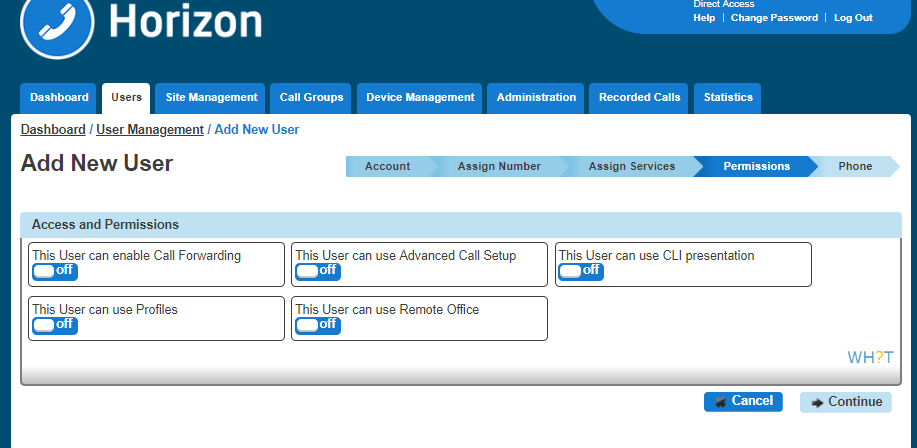
Now you can set up the access and permissions for the user. These will control what the user is able/unable to do with their Horizon service.
This user can enable Always Forward To | If ‘On’ the user can forward all incoming calls to a number of their choice. Note: this is only at a user level, hunt group calls will not be affected by this setting. |
This user can use Advanced Call Setup | If ‘On’ the user will have access to all advanced call settings. Note: this will enable access to the same settings an administrator can view within user management > call set up. This will enable access to the following: Call handling: allows the user to specify call forward options when busy, no answer or unreachable. Twinning: allows the user to specify additional numbers that will ring at the same time as their main device Blacklist: shows the list of blacklisted numbers with the option of adding or removing Incoming Settings: allows the user to amend some incoming call settings (reject withheld numbers, enable music on hold, present caller ID for internal/external calls, enable/disable do not disturb) Advanced > Call Notify: allows the user to specify an e-mail to be notified of calls from all or specified numbers Advanced > Sequential ring: provides the ability to specify additional numbers to ring after ringing the users main device Advanced > Busy lamp: allows the user to allocate users to busy lamp fields Speed dial: define the 1 and 2 digit speed dial destinations Outgoing Settings: allows the user to amend some outgoing call settings (enable automatic call back, without number) Call transfer: allows the user to enable or disable some call transfer features (call transfer recall, diversion inhibitor for blind transfers, diversion inhibitor for consultative calls) In Call Settings: allows the user to amend in call settings (call waiting) Hot desk: lets the user search for hot desks and associate themselves with the device Manage profile: allows the user to specify call treatment profiles (when busy, not available, etc.) and switch between these Remote office: allows the user to activate remote office and define the telephone number to be used Call forwarding: lets the user forward all incoming calls to a number of their choice |
This user can use CLI Presentation | If ‘On’ the user can update the CLI they present on outgoing calls. Note: if ‘Off’ an administrator can still update this number through user management > DDI > Caller ID Number Presented. The user must have a number assigned to use this feature. |
This user can use Profiles | If ‘On’ the user can set pre-defined profiles and switch between these. Each profile will specify different call treatment options (such as when busy, when no answer, etc). |
This user can use Remote Office | If ‘On’ the user can enable remote office from their Horizon account. This allows the user to make outgoing and receive incoming calls on the number specified, with calls being billed to their Horizon account. |
Step 8
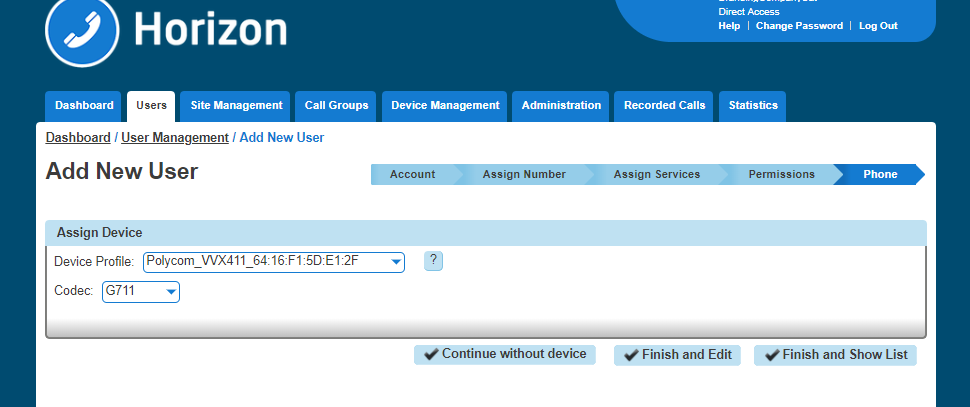
The final section is to assign the user with a device. You just need to select what device you would like to give them, the drop-down that displays all devices that have been added to your Horizon Company.