Skip to content
  • Academy KB Home Redesign
  • Broadband Home
  • CCaaS
  • Channel Partner Support
  • Circle Loop Home
  • Collaborate
  • Connectivity
  • Courses
  • Documentation
  • Ethernet
  • FibreXchange
  • FUSION IoT
  • Gamma AI Concierge
  • Gamma Plus
  • Gamma SIP for Cloud Connect
  • Gamma SIP Global Communications Enablement
  • Gamma SIP Trunks for Genesys Cloud
  • Hannah – Homepage WIP
  • Home
  • Horizon
  • Horizon Contact
  • Horizon Forms
  • Horizon Service Description Home
  • Horizon with Webex
  • Inbound
  • iPECS
  • Knowledge Base Intro
  • Knowledgebase Directory
  • LoginPress
  • Microsoft
  • Microsoft Teams Direct Routing Home
  • Microsoft Teams Operator Connect
  • Mobile
  • Multiple KB
  • My Courses
  • No Access
  • No active page
  • Numbering and Porting
  • Phoneline+
  • Product Homepage
  • Quick Download Button
  • Release Notes
  • Release Notes
  • SIP Home
  • Test
  • UCaaS
  • User Account
  • Voice
  • Voice Enablement
  • Webex for Gamma
  • Webex for Gamma Release Notes
  • Gamma Academy Knowledge Base
Gamma Academy Knowledge Base
  • Cloud Calling and Collaboration
    • Webex for Gamma
    • Horizon with Webex
    • Horizon
    • Phoneline+
    • Operator Connect
    • Direct Routing
    • Inbound
    • Akixi CX Analytics
    • Red Cactus
  • Connectivity and Networking
    • Numbering and Porting
    • Broadband
    • FibreXchange
    • Ethernet
    • SIP Trunking
    • Gamma FUSION IoT
  • CX
    • Horizon Contact
    • AI Concierge
  • Mobile Services
    • Gamma Mobile
  • CyberSecurity
    • SafeWeb
  • Partner & Portal Support
Gamma Academy Knowledge Base

Provisioning and In-Life Changes

  • Before Ordering Horizon
    • Example Checklist of a Horizon Installation
    • Horizon Site Survey
    • Customer Site and Horizon Service
    • Horizon Number Requirements
    • Horizon Network Configuration Guidelines
    • Horizon After Care
    • Horizon Glossary
  • Ordering Horizon on the Gamma Portal
    • Ordering a Horizon Company
  • Configuring Your Horizon Company
    • Horizon Sites
    • Add Horizon Users
  • In-Life Ordering
    • Horizon Change Branding
    • Horizon Bolt-Ons
    • Horizon: Managing Subscriptions
    • Horizon Numbers & Porting
  • In-Life Configuration
    • Multi factor Authentication (MFA)
    • Horizon: Configuring the New Solution
    • Horizon Fraud Management
    • Cease a Horizon Company

Features

  • Device Management
    • Device Customisation
    • Yealink DECT – Multiple Users Assigned to a Single Base Station
  • Outgoing Call Settings
    • Click to Dial
    • Call Barge
  • Call Groups
    • Nuisance Call Management for Horizon Call Groups
    • Instant Conference Group
    • Hunt Groups
    • Call Queue Groups
    • Call Pickup
    • Call Park
    • Call Paging
    • Auto Attendant
  • Voicemail
    • Voice Portal
    • Voicemail
    • Horizon Voicemail Map
  • Scheduling
    • Schedules
    • Create a Call Group Schedule
    • Configuring Additional Routing for Christmas Schedules
    • Configuring Schedules for Auto Attendants using a Hunt Group
  • User Call Setup
    • Availability Profiles
    • Busy Lamp Field (BLF)
    • Comfort Messages
    • CLI Presentation
    • Distinctive Ringing for External Calls
    • Do Not Disturb
    • Hot Desking
    • Remote Office
    • Sequential Ringing
    • Twinning
    • 1 or 2 Digit Dialling (Speed Dials)
  • Company Admin
    • Site-to-Site Presentation Policy
    • Music on Hold
    • Horizon Shortcodes
    • Directory
    • Departments
    • Account and Authorisation Codes
  • Incoming Call Settings
    • Call Waiting
    • Call Transfer
    • Call Recording
    • Call Forwarding
    • Call Barring
    • Automatic Call Back
    • Anonymous Call Rejection

Advanced Feature Guides

  • Horizon Integrator
  • Horizon Receptionist Console User Guide
  • Enable Horizon for Microsoft Teams
  • Call Recording
    • Call Recording Service
    • Call Recording – Portal User Guide
    • Call Recording – MFA How to Guide
    • Call Recording – MFA Technical Support
    • Call Recording – Known Behaviours
    • Call Recording – FAQs
  • Integrator
    • Horizon Integrator TAPI User Guide
    • Horizon Integrator Controlled Integrations
    • Horizon Integrator Standard Select Integrations
    • Horizon Integrator Client SDK Engagement Process
    • Horizon Salesforce (Lightning) Adaptor Add-in Guide
  • Call Center Guides
    • Horizon Call Centre Administrators Guide
    • Horizon Internet Explorer Settings for Full Screen Mode
  • Multi-Factor Authentication (MFA)
    • How-To Guide: Horizon Multi-Factor Authentication
    • Multi-Factor Authentication (MFA) FAQs
    • Technical Support Guide: Multi-Factor Authentication
  • Soft Phone Guides
    • Horizon Soft Phone Guide – iOS
    • Horizon Android Soft Phone Guide
    • Horizon Soft Phone Client PC Guide
    • Horizon Setup Soft Phone Client for a user Guide
  • Akixi
    • Akixi Documentation

Technical Support

  • What APIs are Available?
  • Diagnosing and Raising a Fault
    • Horizon Health Check
    • I Have a Problem With Call Connection/Calls are Dropping
    • I Have a Problem With Call Quality
    • I Have a Problem With a Feature
    • I Have a Problem With the Horizon Portal
    • New Call Recording Technical Support
    • Raise a Fault
  • Handset Support
    • Poly Profile Rules and Recovery
    • Cisco Profile Rules and Recovery Process
    • Yealink Profile Rules and Recovery Process
    • Handset Returns
    • Horizon RMA Check List
  • Handset User Guides
    • Poly Handset User Guides
    • Cisco Handset User Guides
    • Yealink Handset User Guides
    • Sennheiser Handset User Guides
  • Known Behaviours
    • Horizon Known Behaviours
    • Horizon SIP ALG

Service Description

  • Horizon Service Descriptions

Horizon Release Notes

  • Horizon Release Notes

T&Cs and SLAs

  • Horizon – Terms and Conditions
  • Horizon – SLAs

Horizon Forms

  • Horizon Forms
  • Home
  • Home
  • Horizon
  • Advanced Feature Guides
  • Call Recording
  • Call Recording – MFA How to Guide
View Categories

Call Recording – MFA How to Guide

Set up Multi Factor Authentication in Call Recording #

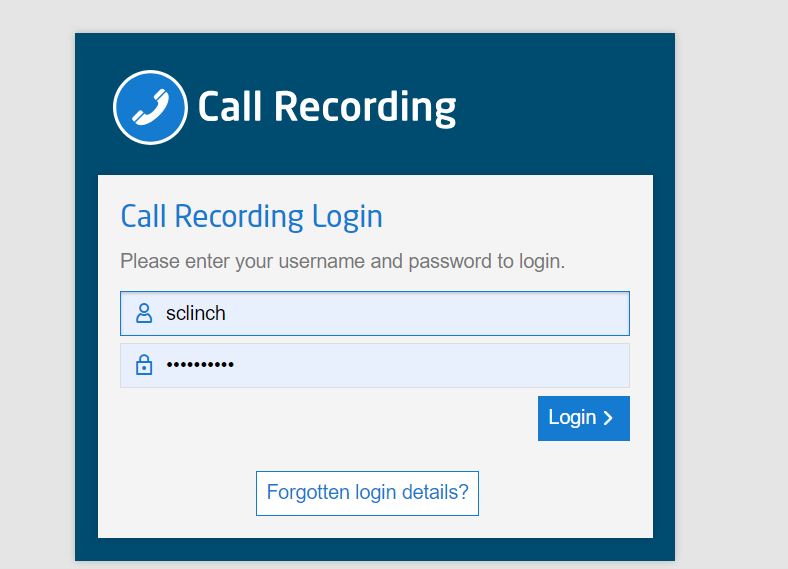
  • Log in to the Call Recording portal using your credentials.
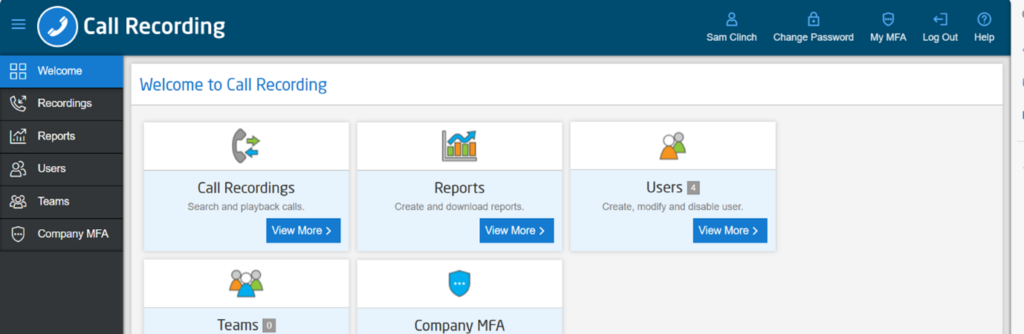
  • Provided you have the right roles applied to your profile, select Company MFA from the left hand side menu.
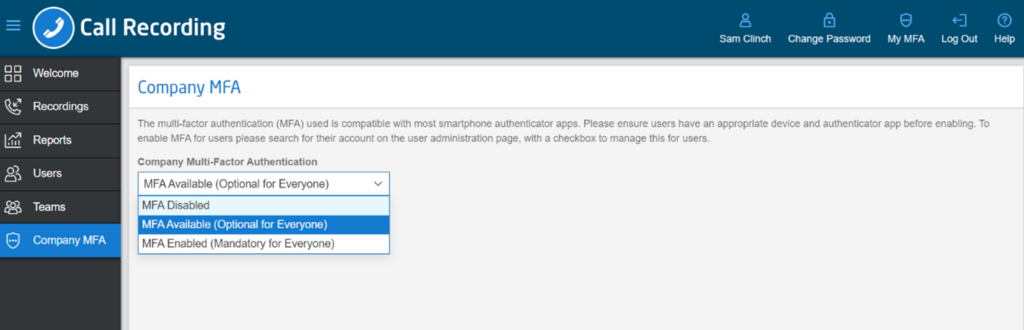
  • Select the relevant option from the dropdown menu based on your requirements, making MFA either MFA Available or MFA Enabled.
  • Click Save.

Set up User to Manage Multi Factor Authentication #

  • Log in to the Call Recording portal using your credentials
  • Select Users from the left hand menu
  • Search for the relevant users on the user list
  • Click the edit on the relevant user and a pop up will appear
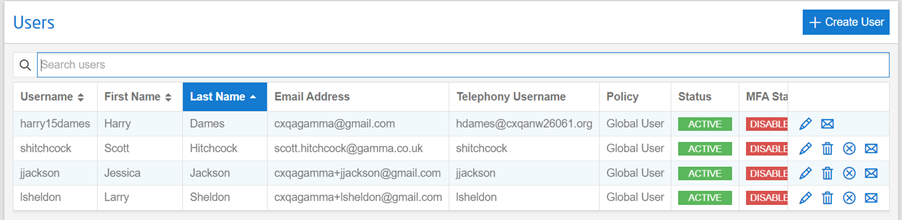
  • Select the Roles tab, select the relevant option to assign either Access to Manage Own MFA or Access to Manage Company MFA
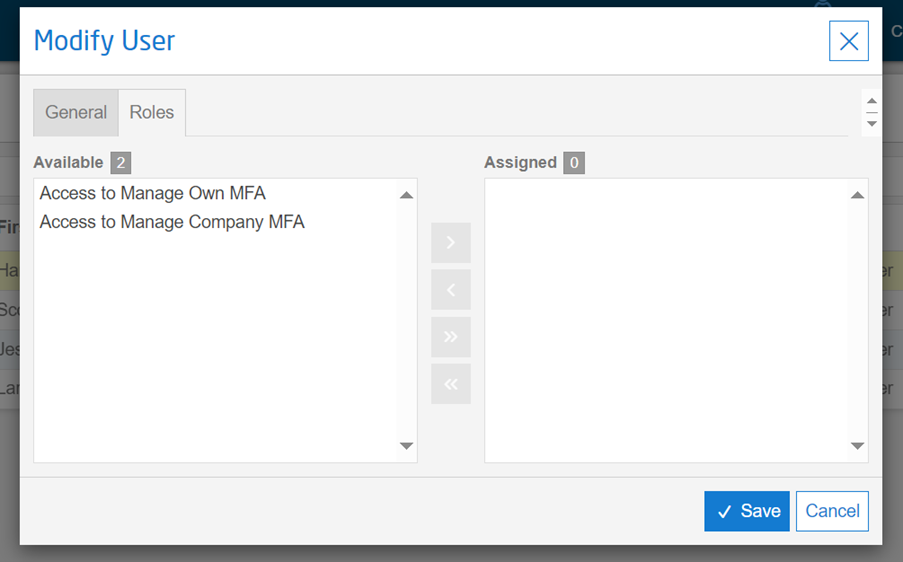
  • Click Save

Register Phone for Multi Factor Authentication (Company, Global, Staff, Team) #

  • Log in to the Call Recording portal using your credentials.
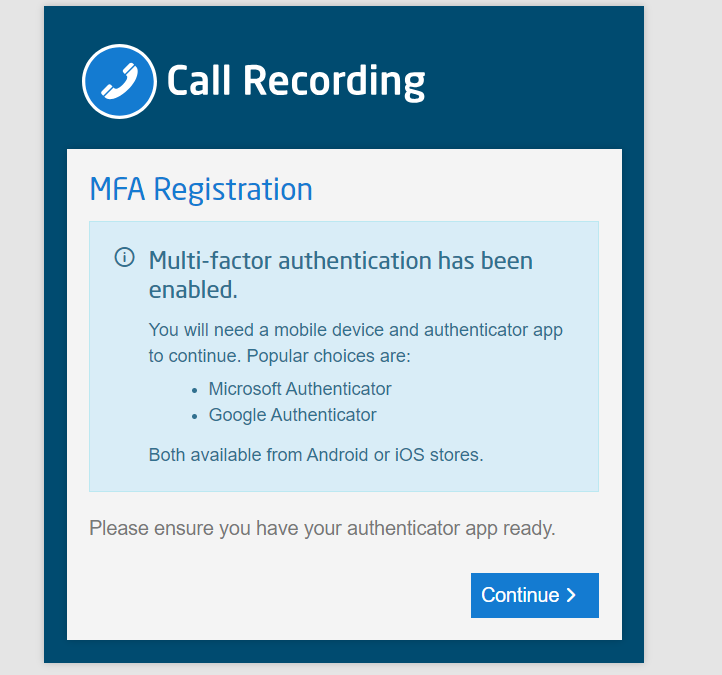
  • You will be instructed to have your authenticator application ready via pop-up, click Continue.
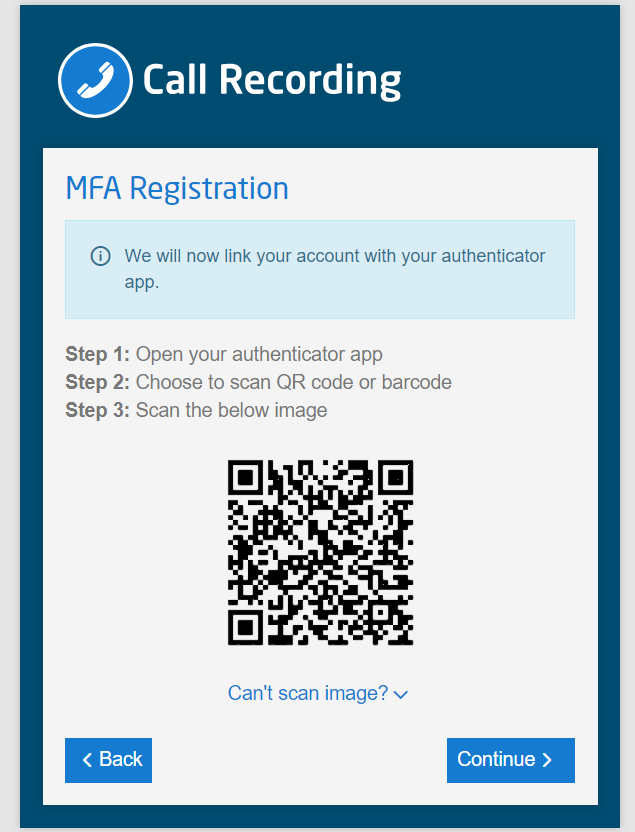
  • Open your authenticator application and scan the QR code provided then click Continue.
Logging in using Multi Factor Authentication (Company, Global, Staff, Team) #

  • Log in to the Call Recording portal using your credentials.
  • You will be instructed to have your authenticator application ready via pop-up, click Continue.
  • Enter the code from your authenticator application when prompted by the pop-up.
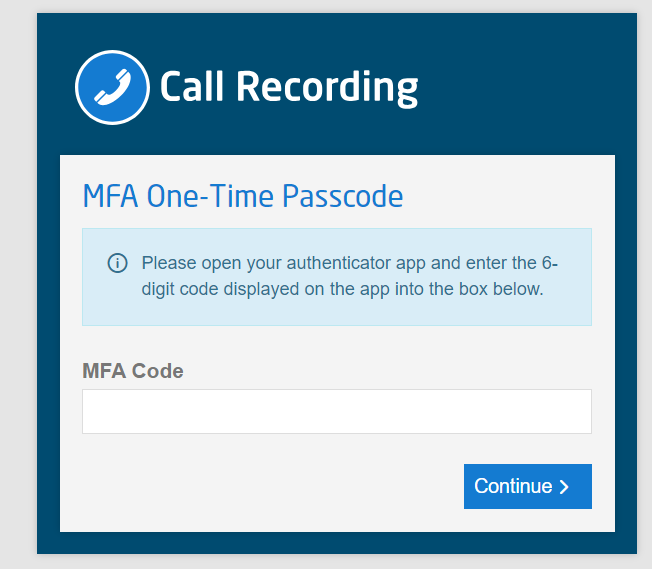
  • Click Continue.

Disable MFA (Company) #

  • Log in to the Call Recording portal using your credentials.
  • Provided you have the right roles applied to your profile, select Company MFA from the left hand side menu.
  • Select MFA Disabled from the dropdown menu.
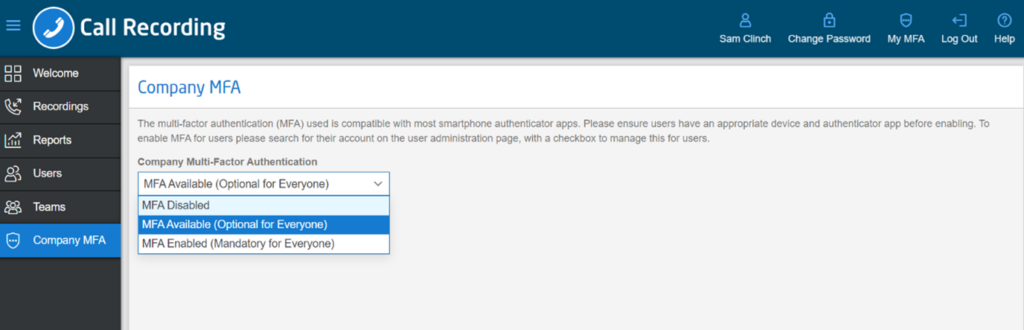
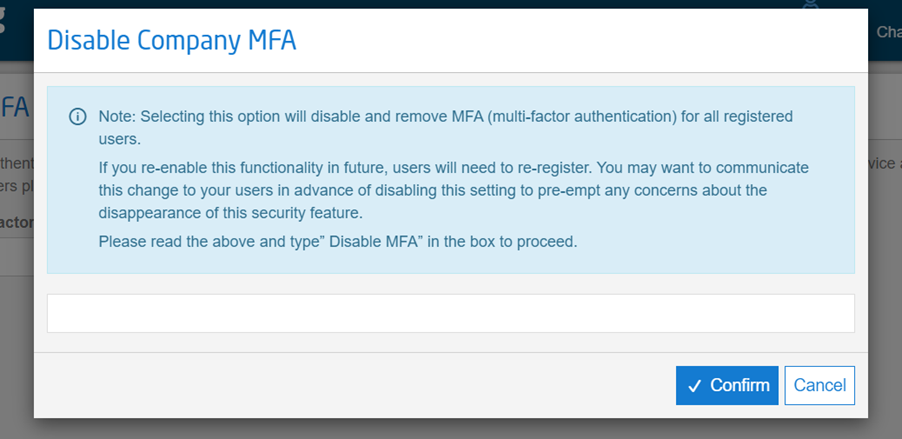
  • A pop-up will appear requiring you to enter Disable MFA in the free text box and click Confirm.
Enable MFA (Self Service) #

  • Log in to the Call Recording portal using your credentials.
  • Select My MFA on the top right hand corner.
  • A pop-up will appear providing the option to enable MFA, check the box.
  • Click Save.

Disable MFA (Self Service) #

  • Log in to the Call Recording portal using your credentials.
  • Select My MFA on the top right hand corner.
  • A pop-up will appear providing the option to enable MFA, remove the check from the box.
  • Click Save.

Assign ability to manage MFA #

  • Log in to the Call Recording portal using your credentials.
  • Select Users from the menu of the left hand side.
  • Search for the relevant user.
  • Select Modify for the relevant user by clicking the Pencil icon.
  • A pop-up will appear, select the Roles tab.
  • Select “Access to Manage Own MFA” and click the right arrow sign to move it in to the Assigned box.
  • Click Save.

Reset MFA Setup (My Own MFA) #

  • Log in to the Call Recording portal using your credentials.
  • Select My MFA on the top right hand corner.
  • A pop-up will appear, select Reset MFA. This will mean that you have to reregister and activate your MFA credentials. This could be used in the situation where you have lost your phone for example.
  • Click Save.


Reset MFA (Other User) #

  1. Log in to the Call Recording portal using your credentials.
  • Select Users from the menu of the left hand side.
  • Search for the relevant user.
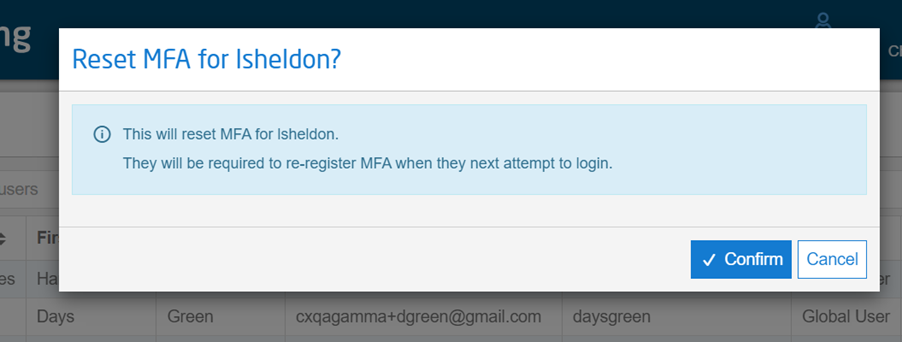
  • Click the Reset MFA Icon on the far right hand side.
  • A Pop Up will appear, click confirm.

Updated on 02/09/2024
Call Recording – Portal User GuideCall Recording – MFA Technical Support
Contents
  • Set up Multi Factor Authentication in Call Recording
  • Set up User to Manage Multi Factor Authentication
  • Register Phone for Multi Factor Authentication (Company, Global, Staff, Team)
  • Logging in using Multi Factor Authentication (Company, Global, Staff, Team)
  • Disable MFA (Company)
  • Enable MFA (Self Service)
  • Disable MFA (Self Service)
  • Assign ability to manage MFA
  • Reset MFA Setup (My Own MFA)
  • Reset MFA (Other User)

Copyright © 2026 -  Gamma Telecom Ltd

Gamma API
We use cookies to measure performance and make improvements to this service. This includes page views, device/browser, location, and page interactions. We do not collect any information you upload to this site. By agreeing, you consent for your data to be used for this purpose.