
Call Barge allows specified users to “barge” into an active call and set up a three-way call. Every Horizon Company will have one Call Barge Group set up and does not require a Call Centre subscription to use.
Setup & Edit Call Barge #
Call Barge can only be set up and edited by a Company Administrator.
Step 1
Log into the Gamma Portal and go to Provisioning and Service Management, Hosted, Horizon and Horizon Manage Company.
Step 2
Select your account and locate the company that you want to set up or amend Call Barge for by using the “Actions” button and selecting “Login to Horizon”.
Step 3
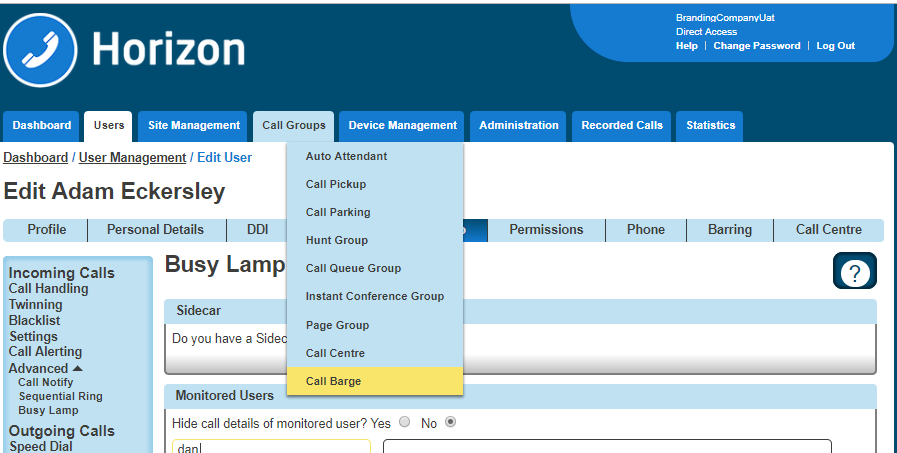
Select “Call Groups” and then “Call Barge”.
Step 4
You will now have the Call Barge set-up screen. All Horizon Users will be in the left-hand table that are currently not set up as a Monitored or Managing User. Select all the users that you want to be monitored or managed and select the relevant “Add Selected” button.
Only Managing Users can barge into calls, and they can only barge into calls of Monitored Users.
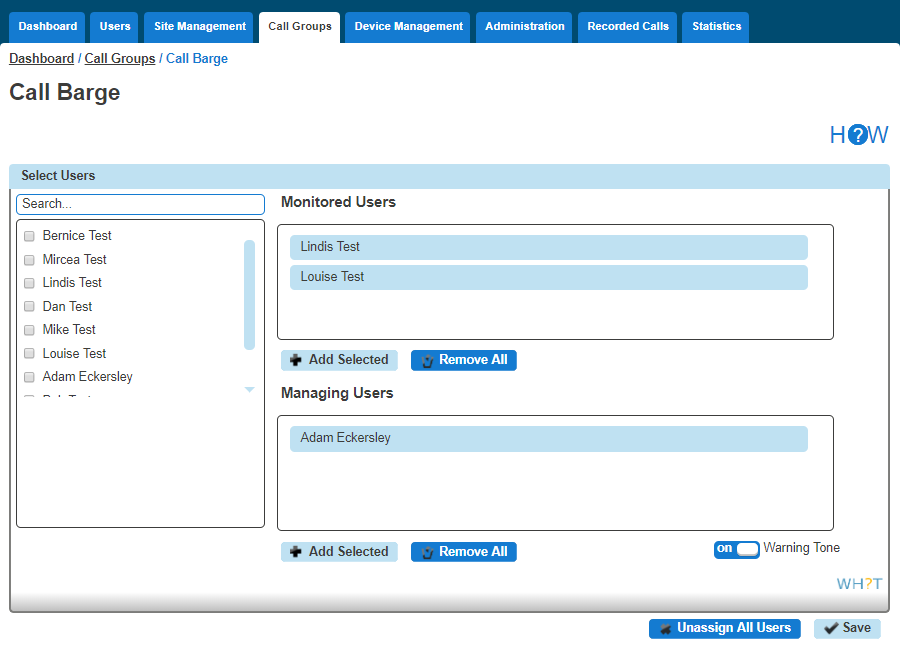
Once you’ve made all the changes, click Save.
Barging into a call #
A user has to be set up as a Managing User to be able to barge into a monitored user’s call. To barge into the call, the Managing User should dial *33. Once the managing user hears the stuttered dial tone they should enter the monitored user’s extension number.
There is no limit on how many Managing Users can barge in on a single call of a monitored use
If a call is unanswered by a Monitored User and a Managing User barges in on this call, then the call will be answered by the Managing User and this won’t invoke a three-way call.