Call Waiting allows a user to receive multiple calls at the same time. If you are on a call and you receive another call, it will display on your screen, and you’ll also hear a beeping noise in the receiver. You can receive up to 3 external calls.
If you switch off Call Waiting and a call comes though whilst you’re already on another call, then the new caller will get a busy tone.
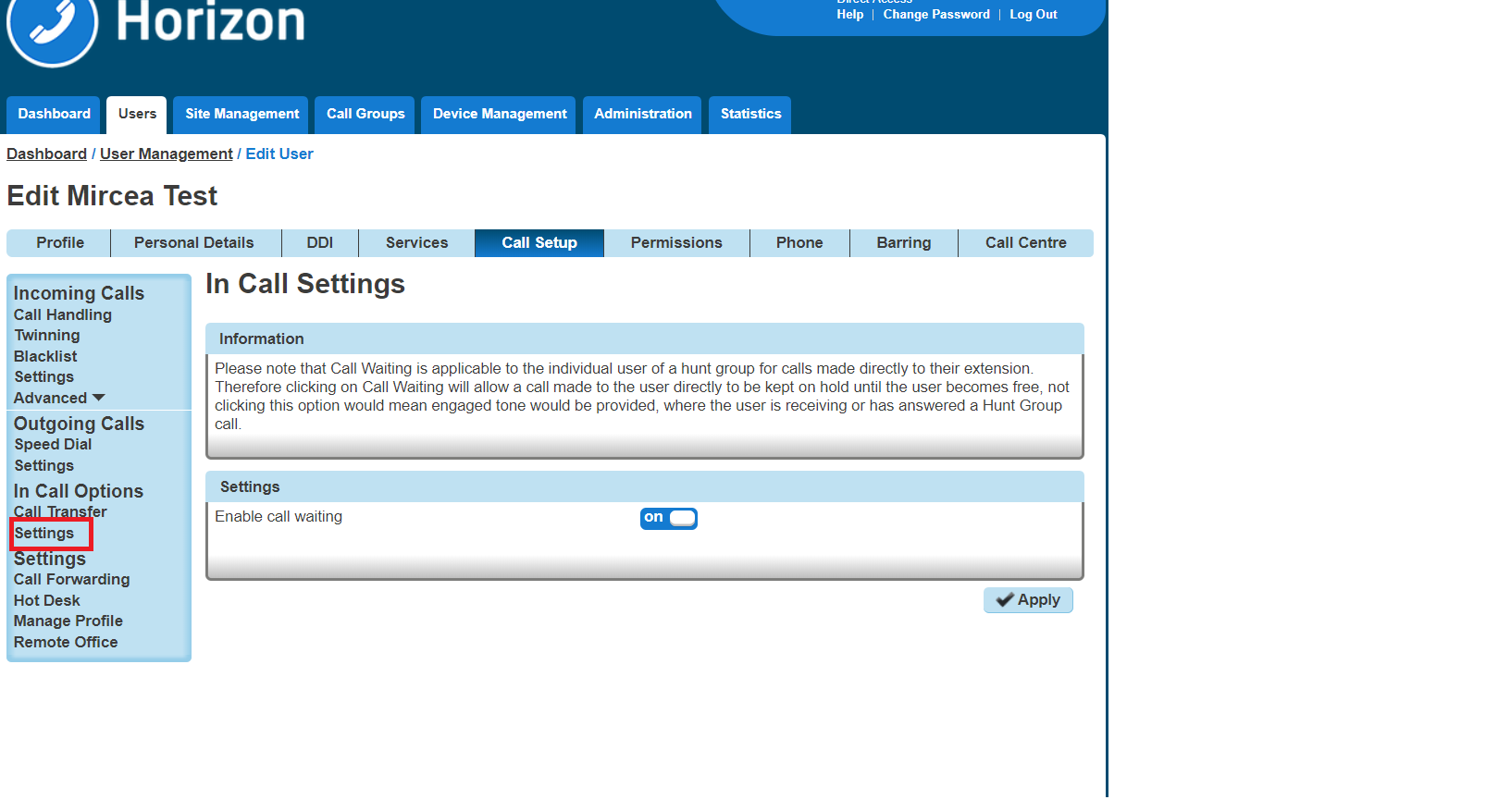
Call Waiting is applicable to the individual user of a hunt group for calls made directly to their extension number. Therefore, clicking on Call Waiting will allow a call made to the user directly to be kept on hold until the user becomes free. Not selecting this option would mean an engaged tone returned where the user is receiving or answering a call in the Hunt Group.
Shortcodes #
Call Waiting persistent activation – *43
Call Waiting persistent deactivation – #43
Cancel Call Waiting – *70
Enable/Disable Call Waiting for a User #
Step 1
Log into the Gamma Portal and go to Provisioning and Service Management, Hosted, Horizon and Horizon Manage Company.
Step 2
Select your account and login to the company that you want by using the “Actions” button and selecting “Login to Horizon”.
Step 3
Click the “Users” option and then select “List Users” so you can search for the user that you want Call Transfer set up for.
Locate the user and click the “Edit” button.
Step 4
In the User Management page click “Call Setup” and then under the In Call Options header select “Settings”. From here you can enable/disable call waiting.
Enable/Disable Call Waiting for a Hunt Group #
Step 1
Log into the Gamma Portal and go to Provisioning and Service Management, Hosted, Horizon and Horizon Manage Company.
Step 2
Select your account and login to the company that you want by using the “Actions” button and selecting “Login to Horizon”.
Step 3
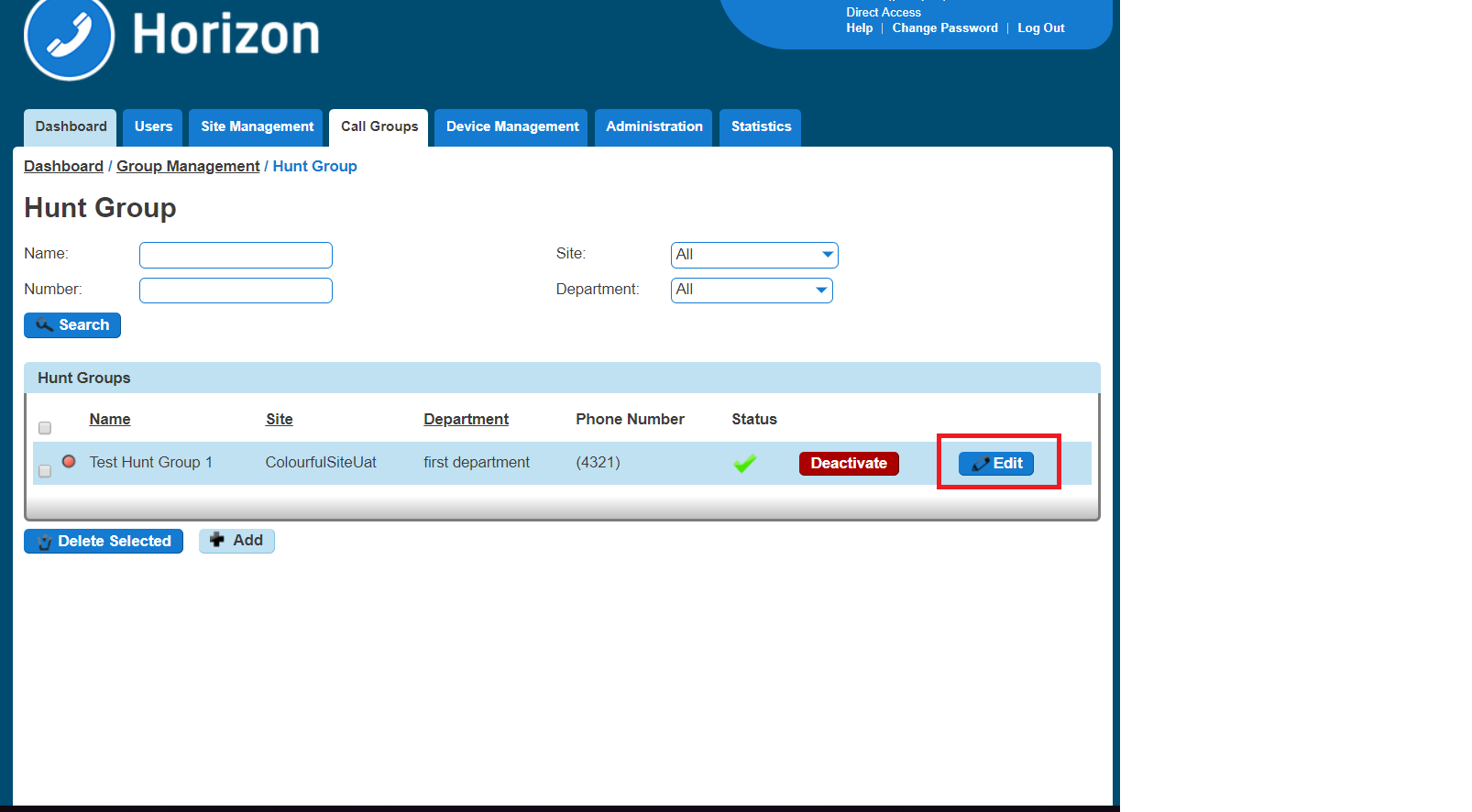
Click the “Call Groups” option and then select “Hunt Groups” so you can search for the Hunt Group that you want Call Waiting set up for.
Locate the Hunt Group and click the “Edit” button.
Step 4
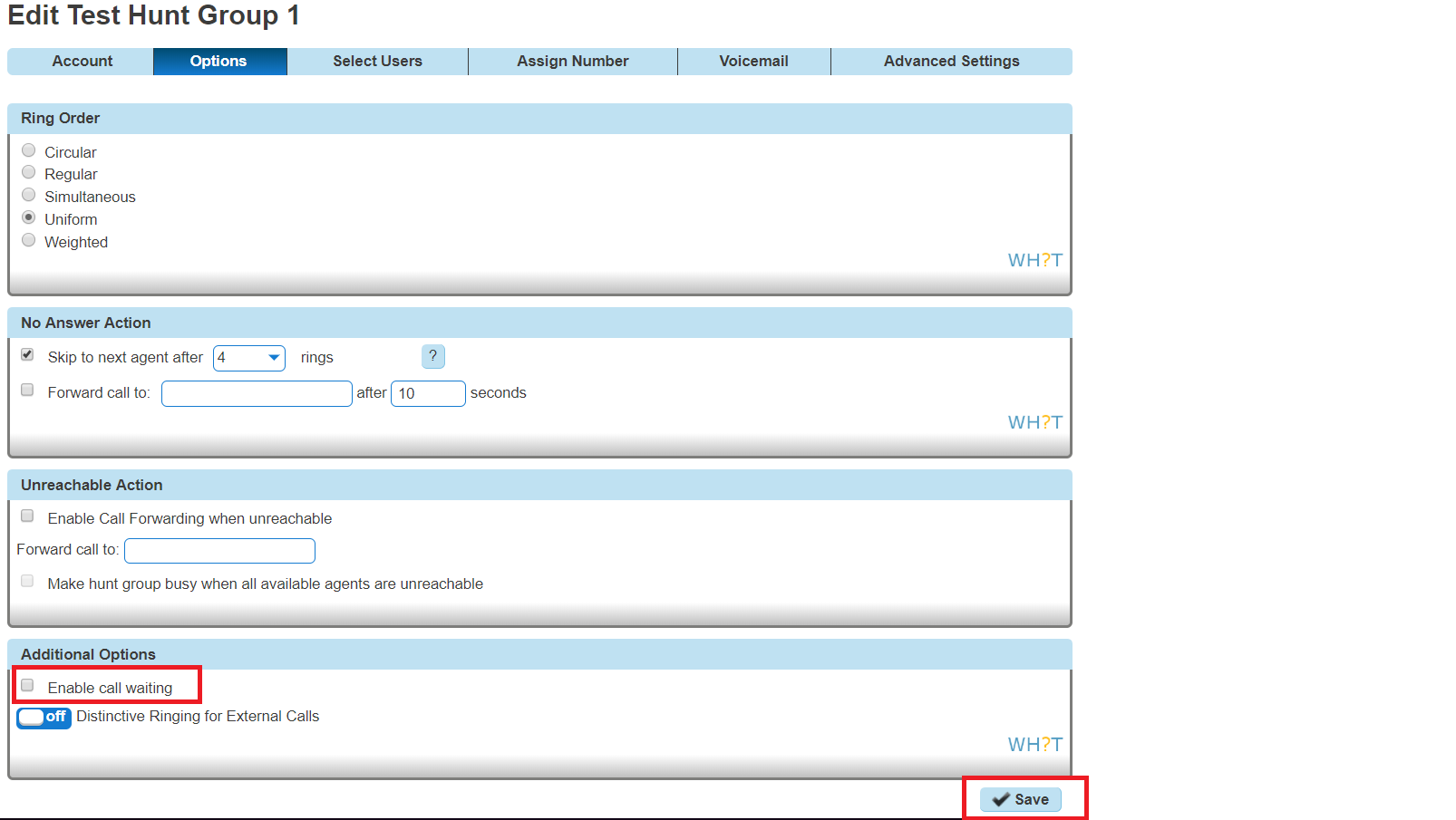
In the Edit Hunt Group page click “Options”. From here you can enable/disable call waiting.
Enable/Disable Call Waiting for a Call Queue Group #
Step 1
Log into the Gamma Portal and go to Provisioning and Service Management, Hosted, Horizon and Horizon Manage Company.
Step 2
Select your account and login to the company that you want by using the “Actions” button and selecting “Login to Horizon”.
Step 3
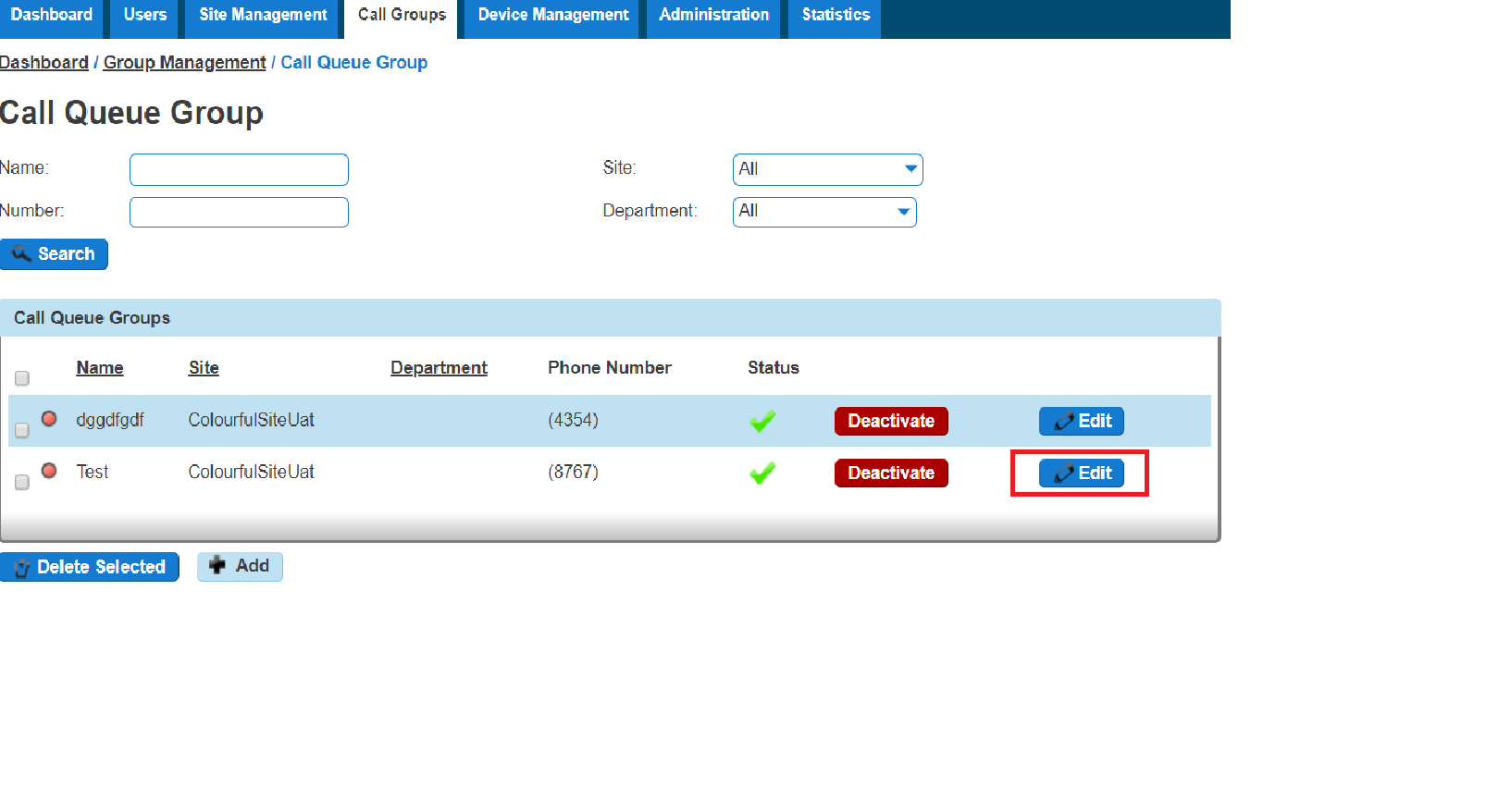
Click the “Call Groups” option and then select “Call Queue Groups” so you can search for the Call Queue Group that you want Call Recording set up for.
Locate the Call Queue Group and click the “Edit” button.
Step 4
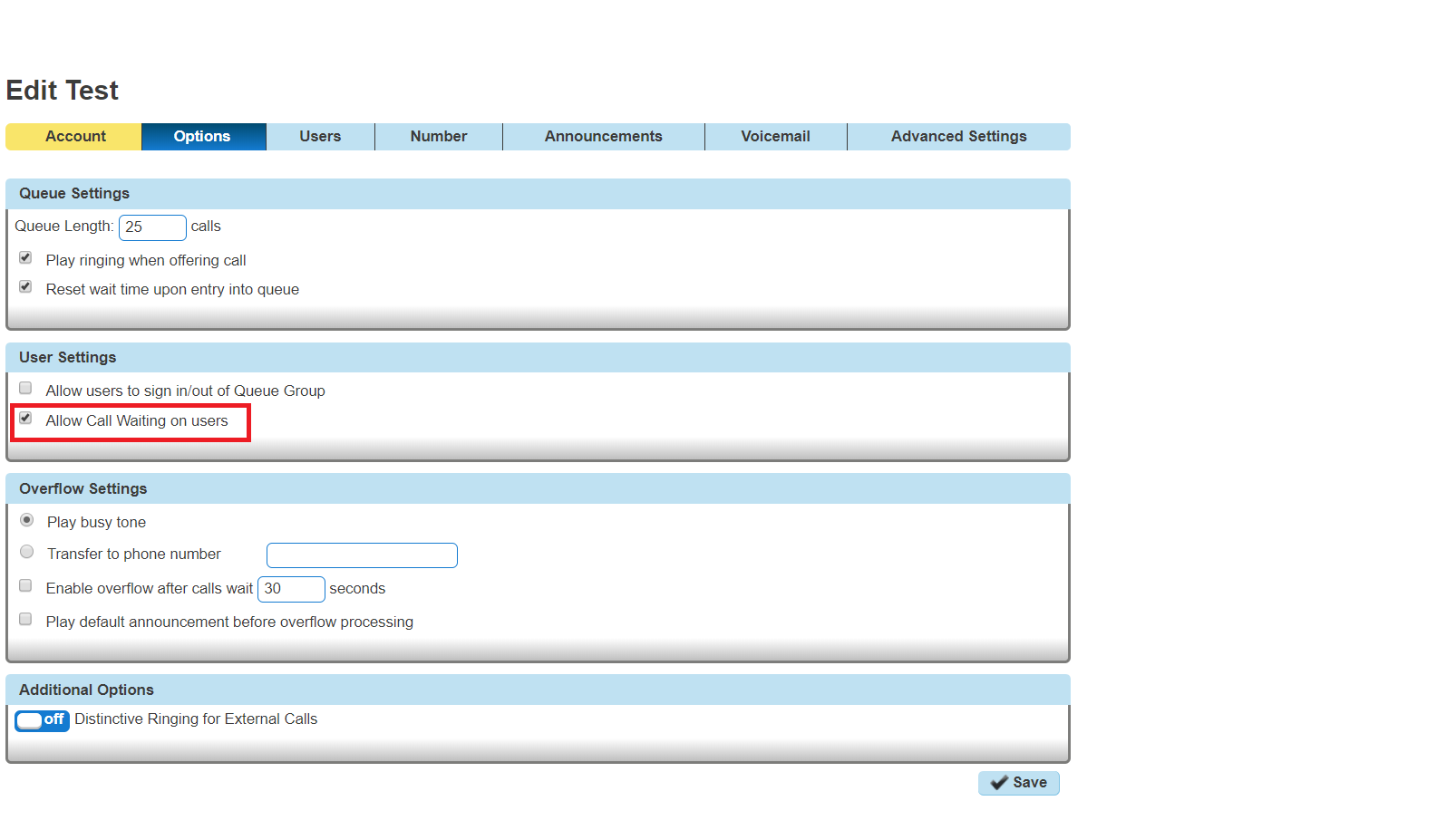
In the Edit Call Queue Group page click “Options”.
Within the Options page you can activate/deactivate the “Allow Call Waiting on users”