
Account codes are enabled to track calls made by defined users outside the Horizon Company by prompting the users for an account code.
You have the option of setting up a list of optional and mandatory groups. In order to enter a code in either group you will need to dial *71, then the account code, and then the number to be dialled.
Authorisation codes are used to perform authorisation of calls made outside of a calling group by prompting the user for an authorisation code. This could be for example where a phone is located in a public area and calls are to be restricted.
You can only use an Account Code if you have Authorisation Codes disabled. You cannot have both running concurrently.
Account and Authorisation Codes can only be set up by a Company Administrator.
Switch Account Codes On/Off #
Step 1
Log into the Gamma Portal and go to Provisioning and Service Management, Hosted, Horizon and Horizon Manage Company.
Step 2
Select your account and locate the company that you want to update the Account Codes for. Using the “Actions” button select “Login to Horizon”.
Step 3
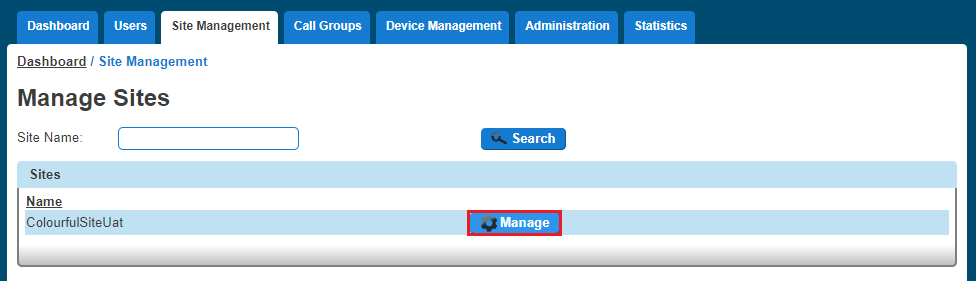
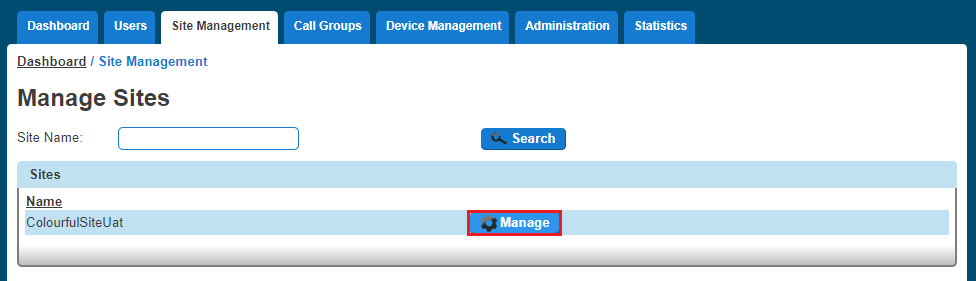
Select “Site Management” and then click the “Manage” button of the site that you wish to switch Account Codes on or off for.
Step 4
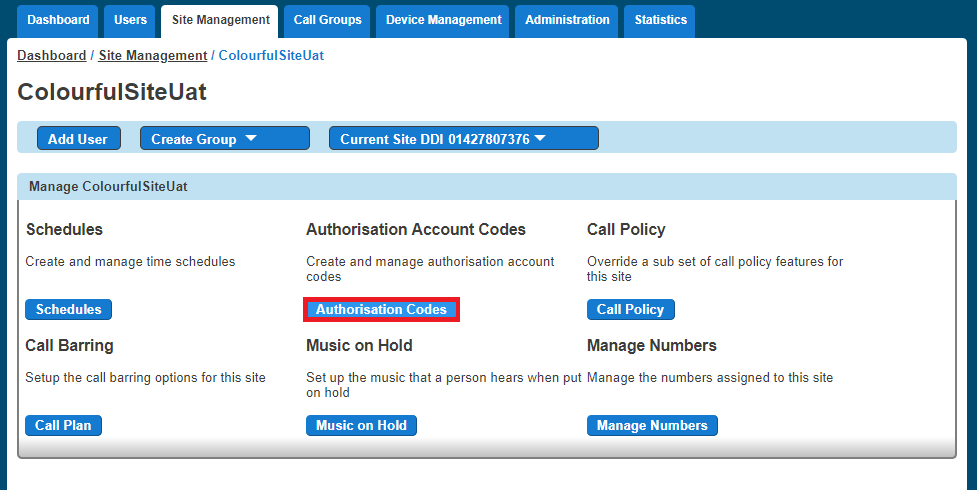
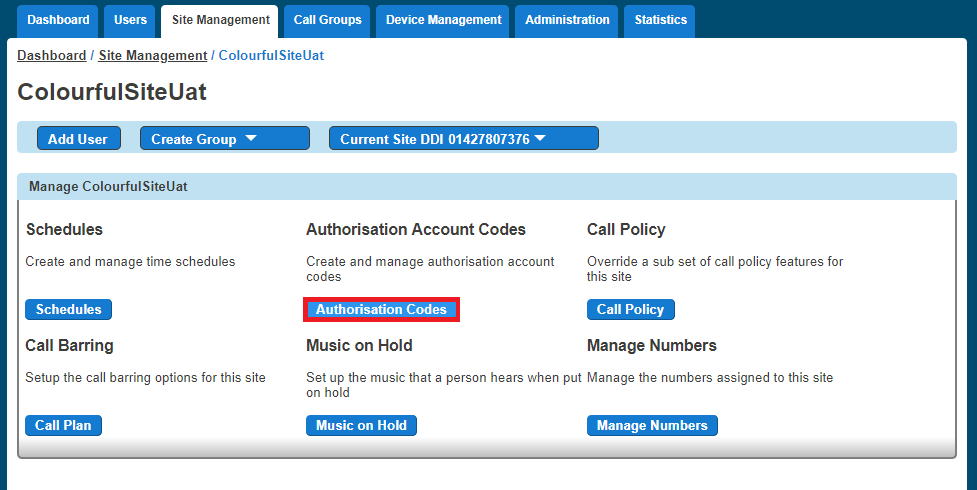
Select “Authorisation Codes”
Step 5
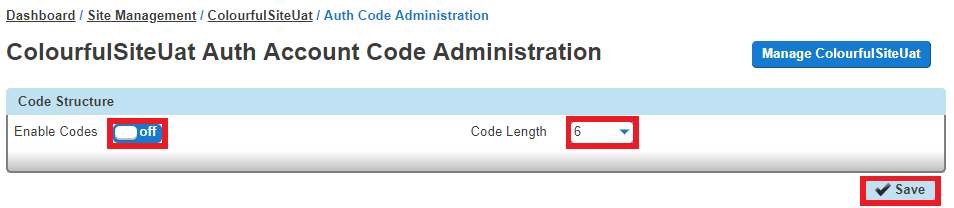
To switch off the account codes you should make sure that the “Enabled Codes” button is set to “Off”.
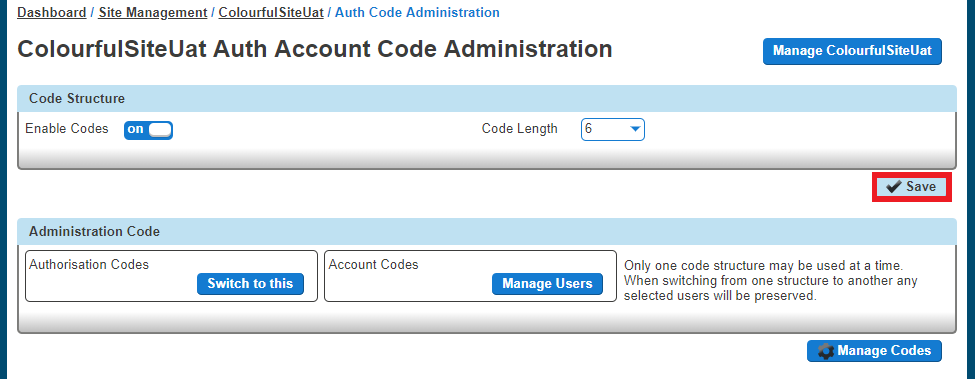
To switch on account codes you should set “Enable Codes” to “On”, and select how many digits you want before clicking “Save.” The code length can be between 2 and 14 digits.
Step 6
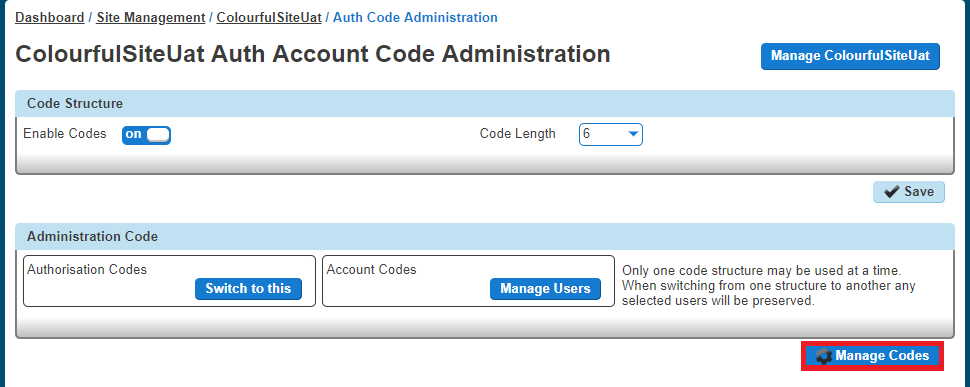
Now you should select to use Account Codes and then select “Manage Codes” once this has been selected.
Step 7
From here you can add and delete codes.
To Add an Account Code you add the details in the “Code” and the “Description” text boxes.
To Delete an Account Code you simply select the code from the table and press “Delete Selected”.
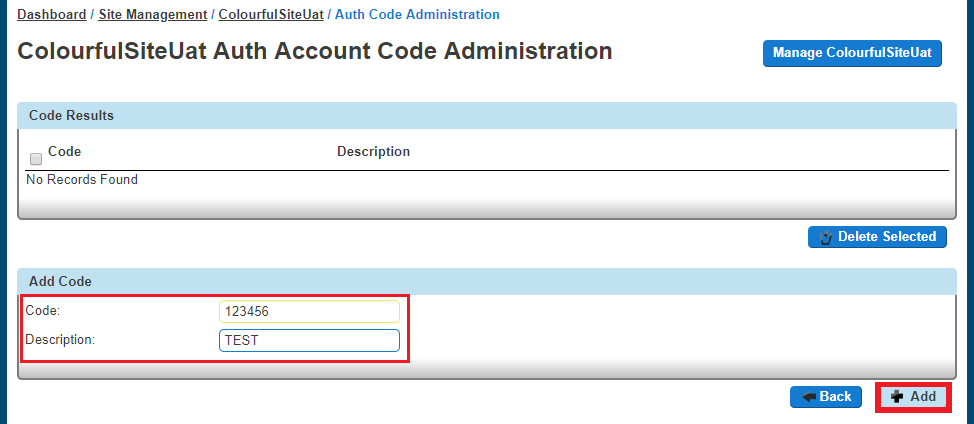
Once you’ve clicked “Add”, you can go “Back” and then you can save your changes by clicking the “Save” button.
Manage Account Code Users #
Step 1
Log into the Gamma Portal and go to Provisioning and Service Management, Hosted, Horizon and Horizon Manage Company.
Step 2
Select your account and locate the company that you want to update the Account Codes for. Using the “Actions” button select “Login to Horizon”.
Step 3
Select “Site Management” and then click the “Manage” button of the site that you wish to switch Account Codes on or off for.
Step 4
Select “Authorisation Codes”
Step 5
Select “Manage Users” and then you can add your Mandatory and Optional users in the relevant tables.
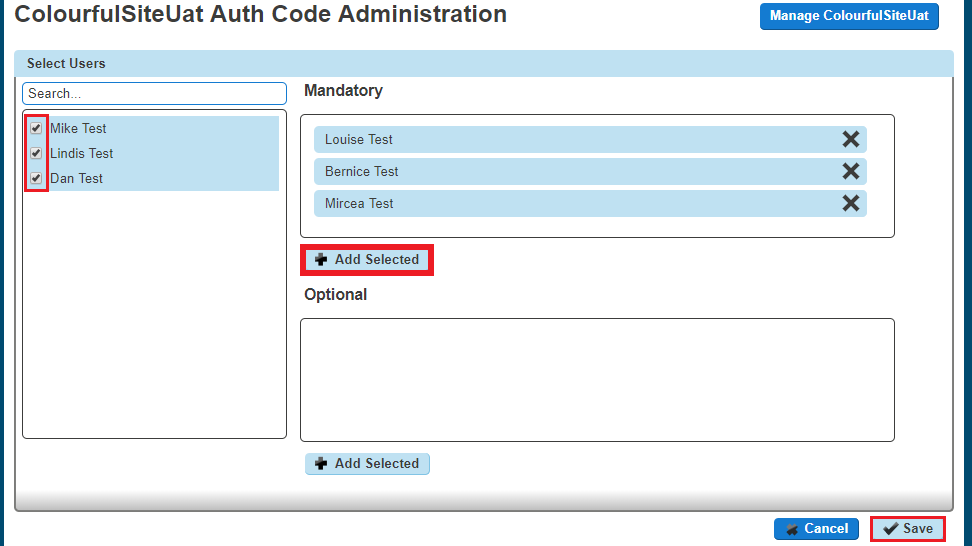
To remove a user you just simply have to click the “X” next to the user. Once you’ve finished making all your changes you just need to click “Save”.
Switch Authorisation Codes On/Off #
Step 1
Log into the Gamma Portal and go to Provisioning and Service Management, Hosted, Horizon and Horizon Manage Company.
Step 2
Select your account and locate the company that you want to update the Authorisation Codes for. Using the “Actions” button select “Login to Horizon”.
Step 3
Select “Site Management” and then click the “Manage” button of the site that you wish to switch Authorisation Codes on or off for.
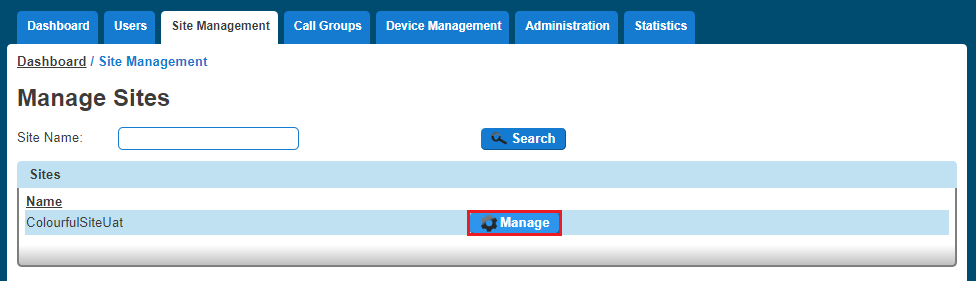
Step 4
Select “Authorisation Codes”
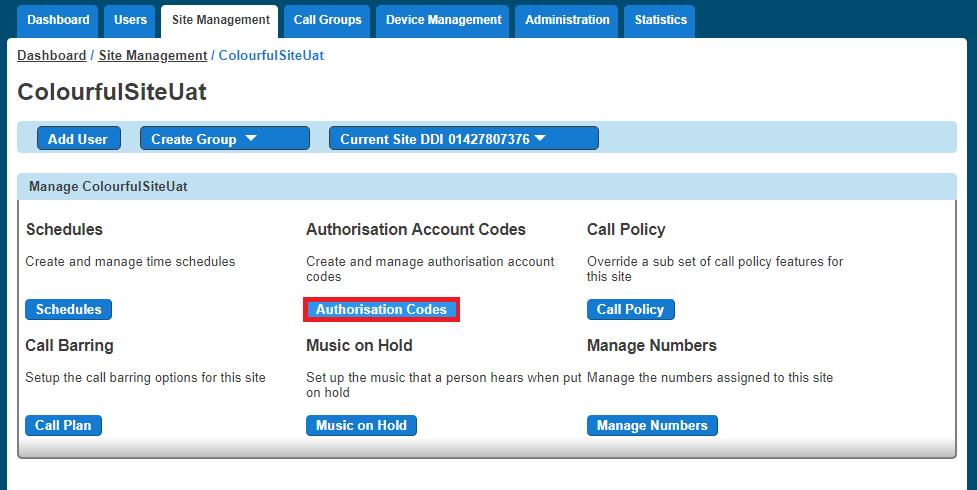
Step 5
To switch off the authorisation codes you should make sure that the “Enabled Codes” button is set to “Off”.
To switch on account codes you should set “Enable Codes” to “On”, and select how many digits you want before clicking “Save.” The code length can be between 2 and 14 digits.
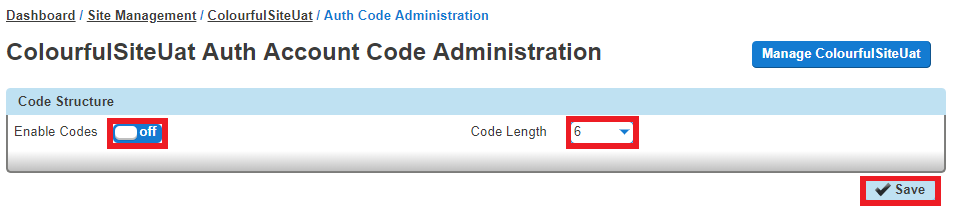
Step 6
Now you should select to use Authorisation Codes and then select “Manage Codes” once this has been selected.
Step 7
From here you can add and delete codes.
To Add an Authorisation Code you add the details in the “Code” and the “Description” text boxes.
To Delete an Authorisation Code you simply select the code from the table and press “Delete Selected”.
Once you’ve clicked “Add”, you can go “Back” and then you can save your changes by clicking the “Save” button.
Manage Authorisation Code Users #
Step 1
Log into the Gamma Portal and go to Provisioning and Service Management, Hosted, Horizon and Horizon Manage Company.
Step 2
Select your account and locate the company that you want to update the Authorisation Codes for. Using the “Actions” button select “Login to Horizon”.
Step 3
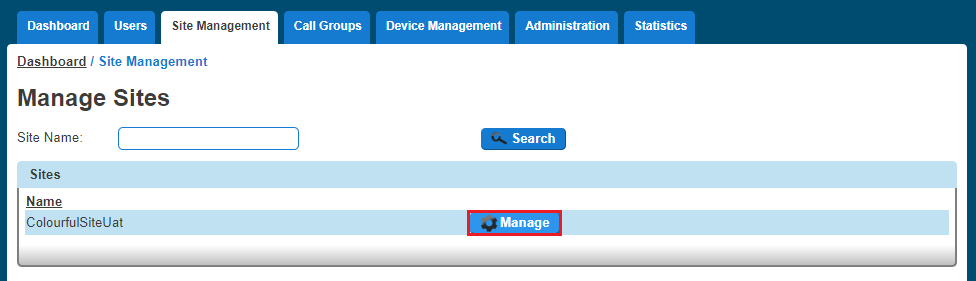
Select “Site Management” and then click the “Manage” button of the site that has the Authorisation Codes you wish to edit the users for.
Step 4
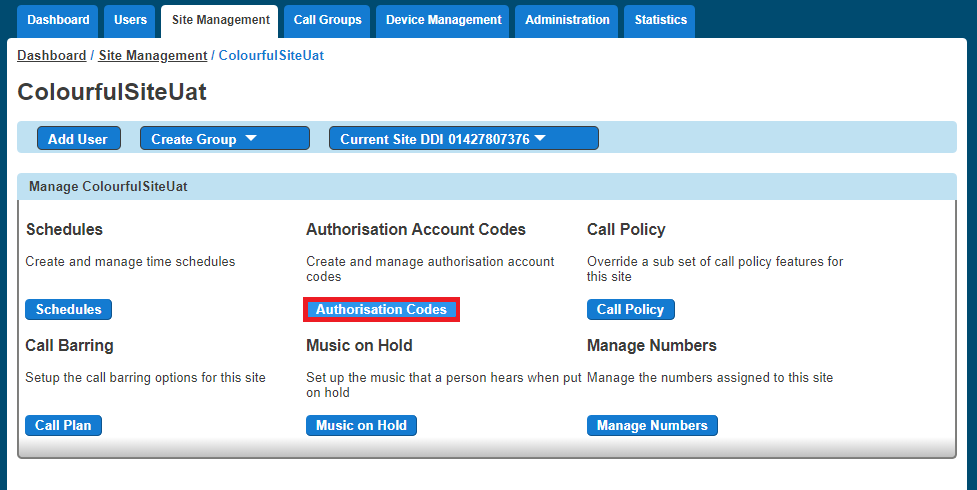
Select “Authorisation Codes”
Step 5
Select “Manage Users” and then you can add your Mandatory and Optional users in the relevant tables.
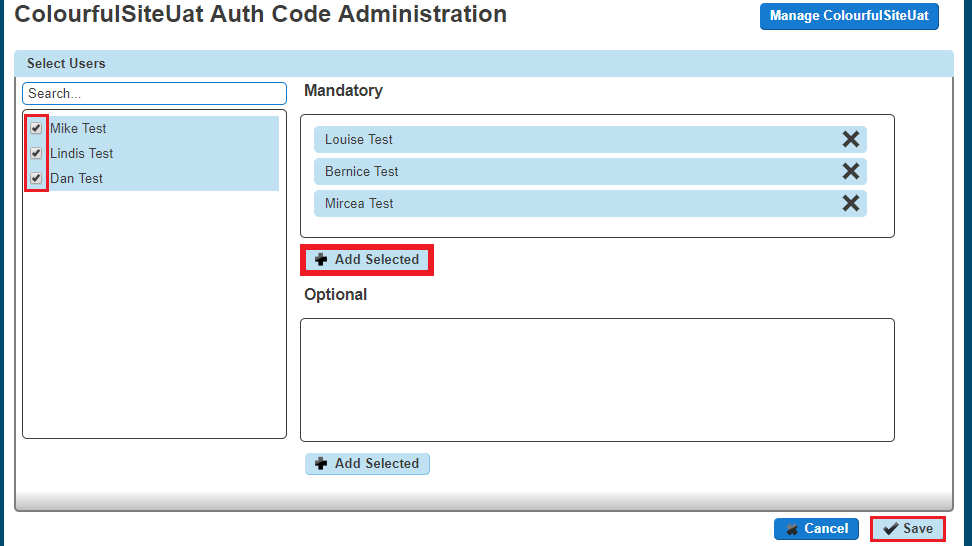
To remove a user you just simply have to click the “X” next to the user. Once you’ve finished making all your changes you just need to click “Save”.