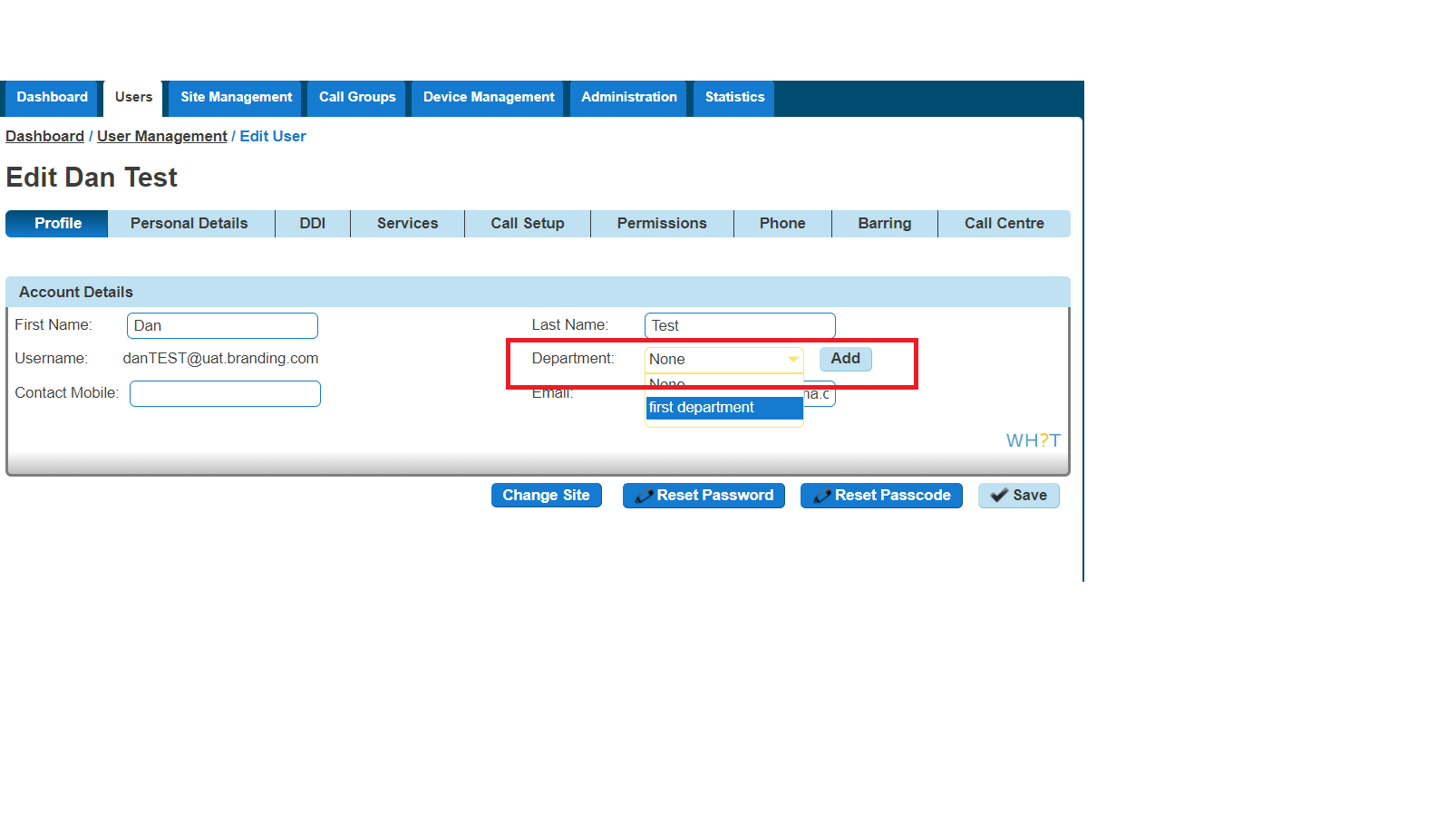
As the company administrator you have the ability under the “Administrator” tab to add and manage departments, so that users and services can be associated to them.
Set Up Departments #
Step 1
Log into the Gamma Portal and go to Provisioning and Service Management, Hosted, Horizon and Horizon Manage Company.
Step 2
Select your account and login to the company that you want by using the “Actions” button and selecting “Login to Horizon”.
Step 3
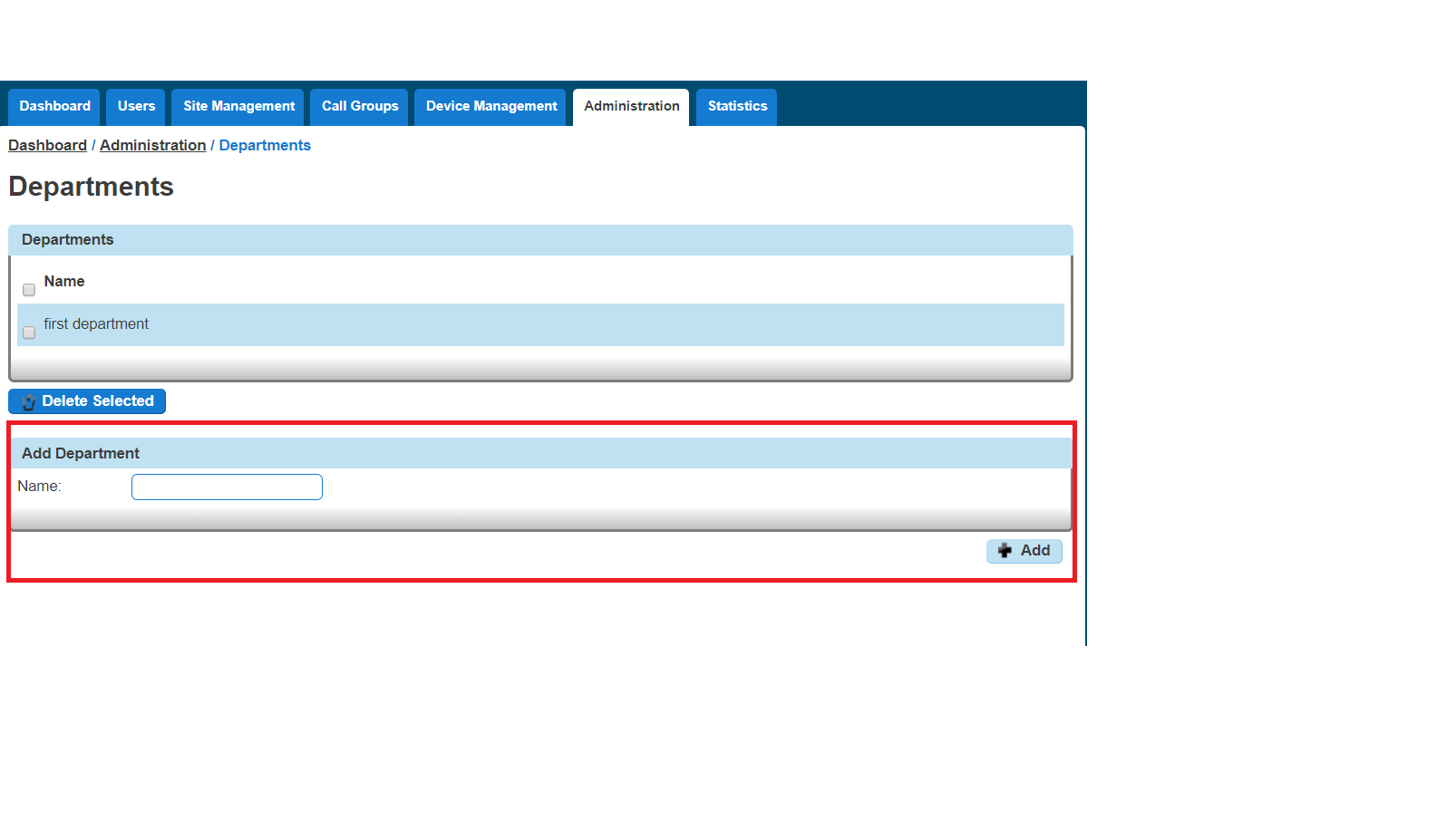
Click the “Administration” option and then select “Departments”. Enter the name of a department and click “Add”
Delete Departments #
Step 1
Log into the Gamma Portal and go to Provisioning and Service Management, Hosted, Horizon and Horizon Manage Company.
Step 2
Select your account and login to the company that you want by using the “Actions” button and selecting “Login to Horizon”.
Step 3
Click the “Administration” option and then select “Departments”.
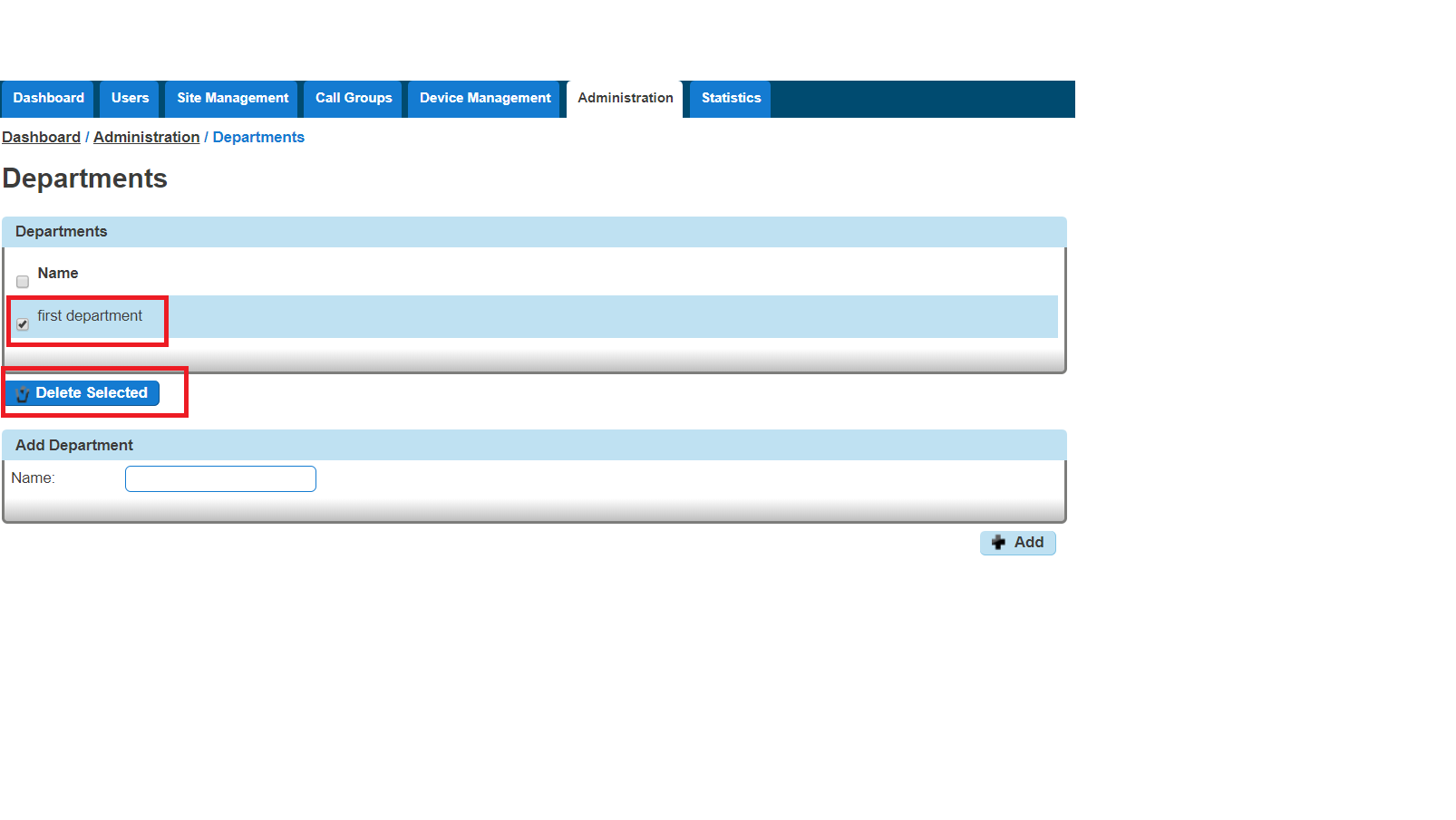
Select the Department that you wish to delete by using the tick-box next to it and then click “Delete Selected”.
Add/Remove Users from Departments #
Step 1
Log into the Gamma Portal and go to Provisioning and Service Management, Hosted, Horizon and Horizon Manage Company.
Step 2
Select your account and login to the company that you want by using the “Actions” button and selecting “Login to Horizon”.
Step 3
Click the “Users” option and then select “List Users” so you can search for the user that you want add/remove the department for.
Locate the user and click the “Edit” button.
Step 4
On the “Profile” table you can select the Department of a user. If you wish for a user not to be assigned to a department then select the option “None”. Click Save.