
As the company administrator, you have the ability to allow a user to use a pre-configured hot desk where a phone is available for a user to login to.
Hot Desk is also referred to as “Hotelling”.
If you are using a Polycom SoundPoint 450 or SoundPoint 650, when hot desking the extension will appear as the guest’s extension number. For every other handset it will still appear as the host’s extension number, even if the guest is logged in.
By default, all users Hot Desk Options are disabled for security purposes. When switched on, it provides the ability for all devices in all locations under one Company to be used in a hot desk environment. You can disable a user from being set up as a host device.
Switch Hot Desking On/Off #
To switch Hot Desking either on or off you do this based on the handset that is associated with the user.
Step 1
Log into the Gamma Portal and go to Provisioning and Service Management, Hosted, Horizon and Horizon Manage Company.
Step 2
Select your account and login to the company that you want by using the “Actions” button and selecting “Login to Horizon”.
Step 3
Go to “Users” and “List Users” and locate the user that you want to have the handset available for hot desking for and then click the “Edit” button.
Step 4
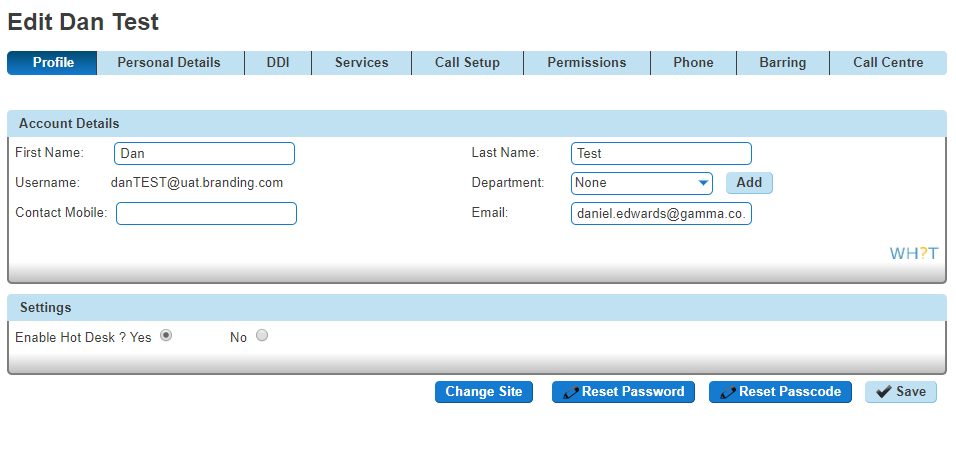
On the “Profile” tab you should make sure that the “Enable Hot Desk” is set to yes or no.
Login to a Hot Desk as Administrator #
A Company Administrator can give a user a hot desk. To do this,
Step 1
Log into the Gamma Portal and go to Provisioning and Service Management, Hosted, Horizon and Horizon Manage Company.
Step 2
Select your account and login to the company that you want by using the “Actions” button and selecting “Login to Horizon”.
Step 3
Go to “Users” and “List Users” and locate the user that you want to have the handset available for hot desking for and then click the “Edit” button.
Step 4
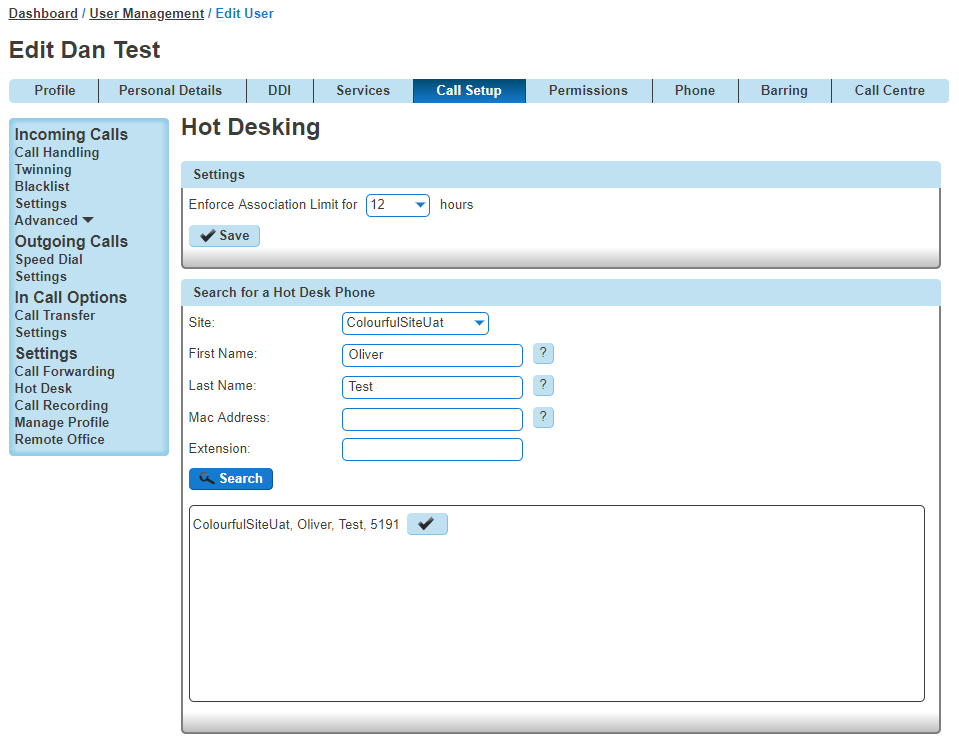
On the “Call Setup” tab select “Hot Desk” under Settings. From here you can search for a handset on the site using any of the following search criteria:
- First Name
- Last Name
- MAC Address
- Extension
Click on the blue tick to start an association between the user (guest) and the handset (host).
End Hot Desk Association as Administrator #
Step 1
Log into the Gamma Portal and go to Provisioning and Service Management, Hosted, Horizon and Horizon Manage Company.
Step 2
Select your account and login to the company that you want by using the “Actions” button and selecting “Login to Horizon”.
Step 3
Go to “Users” and “List Users” and locate the user who is hot desking and then click the “Edit” button.
Step 4
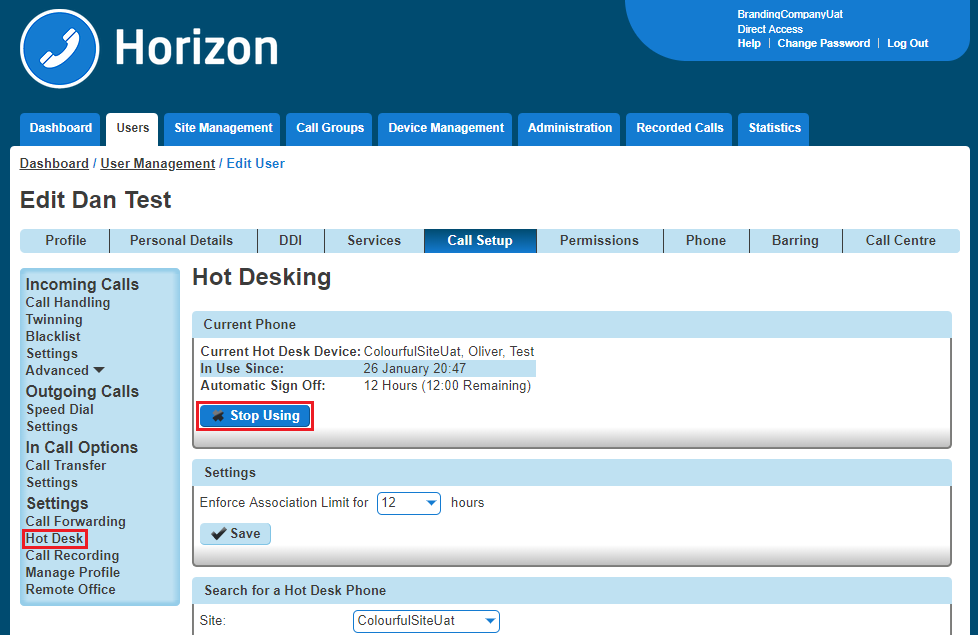
Click the “Call Setup” tab and “Hot Desk” under the Settings section. From here click “Stop Using” to end the association.
Log In to a Hot Desk as a User #
Step 1
Log into the Horizon Portal and log in as a user.
Step 2
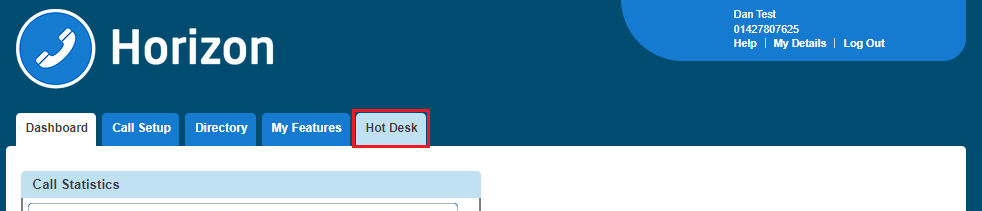
From the menu bar select ‘Hot Desk’.
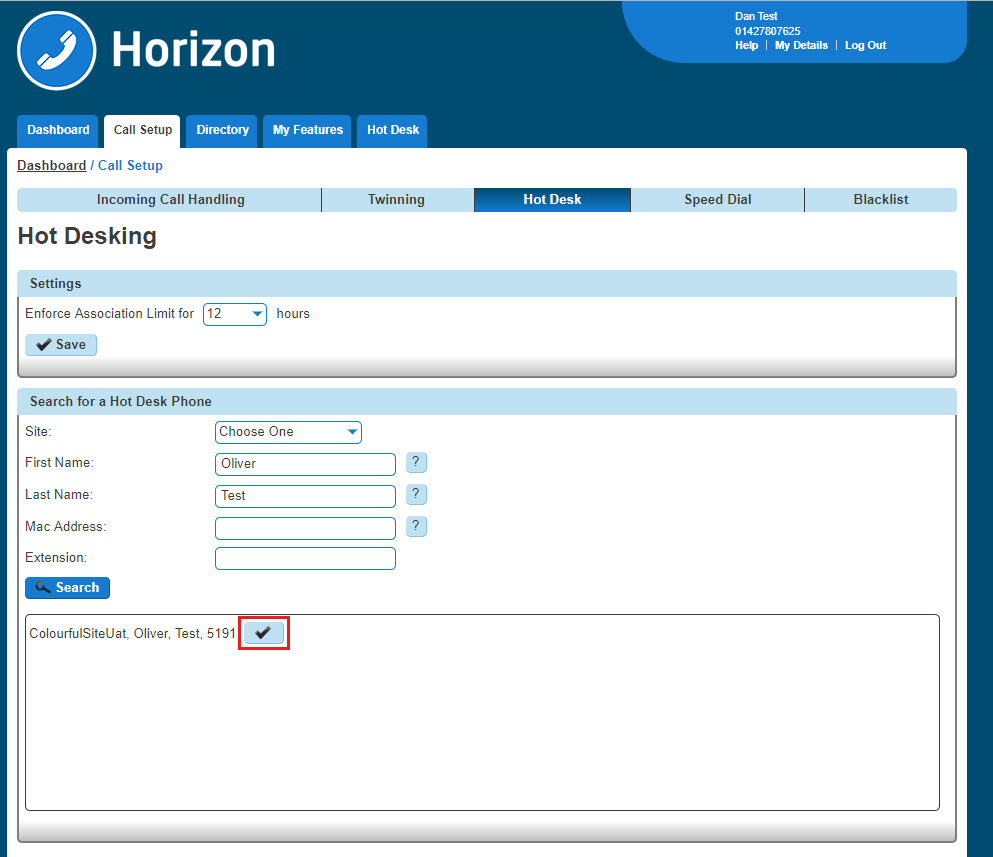
Step 3
From here you can search for a handset on the site using any of the following search criteria:
- First Name
- Last Name
- MAC Address
- Extension
Click on the blue tick to start an association between the user (guest) and the handset (host).
Log In to a Hot Desk using a Polycom Handset #
Step 1
On the Polycom handset you should see a “GuestIn” button. Press this.
Step 2
Enter the Voice Portal user ID and Voice Portal Passcode and press OK.
Step 3
If successful, the GuestIn button will become “GuestOut”
Log In to a Hot Desk using a Cisco Handset and the Voice Portal #
Step 1
Dial the Voice Portal from the handset that the user wishes to hot desk into.
If the user is already associated with the device, simply enter the passcode credentials.
If the user is not associated with the device, the user will need to press * to log in with credentials that aren’t currently associated with the handset.
Step 2
Select Option 7 – “Access Hoteling”
Please note the Cisco Cisco MPP series will NOT support hoteling.
Step 3
Select one of the following options:
- 1 – the operator will check if there is an ongoing associated with this Host
- 2 – the Guest will associate with the Host
- 3 – the Guest can end the association with the Host.
Step 4
Once the association has been made with the Host phone, Guests using the Polycom Soundpoint 450 and Soundpoint 650 will see their own extension number on the Host device display. Guests using other handsets will continue to see the display name and extension of the Host.
Login will disassociate after 24 hours.