
Signing in #
To log into Horizon, you will need your Horizon username and client password. These are sent out to you in separate emails by your Company Administrator. Your client password is different to the password you use to log into the Horizon Portal. The client password is randomly generated by Horizon and cannot be changed. However, once you’ve logged into the client, you stay logged in until you go to log yourself out. You can copy and paste this password from your emails by highlighting the password and selecting “Copy” or “Paste” – the Horizon client allows you to paste your password in. You can tap the little “eye” icon in the password text box to view your password to make sure that this is correct. Enter your username and password and tap “Sign In”. | 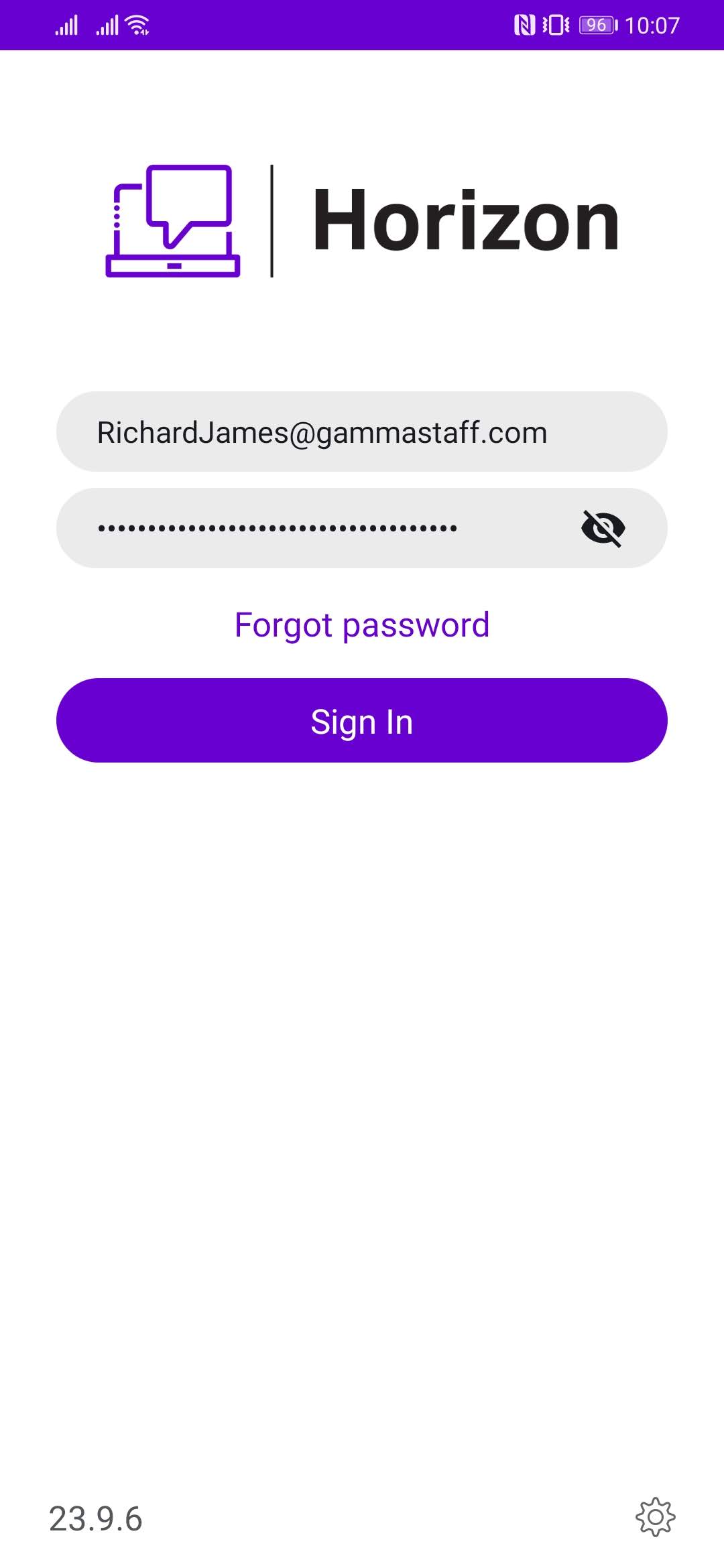
|
I’ve forgot my password #
If you have forgotten your client password, you can request that this is reset by clicking the “Forgot password” link.
This link takes you to a page where you enter your Horizon username and your email address. If we hold these details and they match on the Horizon system, a new client password will be emailed out to you.
If these details don’t match what is on the Horizon system, you will need to contact your Company Administrator.
The client is saying my password is incorrect #
On the rare occasion that you have reset your password and it still doesn’t work, we recommend that you complete the “Forgotten password” steps one more time before contacting your Company Administrator.
Call History #
Once you’ve logged in, the first screen you’ll see is your Call History. This is all calls made and receive from your Horizon account, so will include calls made and received by any desk phone or other Horizon client. This will also show calls received into any call groups that you may be in. An arrow pointing to a south-west position signifies an incoming call, and an arrow pointing north-east signifies a call you’ve made. If you have missed a call, the number and arrow will show red. Black is a connected call.
You can tap any of these entries and then click “Call” to call someone back. You can delete your call history by clicking on the trash can in the top right-hand corner. Deleting your call history cannot be retrieved by your Company Administrator and will delete your call history across all your Horizon devices and clients. | 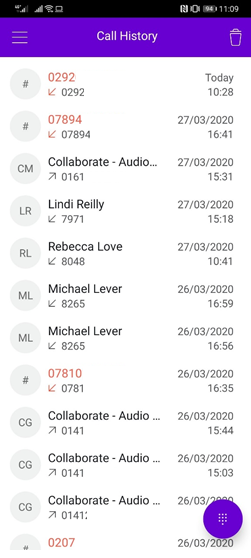
|
Making a Call #
If you wish to make a call, you can use the Call History tab. Alternatively, you can make a call in one of the following ways:
Directory #
First click the three-line icon in the top left of your screen and then select “Directory” from the list. | 
|
Using the Directory, you can search your entire Horizon Company, any contacts that your Company Administrator has set up in the corporate directory and your device contacts (providing you have allowed Horizon access to your phone contacts). Type in the contact you wish to search for, and Horizon will search all these directories in one go. | 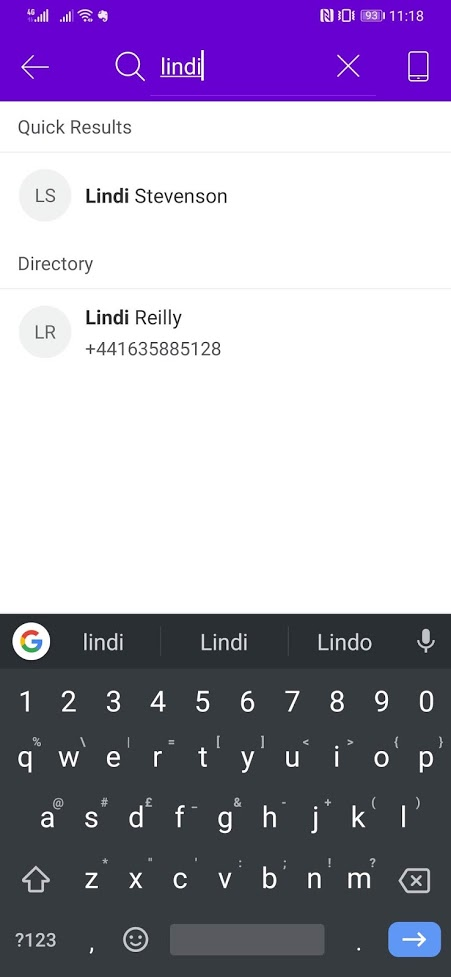
|
Tap a contact and then you can click “Call” to make a call to your contact from your Horizon client (this is also true of contacts found in your phone’s contacts). If the contact is taken from your mobile device, it will show “from Android Contacts” under the name. You can still call the person using your Horizon client, even though it is taken from your Android contact list. If you want a new Directory entry adding so all users can have access to this, contact your Company Administrator and request that they add an entry to the Corporate Directory. | 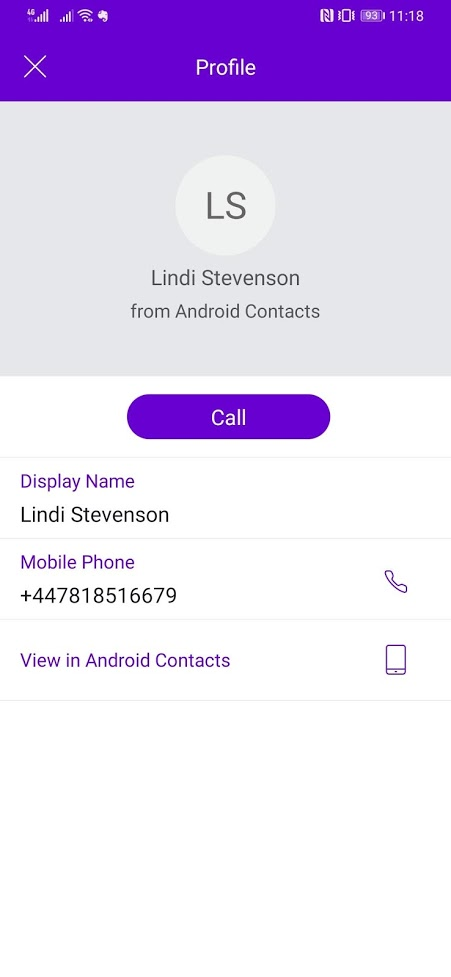
|
Dialpad #
The dialpad allows you to enter a telephone number to be called, much like using your mobile phone or desk phone. Just type in the numbers and press the call button. If you’ve made a mistake, you can press the backspace icon. | 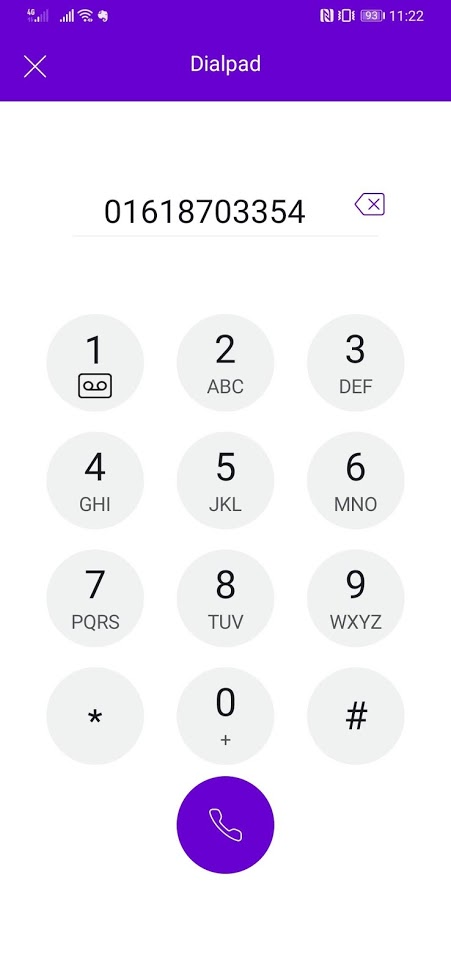
|
Horizon will alert you when you are called. You can answer the call by simply hitting the green answer button. You can choose to decline a call by tapping red decline button. | 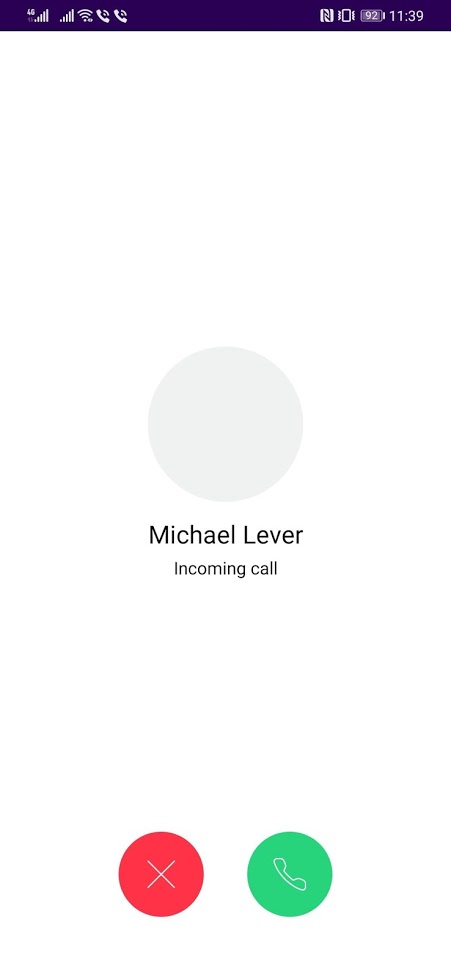
|
If you have a desk phone or another client (for example, a PC client or desk phone) which you’ve answered a call on, you can “pull” the call to your mobile client by selecting “Pull Call” from the menu. The client will then “pull” the call from the other Horizon device to your mobile client for you to continue the call. All you need to do is select the three-line icon in the top left of the application and then “Pull Call”. | 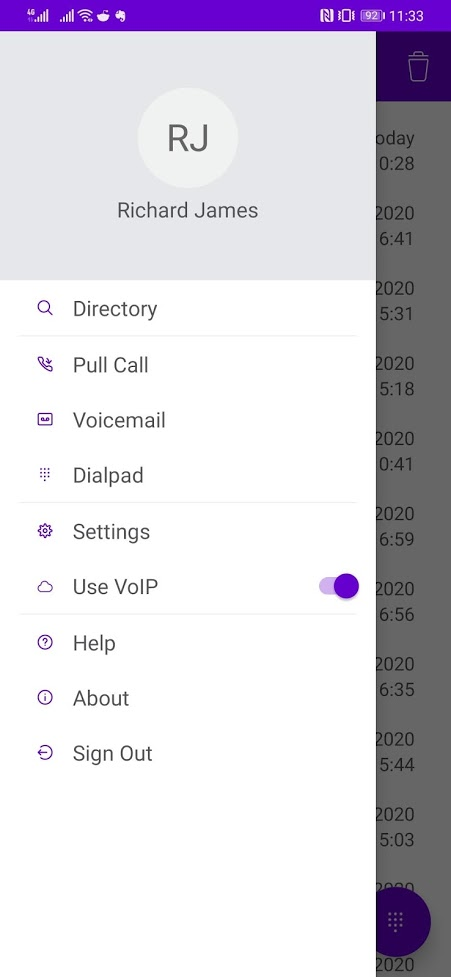
|
Voicemail #
If your Company Administrator has set you up to have Voicemail, you can access your voicemails through the Horizon client. You will receive a push notification for every new voicemail left. Tapping the notification will take you straight to your Voicemail. | 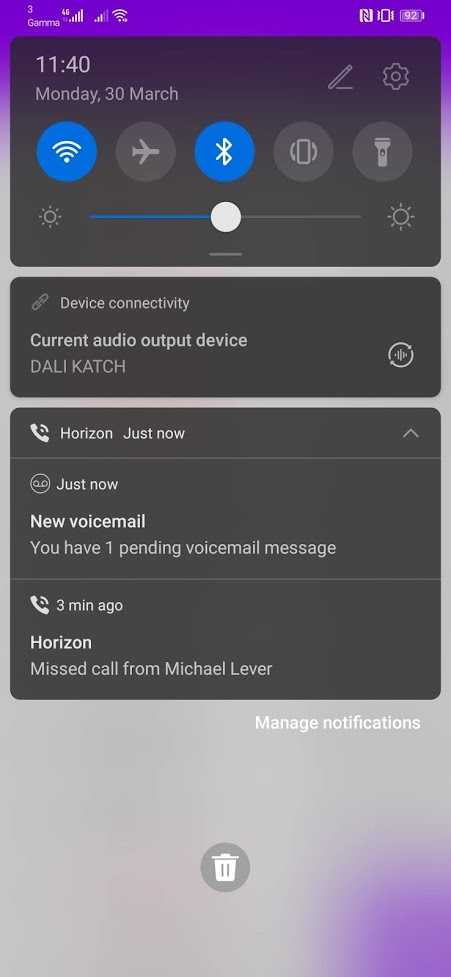
|
Alternatively, tapping the three-line icon in the top left corner of the application, you can then select “Voicemail”. Tap on the voicemail and you can then listen to the voicemail, call them back, mark the voicemail as new again or delete the voicemail. Once a voicemail has been deleted, this cannot be retrieved by your Company Administrator. | 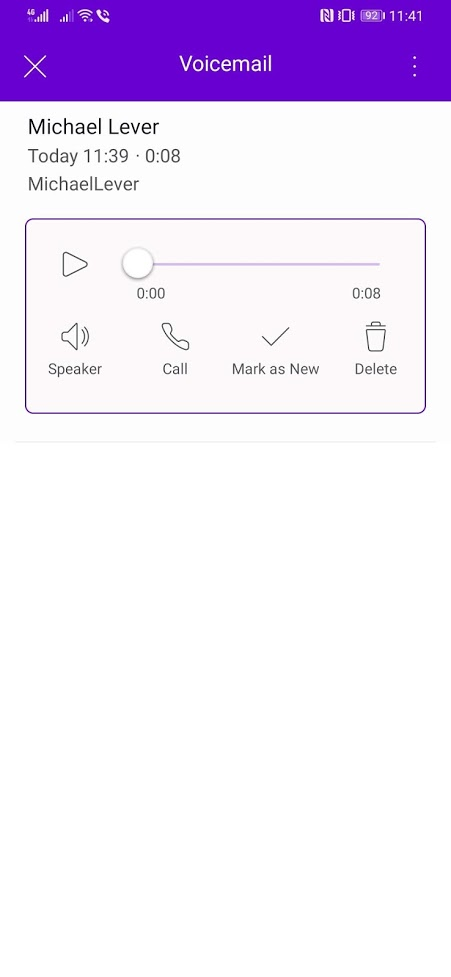
|
Horizon Settings #
You can edit some of your Horizon settings from the mobile client. These are:
Do Not Disturb #
Do Not Disturb (DND) allows you to turn off call notifications to all your Horizon devices and clients whilst enabled. When you have enabled this setting, all calls will be sent to whatever call treatment you have set up for “Call Busy”. To confirm what this is, you should speak to your Company Administrator. | 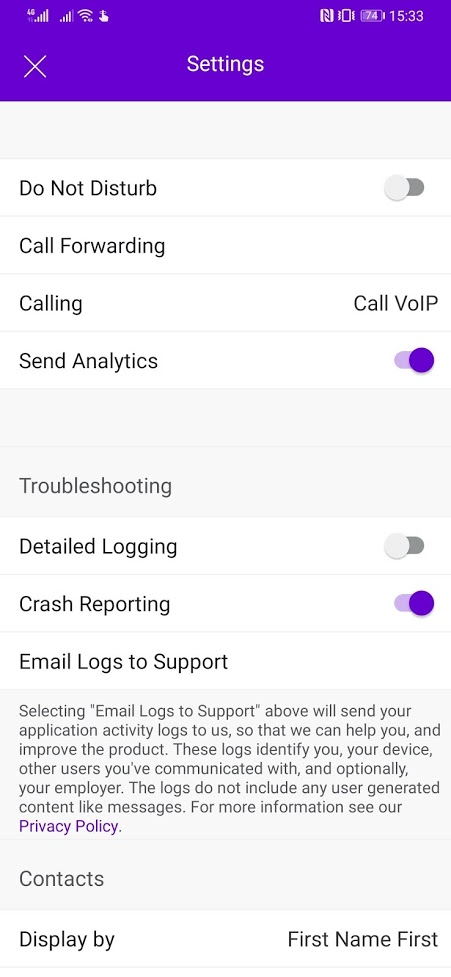
|
Call Forwarding #
You can enable all your calls to be forwarded to any other telephone number (it does not have to be a Horizon number), and then you can activate / deactivate this from here. If “Ring Splash” is enabled, then your mobile client will ring once before your call is forwarded to the number you’ve entered. | 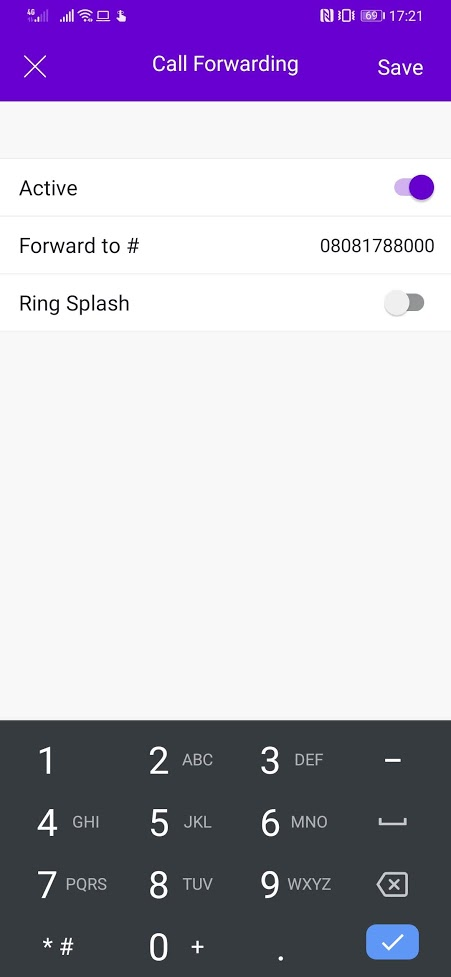
|
Calling #
Use VoIP #
Use VoIP should always be enabled for the Horizon mobile client to work. This setting can be adjusted if you are a Horizon Connect user and you wish to use your mobile’s native dialler to make and receive calls (“On” is the setting you should have if you want to receive calls on your client, and “Off” if you are wishing to use Connect). | 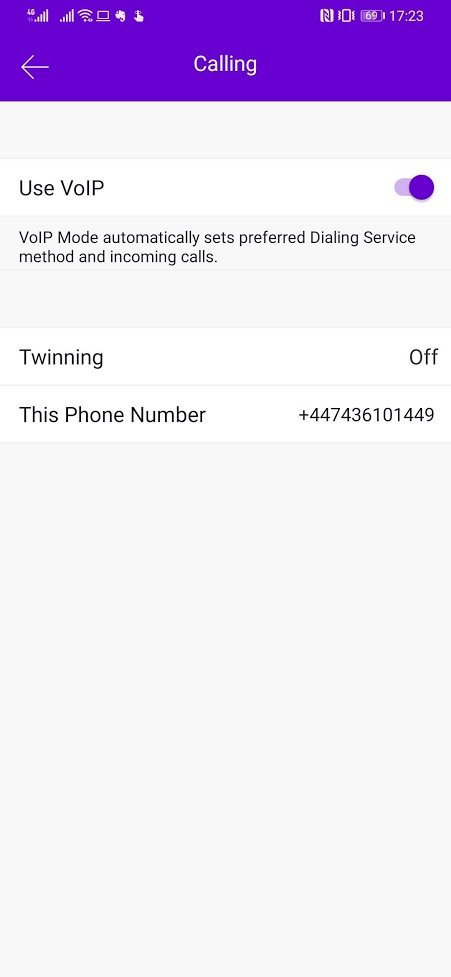
|
Twinning #
Twinning allows you to ring up to 5 other numbers at the same time when you receive a call. This could be a home office or another mobile phone. If numbers have been set up already by your Company Administrator, these will appear in the list here.
You can add “locations” (numbers) by tapping “Add Location”. Enter the telephone number and you can then activate this number selecting “Active”. To deactivate twinning, you set Active back to disabled. Call ControlThe Call Control setting is for those users that also use Horizon Integrator or Horizon Receptionist. You can control the call from your Integrator or Receptionist client whilst on a twinned call if this Call Control setting is enabled. For example, you answer the call on your twinned number and Call Control is set to “On”, you can put a call on hold using your Integrator or Receptionist client. If this setting isn’t on, then Call Control from the Integrator client won’t work. | 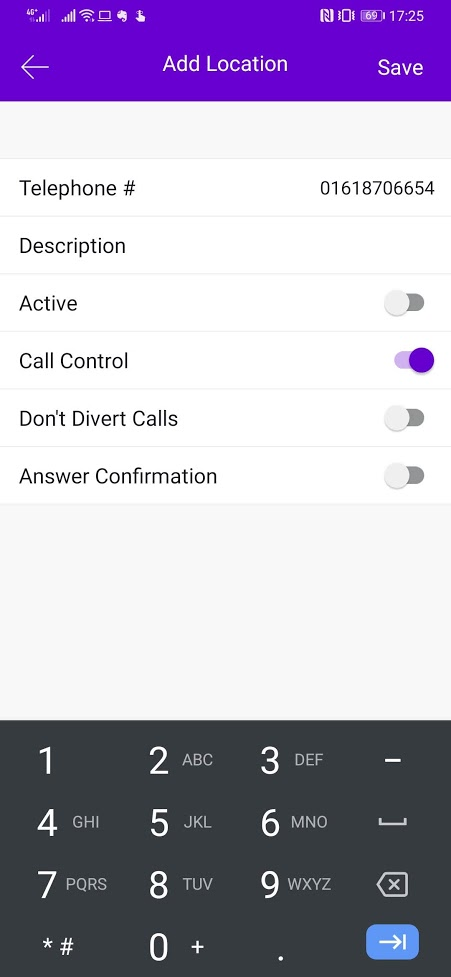
|
Don’t Divert Calls #
Don’t Divert Calls prevents Horizon from forwarding calls when the call hits the twinned destination, and will only send calls that are received directly by the user (i.e. those where the Directory has been used, or a calling user has dialled the extension or telephone number).
Answer Confirmation #
When you answer the call on your twinned device, Horizon will ask the user if they can press a button to confirm that you have answered the call before the call is connected. This is to stop a voicemail on a twinned destination “answering” the call in error.
Alert All Locations #
Alert All Locations is for users that have Integrator and are using the “Click-to-dial” feature of Integrator. This will alert all your Horizon devices on the click to dial call, including your mobile client.
Send Analytics #
To help improve user experience of the application, we track how the client is used. We do not track or record any calls, just actions that has a user has done (i.e. how many times a user has accessed the dialpad, and how they got to the dialpad). All this data is anonymised and is only used to improve the user experience. You can choose to turn this off here.
We use Google Analytics to help us improve the client by analysing how the client is used. Google Analytics uses cookies to collect standard Internet log information and visitor behaviour information in an anonymous form. The information generated by the cookie about your use of the website (including IP address) is transmitted to Google. This information is then used to evaluate how people use the website and to compile statistical reports on website activity for Gamma.
We will never (and will not allow any third party to) use Google Analytics to track or to collect any Personally Identifiable Information (PII) of the client. Gamma sends non-personally identifiable user ID numbers to allow us to link this data to other data sources to better analyse the use of our services. We will not pass any PII to Google as part of this process.
Troubleshooting Settings #
If you do have problems with your mobile client, your Company Administrator may ask for your logs. These are available in the Troubleshooting section. Detailed Logging captures more information for support teams to understand exactly what is happening, however the standard logging is suitable in most cases. If your Company Administrator asks for detailed logs, this is where you would switch this on. “Email logs to support” will open your mobiles default mobile email application with the logs. From here you should enter the email address that your Company Administrator gives you to send the logs to. | 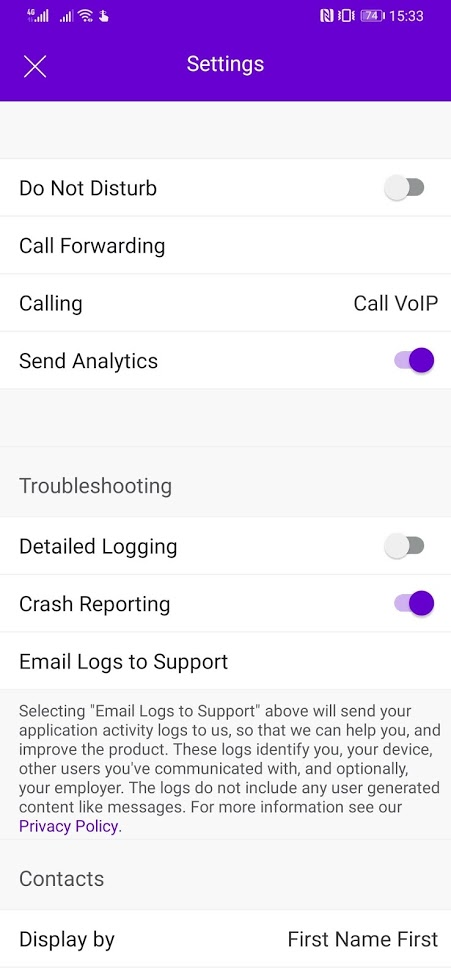
|
Contact Display #
You can change your contact display settings here. You can:
Display contacts by either First Name First (i.e. “Richard James”) or Last Name First (i.e. “James, Richard)
Sort contacts by either First Name or Last Name
Short Name Format can either display a user’s Full Name, First Name & Last Initial, First Initial & Last Name, First Name Only or Last Name Only. The default is “Full Name”
