Do Not Disturb (DND) allows users to set their phone as unavailable so that incoming calls are given a busy treatment.
Users have the option to activate and deactivate the service by dialling a feature access code, configuring the service via their web interface, or pressing the DND button on phones which support it.
This can be activated and deactivated using the handset directly (if applicable), the voice portal or the Horizon Portal by a user or Company Administrator.
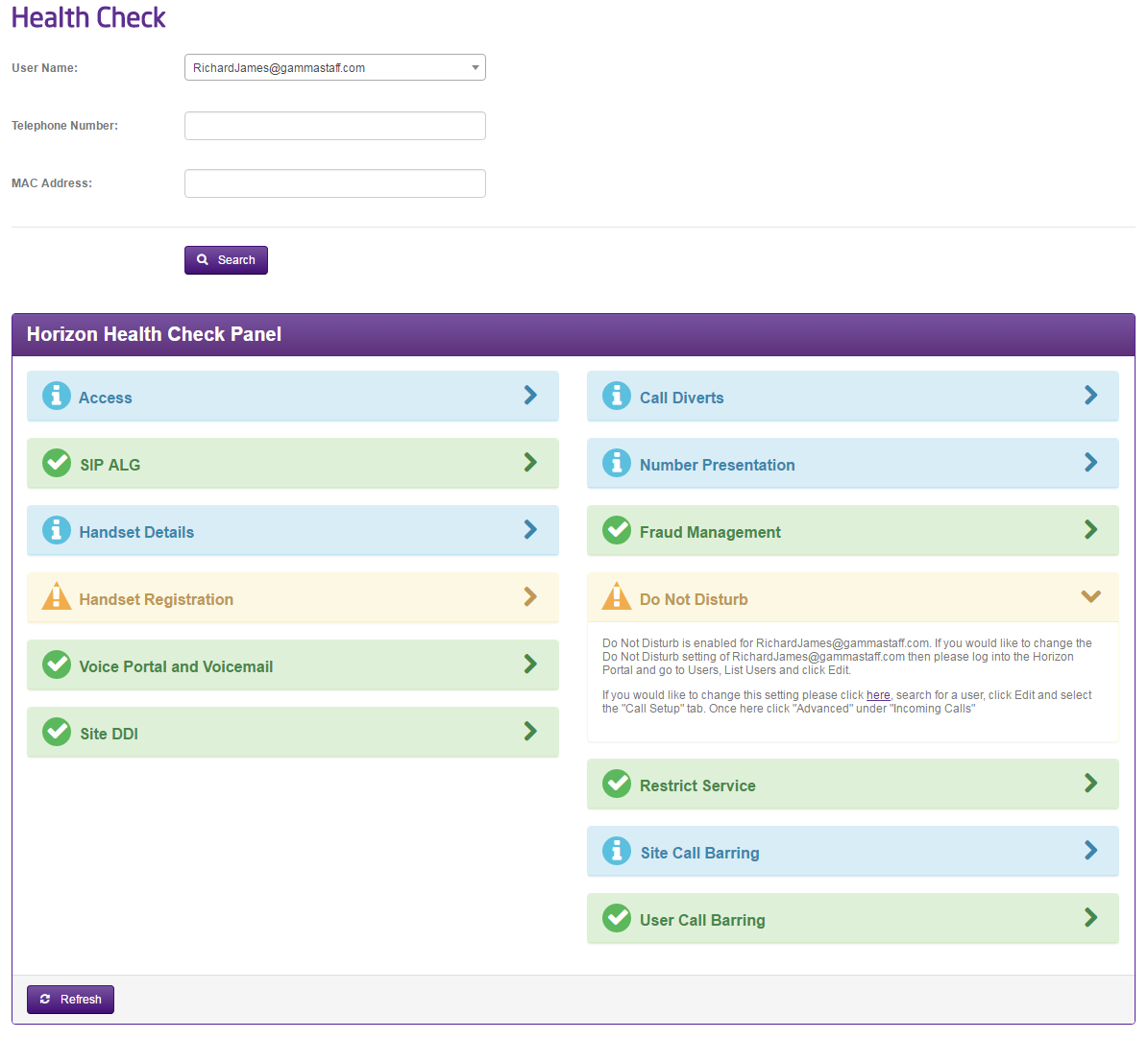
You can check to see if a user has Do Not Disturb switched on by using the Horizon Health Check.
Shortcodes #
Activate – *78
Deactivate – *79
Enabling Do Not Disturb (DND) from a Handset or Soft Client #
To see Do Not Disturb (DND) from your Horizon handset you can select the “DND” soft key on your Horizon Handset or dial *78 to switch on and *79 to switch off.
From the Soft Client go to the settings menu and select “Do Not Disturb”. For more information on the Soft Clients please see our user guides on the Knowledgebase.
Enabling/Disabling Do Not Disturb (DND) from the Administrator Portal #
A Company Administrator can put a user into Do Not Disturb (DND) by completing the following steps.
Step 1
Log into the Gamma Portal and go to Provisioning and Service Management, Hosted, Horizon and Horizon Manage Company.
Step 2
Select your account and login to the company that you want by using the “Actions” button and selecting “Login to Horizon”.
Step 3
Click the “Users” option and then select “List Users” so you can search for the user that you want to enable/disable do not disturb for.
Locate the user and click the “Edit” button.
Step 4
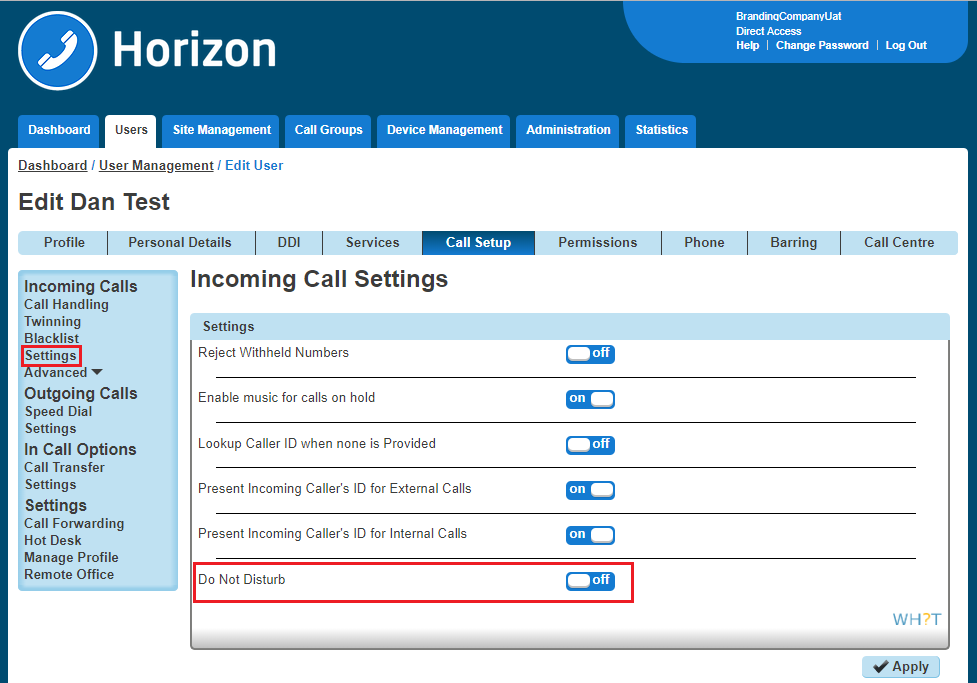
Click the “Call Setup” tab and then select “Settings” under Incoming Calls. From here you can set Do Not Disturb to be on or off for the user.