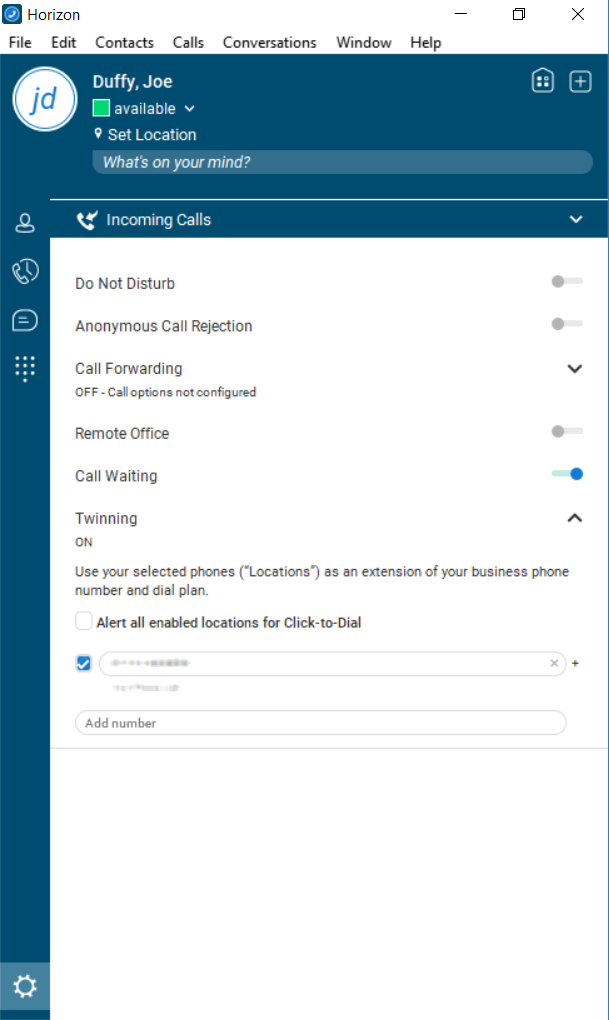
Twinning is a service that allows a user to use their mobile phone, or any other non-Horizon handset to behave as if it were part of the Horizon Company.
For example, if someone calls your Horizon handset and you’ve got twinning to a mobile phone enabled, your mobile will ring at the same time as your Horizon handset, allowing you the freedom to answer your calls from anywhere.
Enable/Disable Twinning as an Administrator #
Step 1
Log into the Gamma Portal and go to Provisioning and Service Management, Hosted, Horizon and Horizon Manage Company.
Step 2
Select your account and login to the company that you want by using the “Actions” button and selecting “Login to Horizon”.
Step 3
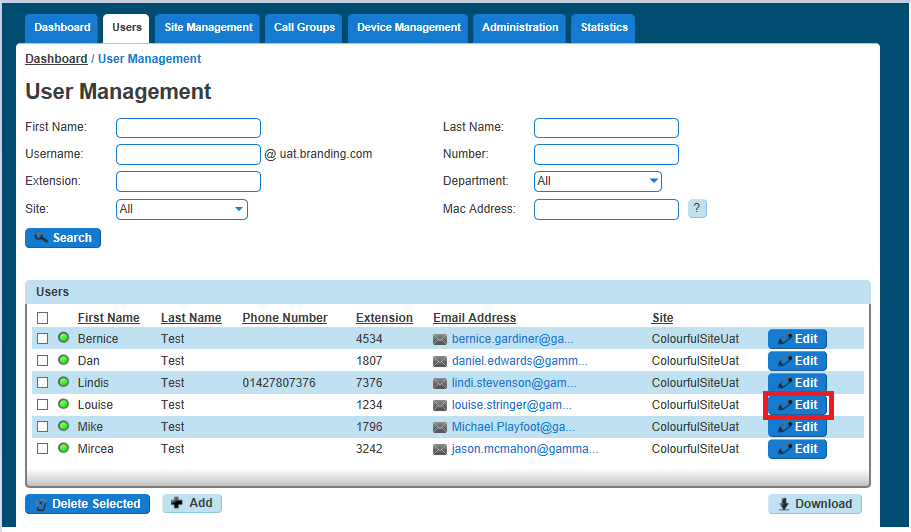
Click the “Users” option and then select “List Users” so you can search for the user that you want Twinning set up for.
Locate the user and click the “Edit” button.
Step 4
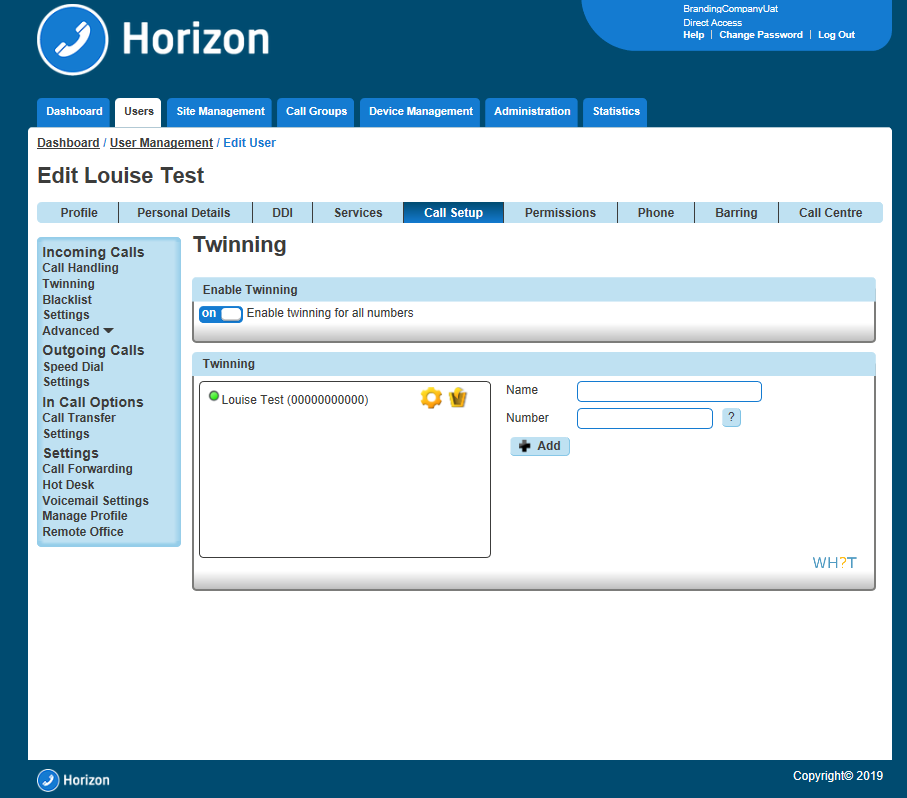
Click “Call Setup” and then under the “Incoming Calls” section of the side menu, click “Twinning”.
From here you can enable twinning; enter the number(s) you’d like to add for a user. You can have up to 7 numbers per user.
Enable/Disable Twinning as a User #
Enable/Disable Twinning using the Horizon Portal #
Step 1
Log into the Horizon Portal and log in as a user.
Step 2
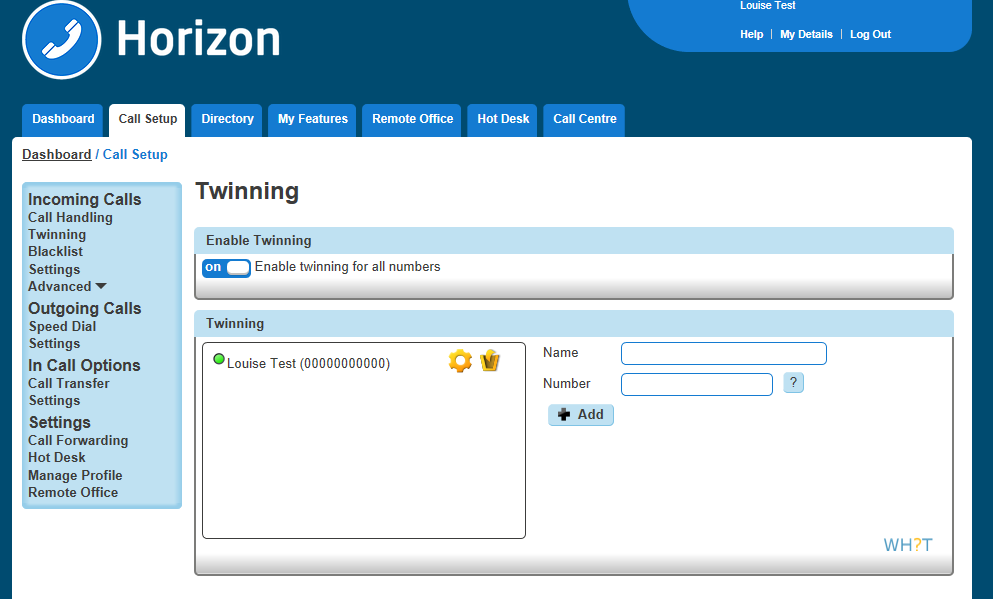
From the menu bar select Call Setup and the Twinning.
From here you can add a new number and give it a name (though you don’t have to) and then click Add. You can also delete any numbers by clicking the Bin icon.
If there is a green light next to a number, this means that twinning is active with that number. A red light means that this is switched off.
A user can have up to 7 numbers set up for twinning.
Enable/Disable Twinning using the PC Soft Client and Collaborate #
A user can enable/disable Twinning using the PC Client by clicking the Settings icon, Incoming Calls and then Twinning and then you can either select “Configure” to add/delete numbers or by selecting/de-selecting an already configured number.